Adding Attachments to Test Executions
The Attachments tab at the test case level shows files added on both the test case detail screen and the test execution screen. If you delete an attachment from the test case detail screen (test case or test step), it is also removed from the execution screen.
The Attachments screen at the test step level shows files added to test steps on both the test case detail screen and the test execution screen.
Adding Attachments to Test Case
Add attachments from test case detail (test case and test step) as well as test execution screen (test case execution and test step execution).
To upload multiple files at a time as attachments, perform these steps:
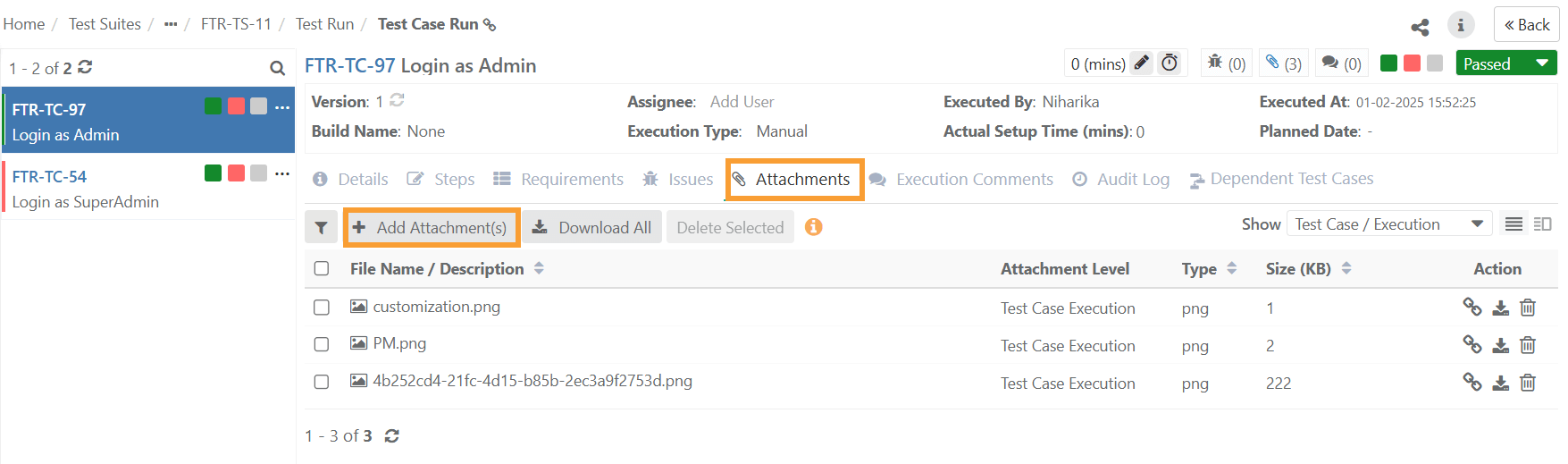
Go to the Test Execution Detail View.
Select the test case on the left panel and open the tab. Alternatively, click the Attachment icon at the top.
Click .
Attach the file by:
Browse the file to attach
Drag and drop the file to attach
Copy and paste the attachment
Click .
Filter the attachments by Attached from the test case detail screen (Test Case and Test Step Attachment) or Attached from Execution Screen (Test Case and Test Step Execution Attachment).
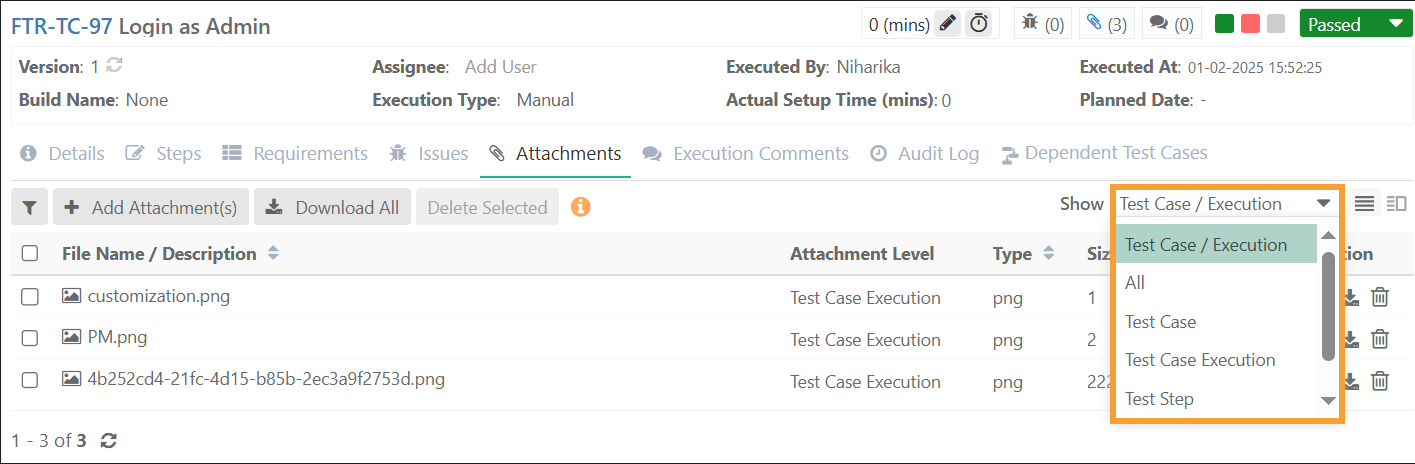
The color of the Attachment icon changes when a file is attached to the test step.
Adding Attachments to Test Step
The Attachments screen at the test step level displays attachments added on the test case detail screen (Test Step Attachment) as well as attachments added on the test execution screen (Test Step Attachment).
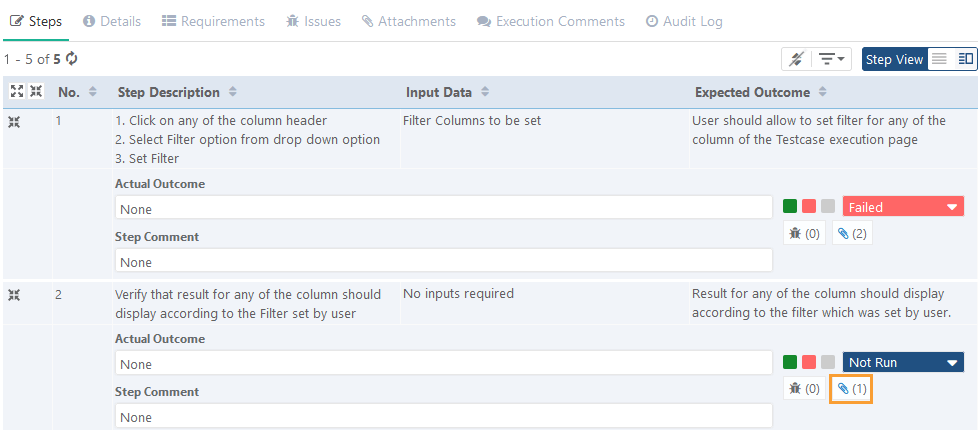
Open the Test Execution Screen.
Go to the Detail View.
Open the Steps tab.
Click the Attachment icon at the right for the particular test step.
Attach a file by:
browse the file to attach
drag and drop the file to attach
copy and paste the attachment
Filter the attachments by - Test Step Attachment (from test case details) and Test Step Execution Attachment (from test execution screen)
The color of the Attachment icon changes when a file is attached to the test step.
Deleting Attachments
Delete attachments in accordance with their Attachment Level. If an attachment added from the test case detail screen (test case attachment and test step attachment) is deleted, it also gets removed on the execution screen.
Note
Only attachments added at the Test Case and Step Execution Level can be deleted from the execution screen.
Attachment Level | Attachment can be deleted from |
|---|---|
Test Case | Test Case Detail Screen |
Test Step | Test Case Detail Screen |
Test Case Execution | Execution Screen - test case level |
Test Step Execution | Execution Screen - test step level |
Deleting a Single Attachment
To delete a single attachment, click Delete for individual attachments.
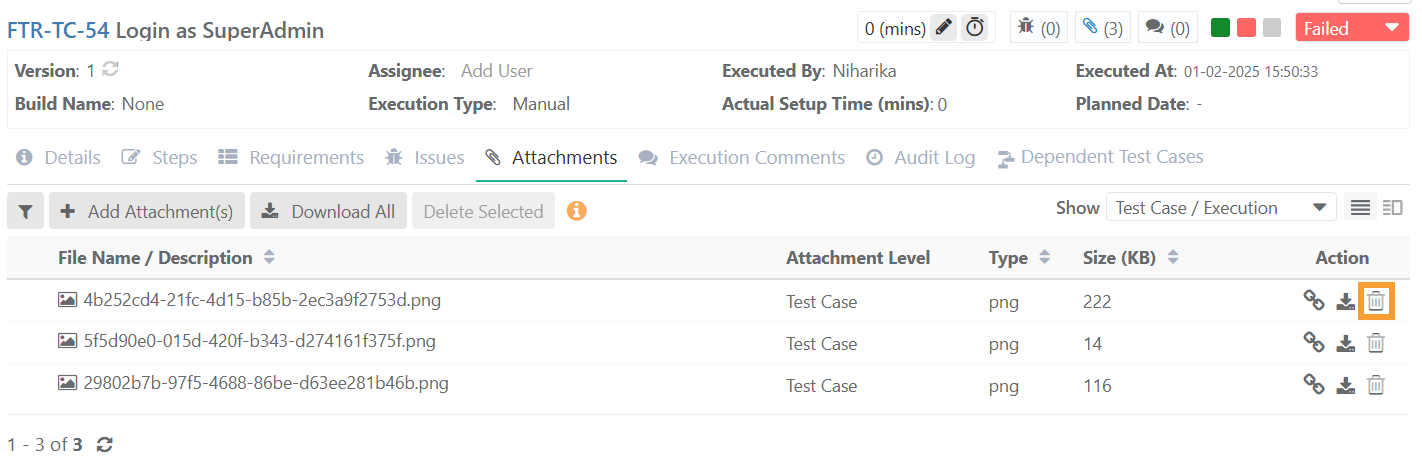
Deleting Bulk Attachments
To delete multiple attachments at a time:
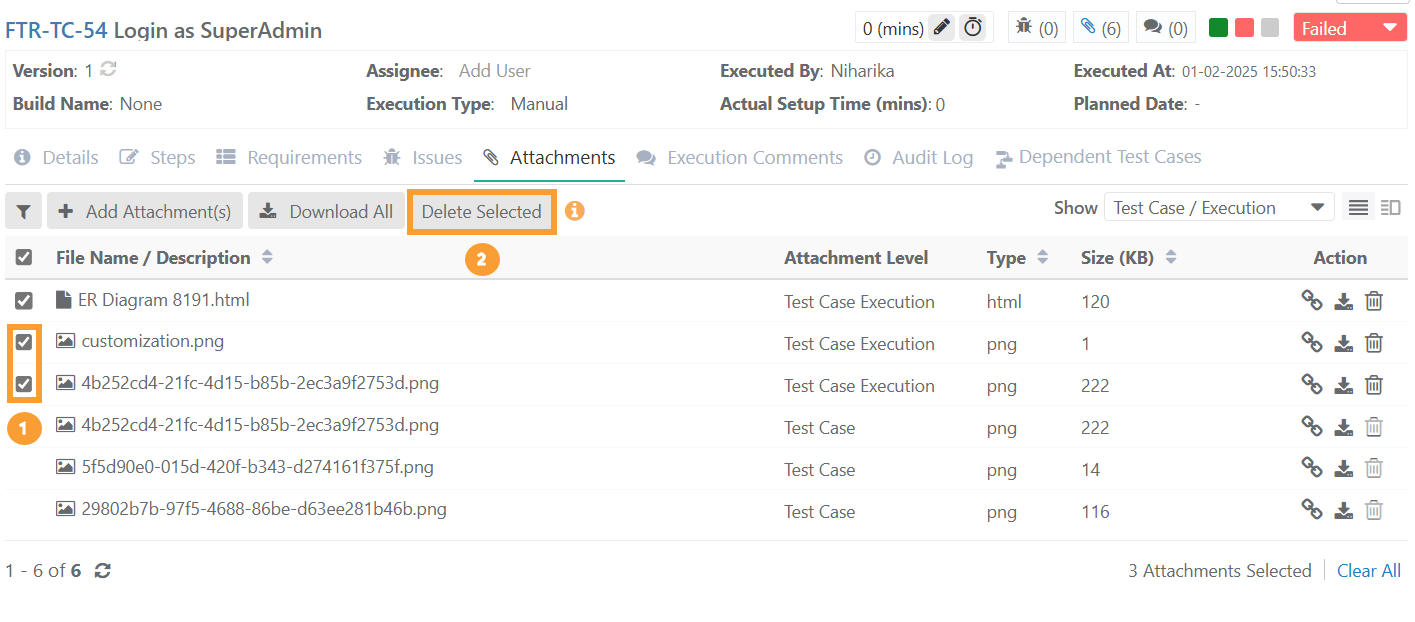
1. Select the attachments you want to delete.
2. Click .