Manage Recorded Session
After you perform testing through QMetry Exploratory Testing, you can view, filter, edit, and delete the recorded sessions in QMetry Test Management.
Pre-requisite
You need View rights for Exploratory Testing in the project to view the sessions recorded by other users of the project.
View Recorded Sessions
To view recorded sessions, perform the following steps:
Log in to QMetry Test Management.
Go to Automation and select Exploratory Testing.
The screen displays a list of recorded sessions. Each record displays the session name, the platform on which it was tested, the status, and the date and time it was recorded. The screen also displays the count of recorded events, the tags, and the defects logged for the session. Select a session to view its recordings.
Filter Session Records
If the list of recorded sessions is long, apply a filter to find the session you want.
Field | Description |
|---|---|
Session Name | Search for a test scenario by its session name. |
Platform | Search for a test scenario by the platform specified when it was created. |
Status | Search for a test scenario by its status: Progress, Completed, or All. |
Created By | Search for a test scenario by the user who created it. |
Recorded Duration | Specify the date range within which the test scenario was created. |
Select the session whose recordings you want to view. The next screen shows the following tabs: Screens, Document, Event Detail, Defects, Console Logs, and Network Logs.
Edit Session Details
You can update the session name, note, and tags from the session details pane.

To edit session details, perform the following steps:
Select More Details to expand the upper panel. The session detail fields open in editable mode.
The session detail fields open in editable mode.
Point to a field. The pencil icon appears for editable fields.
Change the session name, note, or tag as needed.
Delete Sessions
You can delete test sessions that you no longer need. To delete a session, perform the following steps:
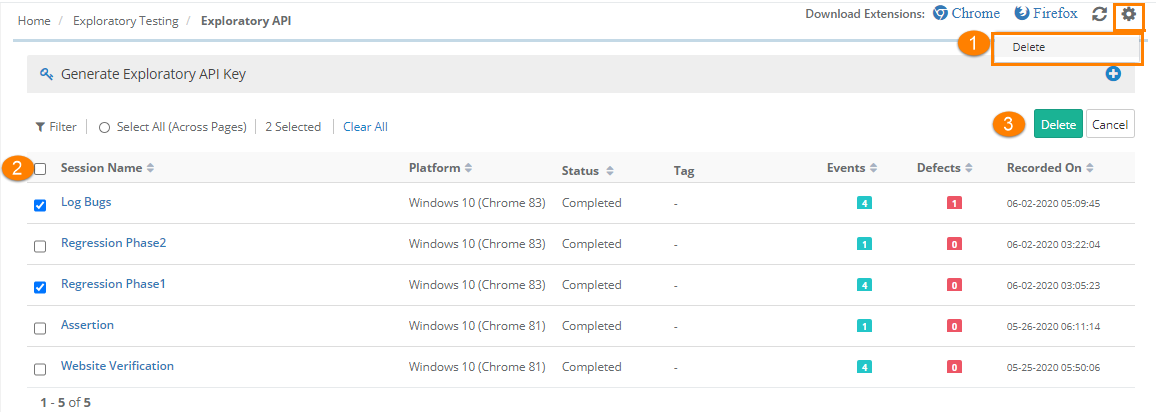
Go to Exploratory Testing under Automation.
Select the cog icon and select Delete.
The check boxes for the session records appear.
From the test records, select the check boxes for the tests you want to delete.
Select Delete.