Archive and Unarchive Bulk Folders
Archive or unarchive multiple folders at once using bulk operations. These operations apply to all the assets within the selected folders, so you can manage large sets of test assets in a single action.
Archiving Folders in Bulk
Archive multiple folders at once to hide them and their assets from the active view.
Note
Archiving a folder archives all the underlying assets.
To archive folders in bulk, perform the following steps:
Go to the folder panel.
Select the cog (⚙️) icon.
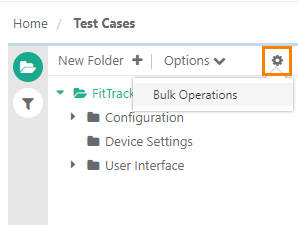
Select Bulk Operations.
Select Archive Folders and click Next.
Select the folders to archive and click Archive.
Click Yes to confirm.
Working with Archived Folders
After you archive folders, you can view them and perform further operations on them.
View Archived Folders
To view archived folders, go to Filters and select Show Archived Items.
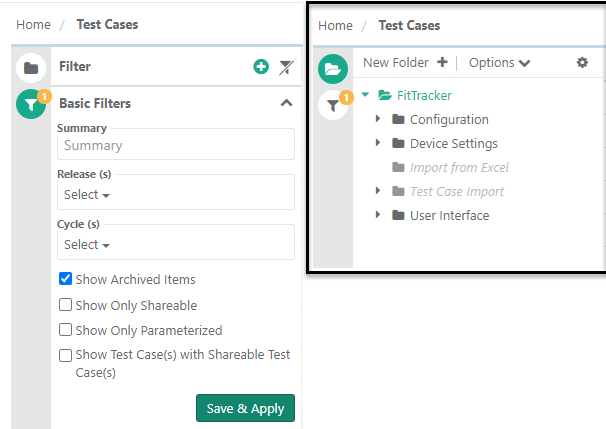
Available Operations
You can perform the following operations on archived folders:
Unarchive, to restore the selected folders.
Delete, to permanently remove the archived folders.
Unarchiving Folders in Bulk
Unarchive multiple folders at once to restore them and their assets to the active view.
Note
Unarchiving a folder unarchives all assets within.
To unarchive folders in bulk, perform the following steps:
On the folder panel, click the Cog (⚙️) icon.
Click Bulk Operations.
Select Unarchive Folders and click Next.
Select the folders to unarchive and click Unarchive.
Click Yes to confirm.