Managing Releases and Cycles
Important
Permissions for release or cycle can be managed from Roles under Customization.
Create and clone project operations will auto-create the new project's default release and cycle.
Add a release or cycle to a project for organizing and managing test activities.
Adding Release
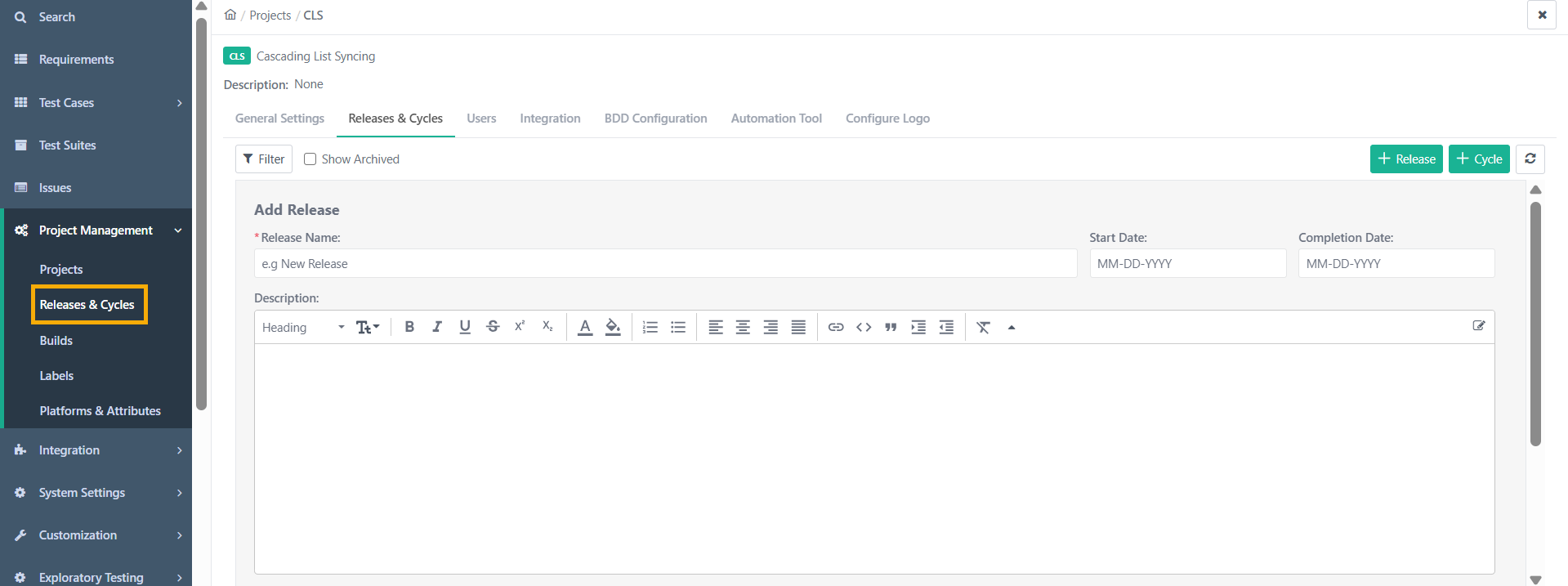
During project creation, QMetry assigns a default release to each project. To add new releases to a project, perform the following steps:
Go to the Release or Cycle tab and click the + icon.
Select Add Release.
Enter the release name, release start date, and release completion date in the respective fields, then click .
The new release will be added to the list.
Adding Cycles under a Release
Cycles are added in respective releases. During project creation, a default cycle is assigned. You can add a new release to the project by following these steps:
Click the + icon and select Add Cycle.
A blank row appears to enter cycle details.
Select the Release.
Enter the Cycle Name, Cycle Start Date, and Cycle Completion Date in the respective fields.
Click .
Expand Release to view Cycles added under it.
Expand Release to view Cycles added under it.
Note
Users cannot archive or delete the system's default release or cycle.
Users with project rights assigned to their role can access the project.
Editing Release or Cycle
Update a project's release and cycle. Here are the steps to edit release or cycle.
Hover the mouse over the field values, and the Edit icon becomes visible.
Click the Edit icon and change the required value.
Save individual values after editing.
Archiving Release or Cycle
Archive releases or cycles that are no longer needed. Archiving does not delete the release or cycle; it just hides the project.
Note
Archiving a release or cycle requires Editing Release or Cycle Permissions.
Deleting a Release or Cycle
Follow these steps to delete a release or cycle:
Archive the Release or Cycle: To begin, click in the Action column of the respective grid to archive the release or cycle.
Confirmation and Archival: The release or cycle is archived after confirmation. Archived releases or cycles cannot be edited.
Action Options: Once archived, the Action column displays and ".
Delete the Release or Cycle: To delete, click . Remember, a release or cycle must be archived before it can be deleted.
Note
If a Release is archived, then all the Cycles under the Release are also archived.