Creating New Requirements
Note
Admins can set "Create" rights for the requirement module from Roles.
To create a new requirement, perform the following steps:
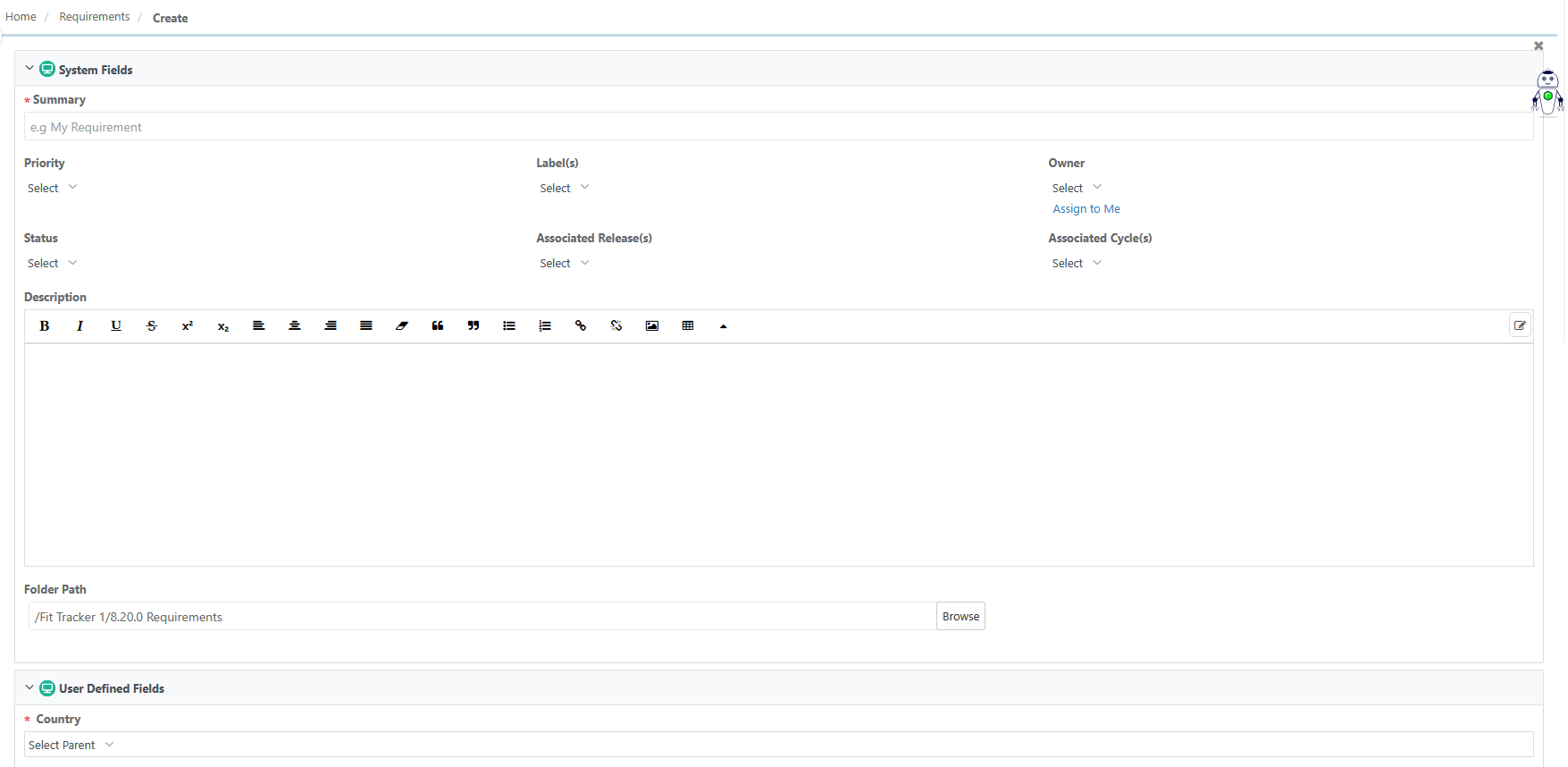 |
Go to the Requirements module.
Select a folder.
Click .
Enter the system fields and user-defined fields data.
Click .
Enter System Field Details
Field Name | Description |
|---|---|
Summary | Provide a brief overview of the test case. |
Priority | Assign a priority level: Minor, Major, Blocker, Critical, or Trivial. |
Label | Select one or more labels to classify the test case. |
Status | Select status: New, Approved, In Progress, and Ready to Review. |
Owner | Assign an owner from users with access to the current project. |
Associated Releases | Link the requirement to one or more releases. |
Associated Cycles | Associate the requirement with cycles corresponding to the selected releases. |
Description | Add a description (plain text or rich text). Read more about Rich Text Editor. |
Folder Path | Select a specific folder for storing the assets during creation. (Default is root folder) |
Enter User-Defined Fields
Add user-defined fields to the requirements from Lists. UDFs appear on the Create Requirement and Requirement Details screen.
Enter BDD Details
Note
This section appears only if you have added a version control repository under BDD configuration tab in Projects.
Enter Risk Analysis Details
Note
This section appears only if the super admin has enabled the risk analysis field for the project from Projects.
Enter risk analysis details like Risk Type, Risk Category, Likelihood, and Impact. Based on these values, the system calculates the risk priority number, and the extent of testing required. Risk-Based Testing help in organize requirements and conduct testing based on priority.