Auto-Generate Test Cases and Steps Using QI
The Auto-Generate Test Cases and Test Steps (AGT) feature in QMetry uses AI to automate test case creation from the Requirement module or the Test Case module. It accelerates test case authoring, reduces manual effort, and allows you to focus on test execution and validation.
With this AI-powered feature, you can perform the following tasks:
Create new test cases.
Generate test case description.
Write pre-condition.
Generate test steps and details in existing test cases.
After generation, you can review and modify the details as needed. You can either update the current version of the test case or create a new version of the test case.
How Does the QI Model Work?
The QI model extracts relevant context from the requirement description or user-provided descriptions to generate modular test cases with comprehensive coverage.
You can review, modify, and approve or reject the generated test cases before adding them to the test case library.
Note
Best Practices for Generating Accurate Test Cases
To ensure QI generates test cases with higher accuracy, the requirement description should adhere to the following guidelines:
Structured Use Case Format: Present the requirement description in a well-structured use case format to facilitate accurate test case generation.
Acceptance Criteria: Include clear acceptance criteria that define the expected behavior of the feature. Decomposing stories into detailed criteria improves the accuracy of the generated test cases.
Contextual Analysis: Providing these details allows QI to analyze the context and identify relevant test scenarios.
Description Length: Descriptions should be between 30 and 8000 words.
Description Details: Description shall provide sufficient detail for QI to analyze requirements, identify critical scenarios, and generate accurate test cases.
Linking: The system automatically links the test cases to their corresponding requirements.
Set up and use AGT
Setting up AGT involves two levels of configuration. First, a super admin enables the feature for the QMetry instance. Then, a project admin configures how AGT behaves for each project. The sections below follow that order.
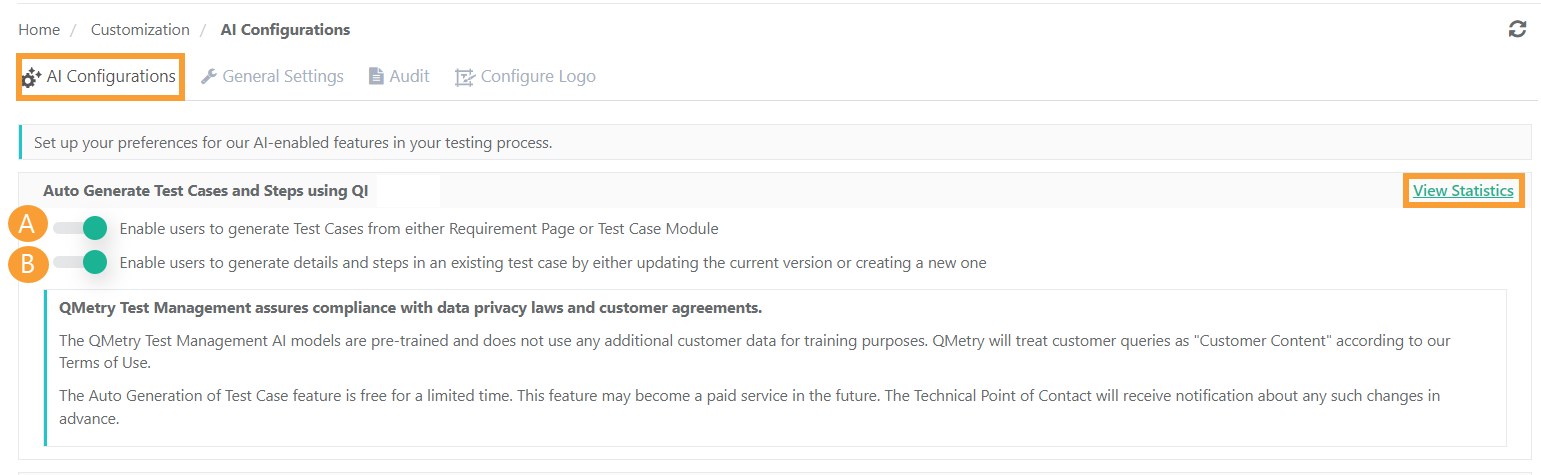
To activate AGT, the super admin must enable it for the QMetry instance in System Settings.
 |
After you enable the feature, refer to the following guidance:
Autogenerate Test Cases: Learn How to generate test cases from the requirement or test case module.
Autogenerate Test Details and Steps: Find instructions for Adding details and steps to an existing test case, either by updating the current version or creating a new one.
Step 1: Enable AGT for the QMetry instance
AGT is disabled by default. Only a super admin can turn it on. To enable AGT for the instance, perform the following tasks:
Go to System Settings.
Select General Settings & Audit.
Select the AI Configurations tab.
Under Auto Generate Test Cases and Steps using QI, turn on the options you want to allow:
Allow users to generate test cases from the Requirement page or the Test Case module.
Allow users to generate details and steps in an existing test case, either by updating the current version or by creating a new version.
Note
Only a super admin can access and configure QMetry Intelligence Configuration.
The QI feature is disabled by default.
Step 2:Configure AGT at the Project Level
After the super admin enables AGT for the instance, the project admin configures the feature for each project. The configuration differs depending on whether the requirements are internal or imported from an external tracker such as Jira, or Azure.
For Internal Requirements
 |
For internal requirements, QI auto-generates test cases based on the requirement description.
By default, the Description box is set as the pre-condition source for auto-generated test cases. The QI model refers to the requirement description when a requirement is selected, or to the description that you enter when you choose to add one manually.
For External requirements imported from Jira or Azure
 |
When a project is integrated with an external tracker such as Jira and syncs stories in QMetry, the project admin can configure up to two issue fields as input descriptions for test case generation.
For example, Description, Business Rules, or Acceptance Criteria. To configure these input fields, perform the following tasks:
Go to Project Management.
Select Integration.
Select Requirements.
Select Configurations, and then choose the input fields.
You can configure an additional field from the Manage Fields option, available under Customization.
 |
Monitor AGT usage with View Statistics
Admins can monitor how AI features are used to generate and update test cases across projects. Select View Statistics to review the following details:
Test case created using QI.
Test cases updated/versioned using QI.
Approximate time saving.
Users using the AGT feature.
Projects using the AGT feature.