Create Test Cases Using BDD Feature File
Behavior-Driven Development (BDD) is a software development approach that uses natural language to define expected behavior. It helps ensure the software works as intended and improves collaboration through a shared understanding of requirements.
Import test cases from .feature files following Gherkin syntax from:
From the Requirement module (BDD section)
Test Case module
While creating or updating a test case
Permissions Required
The following table lists the permissions required for each operation:
Operation | Required Permissions |
|---|---|
Import Test Case | Import, Test Case View, Create, Edit and Archive |
Update Test Case | Test Case View, Edit and Archive |
Link Test Case | Test Case View, Edit and Archive |
Link Requirement | Test Case View, Requirement View and Edit |
Add Labels | Configuration View and Modify |
Parameter | Configuration View (reuse), Modify (create) |
File Requirements
Supported file:
Format:
.featurefilesSize: 10 MB
Import Limit: 1 file or a ZIP file with up to 10
.featurefiles.
Note
The feature is tested within the Cucumber framework.
Mapping Feature File with Fields for Import
The following table lists the mapping of the feature file with QMetry fields:
Scenario | Mapping | Example/Note |
Scenario Name | Test Case Summary | It can be a Scenario, Scenario Outline, or Example. |
Feature Name | Test Case Description | - |
Scenario Steps | Test Steps | Includes Keyword and Step Supported Gherkin Keywords
|
Data Table in Steps | Steps Summary |
|
Docstrings in Steps | Part of Step Description in Steps |
|
Tags | Labels | Tags are added as labels. |
@testcasekey | Test Case Key | If the specified key exists in QMetry, the system creates a new version of the test case with updates from the feature file. Define multiple test case keys for a single scenario. 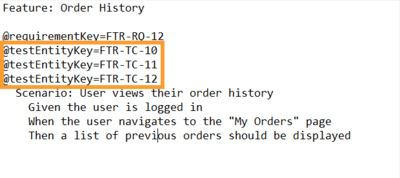 |
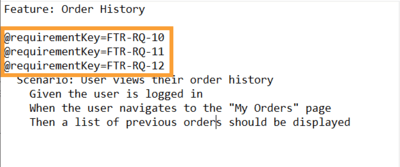
@requirementkey | Requirements |
|
Background Steps (Scenario Level) | Steps | Gets added as initial steps of the test case. |
Background Step (Feature File Level) | Steps - before all the scenario steps i.e Initial Steps of all Test Cases | Gets added as initial steps for all test cases created from the Feature file. |
Rule | Description | Appends to Description along with feature name separated by |
Examples (Scenario Outline) | Parameters | The values listed in the Examples table becomes @Parameters in the test steps and variables becomes Parameters. Parameter and Value Handling
|
Sample Files
Sr. No. | File Content | Download Sample File |
|---|---|---|
1 | Feature File with multiple scenarios | |
2 | Feature File with Scenario Outline | |
3 | Feature file with Scenario and Scenario Outlines | |
4 | Feature file with Rule, Rule Example Cases | |
5 | Feature file with Rule, Scenario Cases & Background | |
6 | Example for Data Parameters under Table Data |
Import Options
During import, the system processes test cases and labels based on the import option selection:
 |
Test Case Key Handling
If a Test Case Key is specified:
Update Current Version
Updates the existing version of the test case.
Applicable only to test cases that are unarchived, not executed, and not approved.
Create New Version
Adds a new version to the existing test case.
Applicable only to unarchived test cases.
Label Handling
If the specified labels are not found in the project:
Create: Adds labels to Configuration and applies them to the test case.
Ignore: Skips missing labels.
Note
Import fails for archived, approved, or executed test case keys.
To create new “Labels” you need “Modify Label” permissions.
Import and Create Test Cases From a BDD Feature File
From the Requirement Module
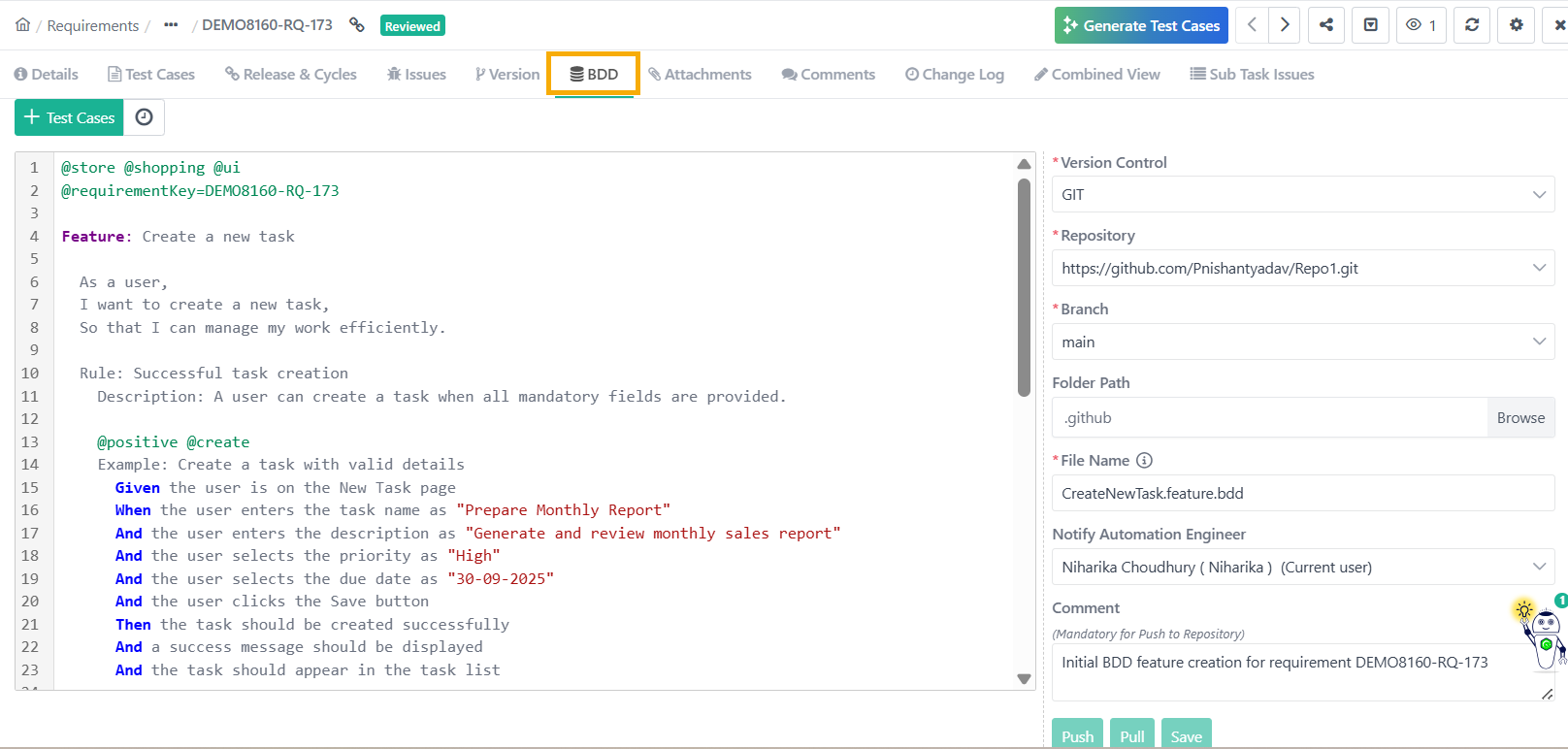
Create test cases from a feature file or Gherkin syntax in the BDD section of the Requirement module.
 |
Note
Configure the BDD section under BDD Configuration tab in Project Settings.
To create test cases from BDD section in requirement module, perform the following steps:
Open the Requirement details page.
Go to the BDD section.
Sync the feature file with the Source Control repository.
Select the feature files associated with the requirement to create test cases.
Fill system and custom fields.
Select import options for Test Case Keys and Labels.
Click Create.
Track import progress in Scheduled Tasks.
Note
All imported test cases inherits the selected field values.
Preferences are saved for future imports.
From Test Case Module
Create BDD test cases by importing a feature file directly from the Test Case module.
Note
Importing feature file from Test Case module does not require BDD Configuration.
 |
To import test cases from a feature file, perform the following steps:
Go to the Test Case module.
Click the Cog (⚙️) icon and select Import from Feature File.
Upload a file.
Fill in the required details.
Select Import Options for Test Case Key handling and labels.
Click Create.
Monitor the import status in Background Jobs section.
Once the import is complete, expand the entry to view test case details. In case of a failure, expand to view the error details.
Using BDD Syntax
Create or update test cases by pasting the Gherkin syntax from a feature file.
Updating an Existing Test Case
Reuse a test case by updating it with new Gherkin syntax from a feature file.
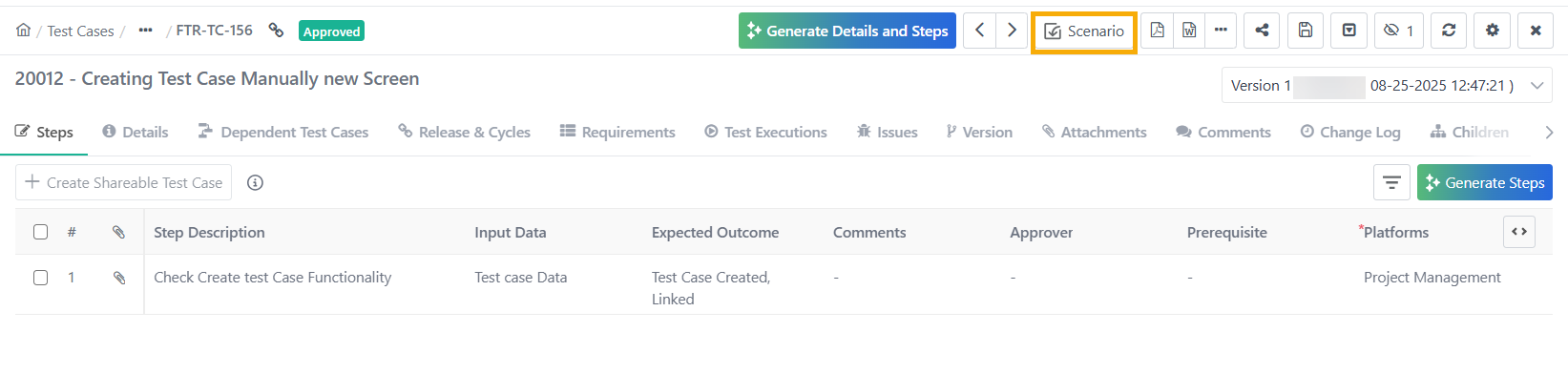 |
To update an existing test case from a feature file, perform the following steps:
Open an existing test case.
Click Scenario.
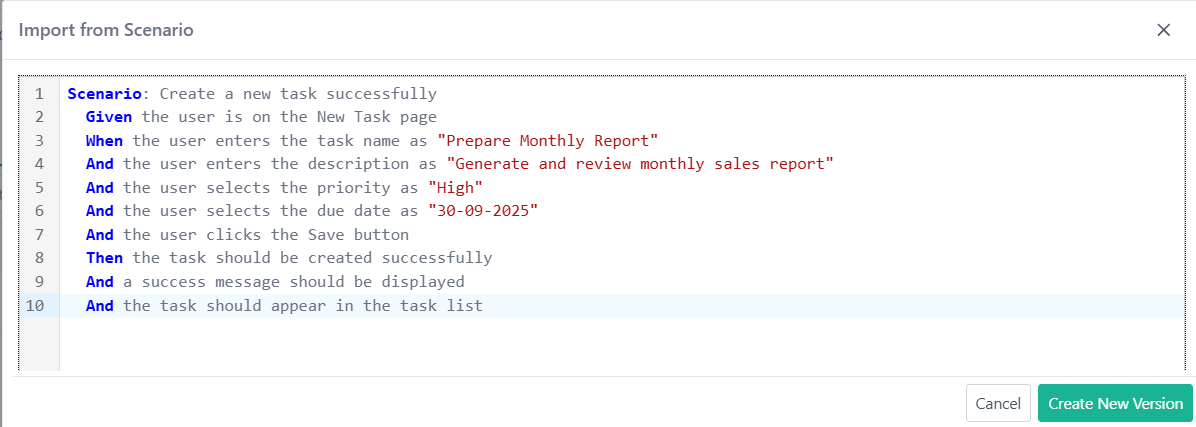
Paste the BDD content.
Select the operation:
Update Current Version
Create New Version
Create New Version keeps the current version and creates a new one with updated details.
Update Current Version overrides and replaces the existing Summary, Description, and Steps with the new details from the feature file.
Creating a New Test Case
To create a new test case from a feature file, perform these steps:
Click New and select Scenario.
Enter a scenario from a feature file and click Import.
Fill in all mandatory fields and enter the test case details.
Click Create.
A new test case is created in the specified folder. If no folder is specified, the test case is created in the root folder.
Note
When creating or updating a test case using a
ScenarioorScenario Outline:The Scenario name is used as the Test Case Summary.
The Steps are mapped to Test Steps.
Any Data Tables or Doc Strings within steps are added to the Step Description.
Only the fields listed above are supported.
Tags, Test Case Keys, and Requirement Keys are not supported in this method.
Known Limitations
When importing test cases from BDD .feature files authored in Cucumber, please note the following limitations:
Gherkin Keywords Are Not Displayed
The system does not display step keywords such as
Given,When,Then,And,*, in the imported test steps.
Data Tables and Doc Strings Not Captured
The system does not support import of data tables and doc strings used within steps into the step description.
Background Steps Not Imported
Backgroundsteps defined in the feature file are currently not imported into the test case.You need to add these common setup steps manually, if required.
Note
Review and manually adjust the imported steps if these elements are critical to their test scenarios.