Cascading List
Project Admins can create Cascading List User Defined Fields (UDFs) with a single level of parent-child hierarchy. These fields allow you to define dependent values, where the available child options depend on the selected parent value.
Note
To create or modify a cascading list, you need customization permissions
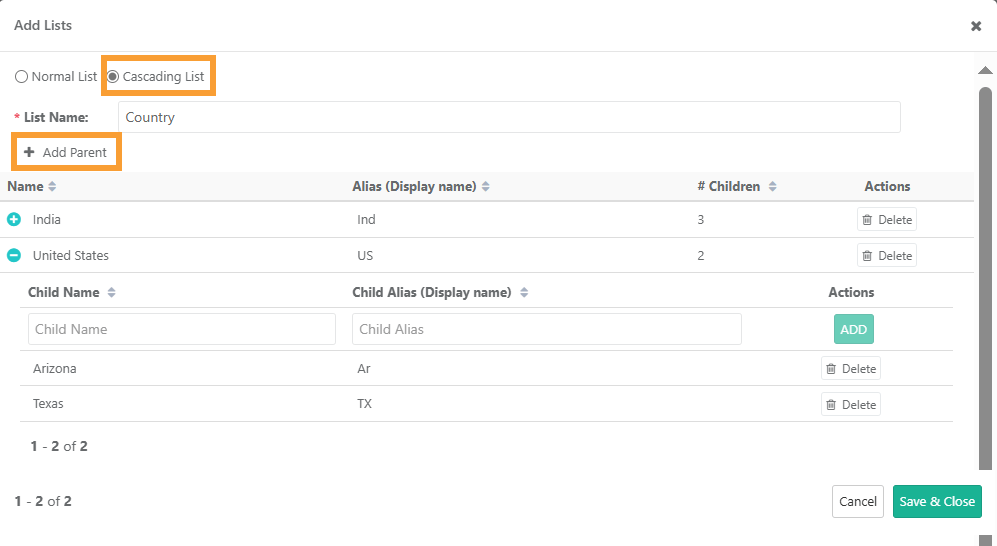
To create a cascading list, perform the following steps:
Select Cascading List and enter the List Name.
Click Add Parent to enter Parent and Child Values.
Click Save and Close.
Note
Each parent must have at least one child.
If you skip the child, the system automatically adds a default child value “No Value.”
Cascading List Operations
You can share cascading select list fields between projects. Cascading List UDFs are supported in the following operations within and across projects:
Copy
Move
Clone Project
Import
Export
Bulk Edit
Moving or copying test assets to another project includes cascading-type custom fields and their selected values, ensuring all data remains intact during these operations.
Cascading lists and their values can be copied or imported between projects, making list management easier for project administrators.
Note
The system preserves parent-child relationships of the cascading select list.
The system retains default values set for parent-child fields during operations within project.
When you copy assets between projects, the system automatically creates any missing parent-child values in the target project.
For copying, you must have Customisation Modify permission in both source and destination projects.
Adding a List Value
When creating a new list, whether normal or cascading, you can add the list values.
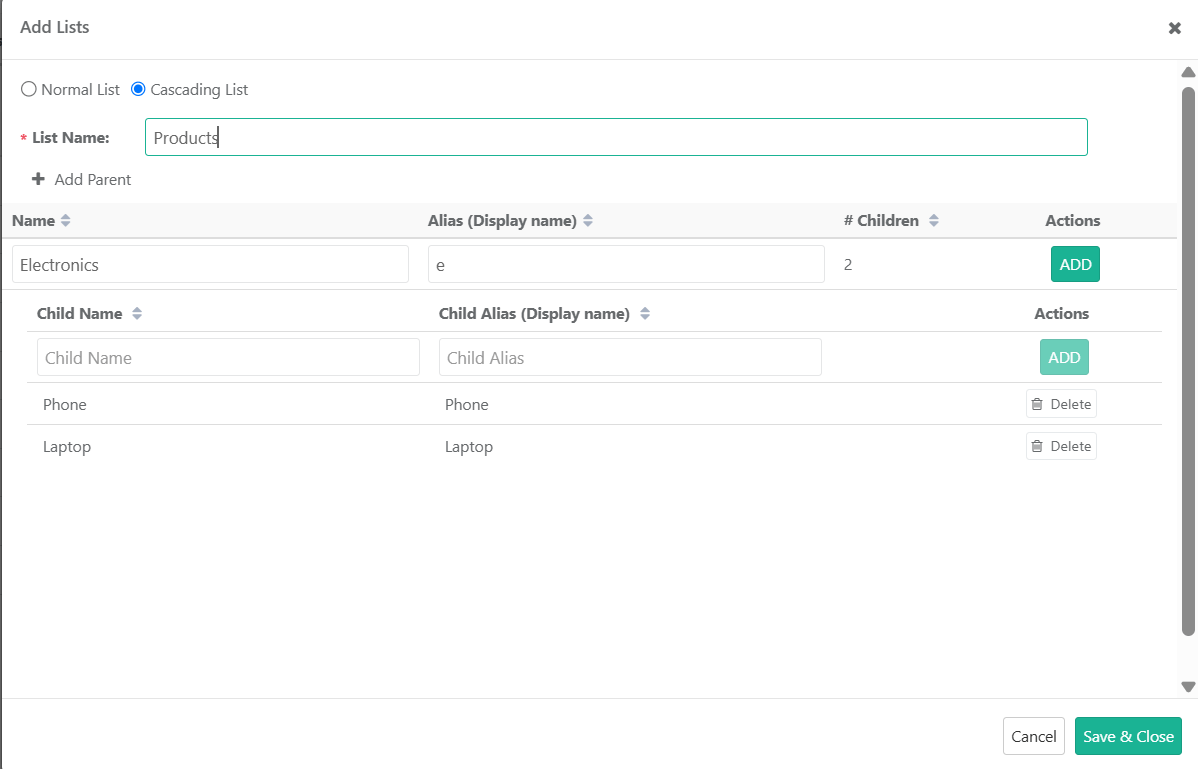
To add a list value, perform the following steps:
On the Add List Screen, click Add New Value.
Add List Values and Alias and click Save.
Click Save and Close.
Note
List value name validation is case-insensitive. For example, if "None" is already present in the list value, you cannot add "none" as other value.
Organizations can use the Alias field in custom lists to tailor list values to their specific needs.
Editing a List
You can edit system lists and custom lists.
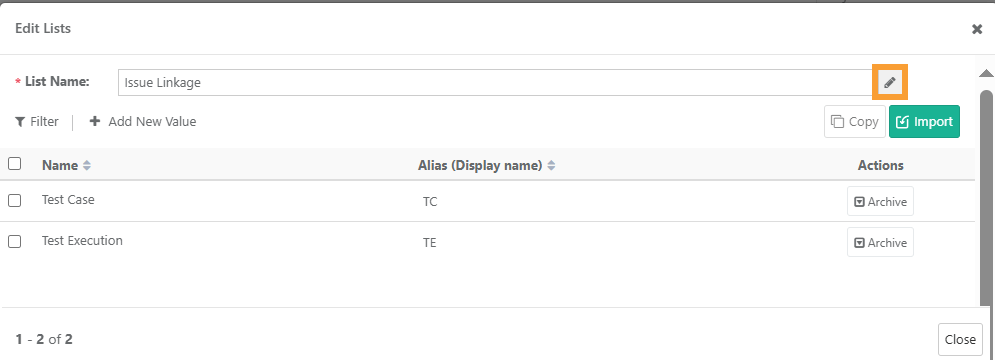
To edit a list, perform the following steps:
Click Edit under Actions column.
You can modify the List Name, or the Alias (Display name) value as needed.
Archiving List Values
You can archive only custom list values.
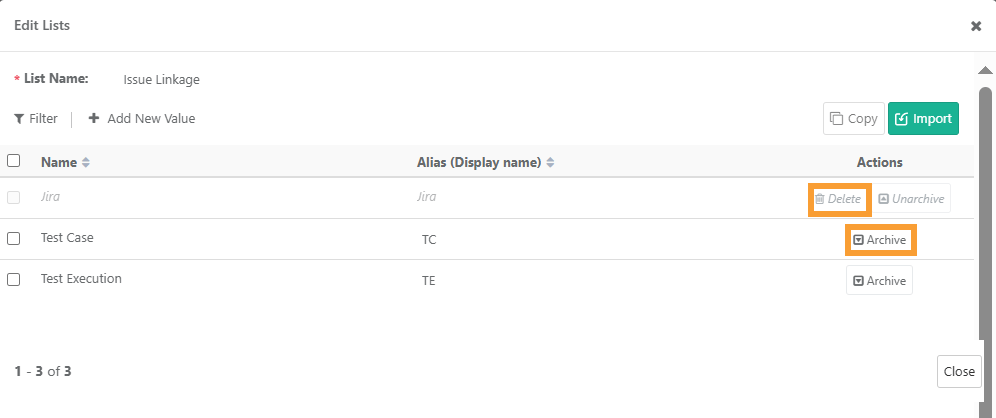
To archive a custom list value, perform the following steps:
Go to Customization and select Lists.
Click Edit for the desired list and select the values to archive.
Under the Actions tab, click Archive.
Note
In case of cascading lists:
Archiving a parent value automatically archives all its child values.
You cannot archive values that are set as default.
Remove or change the default setting before archiving.
Deleting List Values
You can delete only custom list values. System-defined values cannot be deleted.
To delete a custom list value, perform the following steps:
Go to Customization in the main menu.
Select Lists.
Locate the list you want to archive and click Delete.
Click Yes to confirm.
Note
In case of cascading lists, deleting a parent value automatically deletes all its child values.
Sharing List Values
You can copy list values, both System and Custom, from a source project to one or more target projects to ensure consistency and avoid manual entry. All copy and import actions are recorded in the Audit Log Report.
Permissions
For creating or modifying lists you must have the following permissions:
Action | Permissions |
|---|---|
Modify list values in Source Project | “View” and “Modify” permissions for Project and Customization. |
Copy values to Destination Project | “View” access to Project and “View” and “Modify” permissions for Customization. |
Importing List Values
Note
Duplicate entities for name and alias will be ignored while importing.
To import list values from other projects, perform the following steps:
Go to Customization and select Lists.
Click Edit.
On the Edit Lists screen, click Import.
Next, select the project from the list.
Only projects that you have access to are available in the list.
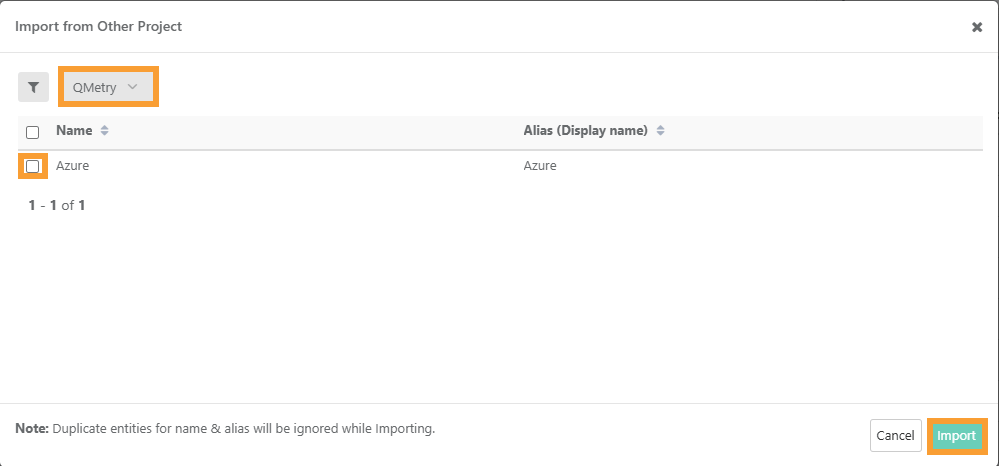
Select the list values and click Import.
Note
You can select a maximum of 100 list values at a time.
You can view the progress in the Scheduled Task section. The list values are imported to the destination project.
Copying List Values to Other Projects
To copy list values to other projects, perform the following steps:
Go to Customization and select Lists.
Click Edit.

Select the values and click Copy.
Note
A maximum of 100 List values can be selected at a time.
On Copy to Other Projects dialog, select the target projects and click Copy.
The system copies the list values to the destination project. You can view the progress in the Scheduled Task section.
Deleting a List
Note
You can only delete user defined custom lists. System defined custom lists cannot be deleted.
To delete a Custom List, perform the following steps:
Go to Customization and select Lists.
Click Delete under the Actions column.
Select Yes to confirm Delete.
Note
You need to enable the Customization Package on your QMetry instance to modify the above settings.