Creating Test Suite
Create a test suite to define its properties, and link platforms and test cases.
Pre-requisites
Get the following permissions in the test suite module:
Create Test Suite
Link Requirement
Link Test Case
Note
Users with only Create Test Suite can create a test suite but cannot link test cases.
You can link test cases only from projects where you have the Link Test Case permission.
Create a Test Suite

To create a test suite, perform these steps:
Go to the Test Suite Module.
Click .
Enter Test Suite Details like System Fields, User Defined Fields, Link Platforms and Test Cases.
Click .
Entering Test Suite Details
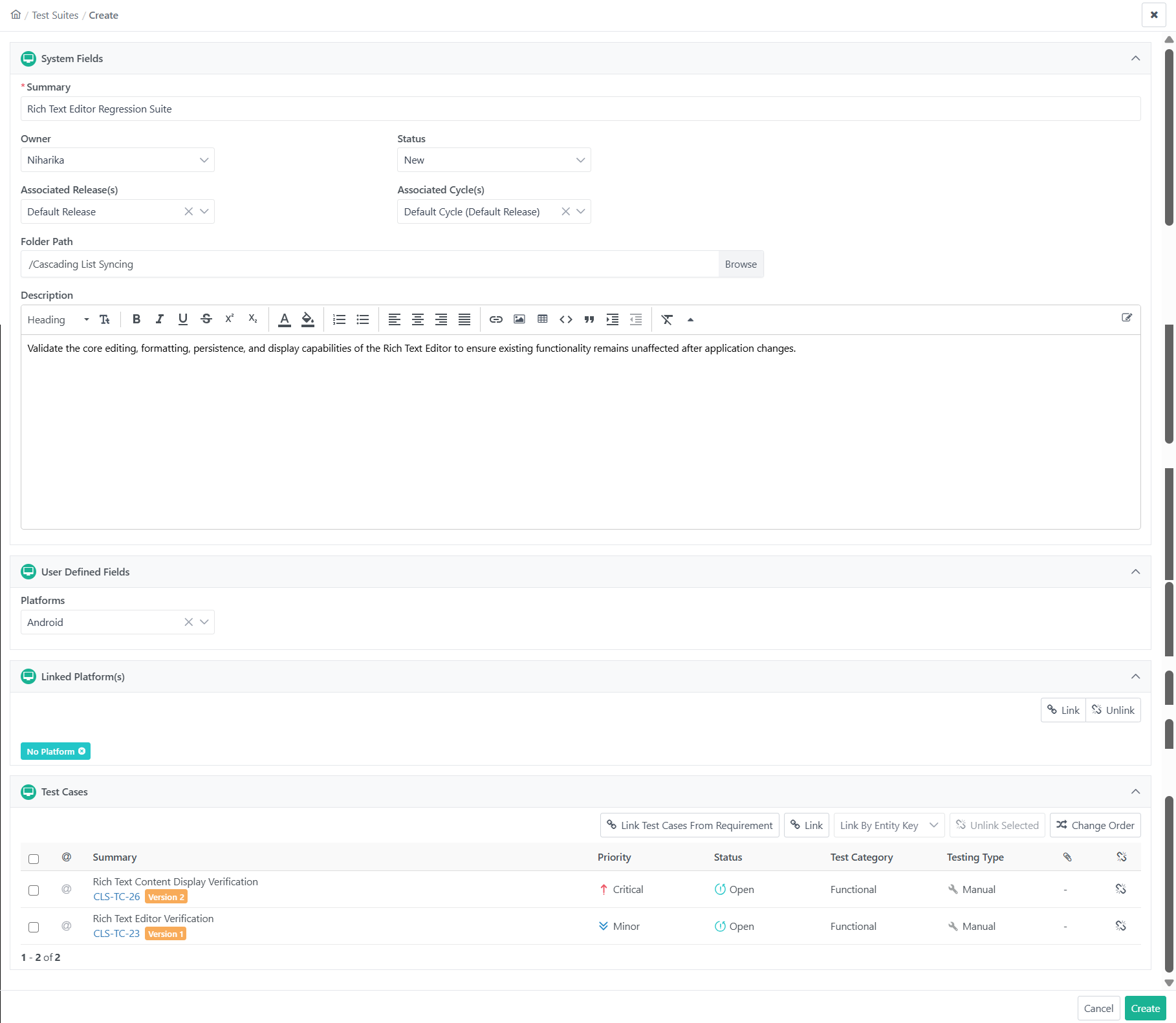 |
System Fields
Table 25. System FieldsField Name
Desc
Summary
Enter the name of the test suite.
Status
New, Approved, Open, In Progress, Ready to Review.
Owner
Assign an owner from users with access to the current project.
Associated Releases
Select a release from the releases on the project details page.
Associated Cycles
Cycle is mandatory for execution. The cycle list is prompted for the selected release.
Description
Enter the description for the test suite either in Plain Text or Rich Text.
Folder Path
Select a specific folder for storing the assets during creation. (Default is root folder)
User-Defined Fields
Add details to user-defined fields. Manage User-Defined fields from Customization.
Link Platforms
Linking a platform is mandatory for test suite runs. By default, the systems assigsn "No Platform" to all new test suites. You can add platforms from the Platforms tab in Projects.
Note
View platforms linked to a test suite from Test Execution tab on the test suite detail page.
To link platform, perform the following steps:
Click Link.
Select one or more platforms from the list. Use Filters to manage long lists.
Click Create New Platforms to create and link a new platform.
Click Link Selected Platforms.
Linking Test Cases
Note
Link at least one test case to the test suite to complete the test suite creation.
There are three ways to link test cases with a test suite. Linking can be done while adding or editing a test suite:
Link Test Cases from Requirement
Link Test Cases
Link by Entity Key
Note
View test cases in the custom order defined within the test case folders by disabling Include Entries from Sub-folder option.
Linking Test Cases from Requirement
Linking a requirement to a test suite automatically includes all test cases associated with that requirement.
Note
Link Test Cases From Requirement links the test case version associated with that requirement. If eSignature is On for the project, then only “Approved” versions associated with the requirement gets linked.
Example 16. Linking Test Cases from RequirementThe requirement titled "Health Parameters" is associated with the following test cases:
Sleep Tracking
Calories Tracking
Stress Tracking
Step Count
These test cases are associated with the test suite "Health Stats". When you execute the test suite “Health Stats”, the system records the statuses for the respective execution. This entire flow enables you to view the traceability of the requirement “Health Parameters”.
Linking test cases from a requirement minimizes manual effort and saves time by automatically including all relevant test cases. This approach also reduces the risk of overlooking an test cases planned for the requirement.
To link test cases to a requirement, perform the following steps:
Click Link Test Cases from Requirement.
Select the requirements to link.
Click Link Selected Requirement.
Note
You can link Test cases from requirements in different projects.
Linking Test Cases
Link additional test cases to a test suite even if they were not planned or associated with a Requirement. This helps teams that manage test cases only in QMetry and do not use QMetry as a requirement repository.
To link test cases, perform these steps:
Click Link.
Select the test cases to link. Apply Filters to sort test cases.
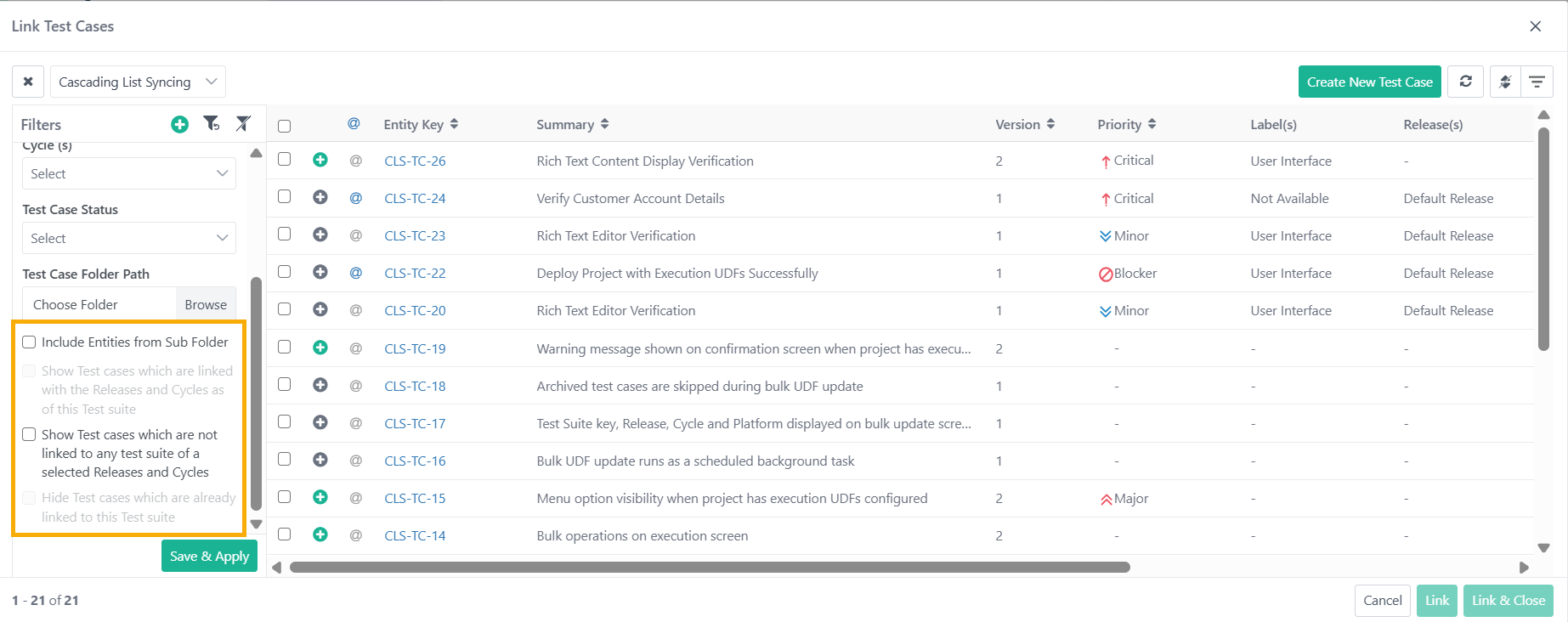
View test cases based on the following criteria:
Show Test Cases Linked to Releases and Cycles: Displays test cases associated with the release and cycle linked to the current test suite.
Show Test Cases Not Linked to Any Test Suite: Highlights test cases that are uncovered in a particular release and cycle. This option helps trace the uncovered test cases.
Hide Test Cases Already Linked to This Test Suite: Lists all test cases that are not already linked to the current test suite, preventing duplicate linkages.
Link Test Cases From Other Projects: Link test cases from multiple projects by switching projects from the drop-down. The screen displays test cases for the chosen project.
Select Test Cases: Select the test cases to link to the test suite.
Link Specific Versions: If a test case has multiple versions, expand it to view all versions. Select the specific version to link.
Linking Across Projects: To link test cases from multiple projects, select one project at a time. Search and link test cases for the current project before switching to another project to avoid losing previous selections.
Example 17. ExampleUser A selects some records from Project 1 and moves to Project 2 without linking them. In this case, all the selection of Project 1 gets wiped off.
Finalize Linking: After selecting the test cases, click .
Test cases from other projects display the Entity Keys of their respective projects. To view a test case from another project, click its Entity Key. The system opens the test case details in that project and automatically switches your current project.
Link Test Case by Entity Key
Link the latest version of a test case to a test suite using comma-separated test case entity keys or requirement entity keys
Note
A maximum of 500 entities can be linked at once.
This helps link test cases to a test suite without searching for them individually. For example, if users have a list of test case keys, they can enter the keys and link the test cases directly. This saves time by avoiding manual searches across folders.
Linking from Test Case
Test case entity keys are ignored if the test case is not found, archived, or "Not Approved" (if eSignature is enabled).
A test case key listed multiple times is linked only once.
The latest version of a test case does not replace an older version that is already linked.
Users can link only unarchived versions.
Skip Duplicate Linkage:
On: The system ignores the latest version if an older version is already linked.
Off: The system ignores the latest version regardless of existing versions.
Linking From Requirement
The entity key is ignored if the relevant requirement key is not found or is archived.
The system links test cases for a repeated requirement key only once.
Skip Duplicate:
On: The system ignores test cases already linked to the test suite; only the remaining test cases are linked.
Off: The system links all unarchived test cases regardless of previous linkages.