Managing Builds
Add a new patch instead of creating a new cycle. Users can easily record the execution results for Builds.
For Example,
The development team provides a bug fix in a patch. The QA team has added relevant test cases and included them for execution. On the Test Suite Execution screen, the QA Lead assigns a Build to these test cases to make them easily identifiable.
Adding Builds
To add a new build, perform these steps:
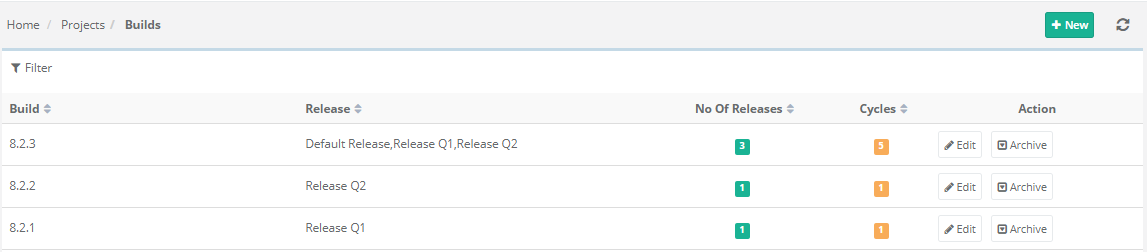
Go to Projects and select Build.
Note
Rights related to Build are assigned from Roles under Administration.
Add new Builds and edit the details of an existing Build from this screen.
To add a new build, click New.
Enter the build name and its relevant description.
Select the associated releases from the drop-down list to link.
Click Create.
The build appears on the Build list on the Test Execution Screen when the test execution is associated with the same releases and cycles.
Editing Builds
To edit a build, perform the following steps:
Go to Projects and select Builds.
Click Edit.
Make the required changes to the details and click Update to save the changes.
Setting a Build as the Default Build
Note
The Set Default option for the default build configuration on the Build Create and Edit screen is visible only if you have purchased the Customization package.
While creating a new build, select the drop-down as Yes or No to mark the build as the default.
Set Default—Yes: The build is set as the default build on the execution screen for the selected Release Cycle combination.
Testers do not need to set the build manually, which also helps reduce build association errors.
QA Manager can always set the current build as a Default Build to ensure the executions are always associated with the current build.
Only one default build can be set for a given combination of a Release Cycle.
Set Default - No: Makes the Build a non-default. When some other build is set to default, this flag is set to “No” for the previously default build.

Edit, Build, and Set it as Default.
On the Edit Build screen, edit existing build data and add new release and cycle with default build value in edit build screen.
While editing an existing build, the Set Default toggle option is available. Turn the toggle ‘On’ to mark the build as default for the Release and Cycle combination.
Mark the build as default either while adding new Releases and Cycles to the build. You can mark the build as default build for multiple combinations of Releases and Cycles at a time.
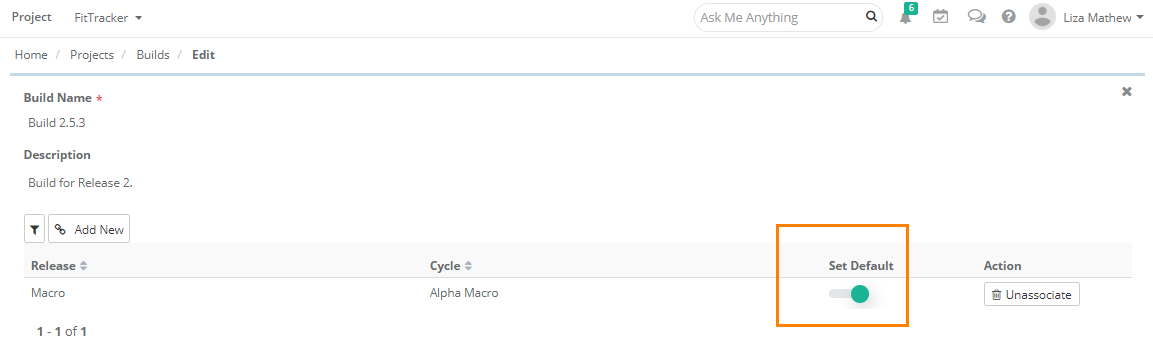 |
Mark the build as default after adding new Release and Cycle to the build.
View the Releases and Cycles that are associated with the default build on the Build grid.
On the Execution Screen
When a Build is set as default and the user tries to change the execution status of the test case on the Execution Screen, the confirmation message pops up showing the default build on which the test case will be executed. To proceed with the default build click Yes. You can see the build on which the test case is executed in the Build Name column.
To execute the test case on other build, click No and change the build using the Set Your Build option for that test case.
Archiving Builds
This feature is implemented to archive Builds added by mistake or that are no longer needed. When the user archives a Build, it turns invisible across QMetry including reports.
Use Case 1. A Tester added a Build by mistake and now they do not want the Build to appear on the screen. So they archive the Build to hide it.
Use Case 2. A Tester has completed working on a particular Build. Now the user does not intend to relate any test case to that Build and work on it. For the reason, they archive the Build.
Go to Projects and select Builds.
Click Archive button for the Build.
To unarchive the archived build, click the Unarchive button for the build.
Unassociating Release and Cycle
To unassociate a release and cycle from a build, perform the following steps:
Go to Project Management and select Builds.
Edit the build to unassociate.
Select Unassociate for a particular release and cycle.