Notifications
QMetry provides a list of notifications based on event occurrence within the application e.g. Add Test Suite, Delete Test Suite, Add Requirement, Add Test Case, and so on.
Admin can assign notifications by Role, Users and Email IDs.
The receiving users can unsubscribe from notifications at any time. QMetry auto-generates emails in predefined templates and notifies the respective users when the specified event occurs for the entities.
Admins can set email notifications and send them to the respective Roles or Users. This keeps all stake holders updated.
Permissions for Notification Settings are set from Roles.
Notification settings are project-specific. You only need the Notification View and Modify permissions to configure them.
How to access the feature?
There are two tabs representing two sections on the screen: (A) General tab for General notification settings (B) eSignature tab for eSignature notification settings.
(A) General Tab
1. Under Customization, go to Notifications.
2. Open the General tab.
The Notifications screen opens with the following columns on it:
Event: These are the list of events on occurrence of which assigned users will receive notifications. For example, “Add Test Suite” indicates notification on creating a new test suite in QMetry.
Notification Receivers: Notifications can be sent to particular Roles or Users. The column displays details of Roles, Users, and Email IDs of users who are receiving the notifications.
Action: Click Add to add Roles and Users to receive the notifications.
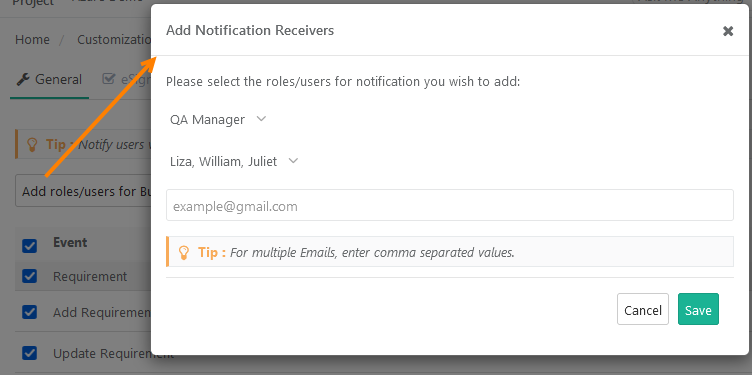
Add Notification Receivers
You can send notifications to particular Roles or Users.
Add Notification Receivers for Individual Events
For a particular event, click Add under the Action column.
Enter any of the following details:
Select Role: Admin can assign notifications by roles. Open the drop-down list and select the Role..
Select User: Open the drop-down list and select Users.
Email ID(s): In the case of multiple receivers, enter comma-separated email addresses.
Click Save.
Add Notification Receivers for Bulk Events
Select the events.
You can select events across the sections, i.e., Requirement, Test Case, Test Suite, Issue, Project, User, and System.
Click Add roles/users for Bulk Events.
Enter any of the following details:
Select Role: Admin can assign notifications by roles. Open the drop-down list and select the Role you want the users with that role to receive notification emails.
Select User: Open the drop-down list and select Users whom you want to receive notification emails.
Email ID(s): In the case of multiple receivers, enter comma-separated email addresses.
Click Save.
Change Notification Settings
Admin can unsubscribe Roles and Users to receive email notifications.
To remove Roles, Users, and Email address click "x".
The unsubscribe link is sent in the email to let the receiver unsubscribe.
Clicking on the unsubscribe link opens the Notifications screen for the logged-in users.
Note
You cannot modify the above settings if the Customization package is disabled on your QMetryinstance.
(B) eSignature tab
This tab is enabled only for eSignature enabled projects.
In eSignature enabled projects, you get notified via email on specific events like Review, Request Change, Approval, Closure of requirement, test case and test runs.
The email notification settings are provided for eSignature-enabled projects to allow project administrators to enable or disable forced notifications on events like review, approval, closure, or a request change. The settings are applied at Project level.
Use Case: Some organizations have large number of assers that are under the different approval states. And consequently, the large numbers of email notifications are sent to all the users, which spam their inbox. Hence, Project admins want to control the email notifications and disable it for desired events.
→ Required Permissions: Notification “View” and “Modify” permissions are required to configure the Notifications settings. Role based user access control for the module is managed under Customization > Roles.
Steps
Under Customization, go to Notifications.
Open the eSignature tab.
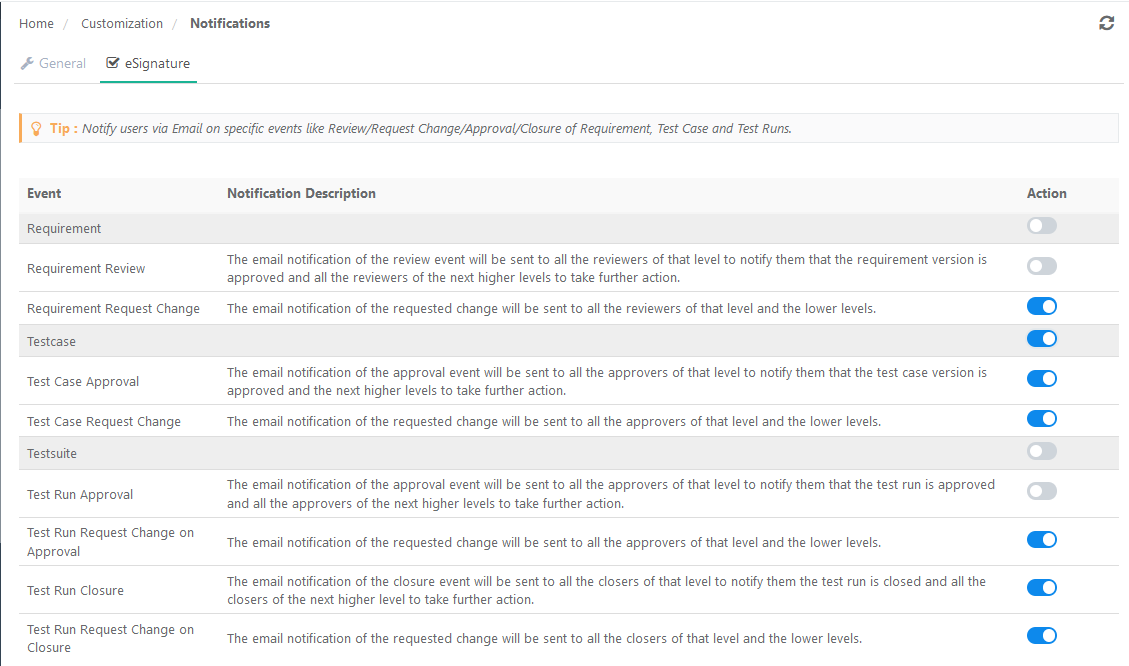
You can see the list of Events and their Notification Description. The events are categorized under Requirement, Test Case and Test Suite headings. The last column Action has a toggle option to enable/disable the email notification for that particular event.
Apply email notification settings as required.
Enable Notification for Individual Events: You can turn the toggle option for the event On or Off for individual events as per your requirement of notifying the users.
Enable Notification for All Events at a time: You can also enable all the events under the main category in one go by enabling the toggle option of the main category.
Notifications to Watchers
Refer to Managing Watchers for more details.