Managing Watchers
Watch a particular test asset and get updates during the entire life cycle of the asset. The Creator and Owner of the test asset are automatically added to the watcher list so that they are aware of the updates.
Why watch a test asset?
Stay on top of all of the updates for critical test assets in your project. Watching helps you stay connected to that asset from the point of authoring all the way to it - events, updates, versions, executions.
Caution
Watching an asset can generate many email notifications, so choose the issues you watch carefully.
The system sends Email notifications for QMetry assets to all users who are listed as Watchers on those assets.
The system adds the creators and owners of an asset to the Watchers list.
To ensure that the creator and owner both get notifications if some other team members update their test cases, the system sends an email notification to all watchers.
The system sends email notifications to users or roles or email addresses that are specified under the Customization's Notifications section.
Removing users, roles, or email addresses from the events stops the email notifications.
Watching an Issue
To watch an issue, perform these steps:
 |
Open the detail page of the test asset to watch.
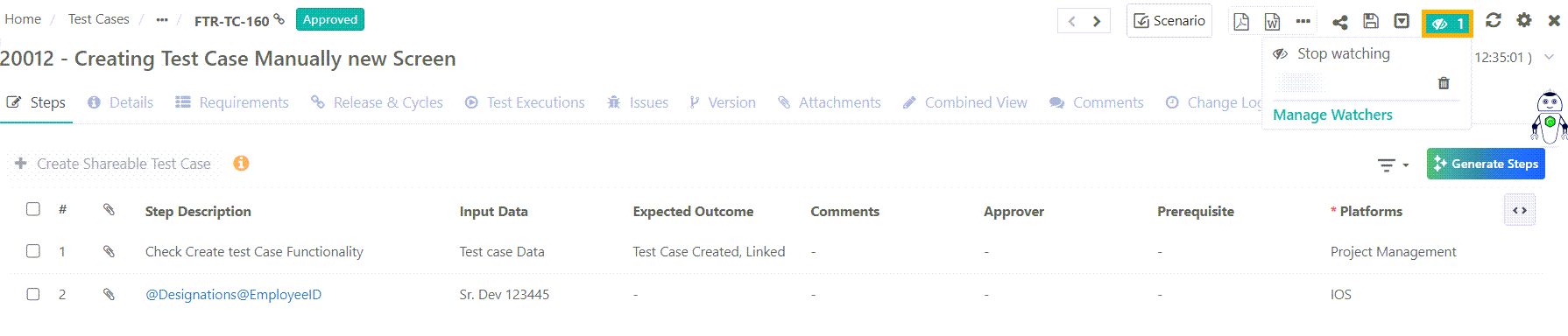
Click Watcher icon and click Start watching.
An email notification is sent to all the watchers as soon as the asset is updated.
Only active users receives email notifications.
Managing Watchers List
To manage watchers list, perform these steps:
Open the detail page of the test asset.
View Existing Watchers:
The watcher's count is displayed adjacent to the Watchers icon. To view all the watchers of the current asset, click the Watchers icon.
View the list of watchers just below the count. Also, view the existing watchers on the expanded view.
Add New Watchers
Click Expand View.
Click Add Watchers.
Select the user to add to the watcher's list and click Add.
Remove Existing Watchers
Remove individual watchers directly by clicking on the Delete icon.
For removing multiple users, select the users and click Remove Selected.
Stop Watching an Issue
Click to stop watching the test asset and stop receiving notifications on updates.