Linking Test Suites to Test Cases
Link test suites to their corresponding test cases from the Test Executions tab on the Test Case Details page or the Edit Test Case screen. The system associates the test suites with the test case across all related platforms.
 |
Clicking Link Test Suites opens the test suite list view. Customize the display using filters, column arrangements, and other available options.
Linking Test Suite within the Same Project
To link test suites within the same project, perform these steps:
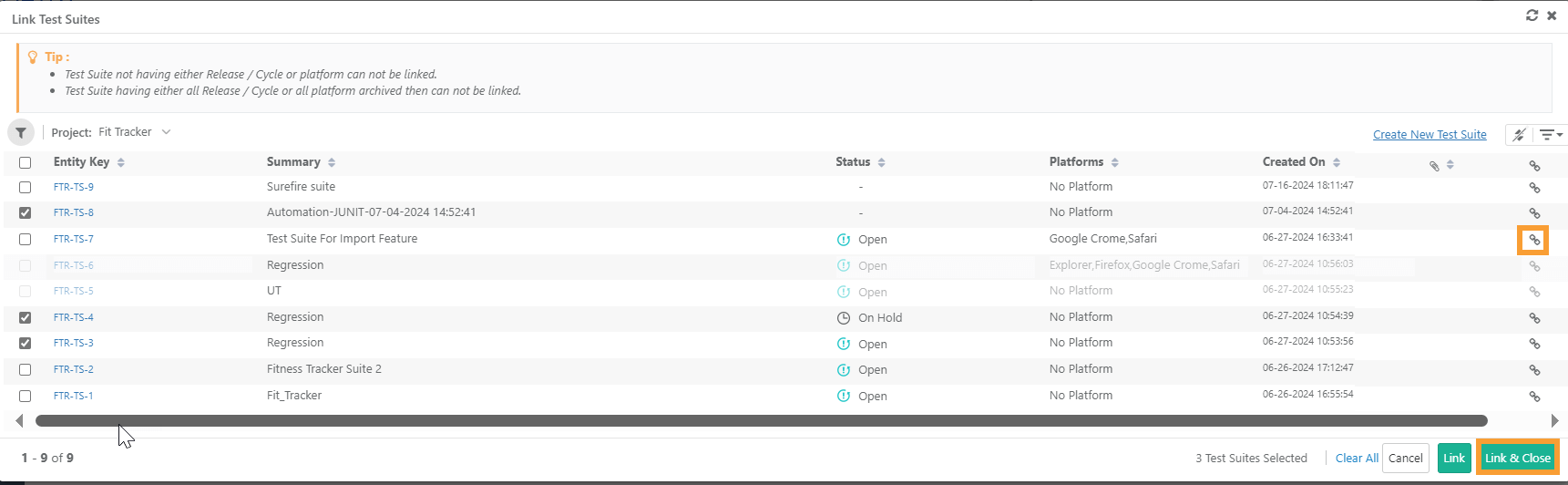 |
Open the Test Executions tab and click Link Test Suites.
Link single or multiple test suites:
For linking a Single Test Suite, click Link.
For linking Multiple Test Suites, select the test suites and click Link and Close.
The linked test suites appears on the Test Executions tab of the test case details page.
Linking Test Suites Across Projects
Note
Get Modify rights for the Test Suite module in the target project you are linking test suites from.
To link test suites from other projects, perform these steps:
Open the Test Executions tab and click Link Test Suites.
Click the drop-down to select the project.
Select and link test suites by clicking the Link button.
Click Link and Close.
Note
Switching project without clicking Link, clears all selected test cases from previous project.
Viewing Linked Test Suites
To view test suites, perform these steps:
Go to the Test Execution tab.
Click Test Suite Entity Key to view all test suites linked to the test case.
If the test suite belongs to another project, the system displays the Entity Key of that project. Click the Entity Key to open the test suite’s details page in the respective project.
View Archived Test Runs
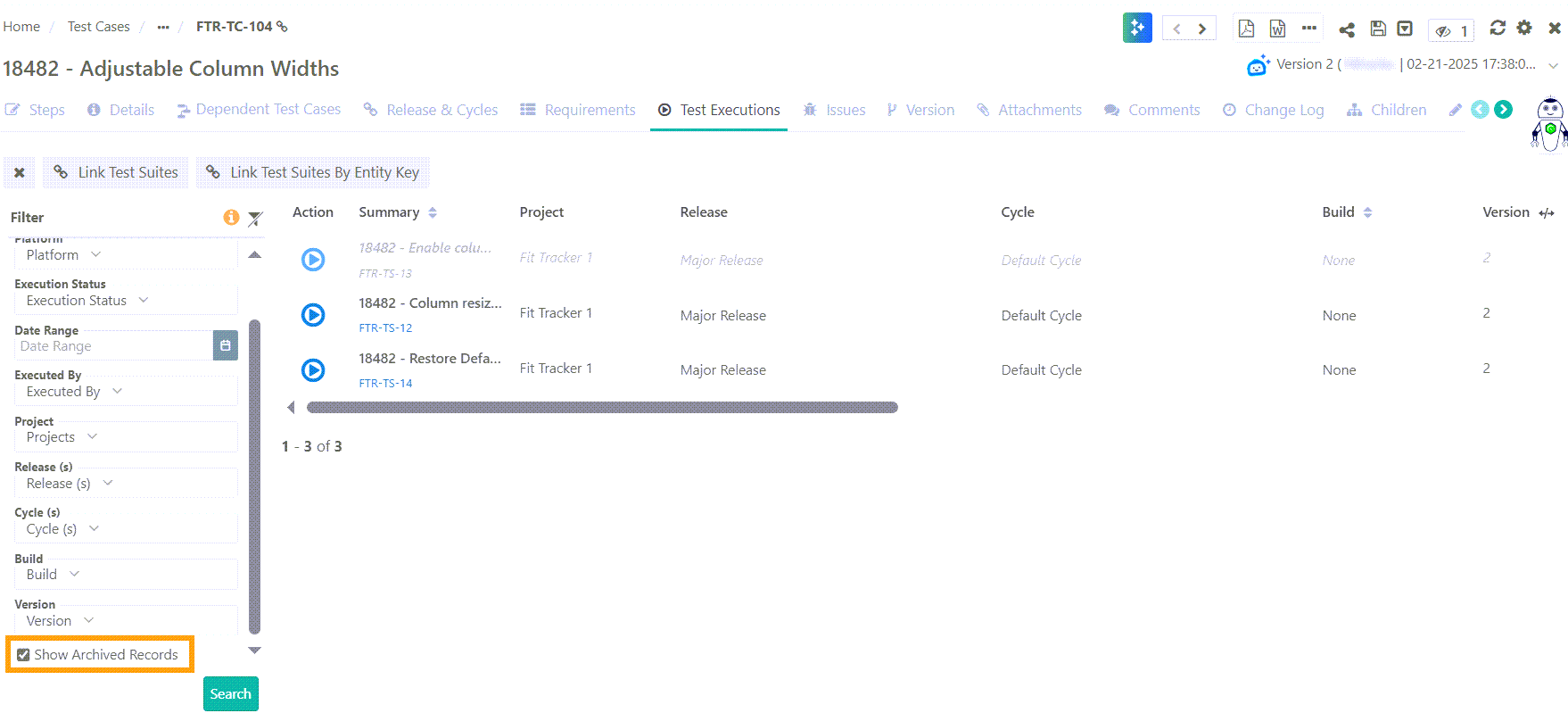
The system archives an execution or test run when its associated Platform, Release, Cycle, or Test Suite is archived. After archiving, the test execution no longer appears on the Test Executions tab of the test case.
Select Show Archived Records in filters to view archived Test Runs.
 |
Note
While importing, any change in the status of such archived test case executions gets ignored.
eSignature Considerations
The drop-down on the Link Test Suite screen shows projects where eSignature settings align with linking permissions.
eSignature in Current Project | eSignature in Test Suite Project | Can test suites be linked to the test case? |
|---|---|---|
Disabled | Enabled | No (The Project drop-down on the Link Test Suite screen shows only those projects that have the eSignature feature disabled.) |
Disabled | Disabled | Yes |
Enabled | Enabled | Yes |
Enabled | Disabled | Yes |
If the eSignature feature is enabled in the Project:
Test Case Status | Can test suites of any project be linked to the test case? |
|---|---|
Approved | Yes |
In Review | No |
Linking Test Suites by Entity Key
Link test suites using comma-separated test suite entity keys.
Use this option to link the test suites directly without having to search for each test suite individually.
Note
A maximum of 500 test suites can be linked at a time.
The system ignores test suite keys that are not found.
Duplicate keys are linked only once.
Archived test suites are skipped.
Skip Duplicate Linkage
When ON: The system links test suites that are not yet associated with the test case version.
When OFF: The system links the selected test case version to every test suite.
To link test cases by entity keys, perform these following steps:
Go to the Test Executions tab of the test case.
Click Link Test Suites by Entity Key.
Enter comma-separated test suite keys in the pop-up.
Click Link to associate the specified test suites with the test case.
The Test Executions tab shows the last execution build against which the execution was done.
Viewing Test Run Logs
The system attaches the test run logs at the test run level. You can view them on the Test Executions tab of the test case details page.
If a test suite has attachments, then the Attachment icon appears in blue. Click this icon to view all the test run logs.
Execution Time and Remaining Time
View the Execution Time and Remaining Time for each test execution on the Test Executions tab.
Calculation of Execution Time and Remaining Time for the test suite is useful for the QA Manager in Test Planning. The system refines these test case level estimates each time a test suite is executed. Testers can make recommendations to have the test estimates revised based on the last few executions in different environments.
Two columns, Execution Time and Remaining Time appears on the grid at the following places:
Test Executions tab on Test Suite detail page.
Test Executions on Test Case detail page.
Execution Runs on Issue detail page.
Calculation
Execution Time: The system calculates this based on the estimated time of all the test cases in that test suite.
Remaining Time: Once you execute the test suite, the system calculates the Remaining Time for all Not Run test cases.
Failed or Blocked: The system treats Failed or Blocked test cases as work still pending.
Passed or Not Applicable: The system adjusts the Remaining Time based on test cases marked as Pass or Not Applicable.
Test Cases | Execution time | Status | Remaining time |
|---|---|---|---|
TC1 | 2 | Pass | - |
TC2 | 3 | Not Applicable | - |
TC3 | 4 | Failed | 4 |
TC4 | 5 | Blocked | 5 |
14 | 9 |