Enabling eSignature
Warning
Once enabled, the eSignature flag cannot be disabled.
To turn on the eSignature feature, perform the following steps:
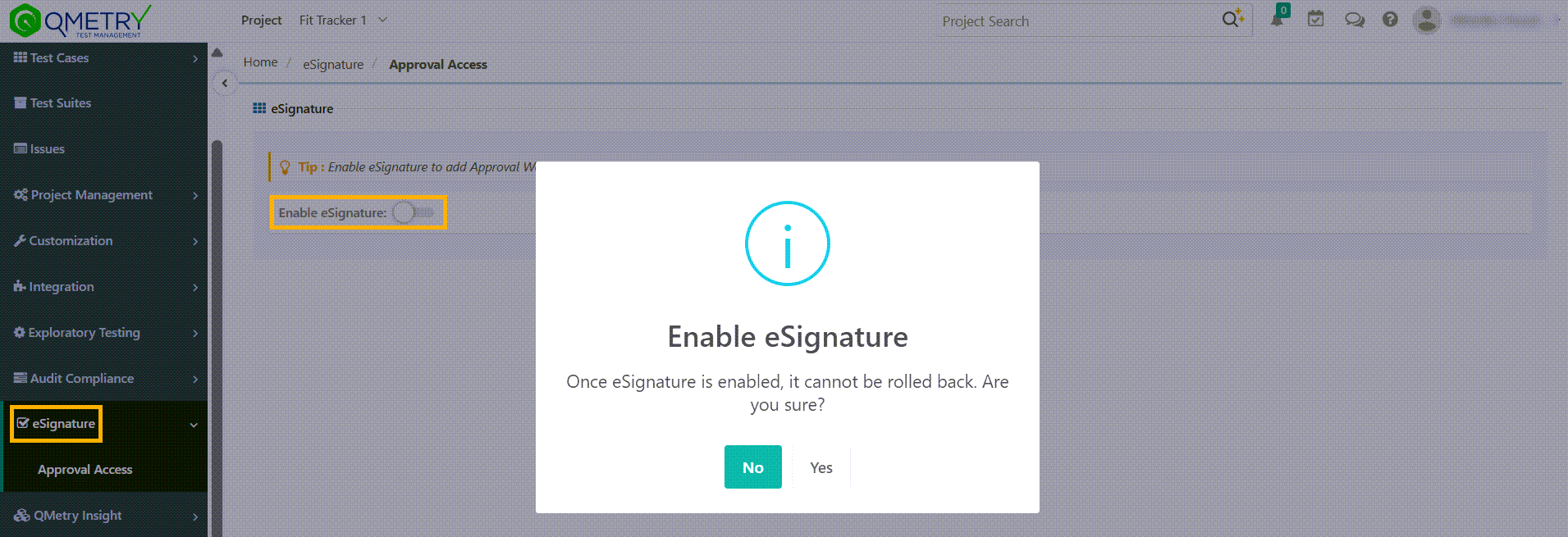 |
Go to eSignature from main menu.
Click Approval Access.
Slide the eSignature toggle on.
Click Yes to confirm.
Add reviewers, approvers and closers to different approval levels.
Read more about Approval Access.
Note
For eSignature enabled before QTMv8.8, the existing test case and test suite approvers are retained at Level 1.
You need Customization Modify rights to add or remove levels.
Setting Notifications
To set eSignature notifications, perform the following steps:
Go to Customizations.
Select .
Go to eSignature tab.
Turn on the toggle to trigger email notifications on specific events.
To define the frequency of notifications, perform the following steps:
Go to System Settings.
Select General Settings and Audit.
Set the frequency from Approval or Closure workflow levels and users section.
When assets are reviewed or approved, the system notifies all reviewers or approvers except the one who performed the action. It also notifies the creator when a change is requested.