Map Multiple Jira Projects and Instances
Map more than one Jira project, or Jira projects from more than one Jira instance, to a single QMetry project.
Note
This topic covers mapping several Jira instances to one QMetry project. It does not cover connecting several QMetry instances to one Jira instance, which the Jira system administrator configures in Jira. For more information, see About Multiple QMetry Instances.
QMetry lets you map Jira Work Items to the following modules:
Requirements (e.g., Story, Epic, Task, Risk)
Issues (e.g., Bug, Defect)
QMetry offers flexible mapping options:
Map work items to only Requirement module.
Map work items to only Issue module.
Mapping Work Item to both Requirement and Issue module.
Pre-requisites
Before you map Jira projects, make sure you meet the following requirements:
You have QMetry project administrator rights.
The Jira integration is active for each Jira instance that you want to map. For more information, see Verify QMetry Jira Integration.
The Jira system administrator enabled each Jira project for integration with this QMetry instance.
Mapping Options
You can map Jira work items to the following QMetry modules:
Requirements module, for work items such as stories, epics, tasks, and risks.
Issues module, for work items such as bugs and defects.
QMetry supports the following mapping combinations:
Map work items to the Requirements module only.
Map work items to the Issues module only.
Map work items to both the Requirements module and the Issues module.
Map Multiple Jira Projects from One Jira Instance
To map multiple Jira projects to a QMetry project, perform the following steps:
 |
Go to Project Management and click Projects.
Select the project and go to Integrations tab.
In Select Integration Type, select Jira.
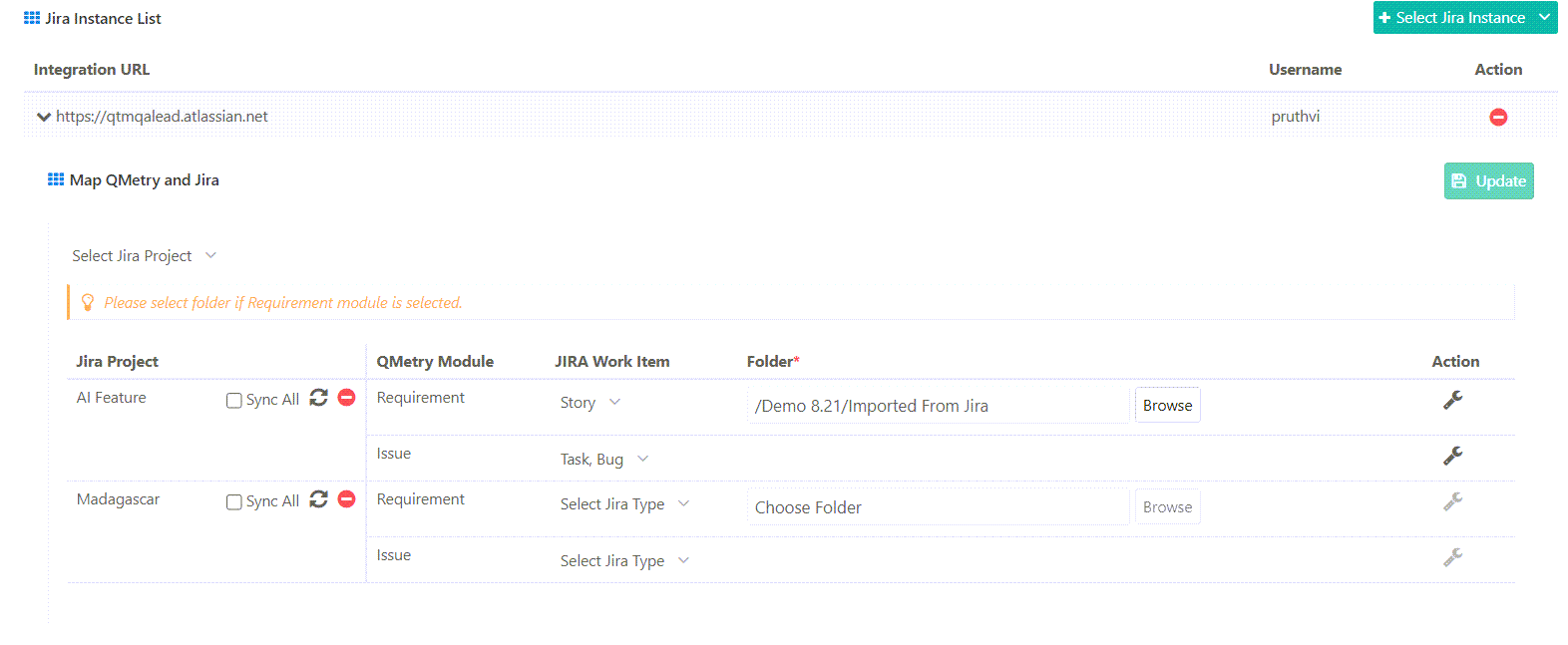
In the Jira Instance List, select the Jira URL.
In the Map QMetry and Jira section, select a Jira project in the Select Jira Project list.
Map the JIRA Work Item types to a QMetry module. If you map work items to the Requirements module, select the folder that the work items are imported into.
Repeat steps 5 and 6 for each additional Jira project on this Jira instance.
Click Save and Activate. If the Jira integration is already saved and activated for this QMetry project, click Update.
Map Jira Projects from Another Jira Instance
To map multiple Jira instances to a QMetry project, perform the following steps:
 |
Go to Project Management and select Project.
Open the project and go to Integration tab.
Under Select Integration Type, choose Jira.
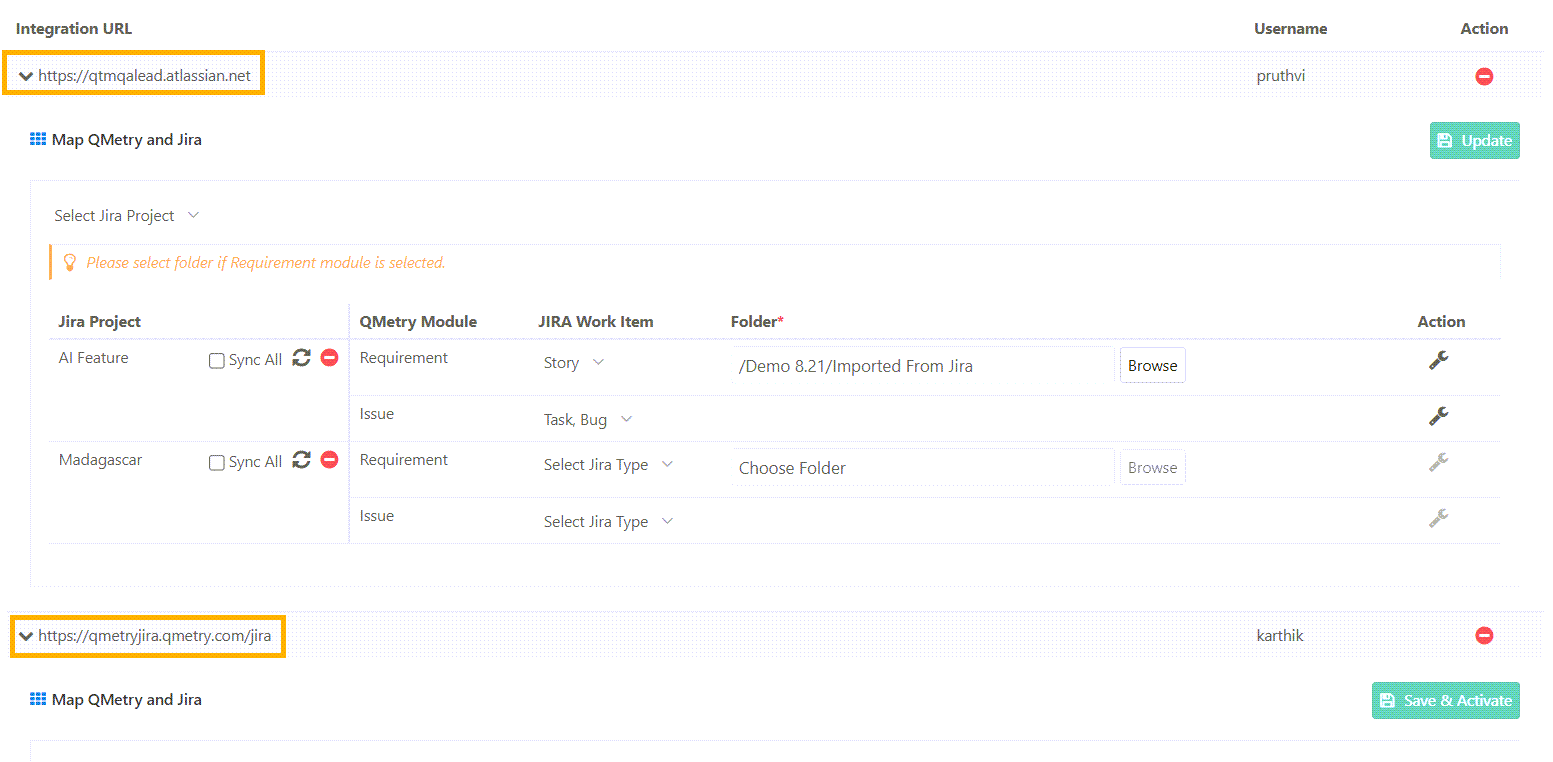
From the Jira Instance List, select the Jira URL.
In the Map QMetry and Jira section, do the following:
Select the Jira Project from the list.
Map the Jira Work Items to a QMetry module.
Select a folder to map Jira Issues as Requirements in QMetry.
Select Save and Activate.
To map another Jira instance, do the following:
Click Select Jira Instance and select the Jira URL.
Repeat steps 5 to 6 for the new instance.
Each Jira instance has its own Map QMetry and Jira section, and you save and activate each one separately.
Which Jira Projects Appear in the List
Each Jira instance runs its own QMetry Integration for Jira app, and the Jira system administrator of that instance controls which of its Jira projects can integrate with QMetry. The Select Jira Project list for a Jira instance shows only the Jira projects that the administrator of that instance enabled for this QMetry instance.
A Jira project does not appear in the list in either of the following cases:
The Jira project is disabled for QMetry integration.
The Jira project is enabled, but assigned to a different QMetry instance.
A Jira project connects to only one QMetry instance at a time, so the same Jira project cannot be mapped to QMetry projects on two QMetry instances. Mapping several Jira instances to one QMetry project is not affected by this rule.
Ask the Jira system administrator of the relevant Jira instance to enable the Jira project. For more information, see Selecting Jira Projects for QMetry Integration and Mapping and Unmapping a Single Jira Project.