Review a Recorded Sesson
When you open a recorded session, the screen displays several tabs that show the automated documentation captured during the session. You can also export the session details.
You should have View rights for Exploratory Testing in the project to view the sessions recorded by other users of the project.
Log into QMetry Test Management.
Go to Automation and and select Exploratory Testing.
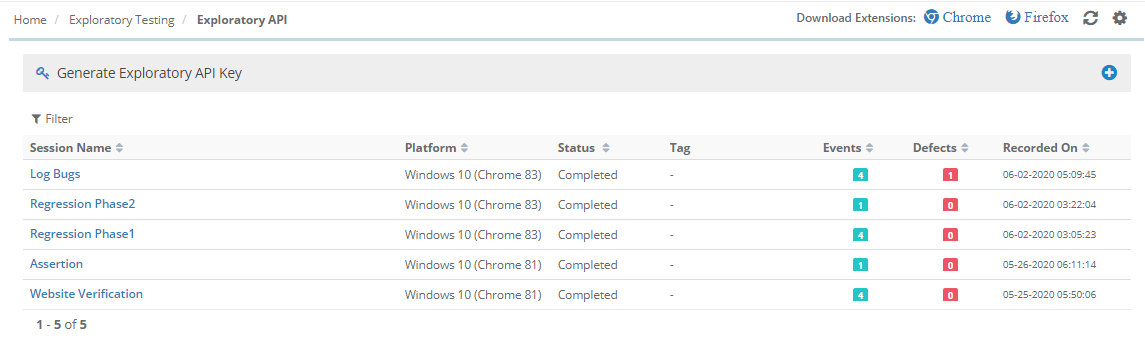
The screen displays a list of recorded sessions. You can view, manage, and create test cases from the recorded sessions.
Each recorded session displays the Session Name, the Platform on which it was tested, the Status, and the Date and Time it was Recorded On. The screen also displays the count of recorded Events, the Tags, and the Defects logged for the session.
Session Tabs
Each tab presents a different view of the recorded session, from captured screens to logged defects and browser logs. Use the following tabs to review the session details:
Tab | Description |
|---|---|
Screens | Contains screens captured during the testing activity. The thumbnails appear on the sidebar on the left. Select a thumbnail to view the full image on the right. |
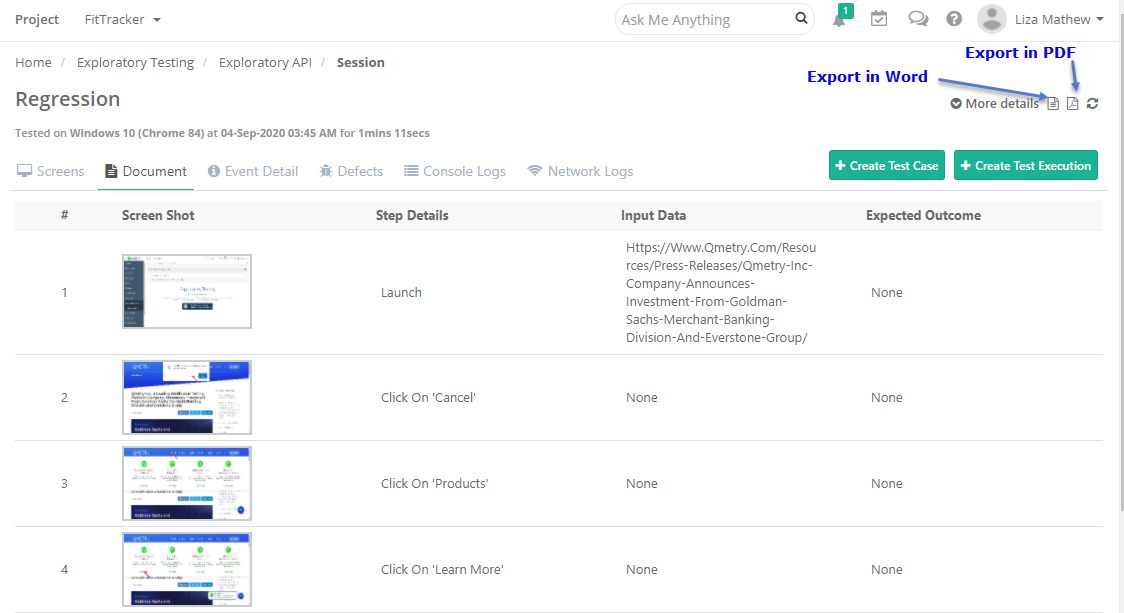
Document | Displays screenshot thumbnails with their step details, input data, and expected output. The step details are the action you perform, the input data is the website you explore, and the expected output is an assertion that you supply while recording. These fields are editable. Select a thumbnail to view the screenshot in expanded mode. |
Event Detail | Displays the details of each recorded event in three vertical panels: the first shows events in sequence, the second shows the image for the selected event, and the third shows the property and value for the selected event. |
Defects | Displays the bugs that you logged while recording the session. The system logs each bug in the Issues module. Select the entity key to open the issue in the Issues module. |
Console Logs | Displays browser console logs, recorded only when exceptions occur. Available when you select the record-logs option before recording. |
Network Logs | Displays browser network logs. Available when you select the record-logs option before recording. |
Console logs and network logs help developers debug failed scenarios. The system attaches both to the test case created from the session.
Export Session Details
You can export individual session details in Word and PDF formats. The export includes the session summary, notes, and metadata; the defects summary; and the Document tab details.
To export session details, perform the following steps:
Open the Exploratory Session whose details you want to Export.
Select the paper icon.
Choose the format: Export in Word or Export in PDF.