Disabling the Azure and QMetry Integration
Overview
Azure integration in QMetry allows seamless synchronization of requirements and issues. If you no longer need the integration, remove Azure to stop data synchronization between QMetry and Azure.
Removing Azure Integration From a Project
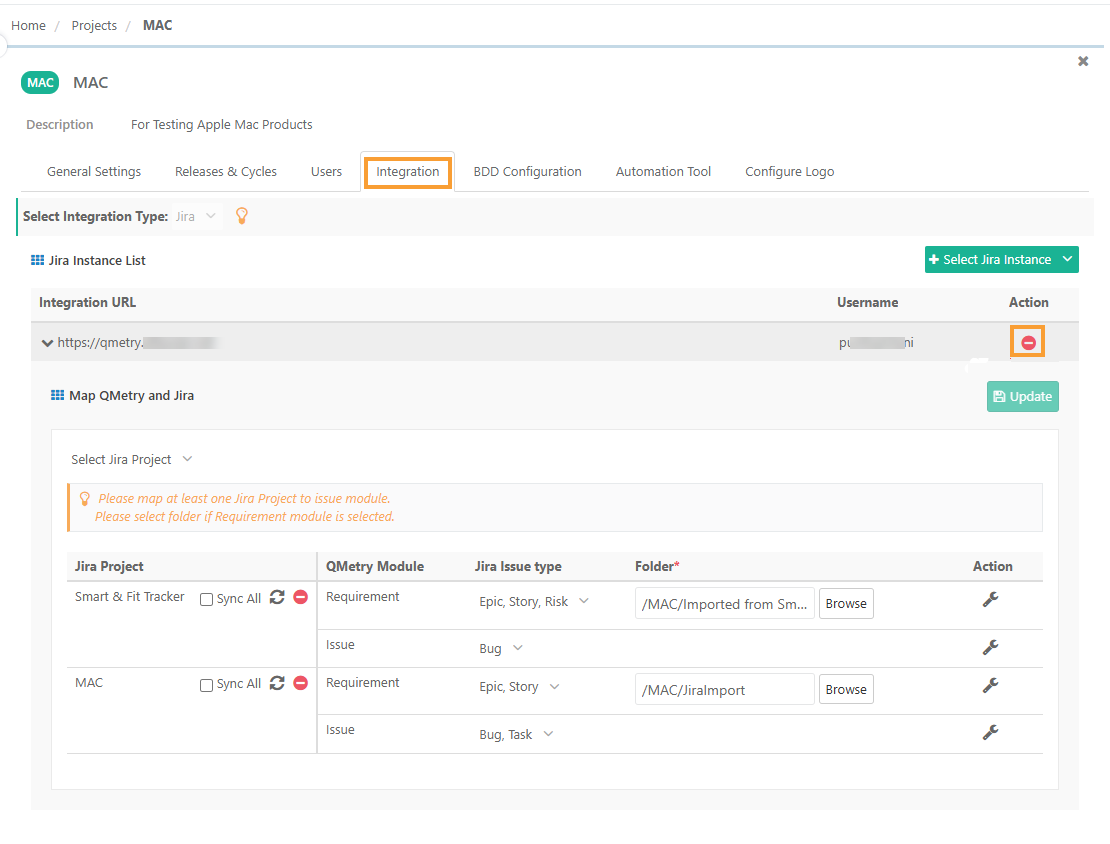
To remove Azure Integration from a project, perform the following steps:
Log in to QMetry and navigate to Project Management.
Click Projects and select your QMetry Project.
Go to Integration tab.
Expand integration URL.
Click Delete icon next to the integration URL that you want to remove.
This removes all QMetry project linkages associated with the Azure instance.
When you remove Azure integration:
QMetry converts existing Azure-synced requirements into internal ones and removes their Azure linkages.
The system deletes Azure-synced issues along with their linkages and stops syncing new Azure work items as requirements or issues.
Disconnecting QMetry Integration from Azure
On disconnect the QMetry sections will be hidden from Azure Setting and Work Items.

To disconnect QMetry integration from Azure:
Log in to your Azure account.
Go to Organization Settings.
Navigate to Extensions and select QMetry Test Management.
Click Disconnect to remove the connection.
Note
When a QMetry project is disconnected:
No new Azure Work Items will sync into QMetry as requirements.
Syncing will stop, but there is no data loss for already synced requirements.
Re-integrating will resume syncing from Azure.
Uninstall Azure DevOps Extension
You can uninstall Azure DevOps Extension from your organization at any point of time.
To uninstall the Azure Extension from your organization, perform the following steps:
Log into your Azure account.
Go to your organization.
Click Organization Settings
Select Extensions under General.
Click QMetry Test Management Extension for Azure DevOps.
Click Uninstall and Confirm.
Notes
When a QMetry project is disconnected:
No new Azure Work Items syncs into QMetry.
Syncing stops, but there is no data loss for synced issues.
Re-integrating requires reconfiguration with same URL.