Record an Automated Test Execution from Reflect
When you enable the integration, Reflect and QMetry sync in real time. When you record a new test in Reflect or update an already mapped test, QMetry immediately updates the corresponding test automatically.
Prerequisites
Before proceeding, ensure that:
Reflect is successfully integrated with QMetry.
The integration status shows Connected.
You have appropriate access permissions in both systems.
Record an Automated Test
Accessing Automation Options in QMetry
Go to Integrations.
Select Reflect.
Locate the required Reflect instance.
Click Record Automated Test under the Action column.
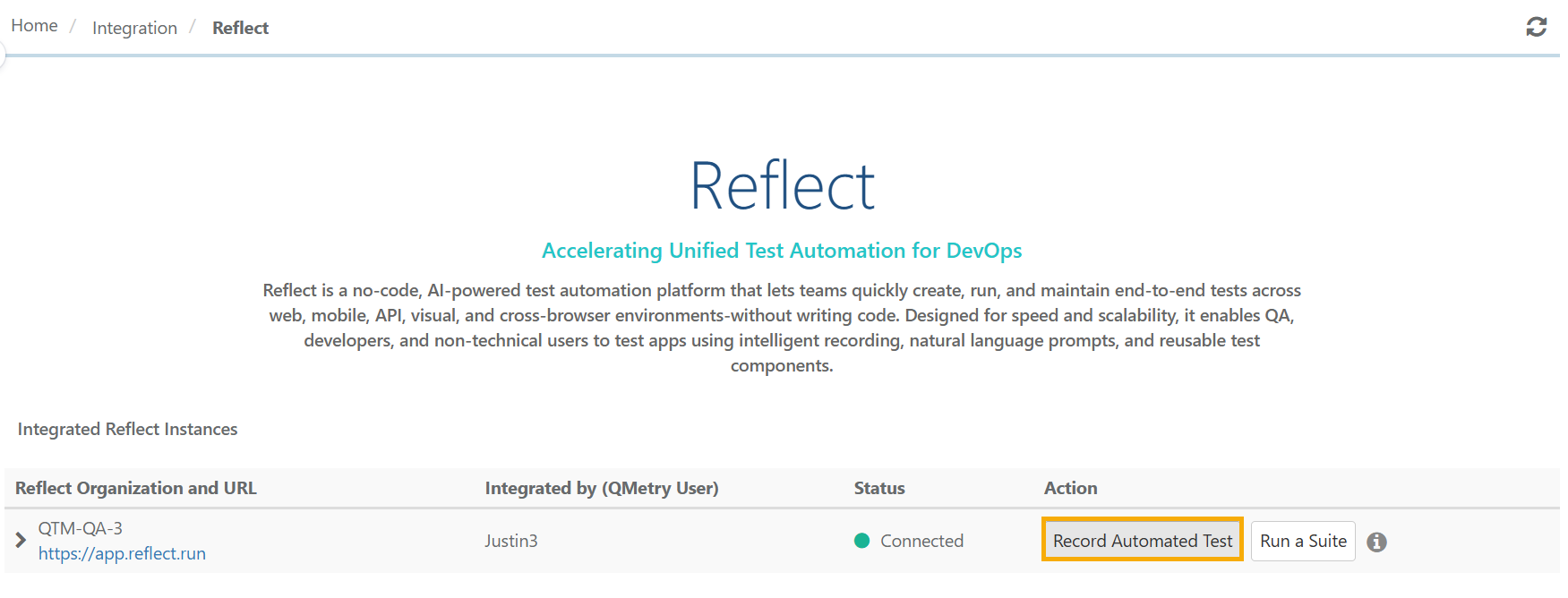
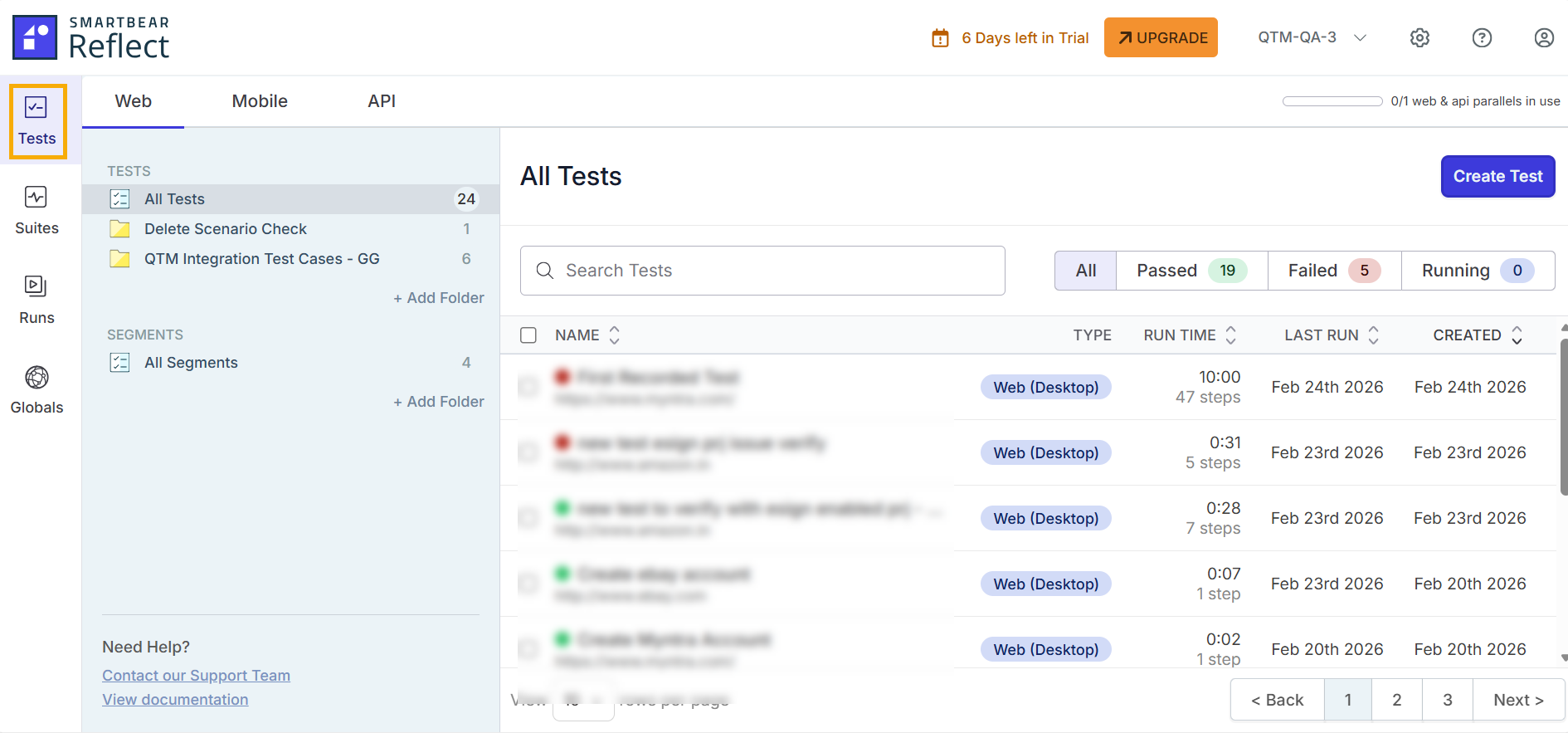
The system redirects you to the Tests section in Reflect (given you are already logged in).
Creating Automated Tests: In Reflect Tests tab, click Create Test. This opens a new panel with configuration for automating the test case.
Configuring Test options:
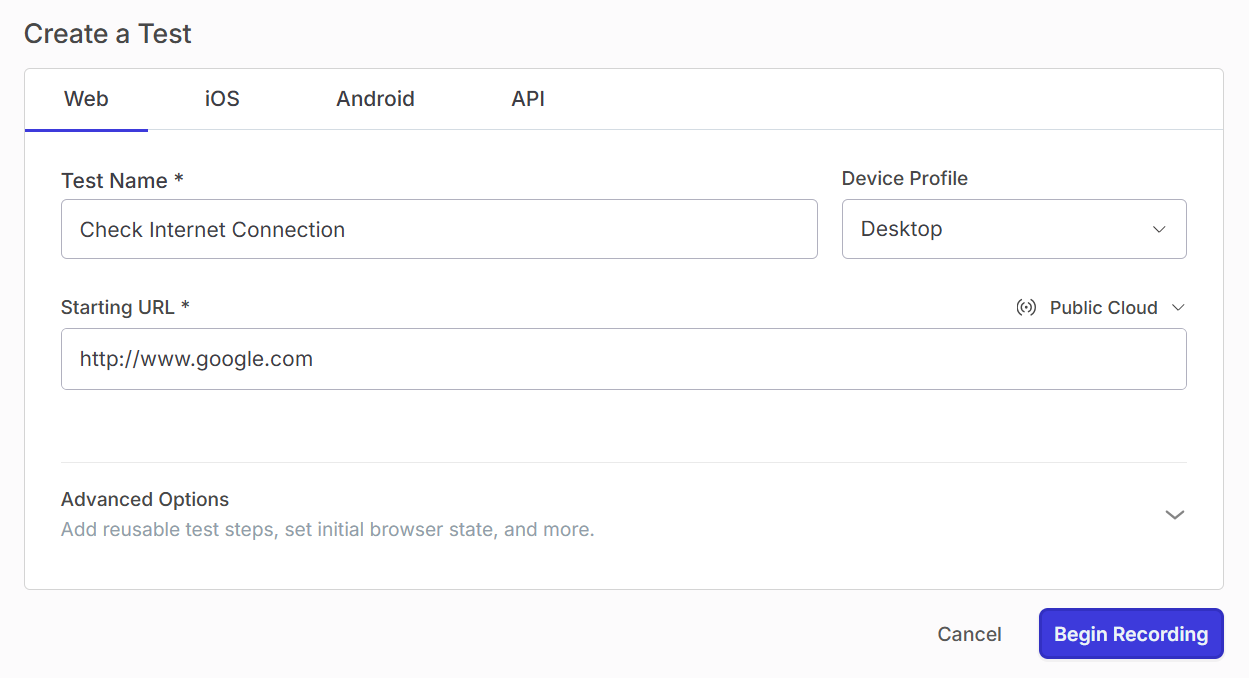
Starting URL: Enter the URL of the public website under test. The automated test will start by navigating to this URL. The URL is a required field. If your testing environment has no public URL, see how to configure access for private/local environments.
Device Profile: Choose whether the test runs on a desktop browser, or emulates a tablet or mobile browser.
Recording the Test
Click Begin Recording.
Click Save once the recording is complete.
Enter the description for the Test and click Save and Run.
Syncing Reflect Tests in QMetry
When auto-sync settings is on and you record a new test in Reflect:
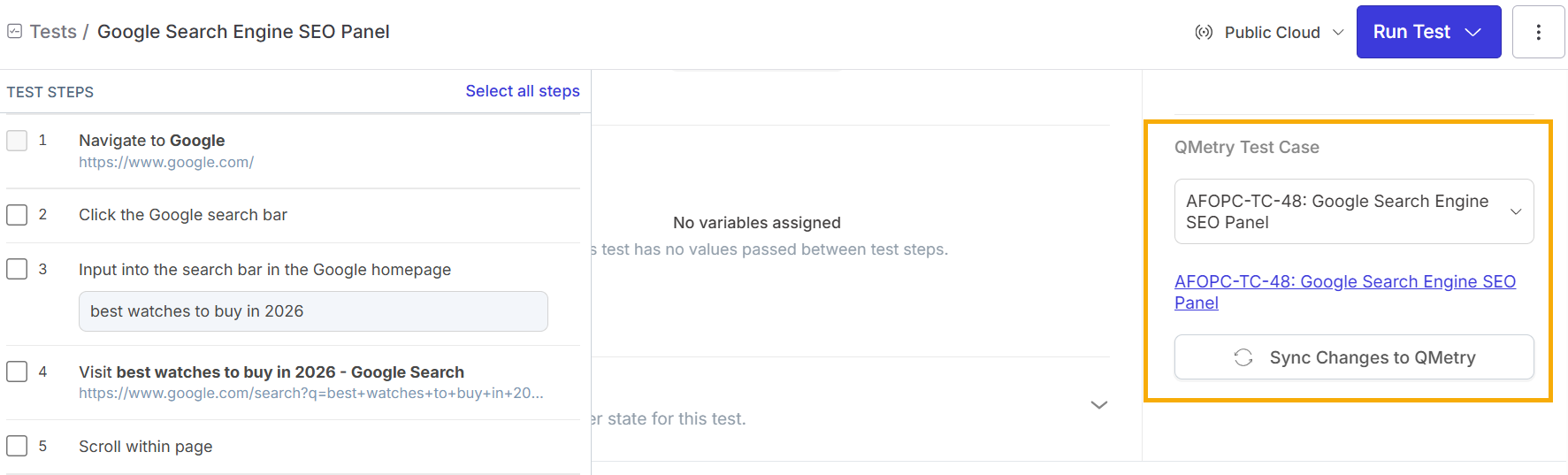
A corresponding Test Case is automatically created in QMetry .
The QMetry Test Case is directly mapped to the originating Reflect test.
This mapping enables ongoing sync of updates from Reflect to QMetry .
Test Cases created in QMetry from Reflect are marked as Reflect created.
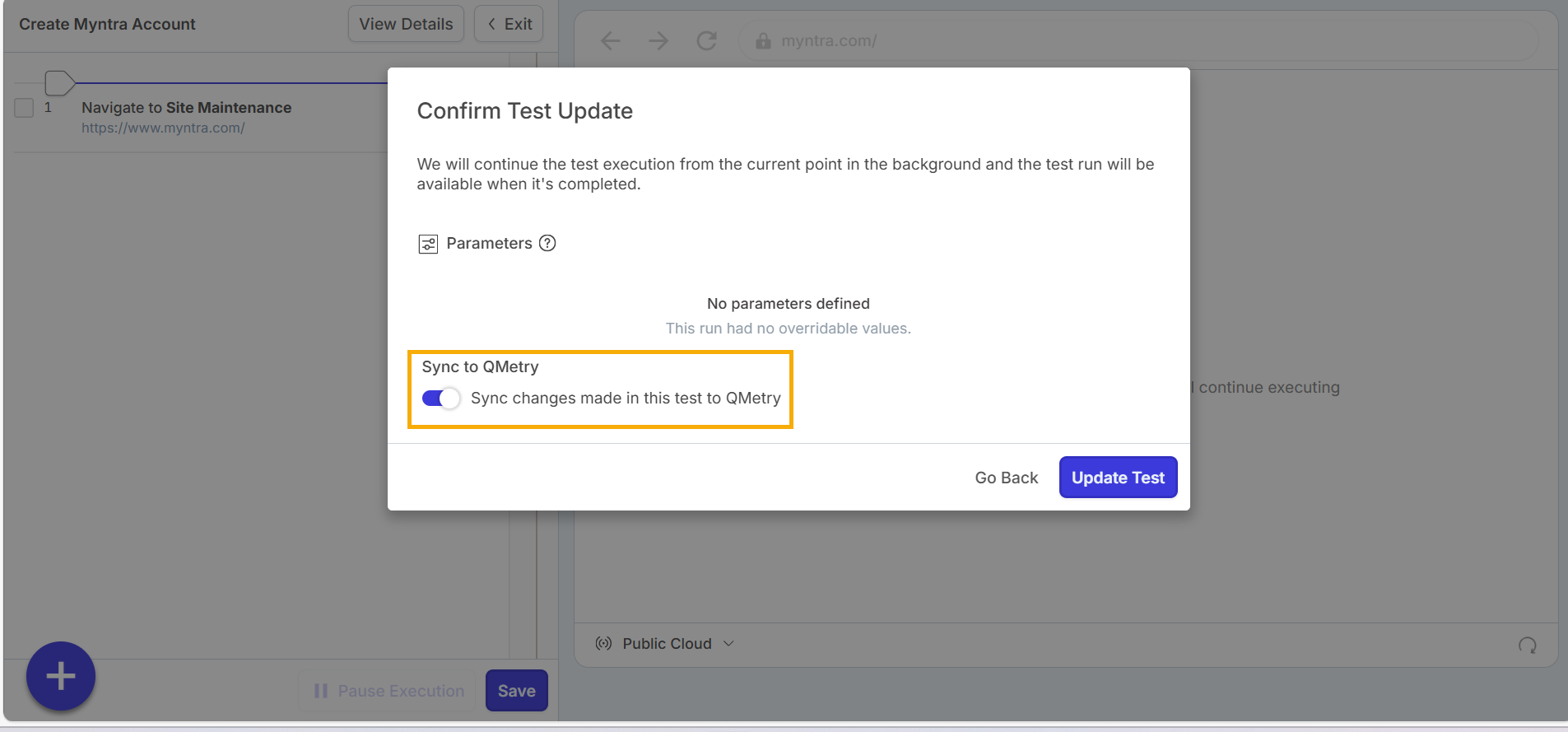
When automatic sync is disabled for the integration, Reflect displays a Sync to QMetry toggle option. This option allows you to enable sync for the current update.
Note
If mandatory fields exist in the selected QMetry project (other than Summary), sync fails or is disabled.
Tracking Reflect Test in QMetry
Go to the Test Case Module.
Select the column Reflect Created from Arrange Columns.