System Filters Available For Query
System filters are text strings used to narrow down data from an internal or SQL database. In a query, the filter works like an SQL WHERE clause and returns only the data that matches the specified conditions.
These comparisons are typically between field names and their corresponding values. QMetry offers several system-defined filters that enable users to generate custom reports with precise outputs.
What are the benefits of using system filters?
Reduces manual effort of specifying the query filter values or options while creating the SQL statements to generate a custom report.
Always include a filter (for example, @filter.project) in custom SQL queries. This ensures that users viewing shared report gadgets only see data from projects they are allowed to access.
Modify and reuse gadgets created from a custom query.
System filters let end users specify the criteria to view specific report data.
Using filters in SQL queries helps the system fetch only relevant records, improving data retrieval performance from the database schema.
When you include a parameter in a report query, the system prompts you to select a filter option before it generates the report.
For example, when you use @FILTER.PROJECT in a report query, the system prompts project selection and generates the report based on that selection. Similarly, use @FILTER.DATE to filter the report by date.
IMPORTANT:
Specify filters in the format: `@Filter.project` (` is not a single quote; it's an acute/back quote).
Project filter @FILTER.PROJECT is mandatory if you want to use any other system-defined filter except Date filter @Filter.date
Project filter @FILTER.PROJECT and Release filter @FILTER.RELEASE are mandatory if you want to use Cycle filter @FILTER.CYCLE
Filter | Description | Filters work on |
@FILTER.PROJECT | Filter report on a specific Project. | ID |
@FILTER.RELEASE | Filter report on a specific Release. | |
@FILTER.CYCLE | Filter report on a specific Cycle. | |
@FILTER.USER | Filter report on a specific User. | |
@FILTER.BUILD | Filter report on a specific Build. | |
@requirementFolder | Filter report based on requirement folder | |
@testcaseFolder | Filter report based on testcase folder | |
@testsuiteFolder | Filter report based on test suite folder | |
@FILTER.EXTERNAL PROJECT | This is the integrated Jira project with QMetry. | value |
@FILTER.ISSUE PRIORITY | Filter report on Issue Priority e.g., Blocker, Critical, Major, etc. | |
@FILTER.ISSUE TYPE | Filter report on a specific Issue Type e.g., Bug, Enhancement, New Feature, etc. | |
@FILTER.ISSUE STATUS | Filter report on a specific Issue Status e.g., Open, Reopened, Resolved, Closed, etc. | |
@FILTER.ISSUE OWNER | Filter report on the owner of the issue. | |
@FILTER.TESTCASE PRIORITY | Filter report on Test Case Priority e.g., Blocker, Critical, Major, etc. | |
@FILTER.TESTCASE STATUS | Filter report on Test Case Status e.g., New, Open, On Hold, Rejected, In Progress, etc. | |
@FILTER.TESTCASE LABEL | Filter report on Test Case Label e.g., Sprint1, Sprint2, etc. | |
@FILTER.TESTCASE TYPE | Filter report on Test Case Type e.g., Functional, Performance, Regression, etc. | |
@FILTER.REQUIREMENT PRIORITY | Filter report on Requirement Priority e.g., Blocker, Critical, Major, etc. | |
@FILTER.REQUIREMENT STATUS | Filter report on Test Case Status e.g., New, Open, On Hold, Rejected, In Progress, etc. | |
@FILTER.REQUIREMENT OWNER | Filter report on the owner of the Requirement. | |
@FILTER.TESTING TYPE | Filter report on the Testing Type of the Test Case e.g., Manual, Automation. | |
@FILTER.PLATFORM | Filter report on the Platform linked to the test suite. | |
@FILTER.JIRA ASSIGNEE | Filter report on the Assignee of Jira issue. | |
@FILTER.JIRA REPORTER | Filter report on the Reporter of Jira issue. | |
@FILTER.APPROVAL STATUS | Filter report on Test Case Status when the eSignature feature is On. | |
@FILTER.JIRA RESOLUTION | Filter report on the Resolution marked in Jira. | |
@FILTER.TESTSUITE STATUS | Filter report on the Test Suite Status after the execution. | |
@Filter.execution status | Filter report on the Test case execution status. | |
@Filter.date | Filter report on date. e.g. to specify execution start date : testexecutions.tcexecutionEndTime >= (`@filter.date Execution Start` ) | |
SQL Query
Note
Test Case Execution Count By Status Over Execution Date
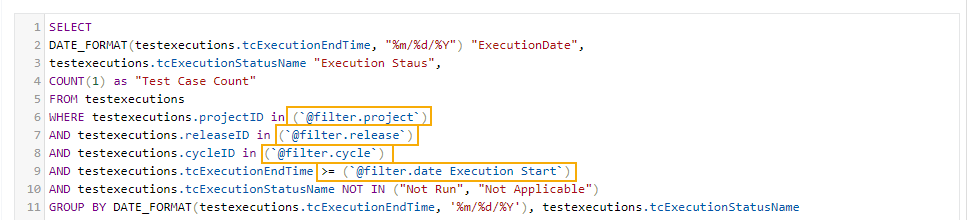 |
When a report query includes any of the above filters, the system asks the user to select filter values before it generates the report. Based on the filter type, the system shows either a single-select or multi-select dropdown.
Apply the Filter
When you add filters to a query and run it, the system adds those filters to the Filter panel for filtering report data. For fields with a list of values, the filters also include Select All and Unselect All options.
 |
The system saves the filter values selected during query execution and applies them as the default values for the gadget. When you share the report, the filters work based on the user’s project access.
Once the filter is applied to the report, you can modify it from the dashboard.
Filter On `text` Field(s)
You can also add filters to the `text` fieldt. Here’s how you can do it.
Considering the above example, if you want to give end-user an ability to generate the report by filtering on the specific test case execution status, the same can be added in a `WHERE` clause as described below:
Syntax: <tablename>.<columnname> IN (@`filter.<tablename>.<columnname>`)
Example : testexecutions.tcExecutionStatusName IN (`@filter.testexecutions.tcExecutionStatusName`)
SQL Query
SELECT
DATE_FORMAT(testexecutions.tcExecutionEndTime, "%m/%d/%Y") "ExecutionDate",
testexecutions.tcExecutionStatusName "Execution Staus",
COUNT(1) as "Test Case Count"
FROM testexecutions
WHERE testexecutions.projectID in (`@filter.project`)
AND testexecutions.releaseID in (`@filter.release`)
AND testexecutions.cycleID in (`@filter.cycle`)
AND testexecutions.tcExecutionEndTime >= (`@filter.date Execution Start`)
AND testexecutions.tcExecutionStatusName IN (`@filter.testexecutions.tcExecutionStatusName`)
GROUP BY DATE_FORMAT(testexecutions.tcExecutionEndTime, '%m/%d/%Y'), testexecutions.tcExecutionStatusName
The same syntax applies to Test Run UDFs, which are available as qmetry_ prefixed columns in the testexecutions table. The following example filters on an Execution UDF named qmetry_severity_level:
Example 35. Test Run UDFsExample: testexecutions.qmetry_severity_level IN (`@filter.testexecutions.qmetry_severity_level`)
SELECT
testexecutions.projectName AS "Project Name",
testexecutions.tcExecutionStatusName AS "Execution Status",
testexecutions.qmetry_severity_level AS "Severity Level",
COUNT(1) AS "Test Case Count"
FROM testexecutions
WHERE testexecutions.projectID IN (`@filter.project`)
AND testexecutions.qmetry_severity_level
IN (`@filter.testexecutions.qmetry_severity_level`)
GROUP BY
testexecutions.tcExecutionStatusName,
testexecutions.qmetry_severity_level
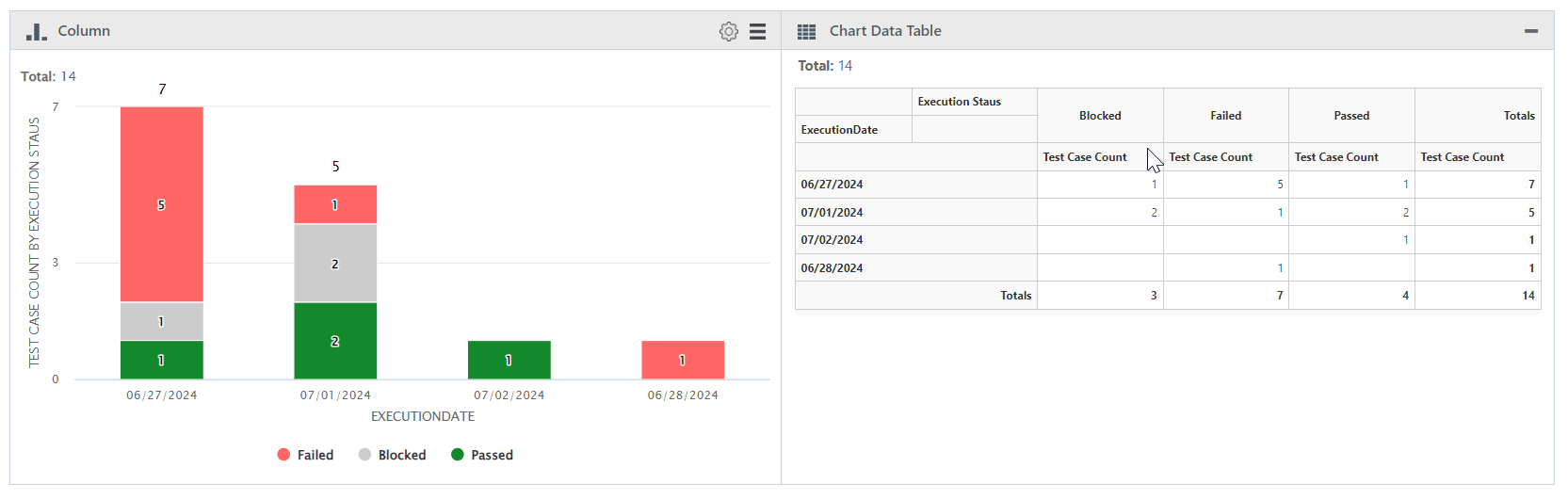
The Filter added on a text field in a query allows you to specify multiple values in a filter option. The multiple values can be specified by ‘pressing enter after typing’ (i.e. add first value ⟶ press enter ⟶ add next value ⟶ press enter and so on).
If a filter is not applied, then the report shows data of the current project and of last 1 month.
Query Output
 |
Click Apply to apply the filters. Else, click Reset to clear the applied filters.