Worksoft Integration
Users can initiate the Worksoft CTM suite from QTM. Worksoft executes the tests (processes) that are part of the suite. QTM monitors the progress of the execution and after completion, imports the results of the test (processes) and associates them with the test cases that are part of the test suite.
Note
Get Project Admin rights to configure Worksoft with the QMetry project.
Only test case level status are imported into QTM.
A new test suite gets created in QMetry on each event of fetching the results from Worksoft CTM.
The following table shows the relevant permissions required to carry out further operations.
Module | Rights | Description |
|---|---|---|
Project | Modify | Users can configure QMetry project with Worksoft. |
Automation | View | View triggered execution details. You cannot trigger execution or delete triggered execution. |
Automation | Modify | Users can create and trigger executions, view details, and delete entries for triggered executions. |
Test Cases | Create, Modify, and Execute | Users can import test results from Worksoft into QMetry. |
Test Suites | Create and Modify |
Configure Worksoft CTM
To configure Worksoft CTM, perform these steps:
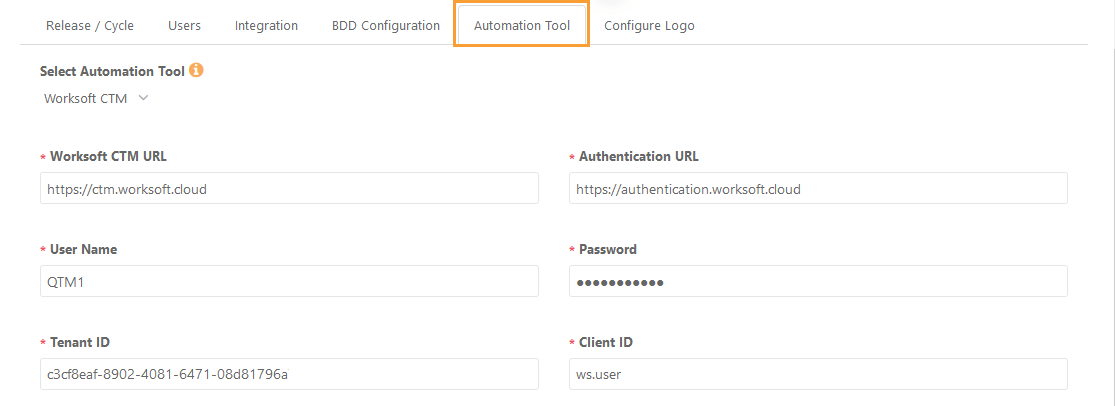 |
Go to Projects and open the Automation Tool tab.
Select Automation Tool: Worksoft CTM.
Worksoft CTM URL: https://ctm.worksoft.cloud
Authentication URL: https://authentication.worksoft.cloud
Enter username, password, Tenant ID and Client ID.
Click .
The system displays the Worksoft CTM Suite under the Integration section.
When the integration is completed for the first time, the Worksoft CTM Suite screen appears blank. You can trigger executions by clicking Trigger New Worksoft Suite.
Worksoft CTM Suite
The screen displays the list of Worksoft CTM Suites triggered through QMetry.
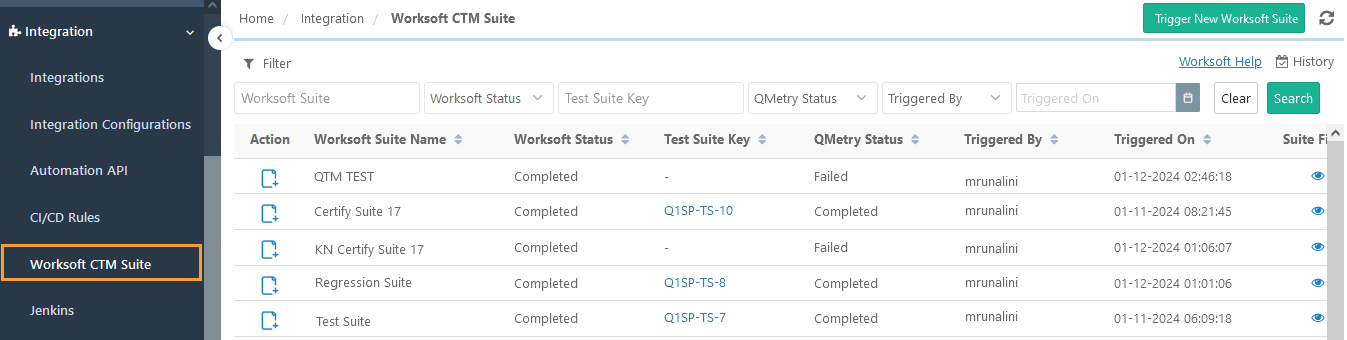 |
Apply the following filters to find the required suites.
Action: The column displays icons indicating the following actions.
Fetch Result: When you trigger a new Worksoft Suite, the system adds the record with the status Triggered. Click the Fetch Result icon to import the results into QMetry.
Trigger a new test suite execution with the same test suite and test case fields: Click this icon to trigger a new suite execution with the same fields of the test suite and test case.
Worksoft Suite Name
Worksoft Status: Triggered, Completed, Failed
Test Suite Key
QMetry Status
Triggered By: Users by whom the suite execution has been triggered. You can select multiple users on the list.
Triggered On: The date on which the suite execution has been triggered.
Trigger a New Worksoft Suite
To trigger a new worksoft suite, perform these steps:
Go to Integrations and select Worksoft CTM Suite.
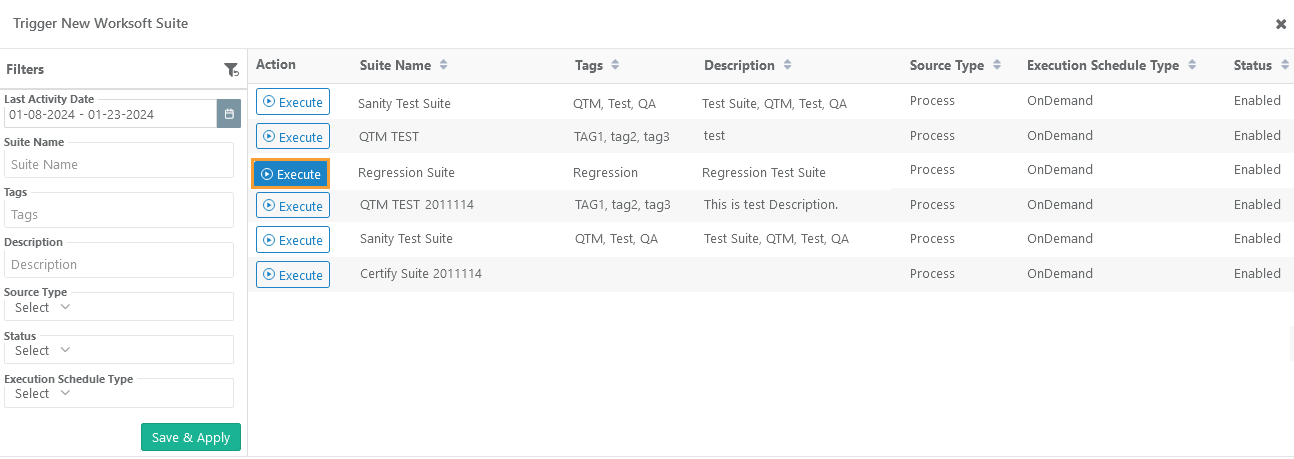
Click to trigger a new worksoft suite.
When you execute the Worksoft Suite for the first time, the Worksoft CTM Suite screen appears blank.
If you have triggered executions earlier, the screen displays a list of Worksoft Suite names. Enter the requested details in the test suite fields
Click to execute the suite in Worksoft.
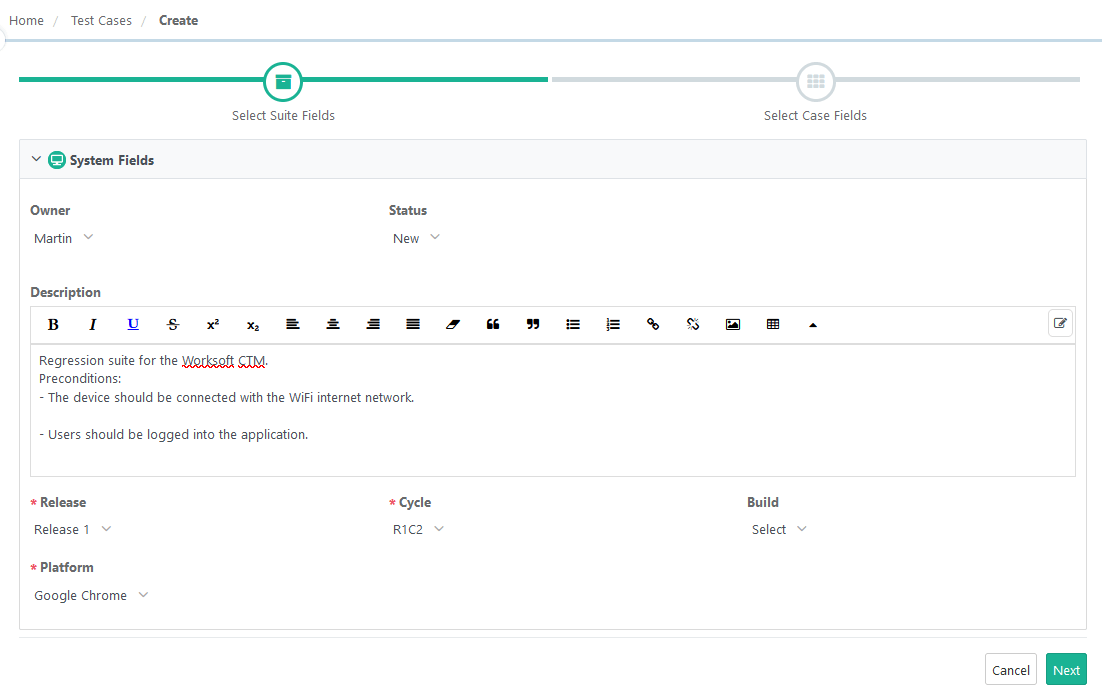
Once the execution is triggered, the system auto-creates the test suite and test cases. Enter the required details in the test suite fields.
Note
The Select Suite Fields and Select Case Fields screen displays the layout of fields as per the set Layout Management for that project.
Click and enter the values for the Test Case system fields and custom fields.
Click
QMetry triggers the test suite execution in Worksoft. The triggered Worksoft Suite appears on the Worksoft CTM Suite screen in QMetry with the status Triggered.
To import the test results into QMetry, click Sync. Once the import starts, QMetry fetches the results from Worksoft.
After a successful import, both the Worksoft Status and QMetry Status change to Completed, and the Action column icon updates to allow you to trigger a new execution.
The icon under the Action column also changed to trigger a new execution.
You can -
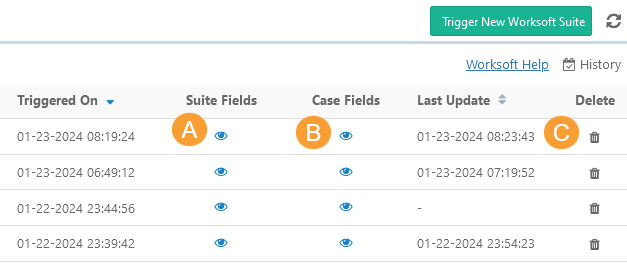
View the Suite Fields by clicking on the Eye icon.
View the Case Fields by clicking on the Eye icon.
Delete the test suite record by clicking on the Delete icon for that suite. When the entry of the triggered suite execution is deleted, only the record will be deleted. Its relevant QTM test suite created using the Fetch Result process will not be deleted.
A new test suite is created under the Worksoft Suites folder in the Test Suites module.
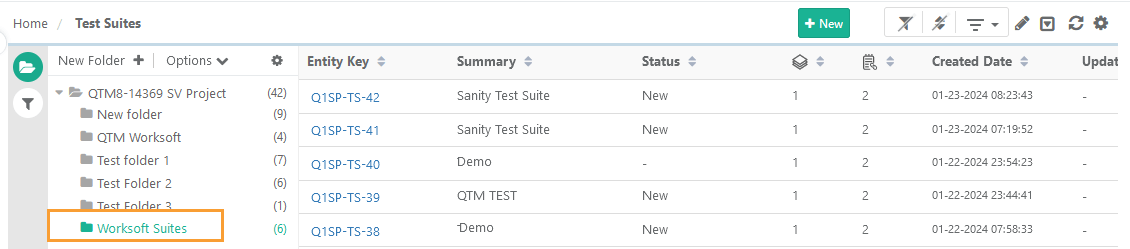 |
Clicking the Test Suite Key on the Worksoft CTM Suite screen opens the test suite in the Test Suites module of QMetry
Click the Execute button for the suite to view the test cases linked to the test suite.
You can execute the same Worksoft Suite again using the Trigger New Worksoft Suite button.
Trigger New Executions of Worksoft Suite with the Same Test Suite and Test Case Fields
The Trigger a new execution with the same test suite and test case fields icon in the Action column is enabled exclusively for trigger records with QMetry Status set as Completed.
To trigger new executions, perform these steps:
Click Trigger a new Execution with the same Test Suite and Test Case Fields.
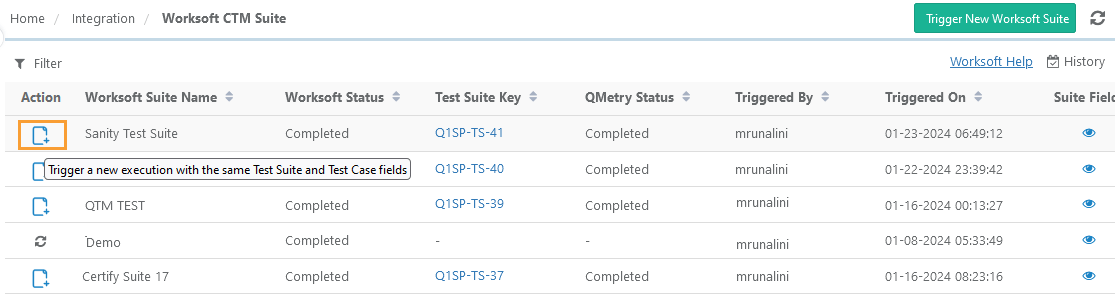
The Worksoft Suite is added with the status “Triggered” status on the screen. The execution is triggered using the same parameters that were provided from the selected execution.
Click the Sync icon to import or fetch the test results into QMetry.
Import from Worksoft is started.
Test Suite Key is updated in the triggered execution.
Worksoft Status and QMetry Status are updated as “Completed”.
View Progress
View the progress of the import of test results from Worksoft CTM in the Scheduled Task section.
For the fetch-result operation, the section shows its current status.
If the import of test results from Worksoft fails, the Failure status is displayed with the Error Log attached to the activity.
View History
The History displays Worksoft Suite triggers logs and QMetry details on fetching results.
Click History at the top right corner.
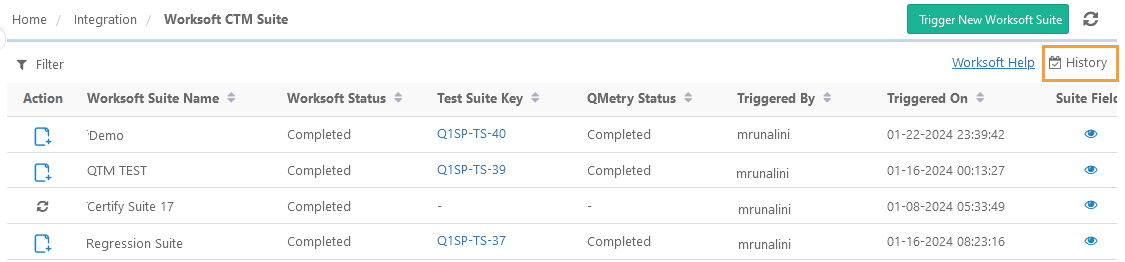
The screen opens with the list of events that occurred for the Worksoft CTM Suite.
The Test Suite Keys are clickable and provide a reference to the action.