Filtering Assets
Filter test assets by system or custom fields across all modules. Two types of filters are available:
Basic Filters, to filter test assets by summary, release, and cycle.
Advanced Filters, to filter assets by system or user-defined fields.
Applying Advanced Filters
To apply advanced filters, perform the following steps:
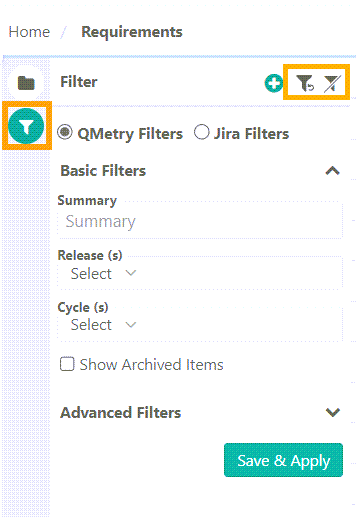 |
Expand the filters.
Click +.
Select the fields for filtering.
Enter the filter values.
Click .
Note
The system saves filtered views for future use.
To filter assets by Entity Key, select + and choose the fields from the drop-down list. Apply an advanced filter on entity Key to search for test cases using comma-separated entity IDs, without specifying the complete entity key.
Filtering Assets by Cascading List Fields
Filter records using cascading list fields on any screen that supports custom fields. The filter dropdown displays both parent and child values together, so you can filter by specific value combinations.
Filtering Assets when Jira is Configured
Jira Filters work only when the project is synced with Jira. You get two distinct filters to filter requirements: QMetry Filters and Jira Filters.
To apply Jira Filters, perform the following steps:
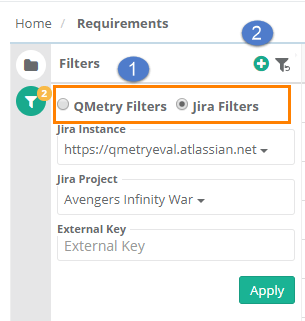 |
Select Jira Instance and Jira Project.
Click Apply.
Click + to apply filters.
Note
The system retains the filter selections and automatically applies them the next time you access the screen.
Filtering by a Jira field narrows the results, but the field does not appear as a column in the Requirement list view.
Resetting Filters and Clearing Filter Value
The Clear Filter Values clears out the values without removing the fields.
The Reset Filters option resets the filter to the default. All the selected fields for Advanced Filter are removed from the filter.