Migrating from X-Ray to QMetry using QMetry Migration Tool
In this guide, we will run you through the steps to migrate your data from X-Ray to QMetry Test Management.
This documentation enlists all the information on migration process like what can be migrated, and what are the assets/data that may not be migrated, features of the migration utility along with System Requirements, Pre-requisites, and steps to be taken care before proceeding with migration.
X-Ray - QMetry Entity mapping
X-Ray Assets | QMetry Assets |
|---|---|
Story Issue Type (through Jira Integration) | Story Issue Type (through Jira Integration) |
Bug Issue Type (through Jira Integration) | Issues |
Tests | Test Cases |
Test Sets | Test Suites (Unexecuted) |
Test Plans | Test Suite Folders |
Test Executions | Test Suites (Executed) |
Test Runs | Test Executions |
Capabilities of the Migration Tool
Migrates Tests with teststeps, Test sets, Test plans and Test executions.
Rich text type data is migrated for all the long rich text supported fields.
Migrates custom fields & their values for all the assets.
Migrates folder structure of Tests.
Migrates linkages between assets.
Migrates comments for all the assets.
Migrates creation date for all the assets.
For test cases, Created Date will be migrated to QMetry's system field and for other entities created date will be migrated as custom field, if user wants.
For testcases Created By will be migrated to QMetry's system field and for other entities created by will be migrated as custom field, if user wants.
Migrates all the attachments & URL links.
Resumes migration failed or stopped due to an error.
Planning your Migration
The scope of migration affects the migration time. The clear visualization of the scope helps you do the precise planning for the migration. Below details should be shared before proceeding with the migration.
Details about the level of customization in Zephyr instance. (i.e. number of Custom/User-Defined Fields)
Number of projects that need to be migrated.
List of system and custom fields need to migrate (By Project).
Number of projects to migrate for evaluation of utility. We prefer one sample project.
Project list mentioning migration priority sequence.
Estimated entity size of overall projects.
Time slots available - Target Migration Dates.
System Requirements
Java25 needs to be installed. Reference: Archived OpenJDK GA Releases
MySQL services and MYSQL workbench 5.7 or above needs to be installed. Reference: MySQL :: Download MySQL Installer
Operating Systems: Windows 10
X-Ray cloud version 6.8.0(Utility is tested on)
Get your QMetry Migration Tool (migrate2qtm.war) and its license (qmetry-license-version-1.0) from Professional Services team.
QMetry and X-Ray should be running on your system with valid license.
Set UTC Time Zone in QMetry as all the dates from X-Ray will be migrated in to QMetry as per UTC time zone.
Pre-requisites
Turn off API limits and Audit Logging.
For server:
These steps need to be followed in the QMetry database. Enter 'root' database credentials when prompted.
sudo su -
docker exec -it qmetry_rds_1 bash
mysql -uroot -p -A
USE qmetry;
Run the following SELECT query check the status and the UPDATE query to disable audit logs and email notifications.
0=disabled 1=Enabled
SELECT CAST(isEmailEnabled AS UNSIGNED) as isEmailEnabled , CAST(isLogEnabled AS UNSIGNED) as isLogEnabled from client;
UPDATE `client` SET `isEmailEnabled` = b'0', `isLogEnabled` = b'0';
To enable them back (after migration is complete) run the following UPDATE query, and to check its updated value run the SELECT query.
UPDATE `client` SET `isEmailEnabled` = b'1', `isLogEnabled` = b'1';
SELECT CAST(isEmailEnabled AS UNSIGNED) as isEmailEnabled , CAST(isLogEnabled AS UNSIGNED) as isLogEnabled from client;
Type
\qto exit MySQL DB.Type
exitto exit the docker container.
For QMetry cloud:
Contact Professional Services team to turn off the API limits.
Install Certificate in JDK on the machine running the migration utility.
Follow the steps specified here : How to install certificate in JDK ?
Remove or rename duplicate list values for system or custom fields in TestRail as QMetry does not support creation of duplicate values.
Create a X-Ray Template Project in QMetry. The purpose of template project is to create a project structure that will be used to migrate the actual TestRail project with data into QMetry. Create and link all the X-Ray(Jira) users in this template project. Refer to Users in QMetry.
Migration Steps
Run the migration utility from its dedicated machine.
Open the command prompt and go to the migrate2qtm.war directory.
Put license file "qmetry-license-version-1.0" besides migrate2qtm.war file.
Run the following command by giving the path of the migrate2qtm.war file
cd <PATH_TO_WAR_FILE>
java -jar migrate2qtm.war --spring.datasource.username=<dbusername> --spring.datasource.password=<dbpwd>cd <PATH_TO_WAR_FILE>
Note
The application should be accessible from the same machine using the URL : http://localhost:8080/migrate2qtm.
Once you're on the destination selection page of the Utility, select QTM and proceed with steps below:
Destination Login
Select QMetry as destination from the Destination selection screen. On selecting QMetry, the authentication page will open. We recommend logging in using admin credentials so that the projects available for migration are not restricted by a user's permissions.
Base URL: Your QMetry login URL. For example: https://testmanagement.qmetry.com
API Key: QMetry Open API Key from: QMetry > Integrations > Open API
TestRail
We recommend logging in using Admin Credentials so that the Projects available for migration are not restricted by a user's permissions.
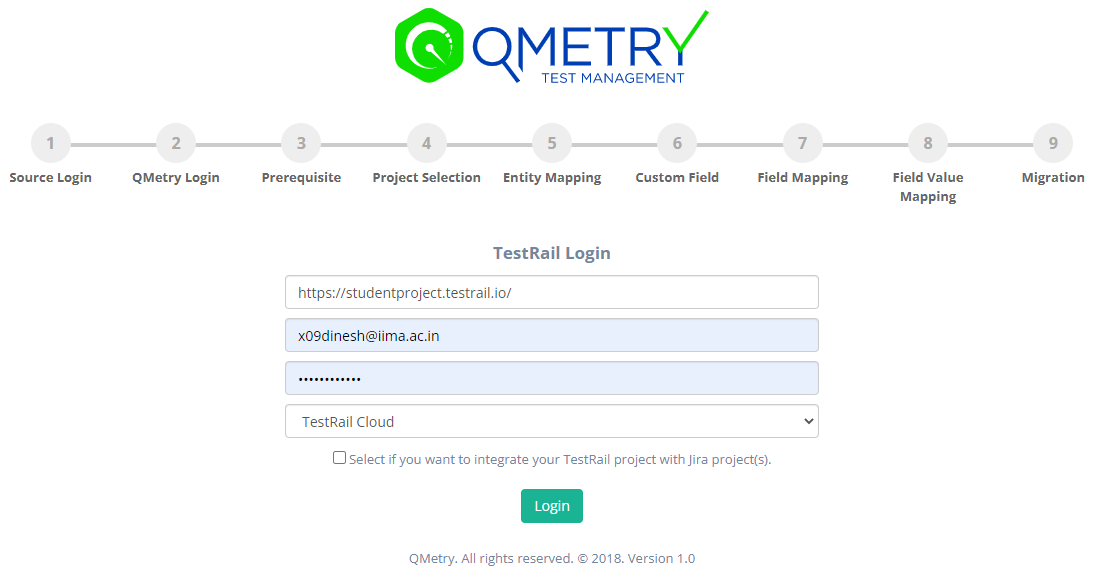
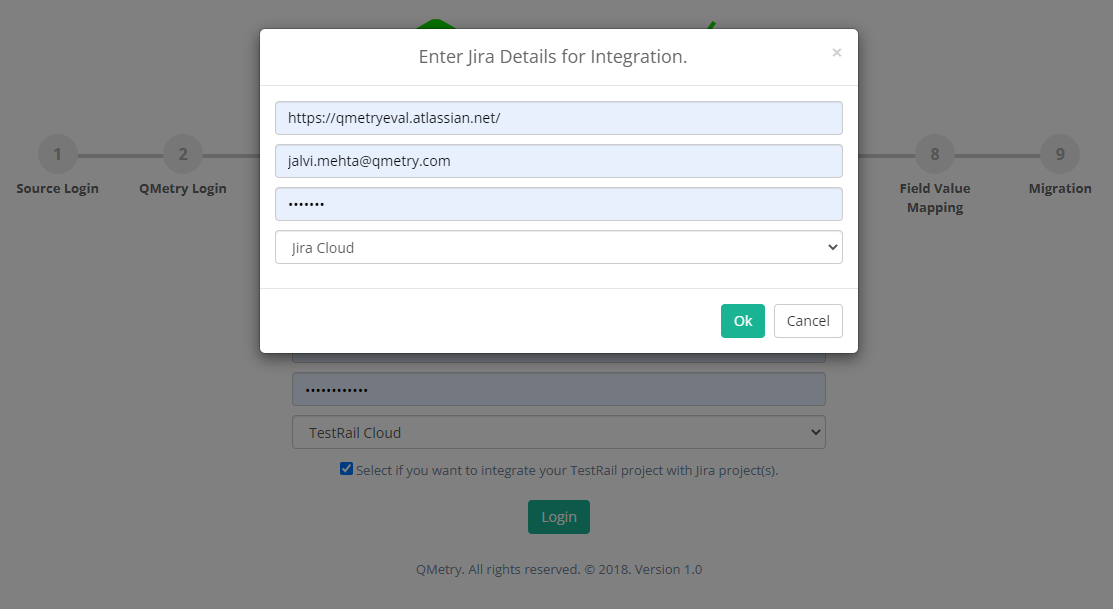
Jira authentication for Jira Integration
If you use Jira for stories and bugs, then click on 'Select if you want to Integrate your TestRail project to Jira project(s)' check box.
We recommend logging in using Admin Credentials so that the Projects available for migration are not restricted by a user's permissions.
Jira URL: Your Jira URL
Jira Email ID: Email id used for Jira login
Jira API token: Get the API token from: Atlassian Account settings > Security > Create and manage API token > Create API token
Jira account type: Choose whether Cloud or Server
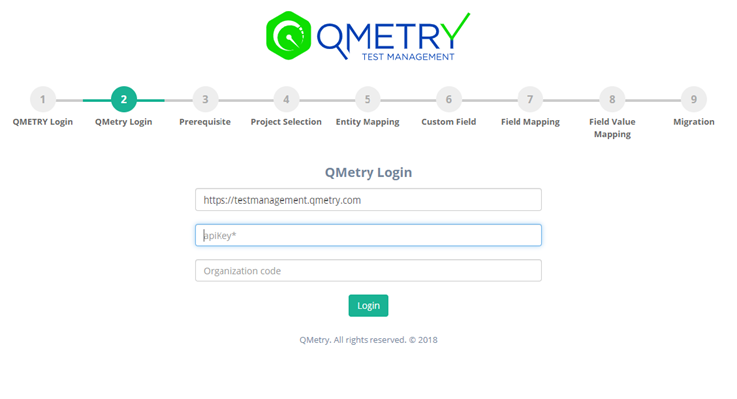
QMetry Login
We recommend logging in using Admin Credentials so that the Projects available for migration are not restricted by a user's permissions.
Base URL: Your QMetry login URL. For example: https://testmanagement.qmetry.com
API Key: QMetry Open API Key from: QMetry > Integrations > Open API
Organization Code: Enter QMetry Organization Code, or leave it empty.
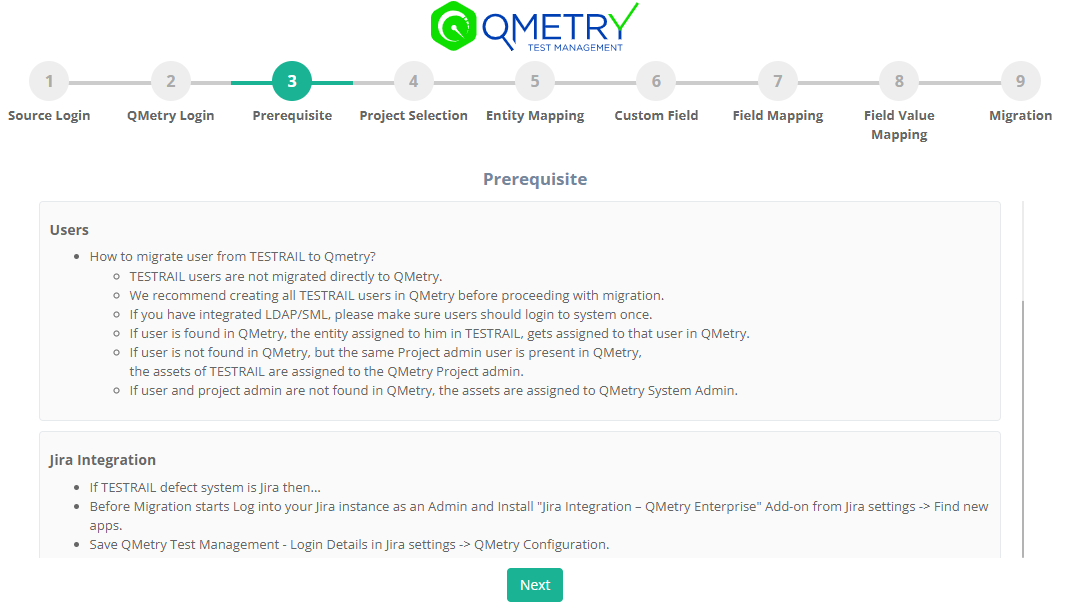
Pre-requisites
Make sure you comply with the pre-requisite mentioned on the screen.
Project Selection
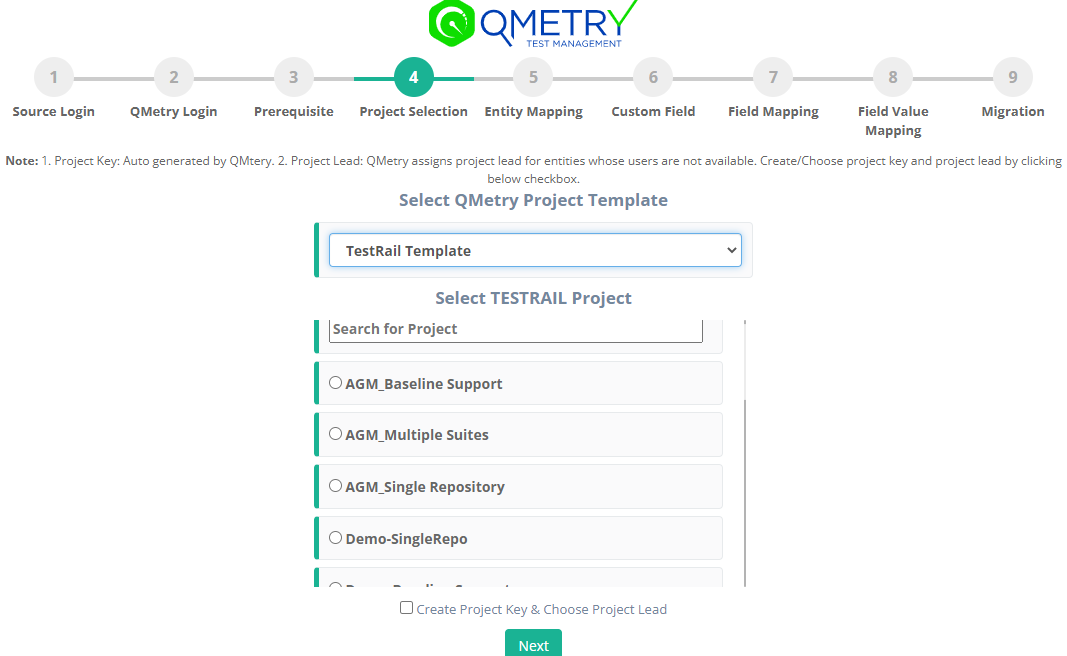
TestRail project and QMetry template project:
Select TestRail Project you would like to migrate into QMetry. Also, select the QMetry Project Template to be used to create the project structure. The template project should be empty with 'Rich text enabled' and users linked to it.
Project key and Project Lead can be given by selecting the '' If required, Add Project Lead....." checkbox.
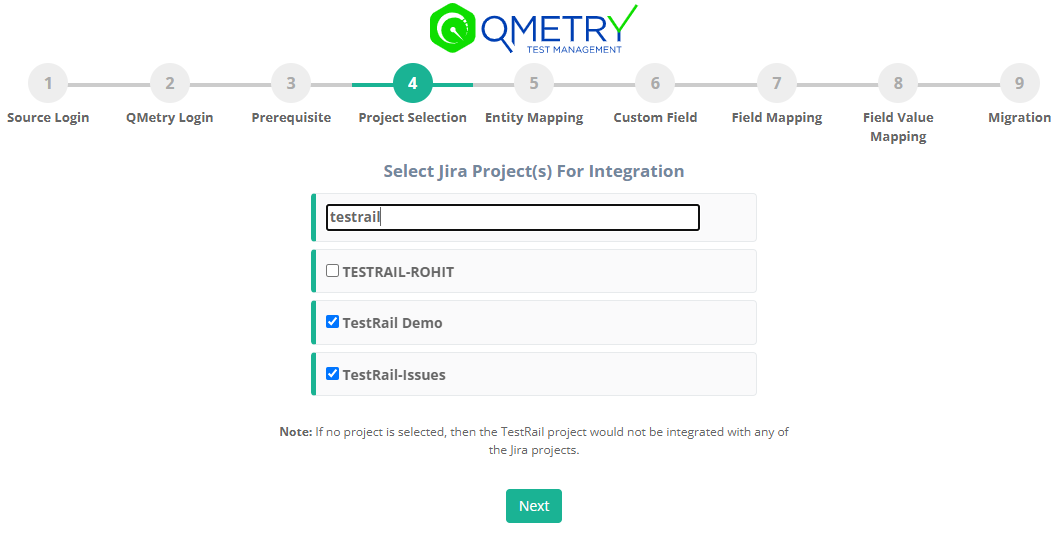
Jira Project Selection
Select the Jira projects that you want to integrate with the project which is currently being migrated.
Entity Mapping
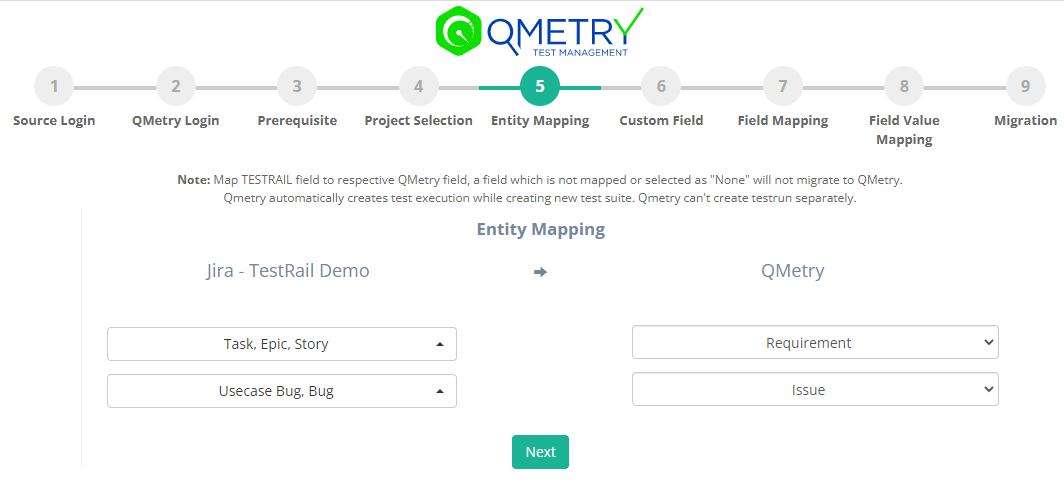
Jira Entity Mapping:
Under this section, for each selected Jira project, map your Jira assets or any other custom Issue-type to Requirement and Issue(defect) entities of QMetry. These assets will be migrated through Jira Integration feature of QMetry.
Note
If the QMetry Requirement is mapped to any Jira issue type then it is mandatory to map QMetry Issue module to atleast one Jira issue type.
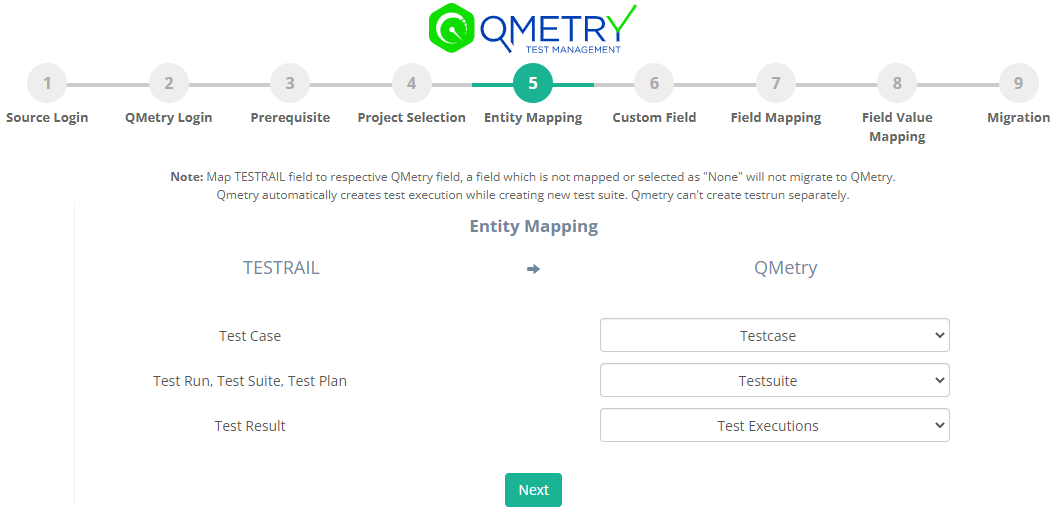
QMetry Entity Mapping
Under this section, map your TestRail assets which need to be migrated into relevant QMetry Assets.
Custom Fields
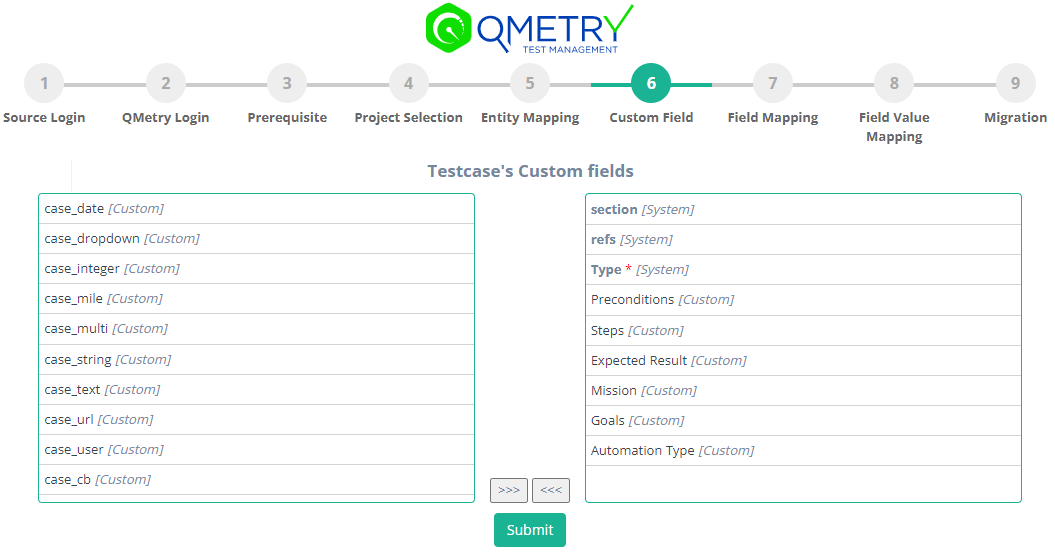
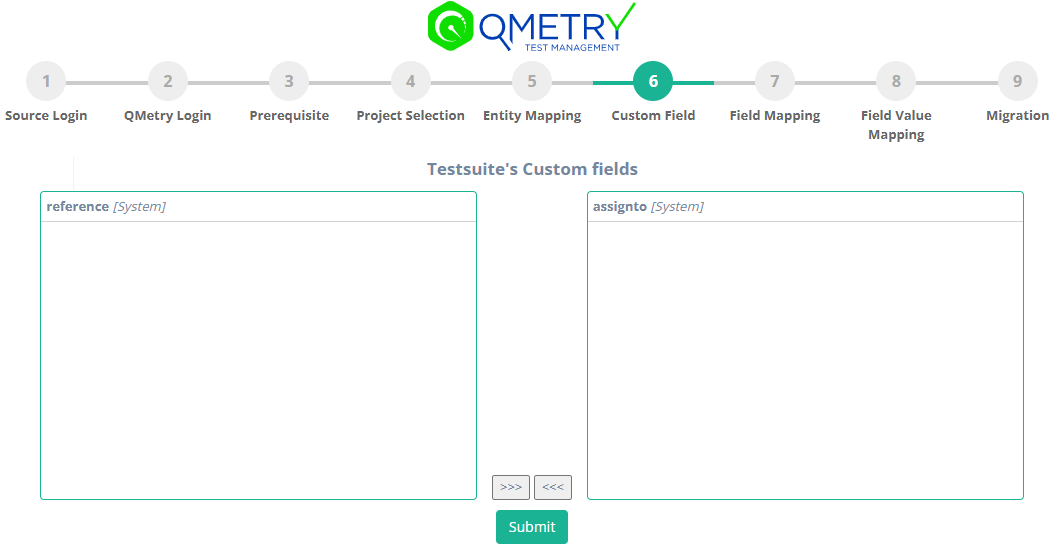
You can select system fields and user-defined fields that are part of your TestRail project that needs to be migrated to QMetry.
Note
This is an important step to ensure there is no data loss when the project is migrated to QMetry. Make sure all the required fields are selected correctly. Once migrated, the data cannot be reverted.
Selected fields will be converted as custom fields in QMetry and will be auto mapped with the appropriate fields in the field mapping page.
Custom Field for TestRail's Testcases
Custom Field for TestRail's Test Suites
Field Mapping
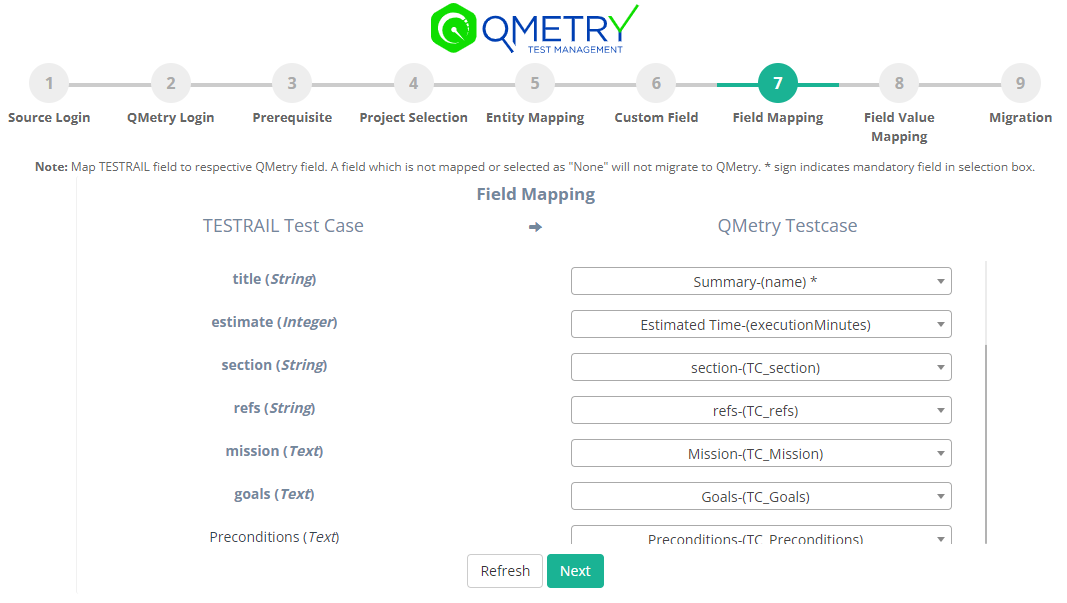
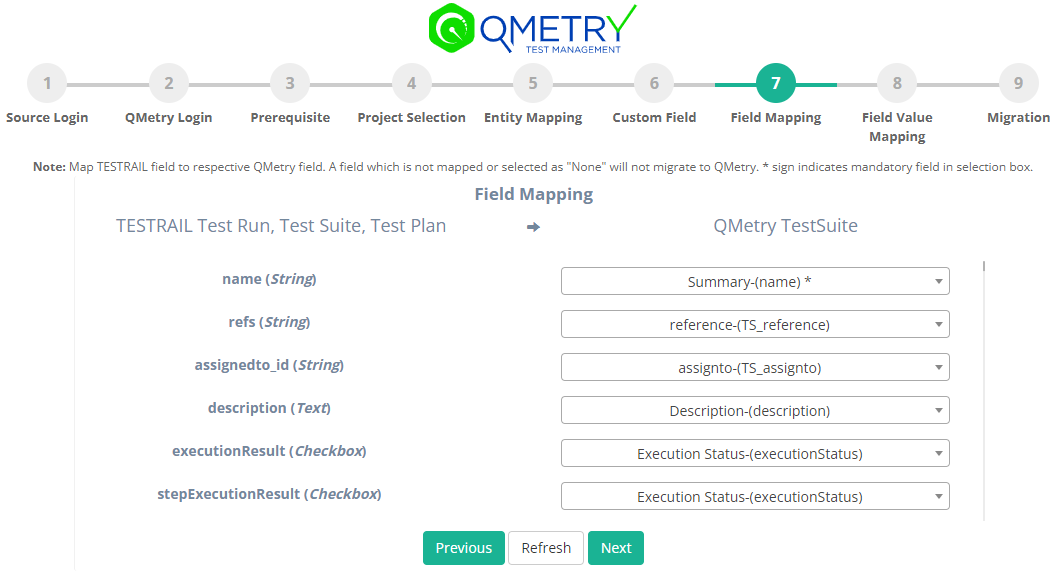
Field mapping helps you to map the fields of your TestRail assets to respective QMetry fields. Complete the field mapping for all the fields to get their data migrated to QMetry.
Note
Any mandatory field of TestRail should be mapped to mandatory field of QMetry. The field type of the mapped fields of TestRail and QMetry should be same.
Field Mapping for TestRail Test Case → QMetry Test Case
Field Mapping for TestRail Test Suite → QMetry Test Suite
Field Value Mapping
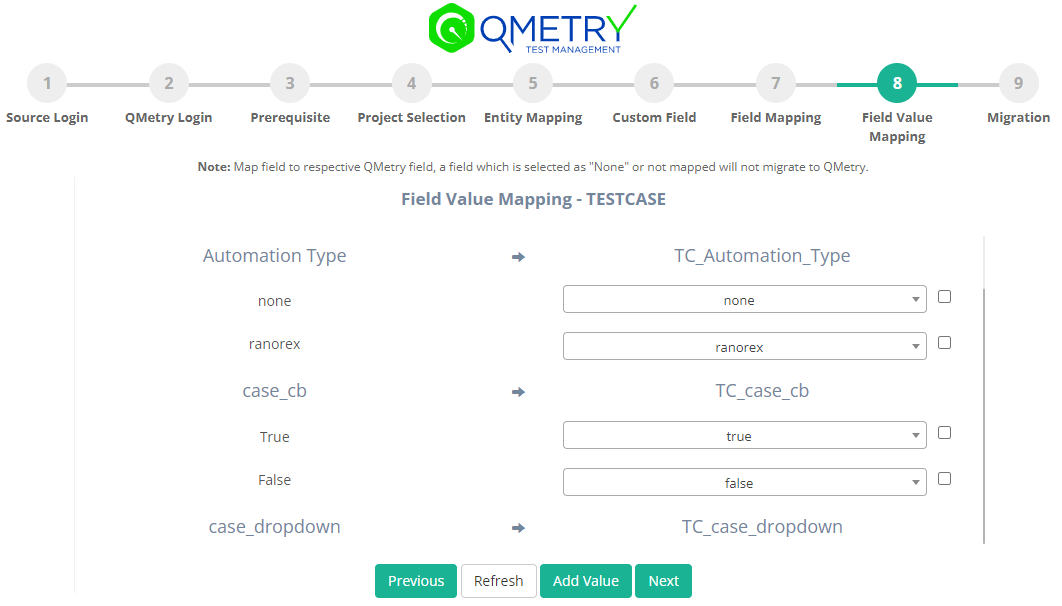
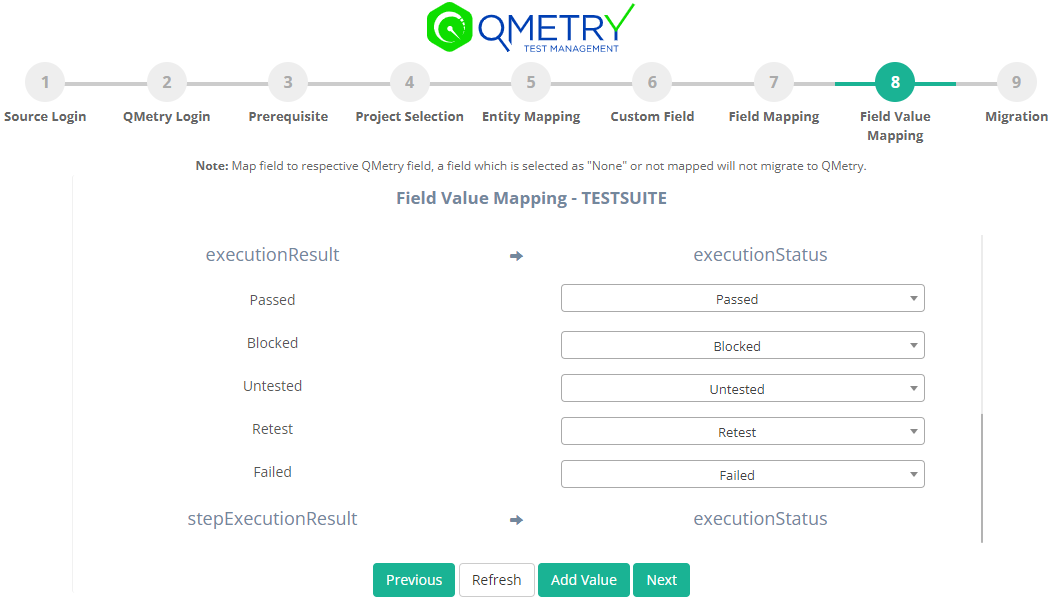
You can map the values of your different enumerated fields of TestRail to that of QMetry.
Migration Tool provides an option of "Add value" if user wants to create a new field value in QMetry same as that of TestRail. To create the new values: Click on the checkbox beside the field value > Click on "Add value" button below > Now map the TestRail field values to the newly created QMetry fields values.
Note
The Add Value option is not available for test execution status and test step execution status. For that you need to manually create the execution status in the template project of QMetry before beginning the migration process.
Field Value Mapping for Test cases
Field Value Mapping for Test Suite
Migration
Click Migrate to start the migration process.
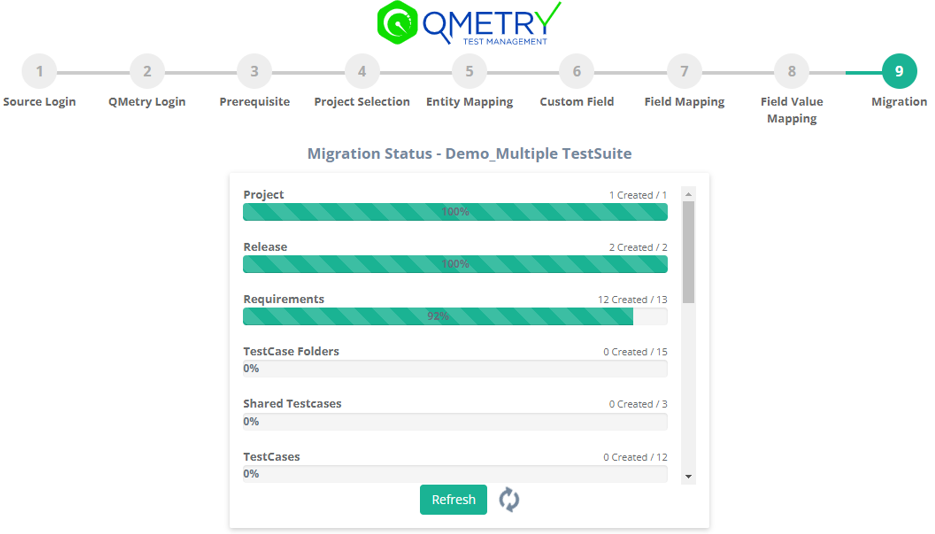
Monitor the progress until the migration is complete.
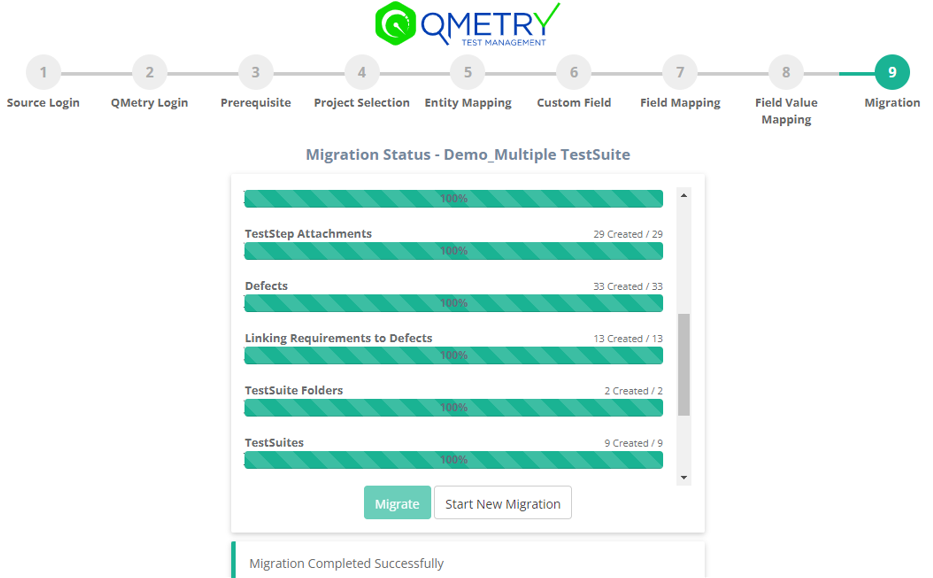
Once the migration is completed, you can log in to QMetry and verify all the migrated data in your migrated project(s).
Post-requisite
The migration utility is designed to support resumption of the data migration from the same point in case an error is encountered due to data issues or other reasons. In such cases re-migrating the project is not necessary. At times when you run into errors, you need to create a ticket on QMetry Professional Services support. Along with it try to resume the migration after capturing the logs as follows.
Capture Migration Logs
The logs should be present in the logs folder of the migration utility directory containing the .war file. Zip the logs folder and send it to Professional Services team for investigation.
Resume the Migration
The migration can be resumed by refreshing the existing page or clicking "Resume" on the migration page.
Reverting API metering, Audit history logging and Email Notifications.
Refer to the Pre-requisite for more details.
Run the following UPDATE query, and to check its updated value run the SELECT query.
UPDATE `client` SET `isEmailEnabled` = b'1', `isLogEnabled` = b'1';
SELECT CAST(isEmailEnabled AS UNSIGNED) as isEmailEnabled , CAST(isLogEnabled AS UNSIGNED) as isLogEnabled from client;
Important Notes and Limitations
Dashboards, To Do, Reports of Projects, Overview, Activities, Graphs, History logs are not migrated.
TestRail users are not migrated to QMetry. The users need to be created and linked to the template project manually before starting the migration.
Only latest result of a test run will get migrated as execution history is not supported in QMetry. QMetry does not provide customization at test execution level. Hence, custom fields of TestRail at execution level will not migrate.
TestRail does not provide API to get attachments directly linked to test suite and shared steps. Hence, such attachments will not migrate.
Test Plan are migrated as folder of Test suite. Hence, its data(description, attachments, etc) will not be migrated.
Attachments greater than 100 MB(for QMetry cloud) or 300 MB(for QMetry server) in size are not migrated. Such attachment details will be added to the 'skipped_attachments.log' file.
For assigning users to the migrated assets:
If the user is found in QMetry, the entity assigned to him in TestRail, gets assigned to that user in QMetry.
If the user is not found in QMetry, but the selected Project Lead user is present in QMetry, the assets of TestRail are assigned to that user.
If the user and Project Lead are not found in QMetry, the assets are assigned to QMetry System Admin.
QMetry Testcase: Estimated time maximum value is 99999 mins; the value will be skipped for Estimated time and 99999 mins.
Cross-project sharing of test steps is not supported in QMetry. Hence, shared test steps of other projects will not be migrated.
Description, reference and attachments of Milestones will not get migrated as Release and cycle of QMetry does not support these fields.
Commented by users of Comments in Testcases, TestSuites and Executions are not migrated.
Temporarily deleted testcase will not get migrated until they are restored before starting the migration process.
Descriptions and attachments for sections and sub-sections will not be migrated.
Need Assistance?
If you run into any questions or concerns during your migration, you can reach out to Professional Services by raising a ticket directly on our QMetry Professional Services Portal. We would be happy to assist you!