Create and Update Test Cases from Reflect
When you enable the integration, Reflect and QMetry sync in real time. When you record a new test in Reflect or update an already mapped test, QMetry immediately updates the corresponding test automatically.
You can sync tests in two ways:
Automatic – Reflect auto-syncs new tests to QMetry when the integration setting Automatically Synchronize New Tests to QMetry is enabled.
Manual – You manually sync tests by selecting Sync Changes to QMetry in Reflect.
Create a Test Case in QMetry from Reflect
You can auto-create test cases in QMetry from Reflect, through the Reflect QMetry Integration.
To auto-create test case from Reflect, perform these steps:
Sign in to Reflect.
Create a new test in Reflect.
Select Sync Changes to QMetry from the Reflect test details page. (If auto-sync is enabled, you can skip this step).
Reflect creates a new test case in QMetry and links it to the corresponding test in Reflect. The test case appears in the root folder of the selected QMetry project.
Field Mapping
When Reflect synchronizes a test, QMetry populates the following fields.
QMetry Field | Source |
|---|---|
Summary | Reflect test name |
Description | Reflect description + link to Reflect test |
Testing Type | Set to Automated |
Created By / Updated By | User associated with integration API key |
Identify Reflect-Created Test Cases
You can identify test cases created from Reflect using the Reflect Created indicator.
To identify these test cases in QMetry:
Go to Test Cases in QMetry.
Select Arrange Columns.
Enable the Reflect Created column.
Use the Reflect Created advanced filter to display only automated test cases created from Reflect.
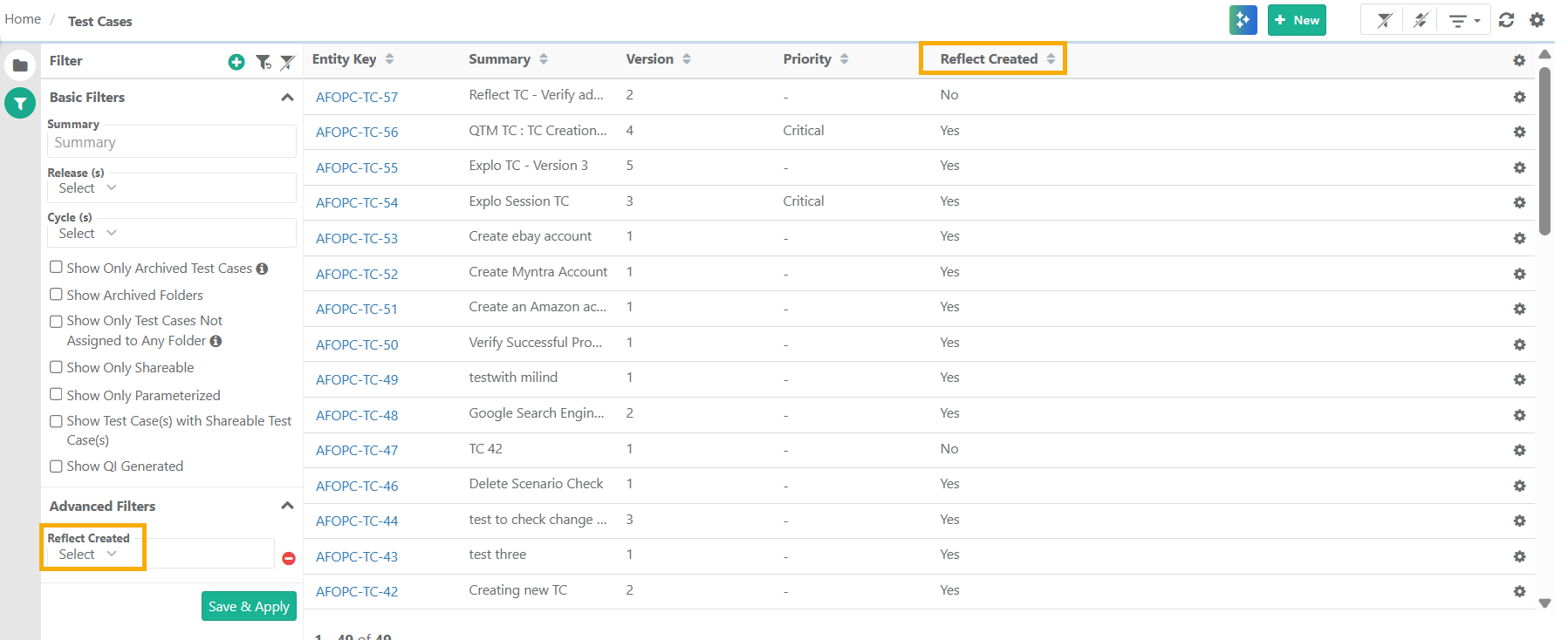 |
For Reflect-created versions:
Steps are read-only in QMetry.
You cannot edit, delete, reorder, or add steps.
QMetry displays a version-level indicator showing the version was created from Reflect.
QMetry does not include the initial Navigate step recorded in Reflect. Test steps in QMetry begin from Step 2 of the Reflect test.