Mapping and Unmapping Single Jira Project
Map a single Jira project to a QMetry project so that the selected Jira work items sync to the QMetry Requirements module, the Issues module, or both.
Each Jira project connects to only one QMetry instance at a time. On this QMetry instance, you can map only the Jira projects that the Jira system administrator enabled for this instance. For more information, see About Multiple QMetry Instances.
Prerequisites
Before you map a Jira project, make sure you meet the following requirements:
You have QMetry project administrator rights.
The Jira integration is active for this QMetry instance. For more information, see Verify QMetry Jira Integration.
The Jira system administrator enabled the Jira project for integration with this QMetry instance. For more information, see Selecting Jira Projects for QMetry Integration.
Map a Single Jira Project
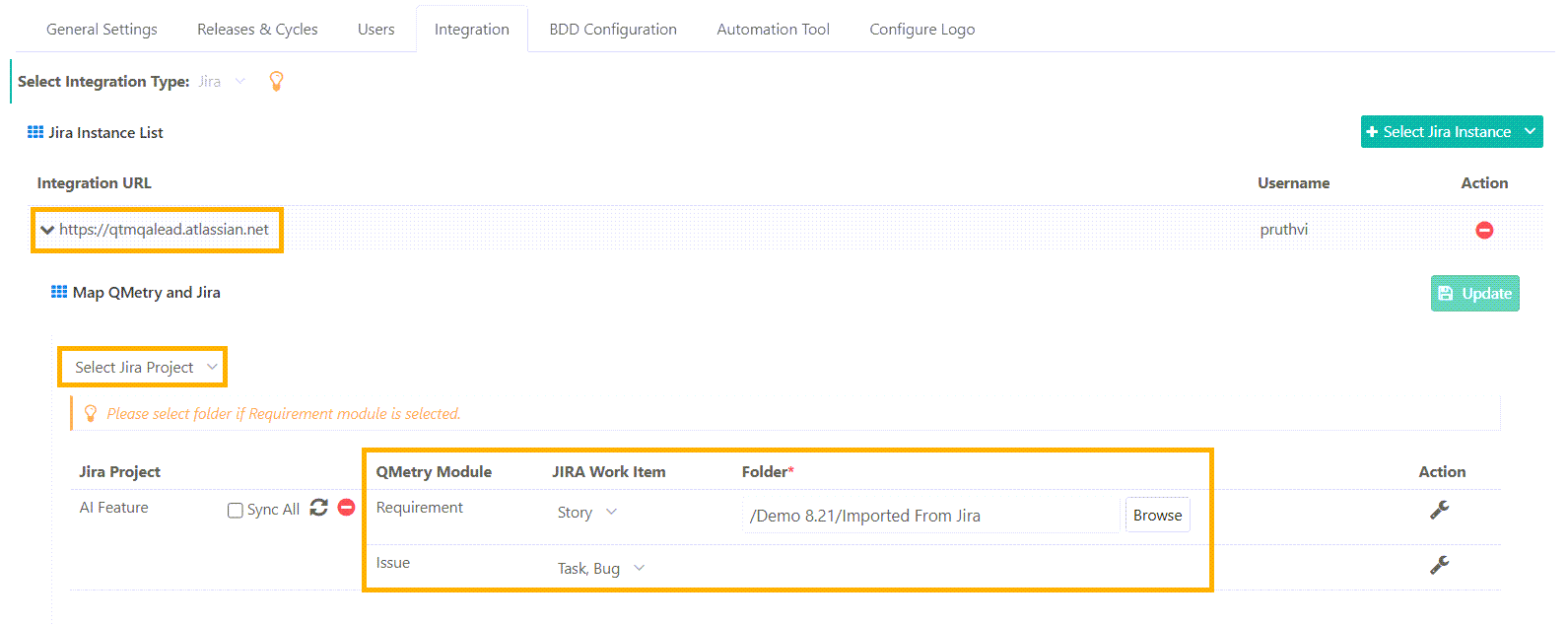
To map a Jira project, perform the following steps:
 |
Go to Project Management and open Projects.
Select the project and open the Integrations tab.
In the Jira Instance List, select the Jira URL to map with QMetry project.
In the Select Jira Project list, select the Jira project to configure.
Set the JIRA Work Item and QMetry Module associations.
Work Item is a multi-select list.
For mapping requirements, select a folder.
Apply Jira Query Language (JQL) filters to customise Jira work items sync with QMetry Requirements and Issues modules. For more information, see Filter Synced Work Items Using JQL.
Click Save and Activate. If the Jira integration is already saved and activated for this QMetry project, click Update.
Note
JIRA Work Item is a multi-select list. When you map work items to the Requirements module, you must also select a folder.
To save a project mapping, map at least one work item to the Requirements module or the Issues module.
If the Jira Project You Need Is Not Listed
The Select Jira Project list shows only the Jira projects that the Jira system administrator enabled for this QMetry instance. A Jira project does not appear in the list in either of the following cases:
The Jira project is disabled for QMetry integration.
The Jira project is enabled, but assigned to a different QMetry instance.
QMetry displays the following message on this screen:
If the Jira projects you expect to see aren't listed, your Jira admin has likely disabled them from integrating with QMetry. Please contact your Jira admin to enable the project in Jira for QMetry Integration.
Ask your Jira system administrator to enable the Jira project for this QMetry instance in Jira. The Exploratory Testing add-on shows the same filtered list of Jira projects.
Unmapping Previously Configured Work Items
When you remove work items that are mapped to a module, QMetry updates the related data as follows:
When you remove one or more work item type mappings from the Requirements module, QMetry converts the existing synced work items into internal requirements.
When you remove one or more work item type mappings from the Issues module, QMetry deletes the existing synced work items along with all their associations.
Removing the Link Between a Jira Project and a QMetry Project
You remove the link between a Jira project and a QMetry project from within QMetry. This is the only action that removes the link.
Action | Effect on the link |
|---|---|
You remove the integration for the Jira project in QMetry | The link is removed. |
A QMetry project is deleted in QMetry | The association with the linked Jira project is removed automatically. |
The Jira system administrator removes the connection to this QMetry instance in Jira | The link is kept, so that no test data is lost. The Jira project continues to show this instance in Jira until you remove the integration in QMetry. |
A Jira project is deleted or archived in Jira | The link is kept, along with the QMetry data. If the Jira project is restored, the integration continues to work. If it is not restored, remove the integration in QMetry. |
Note
A Jira project cannot be disabled in Jira while it is linked to a QMetry project. Remove all of its QMetry project integrations here first.
To move a Jira project to a different QMetry instance, remove its integration here, and then ask the Jira system administrator to reassign it. For more information, see Managing Connected QMetry Instances.
Projects Without Work Item Mapping to the Issue Module
When a QMetry project is integrated with an external tracker but no work items are mapped to the Issues module, the following behavior applies:
QMetry disables issue creation and linking options across the Requirements, Test Cases, Executions, and Exploratory Testing.
The Issues module does not display any issue list or filter options. Instead, it displays a message that no work items are mapped.
Issue-based dashboards and issue sections in system reports appear blank.