Generate Test Cases from Requirement or Test Case Module
You can generate test cases from a requirement or test case description with a single click. Manually edit, rearrange, accept, or decline the AI-generated test cases as needed.
Auto-Generate Test Cases (AGT) supports AI generated test case creation from the following modules:
Requirements Module: Generate test cases based on requirement descriptions.
Test Case Module: Create test cases by selecting a requirement, entering a description, or using an existing test case.
Prerequisites
Super Admin Configurations: The super admin must turn on the Enable users to generate test cases from Requirements or Test Case Module toggle from System Settings.
You must have permissions to create test cases.
Auto-Generating Test Cases
Automatically generate test cases from Requirement or Test Case module. You can review, modify, and finalize these AI-generated test cases to ensure comprehensive test coverage.
From the Requirement Module
With QI, you can author test cases related to a specific requirement. By analyzing the requirement description, QI auto-generates relevant test cases to ensure thorough coverage and alignment with project needs.
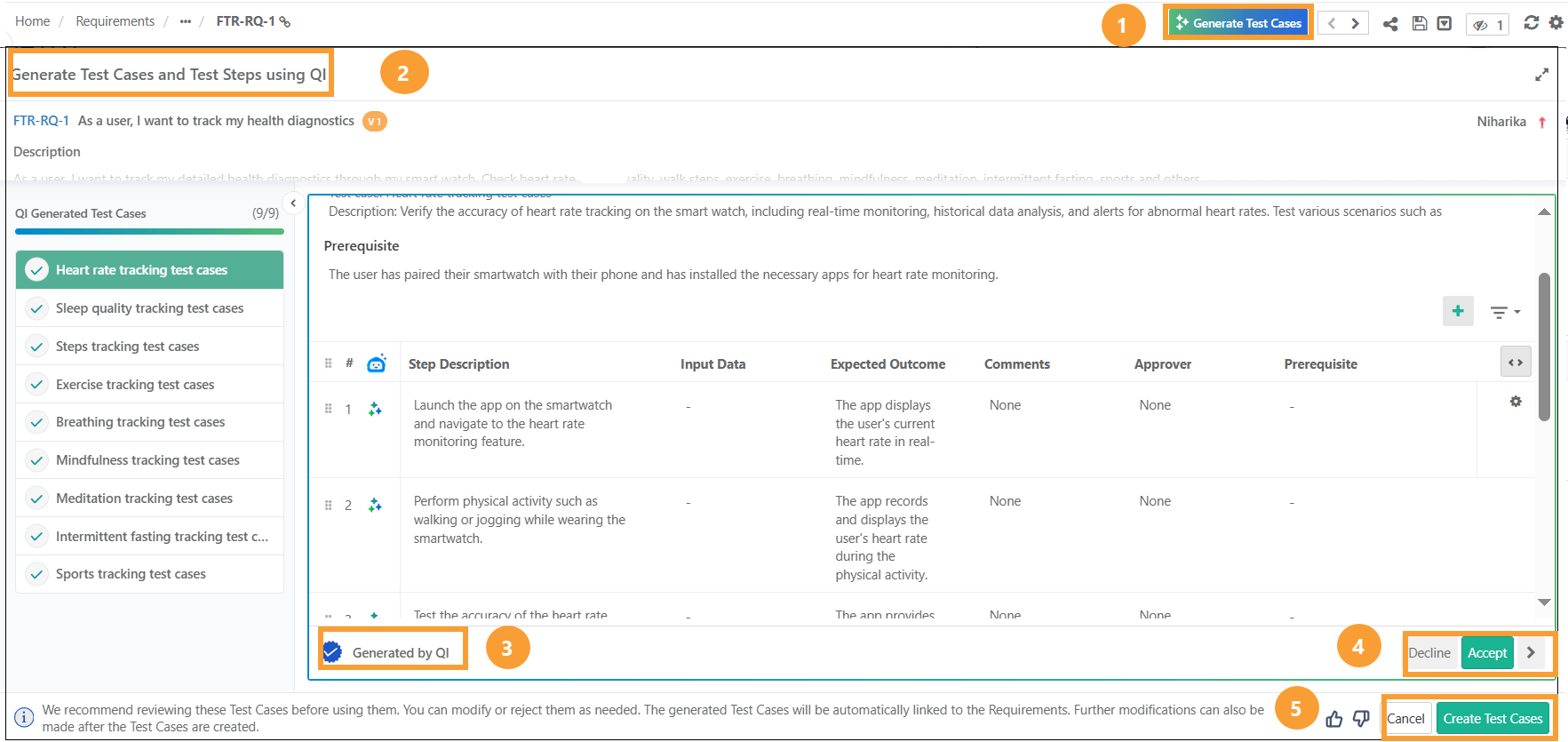 |
To auto-generate test cases from the requirement module, perform these steps:
Click the requirement entity key to open the requirement detail screen.
Click Generate Test Cases.
On the Generate Test Cases using QI pop-up, QI initiates the test case creation process.
Review the generated test cases.
Click the Cog (⚙️) icon to modify the AI generated test case.
After review, you can approve or decline the test cases as needed.
Finalize and click Create Test Cases to add the approved test cases.
From Test Case Module
Auto-generate test cases from the test case module using QI.
The module offers three distinct approaches for generating test cases. These approaches enable testers to auto-generate test cases from existing requirements, manually entered descriptions, or existing test cases.
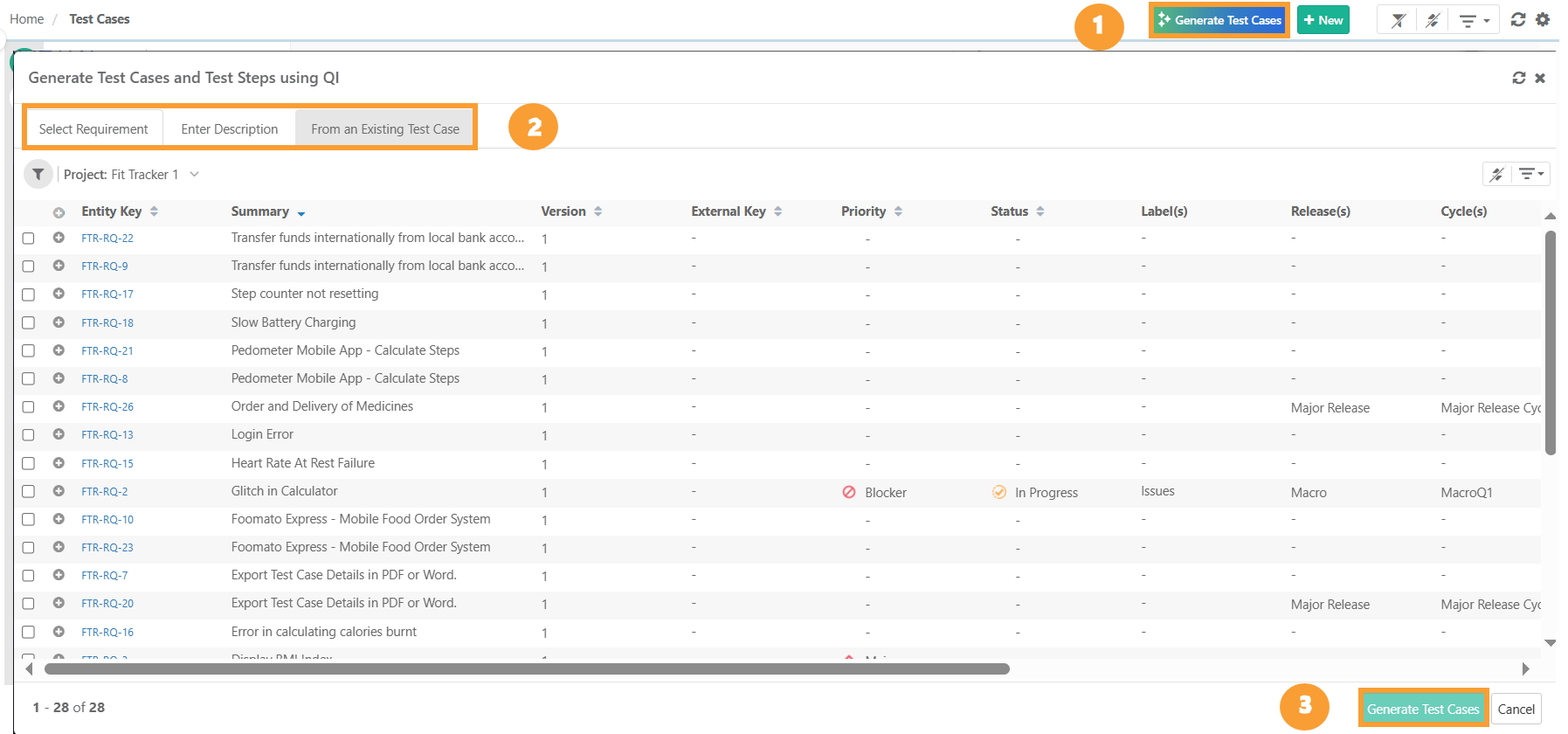 |
To auto-generate test cases from the test case module, perform these steps:
Go to the Test Cases module and click Generate Test Cases.
In the Generate Test Cases using QI pop-up, select one of the following tabs:
Select Requirement
Enter Description
From an Existing Test Case
Click the Generate Test Cases button.
Selecting a Requirement
Auto-generate test cases using QI from an existing requirement. You can select one from either the current project or another project.
To auto-generate test cases by selecting a requirement, perform these steps:
In the Generate Test Cases and Test Steps using QI pop-up, go to the Select Requirement tab.
Choose the project from the Project drop-down.
The grid displays all existing requirements for the selected project.
Select the requirement and click Generate Test Cases.
By Entering a Description
Instead of manually authoring test cases, you can leverage QI’s assistance to auto-generate test cases based on a specific description. QI analyzes the provided description to create test cases, allowing you to review, modify, and use them as needed.
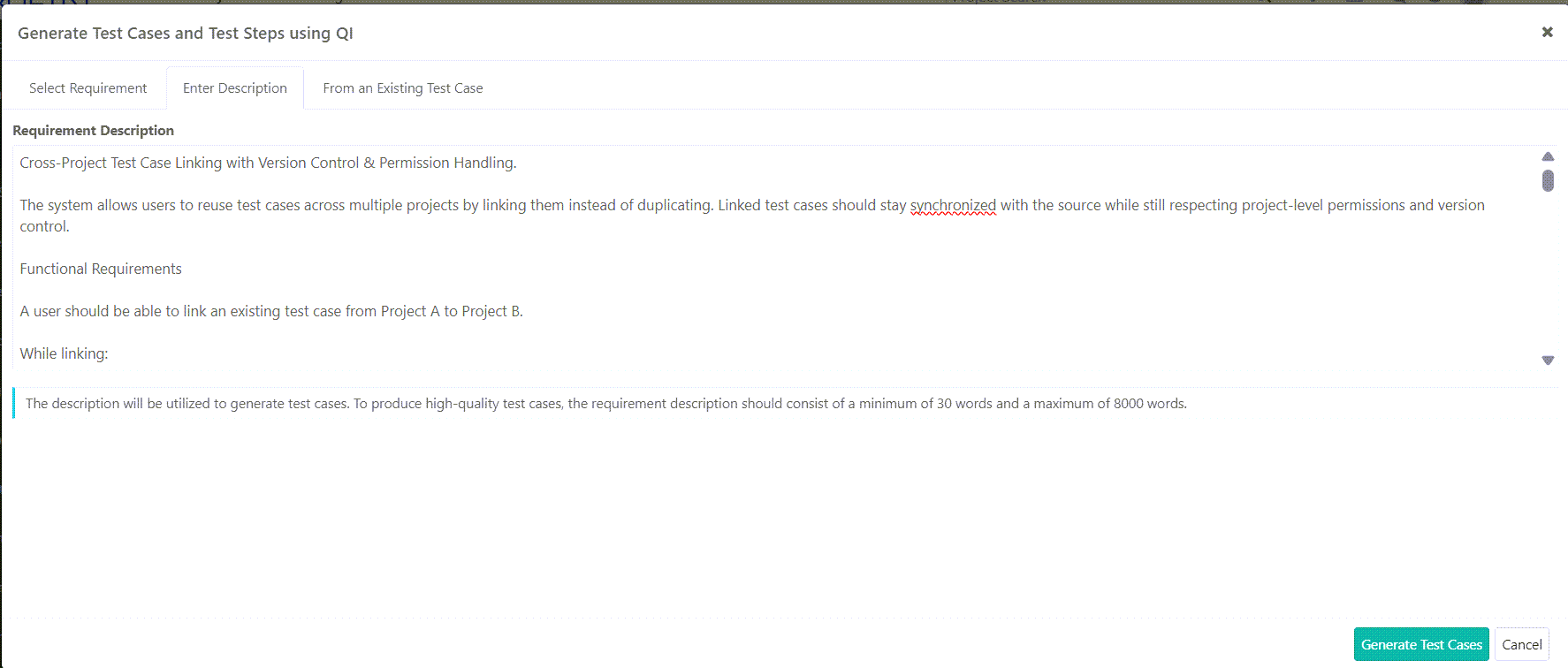 |
To auto-generate test cases from a user-entered description, perform these steps:
In the Generate Test Cases and Test Steps using QI pop-up, go to the Enter Description tab.
Enter a detailed description (30 to 8000 words), including prerequisites, input data, and expected outcomes.
After entering the details, click Generate Test Cases.
To generate accurate test cases, ensure that your description includes sufficient details along with the acceptance criteria. This helps QI analyze the context and identify relevant test scenarios.
From an Existing Test Case
You can use QI to generate or modify the steps for an existing test case. Select the existing test case and provide a description citing the required changes.
To auto-generate test cases from existing test cases, perform these steps:
Go to the From an Existing Test Case tab.
Select the project from the drop-down.
Select the test case to use as a reference.
Enter a description specifying the detailed instructions for modification.
Click Generate Test Cases.
Test Case Processing in QI
QI helps in generating and modifying test cases based on the provided descriptions. If the Generate Test Cases button is disabled or you are getting  , here is how you can proceed:
Select a relevant test case for QI to refer.
Enter a description between 5 and 100 words for better accuracy.
Ensure the selected test case has sufficient steps to generate a new test case.
Best Practices for Writing User Description:
Give clear instructions for enhancing test steps.
Write each instruction on a new line for multiline descriptions.
Use complete sentences with proper punctuation.
Start with action verbs like 'Add', 'Update', 'Change', or 'Remove'.
Specify the entity you want QI to modify, such as description, precondition, or steps.
Note
Currently, rich text and tables are not supported in test cases for QI processing.
Content may lose formatting after the model processes it.
AI treats shared steps as steps of a simple test case.
Metadata regarding shared steps is not retained by AI.
Currently, the word limit for a test case (including description, precondition, and step details) is 8000 words.
Reviewing Auto-Generated Test Cases
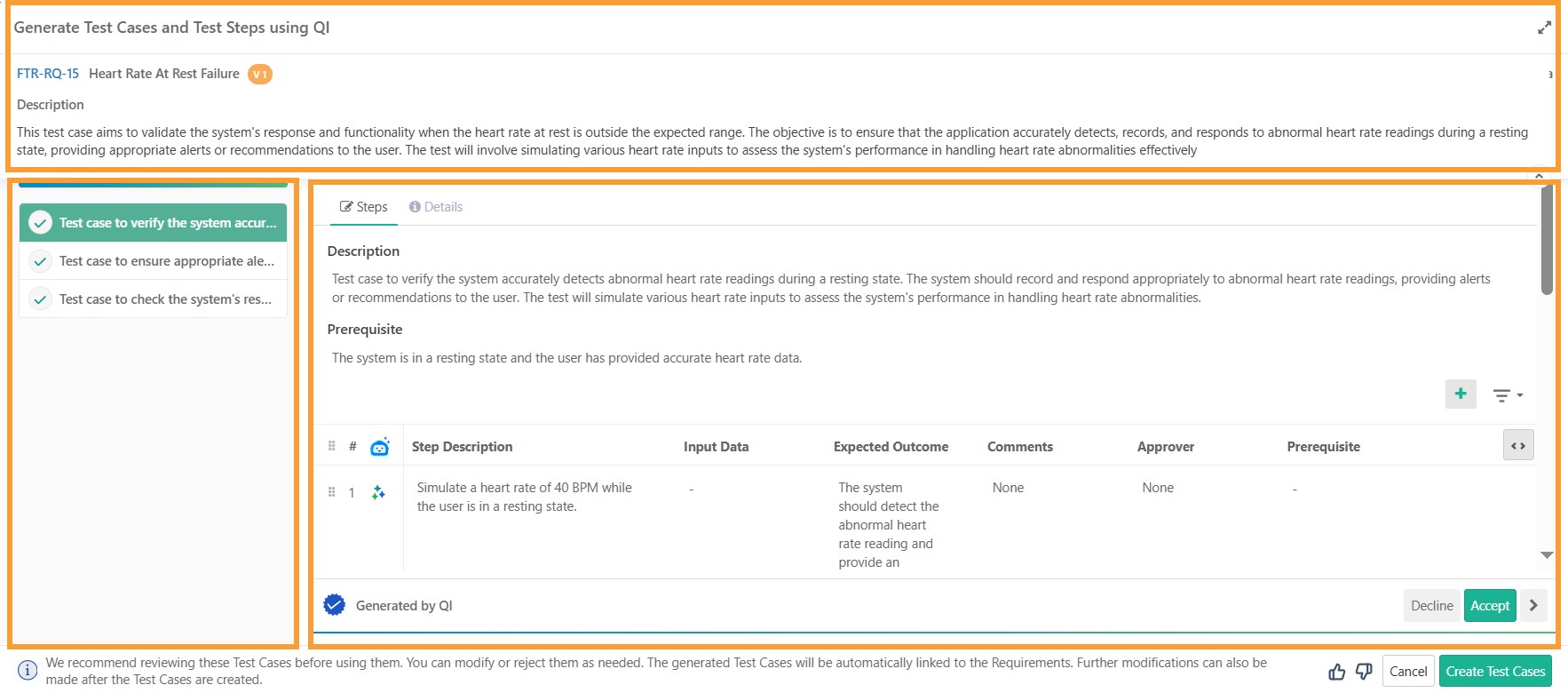
The Generate Test Cases and Test Steps using QI screen appears after you click Generate Test Cases from the requirement module or the test case module. Use this screen to review and edit the steps and details of each AI-generated test case, then accept or decline it.
For generating test cases or steps from requirements or user-entered descriptions, this screen has three panels:
Panel | Description |
|---|---|
Top Panel | Displays the description from which the test cases are generated. Expand this section to view the full description. |
Left Panel | Lists the QI-generated test cases and the total count of test cases created. |
Right Panel | Displays the test steps and details associated with a specific test case. |
For generating test cases and test steps from an existing test case, this screen has two panels:
The top panel displays the entered description and the referenced test case.
The bottom panel allows editing of test case steps or details as needed.
You can approve or decline individual test cases by clicking Accept or Decline.
 |
Editing QI Generated Steps
The Steps panel displays the test case description at the top, followed by the step description, expected outcome, input data, and other UDFs. You can edit the test steps, add or delete steps, insert shareable test cases, and reorder or duplicate steps.
You can also refine the content in the test case description, step descriptions, and expected outcomes as needed.
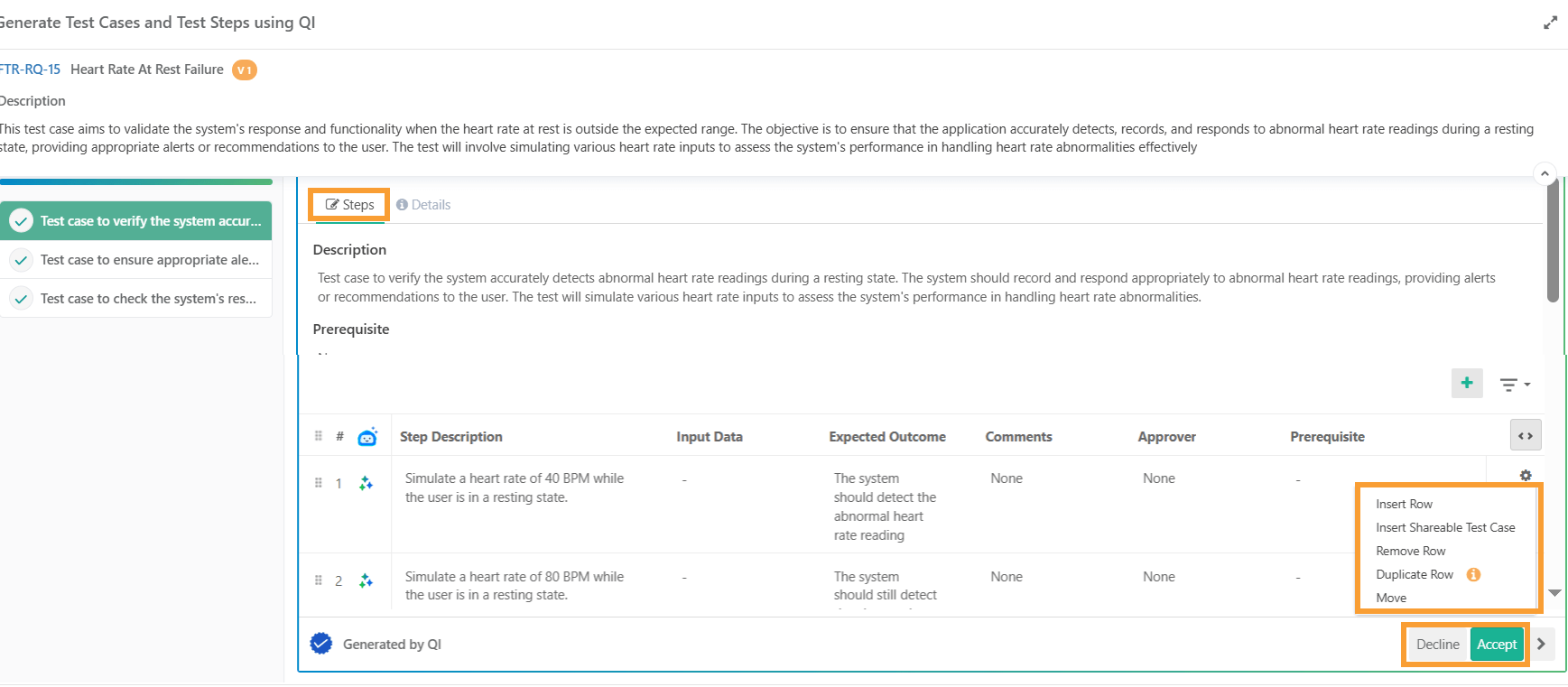 |
You can manually edit AI-generated test steps with the following operations:
Operations | Descriptions |
|---|---|
Insert Row | Manually insert an additional test step into the AI-generated test case. |
Insert Shareable Test Case | Integrate a shareable test case as a test step within the AI-generated test case. In the Link Shareable Test Case screen, apply filter to locate the relevant test cases. Click Save and Apply to save the applied filters. You can also filter the STCs by folder path. Note
|
Remove Step | Delete unnecessary or redundant test steps. |
Duplicate Step | Create a copy of a test step for reuse. |
Move | Reorder test steps to ensure logical organization. |
Edit Text | Modify the test case description, step description, expected outcome, or other fields as needed. |
Accept or Decline | Accept or decline a test case based on its relevance. Provide feedback to refine future test case generation. (This option is available only when you generate the test case/steps by selecting a requirement or entering a description.) |
Reviewing or Editing QI-generated Test Case Details
The Details tab allows you to set values for both system-defined and user-defined fields.
For test cases generated from a requirement or user-provided description, the Copy Fields to All Generated Test Cases feature allows updating details across all test cases.
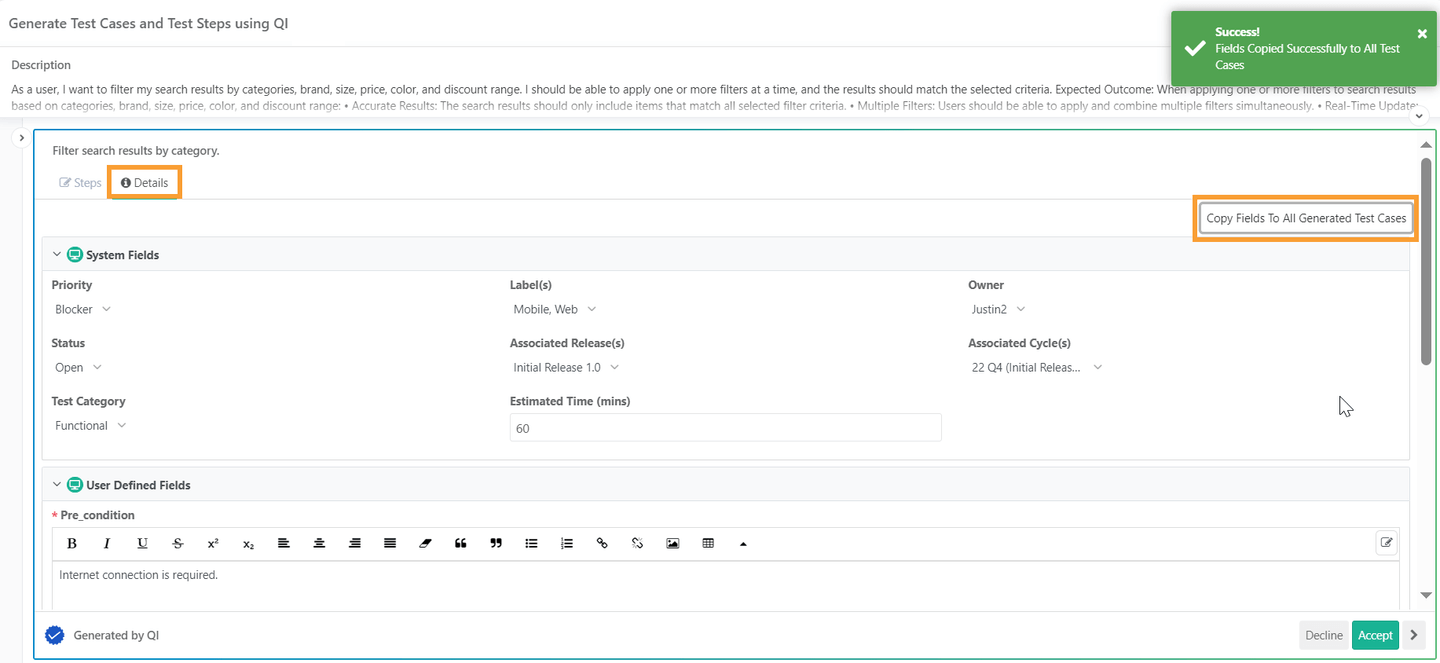 |
Sharing Feedback on Auto-Generated Test Cases
To provide feedback on QI, click Thumbs Up or Thumbs Down . A pop-up with predefined options enables you to choose or submit custom feedback. Your feedback helps improve the model's accuracy and performance.
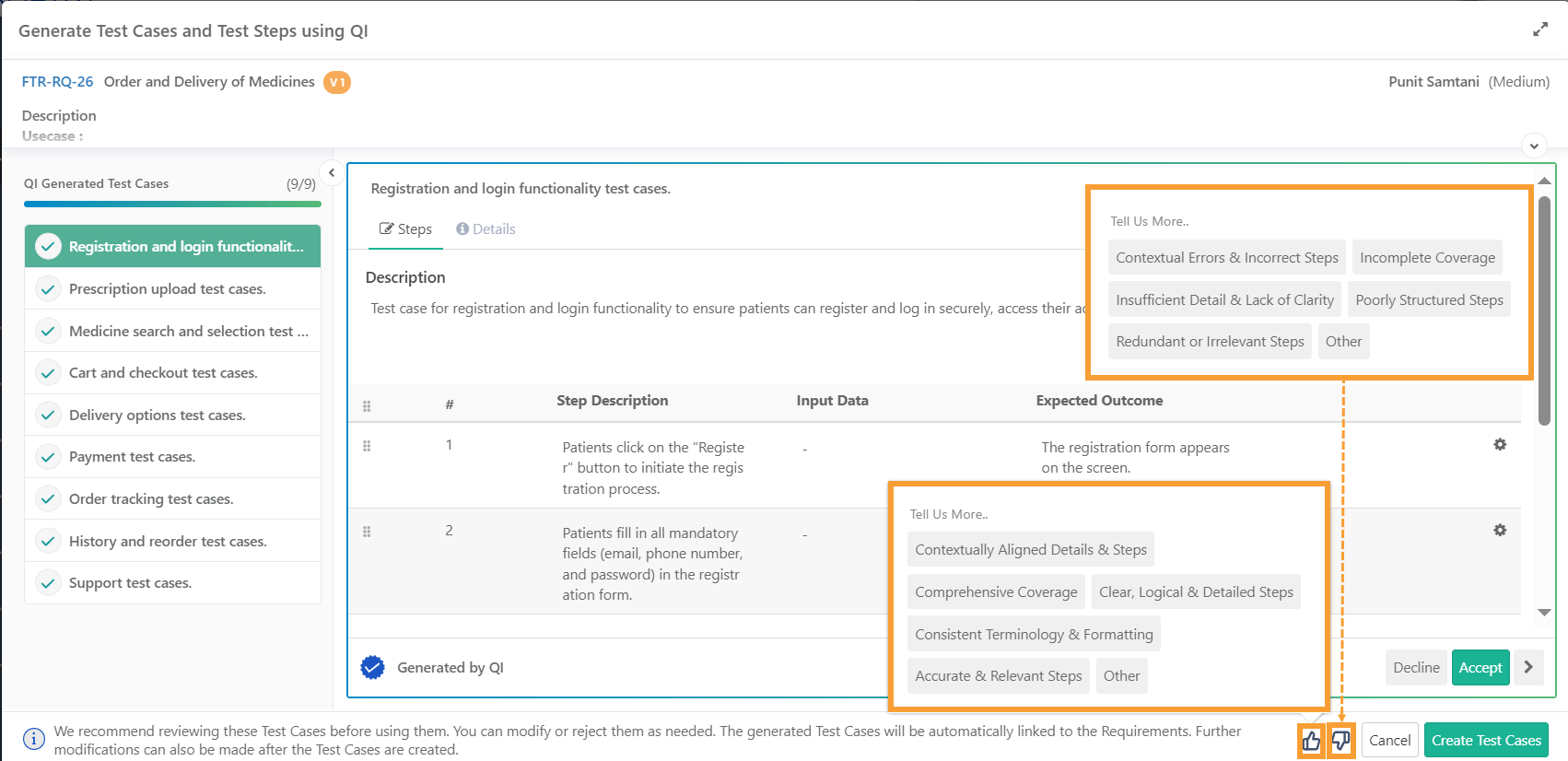 |
If you want to submit feedback that differs from the predefined options, click Others and enter your customized feedback.
Approving or Declining Auto-Generated Test Cases
You can accept or reject the AI-generated test cases:
Accept: All test cases are accepted by default. To accept a previously declined test case, select the test case and click Accept.
Decline: You can decline redundant test cases by selecting the test case and clicking Decline. The declined test cases are excluded from the final set of test cases.
You can also change the approved or declined status of a test case by directly clicking the icons on the left panel.
Creating Auto-Generated Test Cases
After editing the test cases and adding relevant details, ensure that accepted test cases are marked as Accepted and rejected test cases are marked as Declined. You can review these statuses on the left panel. Once the final set of accepted test cases is prepared, click the Create Test Case button.
Upon successful creation of the test cases, the following screen appears, providing detailed statistics on the utilization of QI.
The system adds the QI-generated test cases to the test case module. You can then edit the test case details and steps directly in the test case module.
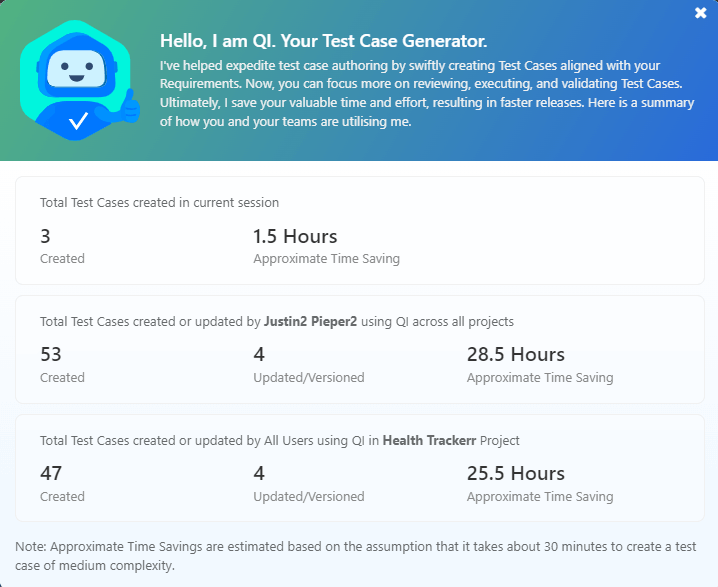 |
Default Folder for QI-Generated Tests
By default, all QI-generated test cases are saved in the QI Generated folder. However, you can change the folder location by editing the test case from the Test Case Detail section.
Viewing QI Statistics
You can view statistics related to AGT feature usage by hovering over the Generate Test Case button in the Requirement Module or Test Case Module.
Filtering QI Generated Test Cases in Test Case Grid
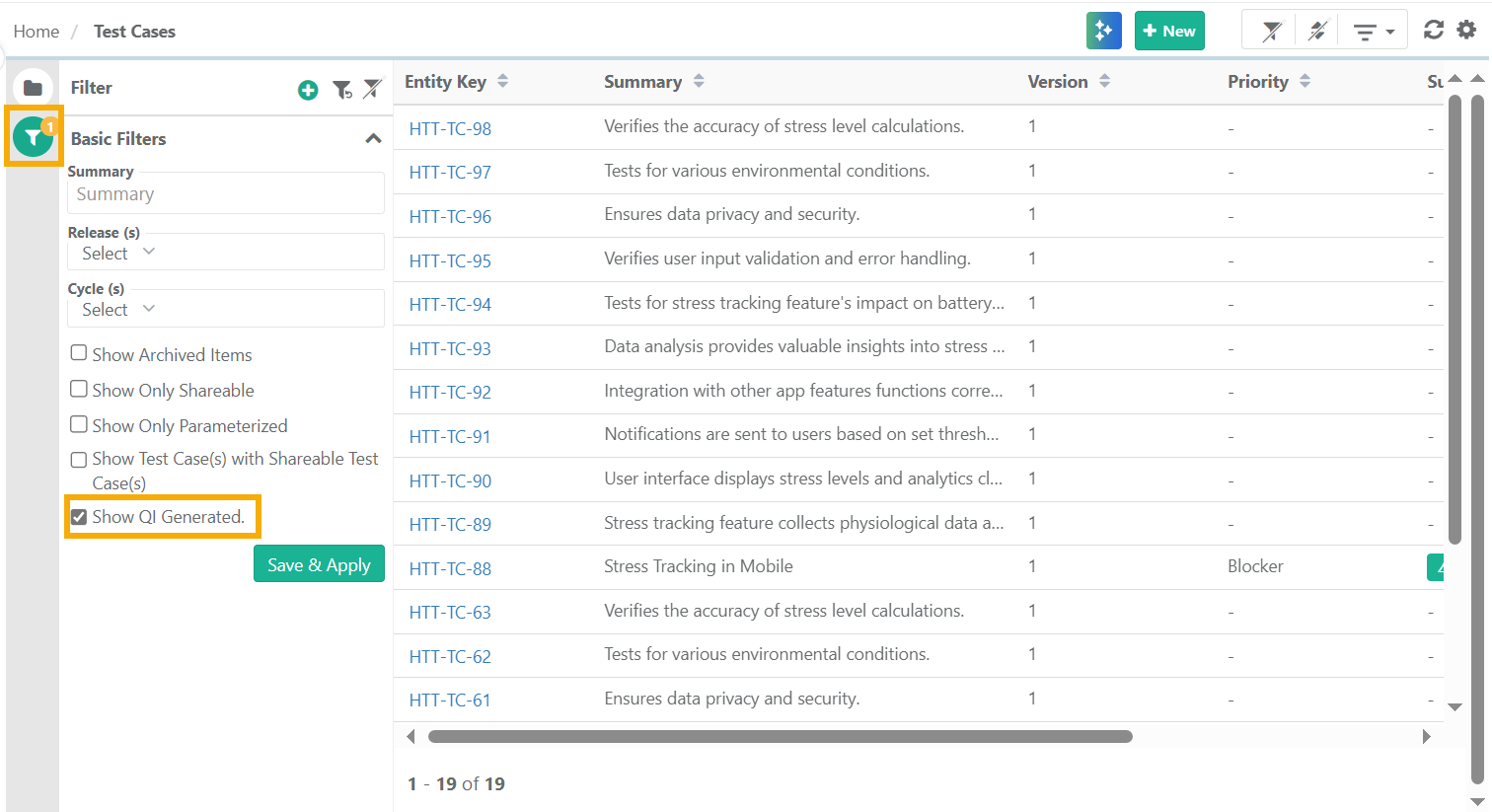
Identify AI-generated test cases by applying the Show QI Generated filter.
 |