Projects using Azure integration for Issue (Bug) Tracking
Note
This document applies only when QMetry project is configured with a Azure project.
The Issue module provides bi-directional integration between QMetry and JIRA. You can create, view, and edit issues in QMetry, and the changes sync to JIRA. Likewise, issues added or updated in JIRA appear in QMetry.
You can perform the following tasks in the Issue module:
View, Add, Modify Azure issue details, comments, and attachments.
Map Azure custom fields with QMetry.
Access issues logged during test execution in the Issues module.
After integrating QMetry project with Azure:
The system do not display issues added from QMetry Issues module before integration in the Issue grid.
Internal issues created and linked from the Execution screen before Azure integration are displayed in read-only mode.
Clicking an internal issue linked from the execution screen, opens the detail window in read-only mode.
Viewing and Organizing Issues
Click the Issue Entity Key in the grid view to open the issue detail page.
Customize the grid view by resizing columns, organizing tabs, or applying filters and sorting. To learn more, refer to Manage Grid Columns.
In the issue module, there are individual tabs for - Details, Execution Runs, Requirements, Attachments, and Comments.
Details Tab
The Details tab displays information synced from Azure.
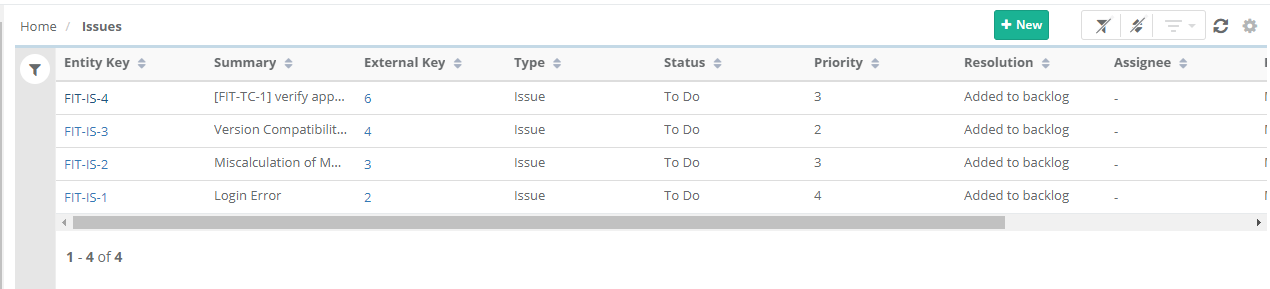
External Key: This is the Azure issue key number clicking on which takes users to the Azure issue page.
Title: View the summary of the Issue.
Priority: View priority to the issue. The Priority list will be displayed as in Azure.
Work Item Type: View the issue type synced with the Issue module while integration.
Tags: View the list of Azure tags in QMetry.
Stack Rank: View the list of Azure in QMetry.
Effort: View the list of Azure in QMetry .
Assigned To: This will be the Azure Assignee.
Area Path: Browse the folder in Azure and select the path.
Iteration Path: Browse the folder in Azure and select the path.
State: View the Azure workflow Status of the issue in QMetry. This is a Read-only field.
Created By: Azure user who has reported the issue.
Team Project: This is a read-only field synced from Azure.
Description: Enter the description for the issue in plain text.
Azure Custom Fields: View Azure custom fields, if any.
Created Date: The date on which the issue was created in Rally.
Changed Date: The date on which the issue was updated in Rally.
Note
Watcher, Owner, and Assigned Release are not available for projects integrated with Azure.
Execution Runs
Issues logged from the Test Executions module are displayed here.
Note
Test Case Execution UDF details
Each execution run row displays a UDF icon beside the Execution Status. Click the icon to open a view-only panel showing the Test Run UDF values captured for that execution run.
The icon is visible only when at least one Test Case Execution UDF is defined for the project.
Execution Time and Remaining Time
To view the execution time and remaining time:
Open the Issue Detail page.
Go to Execution Runs tab.
View Execution Time and Remaining Time calculated for the test execution.
To view Execution Time and Remaining Time for test execution, open the issue detail page and go to the Execution Runs tab.
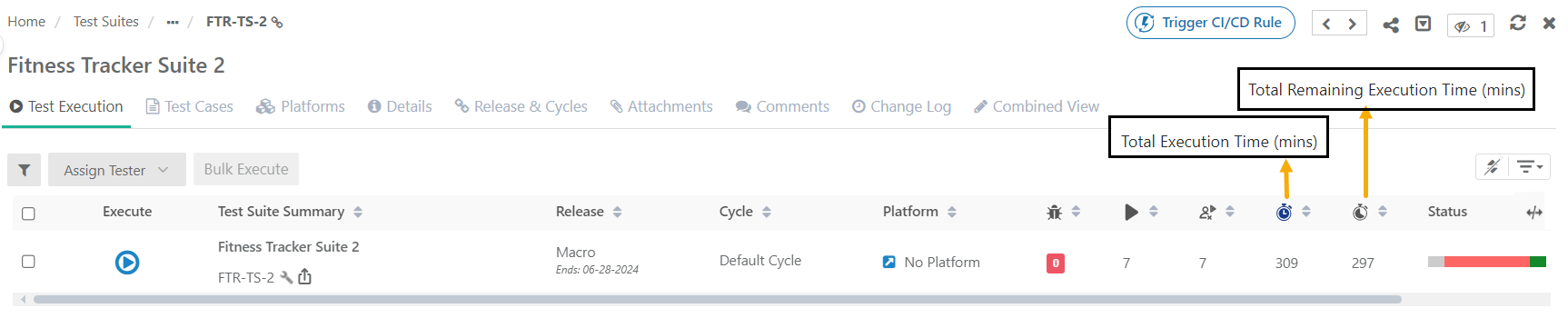 |
The columns Execution Time and Remaining Time are added to the grid in the following locations within the application:
In Test Executions tab under Test Suite detail page.
In Test Executions tab under Test Case detail page.
In Execution Runs tab under Issue detail page.
Calculation of Execution Time of a test suite:
The system calculates the Execution Time of a test suite based on Estimate Time of all the test cases in that test suite.
Calculation of Remaining Time of a test suite:
After the test suite is executed, the system calculates the Remaining Time for all “Not Run” test cases. Test cases with a “Failed” or “Blocked” status are also included, as work is still pending on them.
Linking Requirements to Issues
You can link individual or multiple requirements to issues using the Requirements tab on the Issue page.
To link requirements, perform the following steps:
 |
Open the Issue details page.
Go to the Requirements tab.
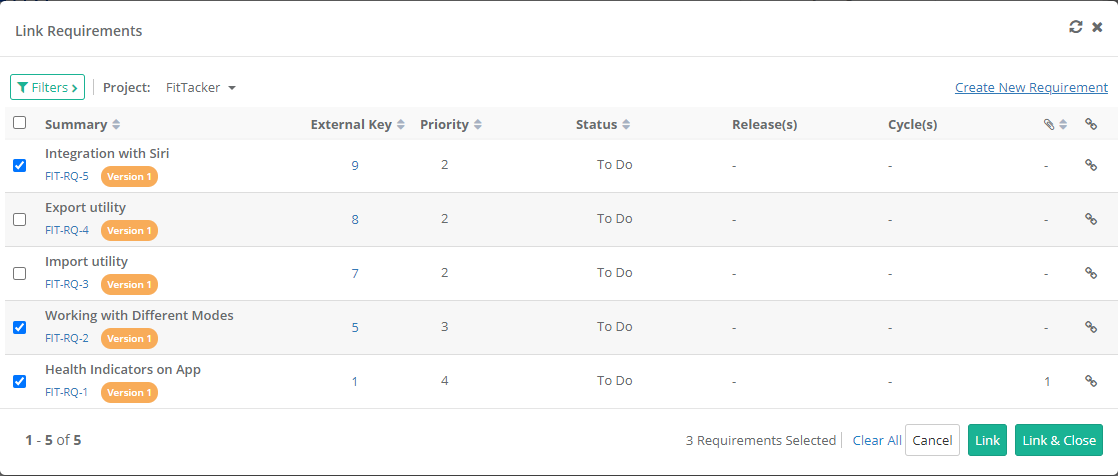
Click the Link icon to attach an individual requirement or select the requirements and click Link or Link & Close.
Select the requirements. Use filters, including Labels and Folder Paths, to narrow down the list.
Click Link & Close.
Project Selection:
You can link requirements from multiple projects. Select the project containing the requirements to link.
To link requirements across projects, select a project, link its records, then switch to the next project. Remember, switching projects clears previous selections, so click Link before moving on.
The screen displays all linked requirements. If a requirement belongs to another project, its Entity Key is shown. Clicking the Entity Key opens the requirement in that project. You are switched from the current project.
Unlinking Requirements
To unlink a requirement, perform the following steps:
Go to the Requirements tab of the issue.
To unlink a single requirement, click the Unlink icon for the requirement. The requirement is unlinked after confirmation.
To unlink multiple requirements, select the requirements and click Unlink Selected
Attachments
You can view, download, and add attachments in QMetry. Refer to Managing Attachments to know more.
Comments
You can also view, add, edit, and delete Azure comments in QMetry. Refer to Add Comments to know more.
The table below describes the operations available for Attachments and Comments when Azure is integrated with a QMetry project.
Operations | Attachments | Comments |
|---|---|---|
Can be added while creating an issue? | Y | N |
Can be added while editing the issue? | Y | Y |
Can be Edited? | NA | Y |
Can be Deleted? | N | Y |
Logging issues from Issue Module to Azure
Open the Issue module.
Click New.
Select the Azure Instance.
Select the Azure Project and Work Items.
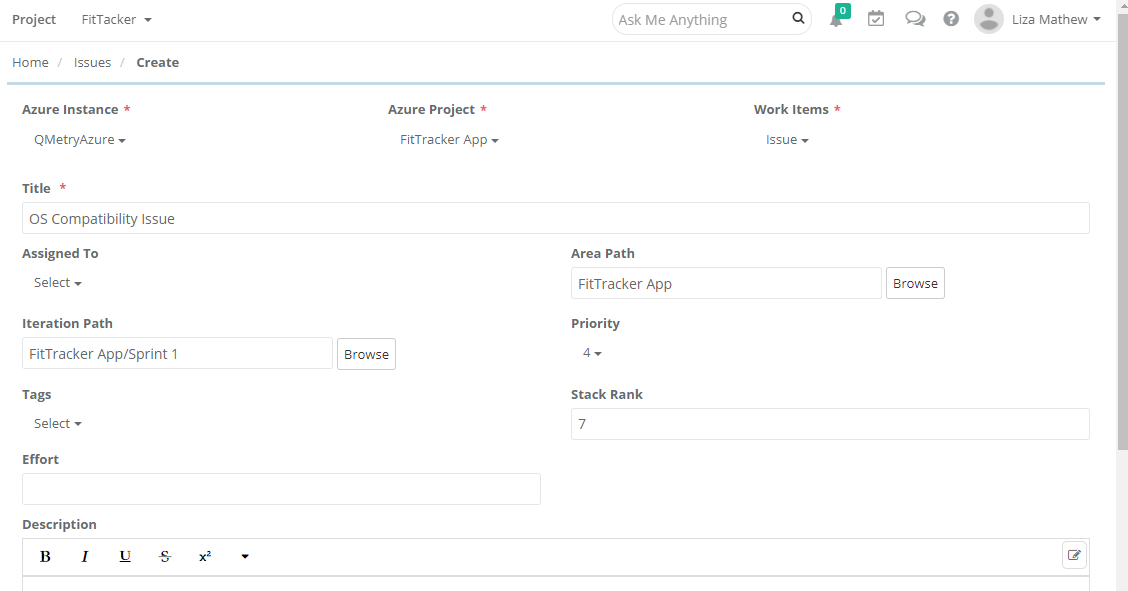
Issues created from the Issue module or Execution screen are displayed in Azure. In the Issue module, click the External Key to open the issue detail page in Azure, or click the Entity Key to view it in QMetry. The details you enter depend on whether you are adding the issue in the internal tracker or in Azure:
If Azure is not configured: Enter details in QMetry fields.
If Azure is configured: The Add Issue screen includes Azure-specific fields that you need to fill in.
You can add defects from both the Issue module and the Execution screen in QMetry.
Next, fill in the following details:
Summary: View the issue summary.
Priority: Check the issue priority as listed in Azure.
Work Item Type: View the synced issue type.
Tags : See the Azure tags in QMetry.
Stack Rank: View Azure stack rank in QMetry.
Effort : View the Azure effort list in QMetry.
Assigned To: This field shows the Azure assignee.
Area Path: Select the folder path from Azure.
Iteration Path: Choose the folder path from Azure.
State: View the Azure workflow status (read-only).
Created By: Displays the Azure user who reported the issue.
Team Project: Read-only field synced from Azure.
Description: Enter a plain text description of the issue.
Azure Custom Fields: View any Azure custom fields.
Link Attachments: Attach files during issue creation.
Logging issues from the Execution screen of the Test Suites Module
To log issues at both the test case and test step levels, perform these steps:
Open the Execution screen.
Click the bug icon next to the test case or test step to log an issue. For more details, refer to Adding or Linking Issues to Test Case and Test Step
Creating Issues at the Step Level for Automated Test Cases
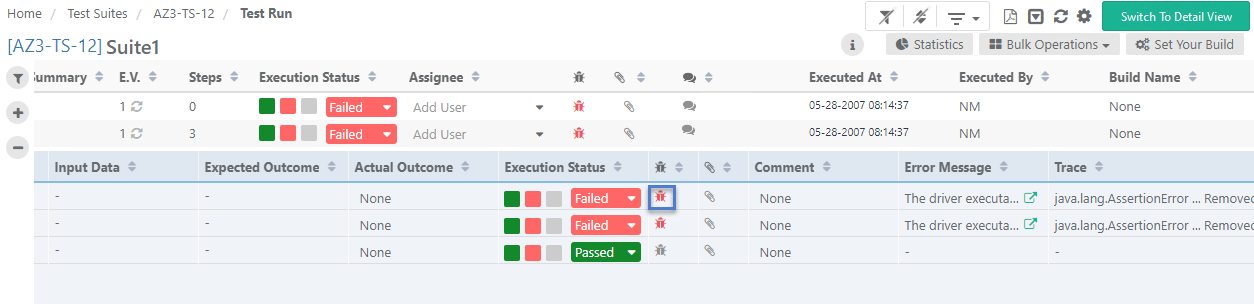
During an automated test run, if an error occurs, the system shows an Error Message and Trace on the test execution screen. When you create an issue at the test step level, the system automatically attaches a .txt file with the Error Message and Trace to the issue.
On opening the issue in QMetry , the Attachment tab shows the .txt file attached to it which contains the Error Message and Trace.
Create Requirement from Issue
To create a requirement from an issue, perform these steps:
Select the issue and add a new requirement.
The new requirement copies common field values from the issue and use the same name. These fields are editable.
The system links the issue to the new requirement. On the Issue details page, the Requirements tab displays this new requirement. On the Requirement details page, the Issues section shows the originating issue. Only users with “Create” rights for Requirements can perform this action.
From the Toolbar: Select an issue in the grid pane, click "Add" on the toolbar, point to "From Issue," and select "Requirement."
From Context Menu: Right-click an issue in the grid pane, point to "From Issue," and select "Requirement."
Map Azure custom fields with QMetry
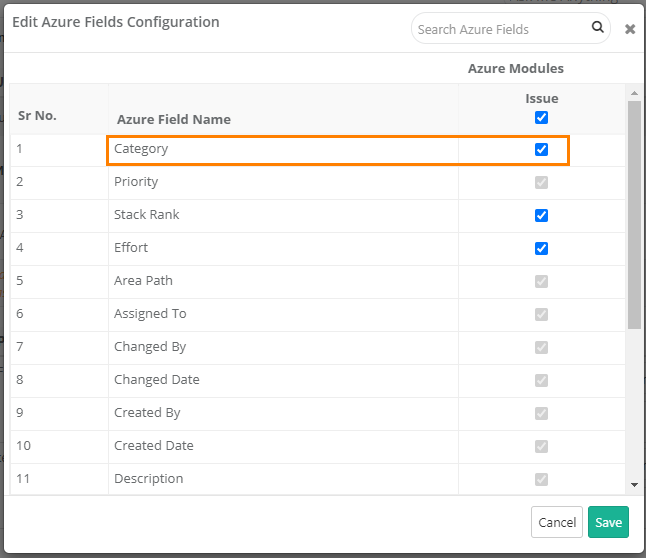
System fields are auto-mapped and read-only. You can select the custom fields that appear in the Issue module. To make the Reporter field mandatory, enable the corresponding flag.
Deleting an Issue
You can not delete Azure issues from QMetry. If you delete an issue from Azure, the system also deletes it from QMetry and removes its linkages to the test cases or test steps.
Removing an Azure Configuration
When you remove a Jira project integration from a QMetry project:
Issues that you created in Azure from QMetry are not displayed in QMetry.
For Azure issues logged during execution, the system removes the association of these issues with respective test cases or test steps.
The system displays issues created in the internal tracker before the Azure integration in the issue grid.
Edit or Revoke Existing Azure Authentication
The Azure Authentication window initially appears when adding an issue for the first time to request Azure credentials. This window does not reappear for subsequent operations unless your credentials are revoked.
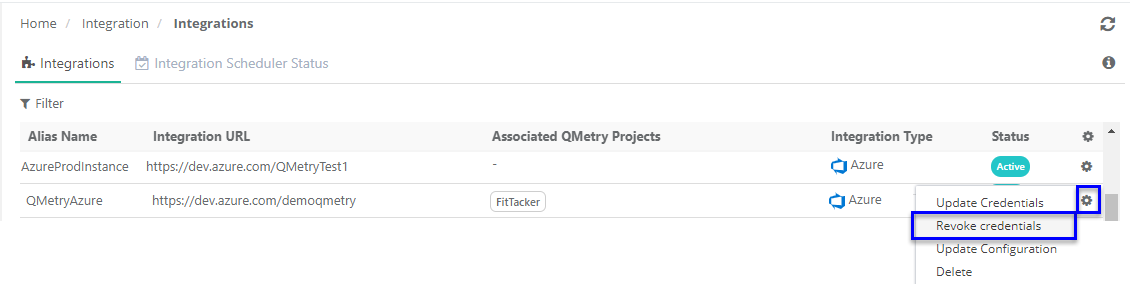
To display the Azure Authentication window again when creating or editing an issue, revoke the existing Azure credentials:
Go to Integrations.
Click the Cog (⚙️) icon and select Revoke credentials.
Edit Issue Details
Once you add the issues, open the Issue details page to view or edit the details.
Note
Users cannot edit the field values of the Work Item Type and State fields of external issues. The fields appear in read-only mode.
Delete Existing Azure Integration
If you do not require the Azure Integration configuration, then you can delete the configuration.
Go to Integrations.
Open the Cog (⚙️) icon and click Delete for the configuration to delete.