Execution Status Management
Execution Status is the result of executed test cases. QMetry provides System Default Statuses: Passed, Failed, Blocked, Not Run, and Not Applicable.
You can add new statuses as per requirement.
You can edit and archive only those statuses that you have added. Expand Customization and select Execution Status.
Note
Permissions for Customization are allocated from Roles under Customization.
You can add new statuses and corresponding icons. You can also edit name and icon of existing statuses.
If you have configured Jira as an external tracker, then changes in status icon also reflect in Jira for the entities.
Renaming or Editing Execution Status Names
You can add new Execution Status and rename default Execution Status. The nomenclature set here is maintained at Domain level. You can find the same status names across all Releases and Cycles under one Domain.
Look at the Execution Status grid pane on the screen.
You can customize the execution status list by adding new status to it.
Note
You can add new Execution Status only before any entity or folder creation in Requirement, Test Case, and Test Suite module.
After creating an entity or folder, you cannot add new execution status. Also, you cannot reset to Default Run Status after creating any entity or folder.
You can edit an existing status name on the Execution Status Management grid pane.
Default Run Status represents generic names of execution status that testers assign to test runs in general.
Names under Default Run Status are fixed ones. Run Status Names are user defined names that users give to Default Run Status in order to identify the status more clearly.
To rename an Default Run Status, click the edit icon under the Edit column for the row.
A text field appears for the cell with Save and Cancel buttons on it.
Enter name to identify the status with.
Click Save.
The status names set here reflects on the Test Suite Execution screen in the Test Suite module. The names are applied in other applicable places like graphs, reports, etc. throughout QMetry wherever it refers to test case step/test case/test suite status.
Example:
The execution history shows test suite TS1 with status “Blocked”. Now you change the Status Run Name from “Blocked” to “Super Blocked” and also changes the icon.
As a result, the Execution History of TS1 shows its status as “Super Blocked” with the new icon.
The edited value of the status immediately reflects in the execution history.
Reset to Default Run Status
Default Run Status column displays default status provided by QMetry.
Status Run Name column displays user defined names of status.
If you prefer to use the original terminology for system status, then click Reset to Default Run Status. All execution statuses reset to default. On resetting to Default Run Status, all user defined statuses are archived.
Note
Reset to Default Run Status is accessible if you have Status Management rights of create, update, and delete.
Default Status Priority
The status priority defined here is applicable for test case steps and determines the status of a test case.
For example, the following table shows a test case that contains four test steps and demonstrates how the status of each test step affects the status of the test case.
Test Step 1 | Blocked | Failed | Passed | Not Run | Failed |
Test Step 2 | Failed | Not Run | Passed | Passed | Passed |
Test Step 3 | Not Run | Passed | Passed | Passed | Failed |
Test Step 4 | Passed | Passed | Passed | Passed | Passed |
Test Case | Blocked | Failed | Passed | Not Run | Failed |
From the above table we can see the following:
The first preference is given to “Blocked” status.
If one of the test case steps is “Blocked”, then the test case is marked as “Blocked” status.
The second preference is given to “Failed” status.
If one of the test case steps is “Failed”, and no test steps exist with the “Blocked” status, then the test case is marked as “Failed” status.
The third preference is given to “Not Run” status.
If a test case steps is not executed yet, and no test case steps exist with either “Blocked” or “Failed” status, then the test cases is marked as “Not Run” status.
The last preference is given to “Passed” status.
If all the test case steps of a test case is “Passed”, then the test case is marked as “Passed”.
Adding a New Status
To add a new status, perform these steps:
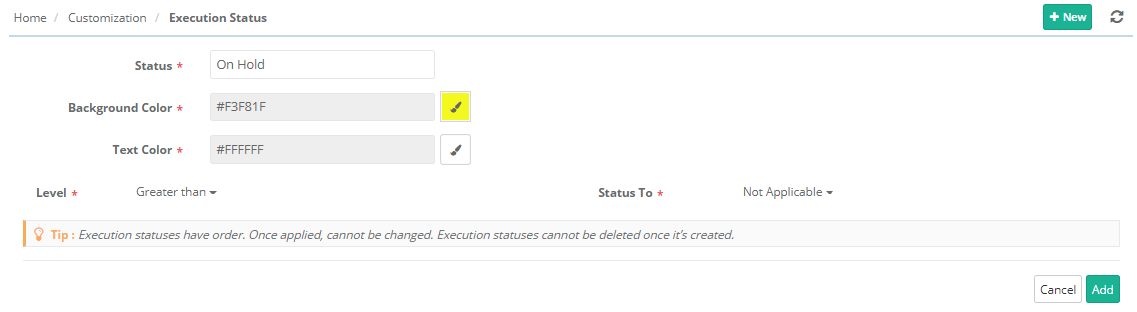
Click New.
Fields to add execution status.
Status: Enter name of the new status.
Select Background Color and Text Color for the status.
Setting Level/Priority of a New Status
The sequence of the system default statuses i.e. Blocker, Fail, Not Run, Pass, and Not Applicable represents their priority. You cannot change this. You can add New Status anywhere in between the system statuses.
For example, if you add a new status “Partial Pass”, between “Pass' and “Not Run” status.
The screen displays two selection drop-down lists to define the priority of the new status that is being created.
The first drop down has two options: Greater than or Less than
The second drop down has all the statuses (including the archived statuses) on it
It is mandatory to set priority of the new status. Once the priority is assigned, it cannot be changed.
Archiving an Execution Status
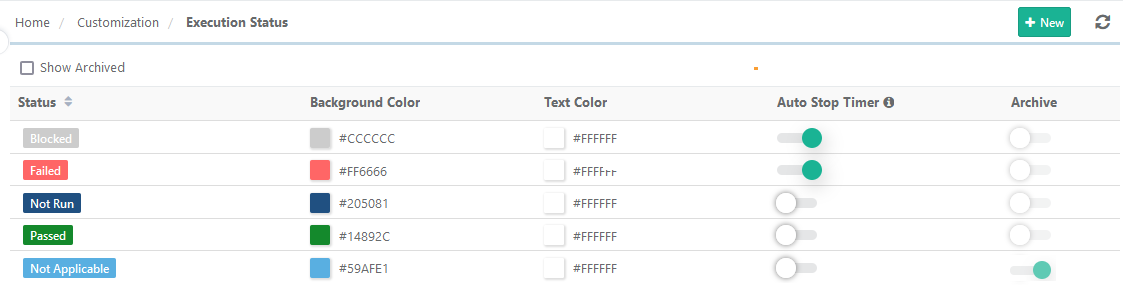
You can archive execution status that are no more in use. When a status nomenclature becomes unusable, you can not delete it but can mark it as "Archive" to stop showing it on the execution status list.
You can archive only user defined status.
To mark a status as "Archive", turn the Archive flag "ON" for the status. The status name stops appearing on the status list wherever applicable. But the execution history preserves the old status for older executions.
To un-archive a status, turn the Archive flag "OFF" for the status. The status is available for use again.
To view archived status, check the Show Archived check box.
Custom Configuration of Execution Status for stopwatch timer
Note
This feature is only available if you have purchased the Customization App of QMetry Test Management.
Prerequisite: Enable The Derive Test Case Execution status from Test Case step status option in Project Settings.
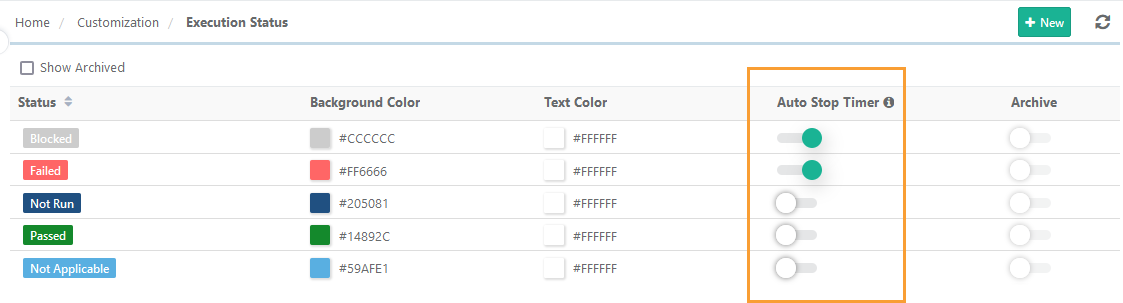
Auto Stop Timer: Enable or disable the auto-stop timer when the execution status of the test case step is set as particular execution status.
By default, the “Failed” and “Blocked” statuses are selected. It means whenever the test step status is assigned the status of Failed/Blocked, the test case status changes to Failed/Blocked. Once the test case status is assigned, the timer auto-stops.
You can enable/disable the option for required execution statuses.
Required Permission: Project Admin or users with Customization “Modify” permission can edit this project-level Execution Status setting.
Note
You cannot modify the above setting if the customization package is disabled on your QMetry instance.