Success Rate Settings Project Level Settings
Prerequisites
Project administrators must configure the Success Rate Settings if the option Allow Project Admins to Enable & Configure the Success Rate for their project is enabled from General Settings & Audit in AI Configuration tab under System Settings.
Required Permissions
Project Administrators and users with Success Rate - Modify or Success Rate - Generate permissions can configure the Success Rate settings.
Users with only the Success Rate - View permission can view the configuration, but cannot make any changes.
Enable Success Rate Settings
To enable Success Rate Settings, perform the following steps:
Go to QMetry Intelligence.
Select Success Rate Settings.
Open the Configurations tab.
Turn on the Enable Success Rate for the Project.
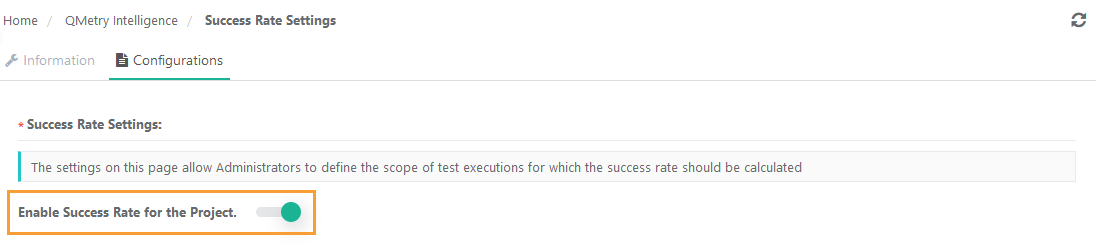
Once the Success Rate is enabled, the fields for Success Rate Configuration appear editable.
Success Rate Configuration
The settings on this page allow Administrators to define the scope of test executions for which the Success Rate will be calculated. The criteria should be refined to calculate the Success Rate based on the QA reporting methodologies.
AI will calculate the Success Rate based on the filtered test execution records according to the criteria. The existing Success Rate will be reset and recalculated whenever the configuration is modified.
Provide the following details for the Success Rate configuration.
Test Case Executions: Mention the number of the latest test executions of a test case you want to consider while calculating the success rate. 10 test executions are selected by default. The Test Case Execution value should be from 1 to 1000.
Test Case Version: Latest Version or All Versions, while calculating the success rate. The Latest Version is selected by default.
Latest Version: Only the test executions of the latest test case versions will be considered when calculating the Success Rate.
All Versions: The test executions of all test case versions will be considered while calculating the Success Rate.
Execution Time Frame: Mention the days to define the timeframe in which the test executions were executed in the last specified days. By default, 90 days are selected, indicating that test executions carried out during the previous 90 days will be considered when calculating the Success Rate. If left blank, it will be considered as all the days.
Release: Select Release(s) to consider test executions for those releases. All releases are selected by default.
Cycle: Select Cycle(s) to consider test executions for those cycles. All cycles are selected by default.
Platform: Select Platform(s) to consider test executions for those platforms. All platforms are selected by default.
Build: Select build(s) to consider the test executions about that particular build(s). All builds are selected by default.
Test Case Execution Status
As Passed: The test execution with these statuses will be considered Passed when calculating the Success Rate. The default value is Passed.
As Failed: The test executions with these statuses will be considered Failed when calculating the Success Rate. The default values are Failed and Blocked.
Note
All execution statuses other than selected as passed and failed will be considered as Skipped. Skipped status will not be considered for calculation.
Action Options
Click Update to save the Success Rate Settings.
To reset the settings, click the Reset button.
To calculate the success rate, click the Generate button.
Note
The Success Rate can be calculated once in 24 hours for each project. Once you generate the Success Rate, the Generate button will remain disabled for the next 24 hours.
Once you generate the Success Rate on the Success Rate Settings screen, you can view the success rate on the test case list view, test case detail page, test case link screens, linked test cases screen, and test case execution screens.