Log Issues
You can log an issue against a scenario while you record a test session. The system reflects the logged issues in the Issues module. If you have linked an external tracker with QMetry, the system also logs the issue in that external tracker.
Note
Logging issue pauses your session. To resume, close the issue logging screen.
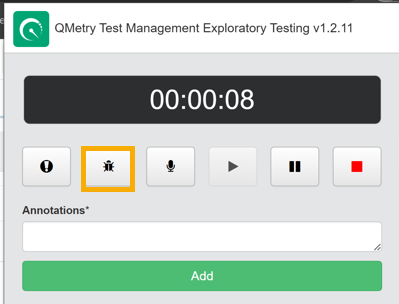 |
To log an issue while recording:
Annotating Screenshot: Annotate the screenshot using the features available on the editor.
Log an Issue While Recording
To log an issue while you record a session, perform the following steps:
Select the Bug icon to capture a screenshot of the current page.
The screenshot opens in a new tab with standard image-editing options.
Annotate the screenshot using the features available in the editor.
Enter the issue details in the QMetry fields, or in the fields of your integrated tracker, as described in the following sections.
Select Log Issue.
The screenshot is added as an attachment to the issue in the Issues module.
Logging an Issue in QMetry
You can log an issue directly from exploratory testing using the following QMetry fields:
Field | Description |
|---|---|
Project | Select the project for which you want to log the issue. |
Summary | Enter a brief summary of the issue. |
Priority | Select the priority of the issue from the drop-down list. |
Labels | Select the labels that apply to the issue. |
Issue Type | Select the issue type, for example, Bug, Enhancement, or New Feature. |
Owner | Select the assignee who works on the issue from the drop-down list. |
Description | Describe the issue in detail in the text area. |
Note
If cascading list fields are configured and enabled for the project, they appear during exploratory testing.
Upgrade your QMetry Exploratory Testing browser extension to the latest version to get support for cascading field enhancements
If you have enabled Layout Management, the fields on the Issue Create screen appears according to the layout defined for the Add page of the Issue module.
Logging an Issue in Jira
Configure Jira with your QMetry project to log issues directly in Jira.
To log an issue in Jira, enter the following details:
Field | Description |
|---|---|
Project | The QMetry project integrated with Jira. |
Instance | Select the Jira instance to log the issue. |
External Project | Select the Jira Project to log the issue. |
Issue Type | The list shows the issue types mapped to the QMetry Issues module during Jira integration. If Sub-task is included, you can create sub-task issues as defects for failed executions. |
Parent Issue Key | This field is visible if the Sub-task is selected as the Issue Type above. It populates the issues created in the Jira project. |
Other fields appear in accordance with the project selection.
Logging Issue in Azure DevOps
If Azure DevOps is configured in QMetry, log issue directly in Azure DevOps.
Enter the following details:
Field | Description |
|---|---|
Project | The QMetry project integrated with Azure DevOps. |
Instance | The Azure DevOps instance to log the issue. |
External Project | Select the Azure DevOps Project to log the issue. |
Issue Type | The issue type is displayed as per the issue type configuration with QMetry Issue module while Azure DevOps integration. |
After you enter the required details and select Log Issue, the defect count is displayed for the recorded session on the Exploratory Testing screen. Select the defect count to open the Defects tab of the session.
The Defects tab displays details of the logged defect. Select the external key to open the issue detail page in Azure DevOps. Alternatively, select the entity key to open the QMetry Issues module, where the issue is displayed with its external key.
View Logged Issues
Issue Logged in QMetry
To view issues logged in QMetry, perform the following steps:
 |
Go to Exploratory Testing under Automation.
The issue count logged for the tests or sessions is displayed.
Select the issue count in the grid to open the attached issue screenshot.
Select the entity key to open the issue detail page in the Issues module.
Issues Logged in Jira
Click External Key for the Exploratory session to open the issue detail page in the external tracker.
To view issues logged in Jira, perform the following steps:
Go to the Execution Screen.
Click the Bug icon.
View the issues logged from QMetry Exploratory Testing extension on the Available Issues tab.
Select the external key to open the issue detail page in the external tracker.
Log Issues without Sessions
You can log issues without recording a session. The system adds these issues directly to the Issues module in QMetry. To log an issue without a session, perform the following steps:
Open the QMetry Exploratory Testing add-on.
Select Log Issue.
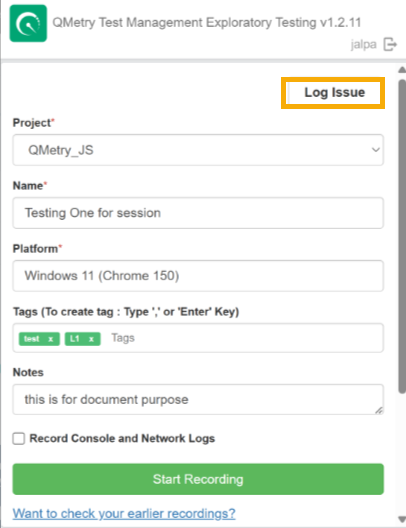
Enter the issue details.
The system adds the issue to the QMetry Issues module in the corresponding project.