Configuring Azure DevOps with QMetry Admin
Note
To configure Azure and QMetry Integration, you need QMetry Admin credentials.
Configuring QMetryTest Management Extension in Azure
Go to Organization Settings. Select QMetry Test Management in the Extensions.
Enter the QMetry Instance URL. For example, https://yourqmetryinstance.com.
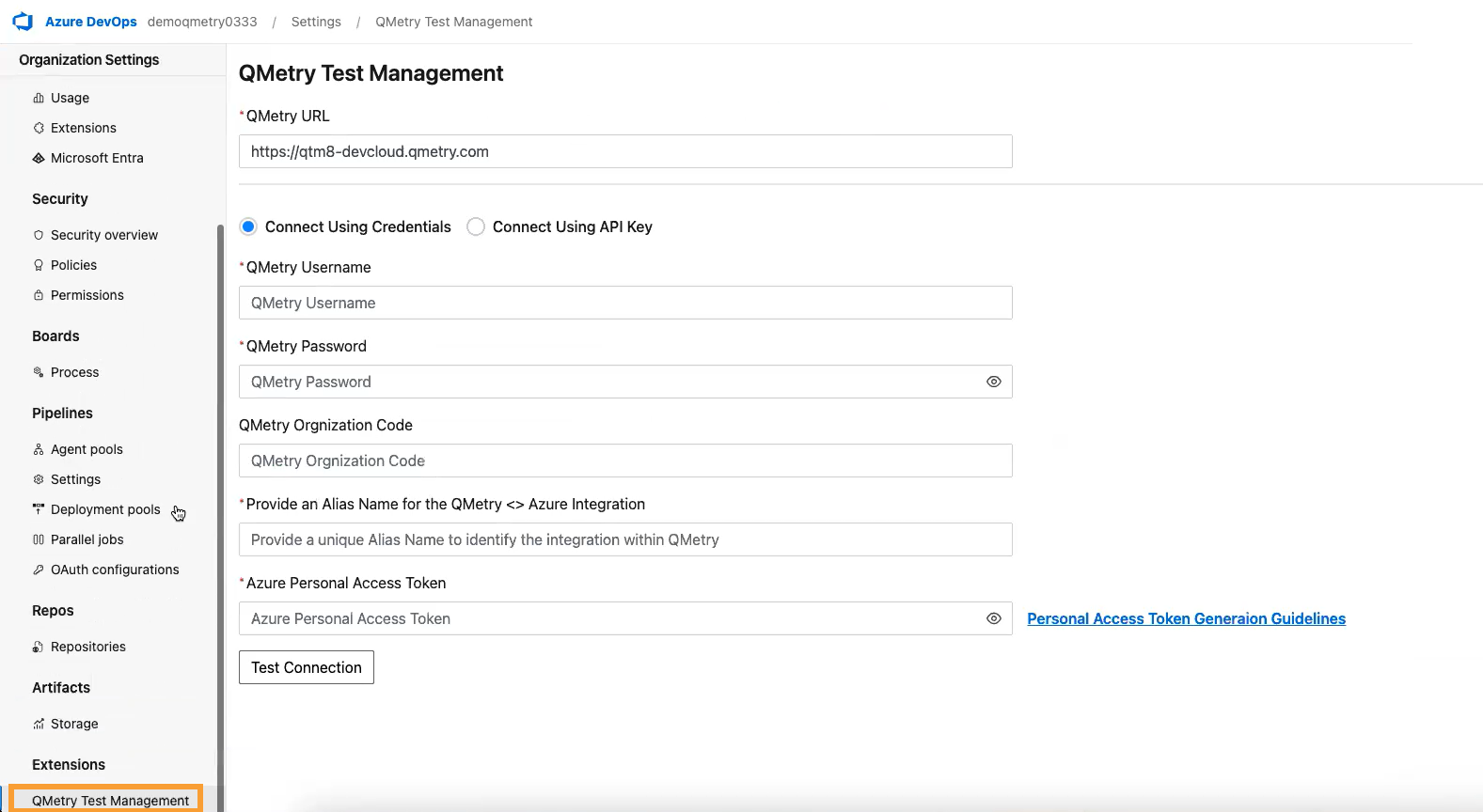
Select Connect Using Credentials or Connect Using API Key.
Note
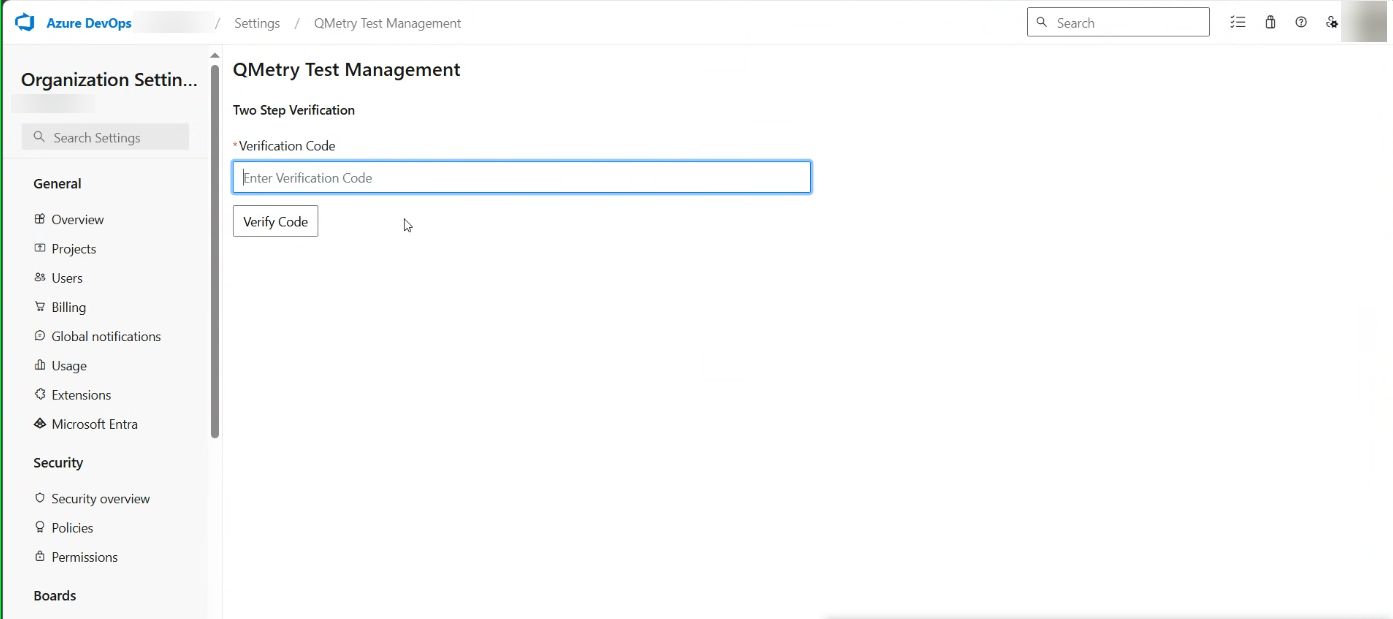
If you have enabled Two-step Verification in QMetry, then you must enter the verification code sent to you for establishing the connection.
Connect Using Credentials
Enter the following details:
QMetry Username
QMetry Password
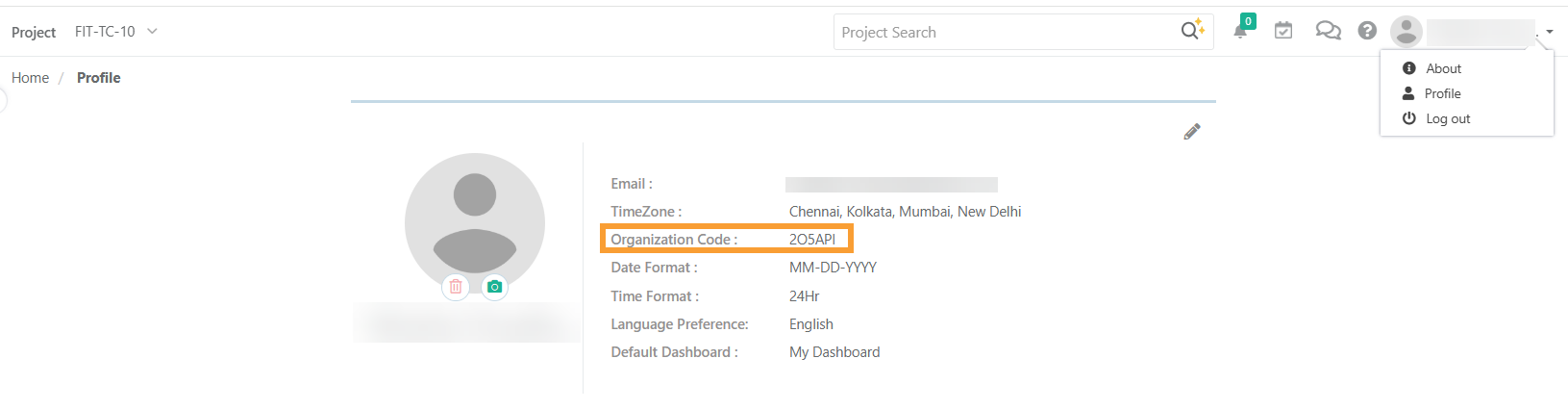
QMetry Org Code: To know your Org Code:
Log into your QMetry QMetry account.
Go to your profile and find the organization code.
Alias Name: The alias helps you quickly recognize a specific integration.
Azure Personal Access Token (PAT): PAT acts as an alternative to a password for authentication. Refer to the help guide on How to Generate PAT to know more.
Now click Test Connection.
If Multi-Factor Authentication (MFA) is enabled, then enter the verification code. For detailed instructions on enabling MFA in QMetry, refer to the Two-step Authentication in QMetry documentation.
Connect Using API Key
You can integrate Azure with QMetry by using QMetry’s Open API Key available under the Integration section in the QMetry Test Management application.
Note
Only users who have opted for the Integration package can access the Open API Key.
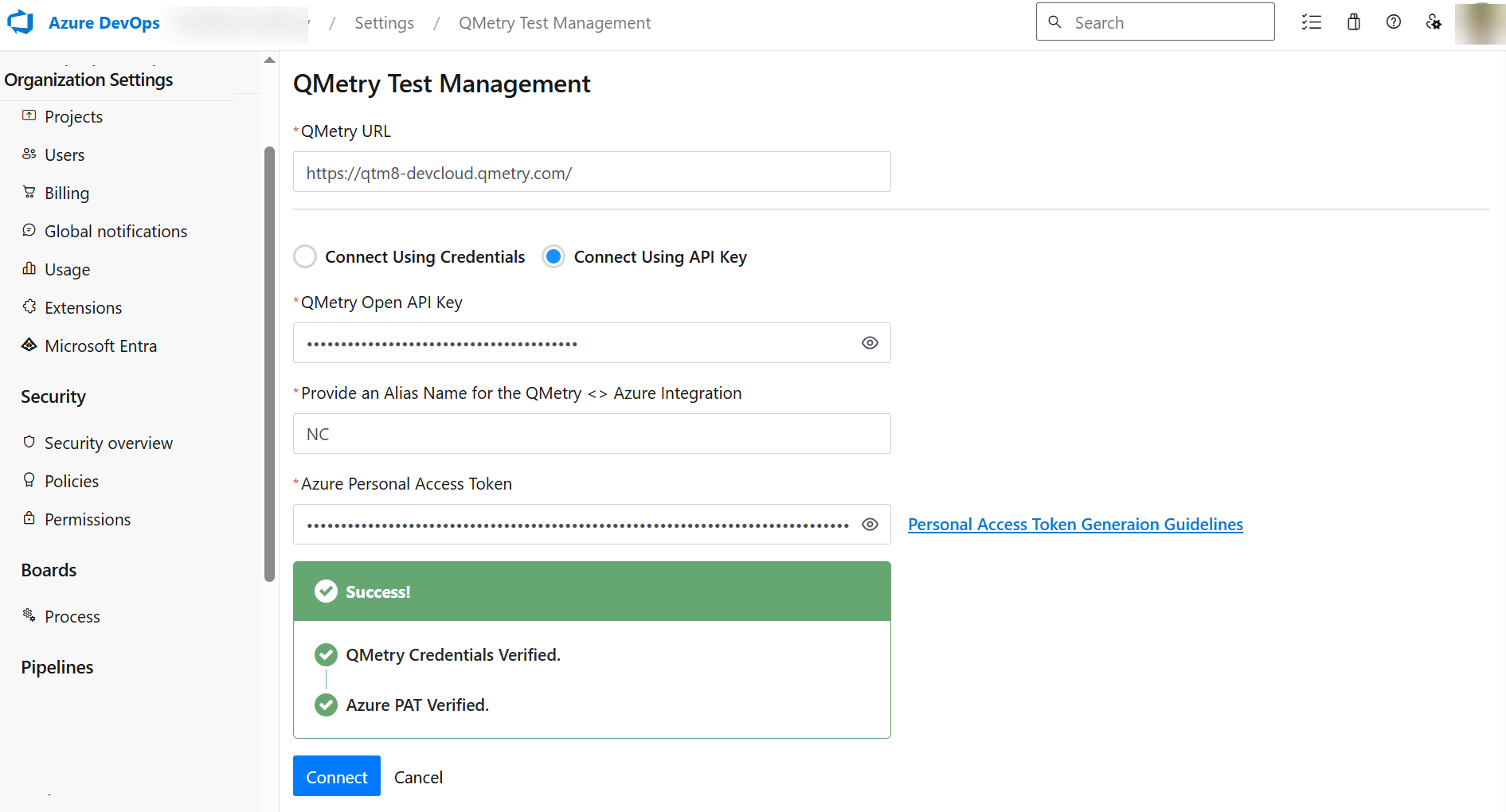
Enter the following details:
QMetry Open API Key: The Open API Key enables integration with external tools. Refer to the help guide on How to generate an Open API Key? to know more.
Alias Name: The alias helps you recognize an integration.
Azure Personal Access Token (PAT): PAT acts as an alternative to a password for authentication. Refer to the help guide on How to Generate PAT to know more.
Enter the valid Open API Key and click Connect to establish the Azure integration with QMetry.
Verify Azure Integration Status in QMetry
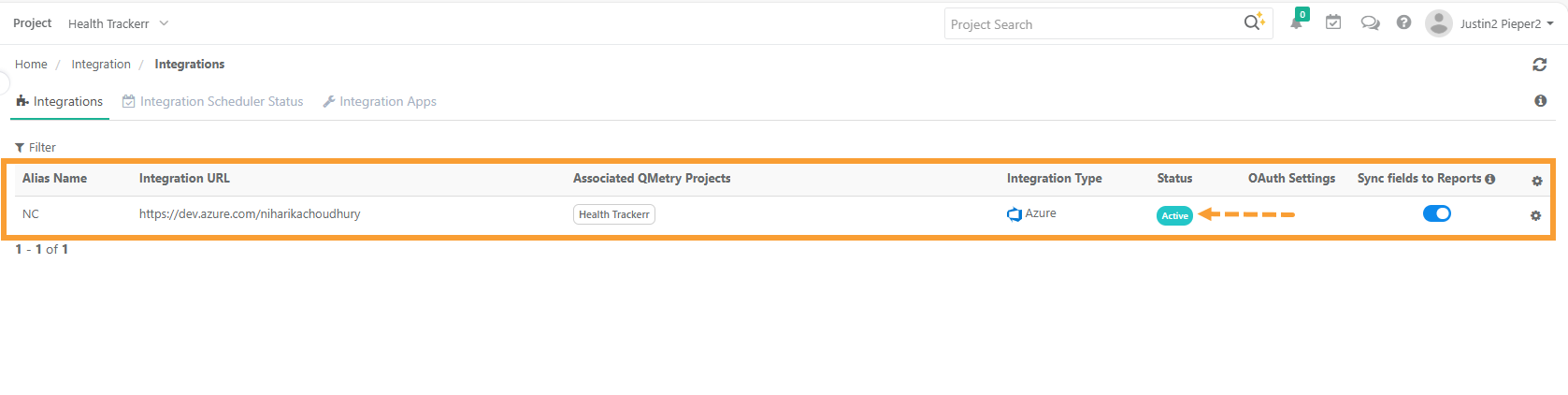
To verify the integration between QMetry and Azure, perform the following steps:
Log in to the QMetry Test Management application.
Navigate to the Integration section from the left panel.
Select the Integrations tab.
Locate the row displaying Azure under the Integration Type column or apply filter for easy search.
Verify the following:
The Integration URL displays the correct Azure DevOps URL.
The Status is marked as Active.
The Associated QMetry Projects column lists the QMetry projects linked to this integration (if configured).
The integration is successfully established when the status appears as “Active” and the integration URL matches your Azure DevOps instance.
Note
You can update credentials or revoke access anytime by clicking the cog icon on the right.