Adding Data Grid
Combine parameters and values in different ways to create a Data Grid for running the test.
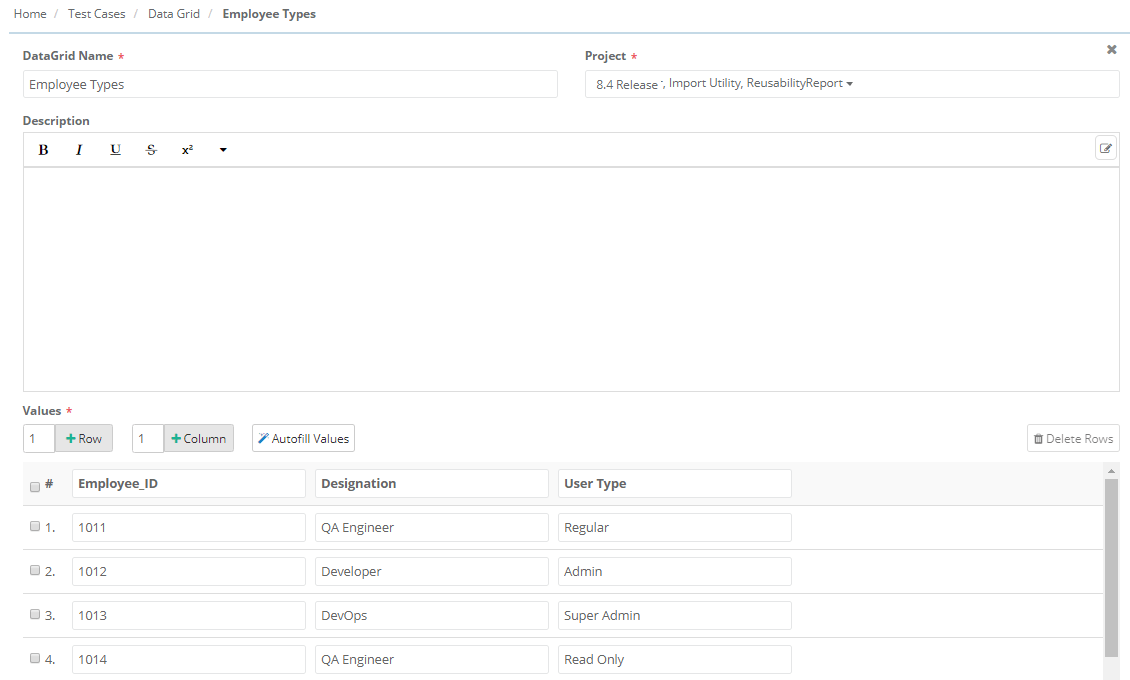 |
To create a data grid, perform the following steps:
Go to the Test Case Module and select DataGrid.
Click +.
Enter the DataGrid Name, Project, Description, and Values.
Note
You can add a maximum of 100 rows and 20 columns in a Data Grid.
If you have entered the Data Grid manually, use the Autofill Values option to reset those values.
Create multiple Data Grids for multiple data sets. The system displays DataGrids in a list view. Filter the records by Project (with "View" rights), Name, Created Date, Updated Date, and Archived status.
Creating a Data Grid directly from Parameters
To create a data grid from Parameters, perform these steps:
 |
Click the Cog (⚙️) icon and select Create DataGrid
Select the parameters to include in the Data Grid.
Click Next to proceed.
Enter a DataGrid name, select the associated projects, and provide a description.
Add more parameters by clicking Column.
Click Create.