Jenkins Configuration
In Jenkins, go to the Configuration screen and select the Trigger builds remotely checkbox to enable remote build triggers.
How to Construct a Webhook URL?
When configuring Build Triggers in your CI/CD tool, refer to the instructions below the Authentication Token field for the URL used to trigger the build remotely.
Normal Project | Parameterized Project |
|---|---|
Example of constructing the Webhook URL for a normal project in Jenkins. The URL suggested in Jenkins during the configuration of Build Triggers: If your Jenkins instance URL is http://qtm-qa-jenkins.qmetry.com:8080 Then the URL to trigger the build is: http://qtm-qa-jenkins.qmetry.com:8080 /job/QTMCloud/build | Example of constructing the Webhook URL for a project with parameters in Jenkins. The URL suggested in Jenkins during the configuration of Build Triggers:
If your Jenkins instance URL is http://qtm-qa-jenkins.qmetry.com:8080 Then the URL to trigger the build is: http://qtm-qa-jenkins.qmetry.com:8080 /job/QTMCloud/buildWithParameters |
Authorization
To supply the Authorization header with the value Basic <auth>, perform the following steps:
Build a string in the format
username:<api_token>using Jenkins credentials. Generate the API token in Jenkins from your User Profile, then open Configure, and go to the API Token section.Encode the string in Base64 format.
If the API Token was generated in Jenkins using the admin account, to encode the string in Base64 format, use the string format as
admin:<API_Token>.Your string should look like
admin:1185c84ee2447df322af5ced7597bbad6bwhen you're encoding to Base64 format. The encoded string corresponds to:YWRtaW46MTE4NWM4NGVlMjQ0N2RmMzIyYWY1Y2VkNzU5N2JiYWQ2Yg==.
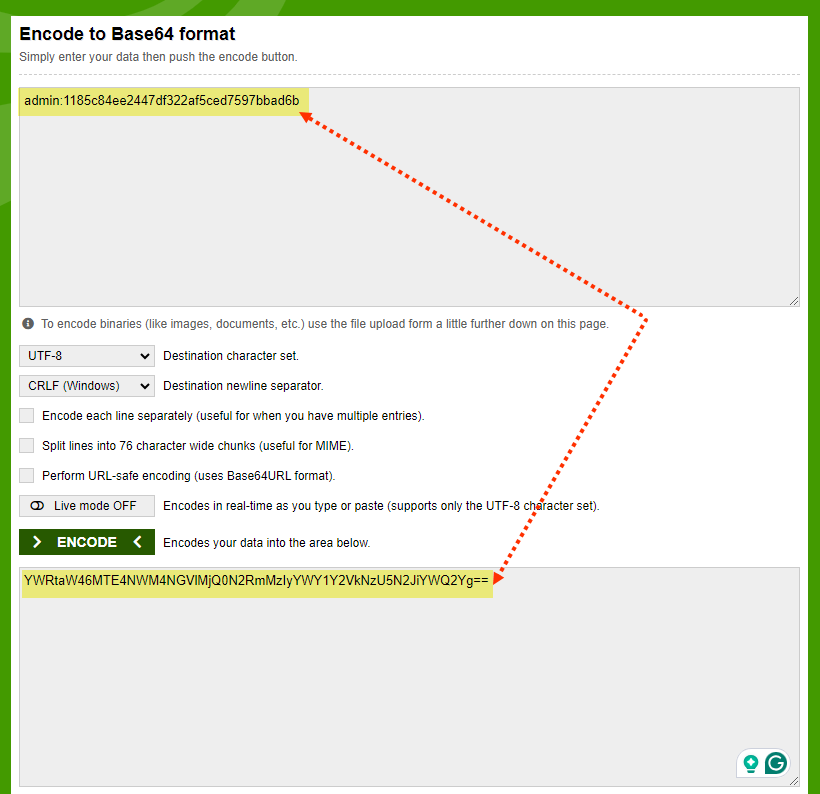
Supply an Authorization header with the content Basic followed by the encoded string from Step 2.
For example, the string
adminencodes toYWRtaW46MTE4NWM4NGVlMjQ0N2RmMzIyYWY1Y2VkNzU5N2JiYWQ2Yg==in Base64. So theBasic <auth>value would be as follows:Basic YWRtaW46MTE4NWM4NGVlMjQ0N2RmMzIyYWY1Y2VkNzU5N2JiYWQ2Yg==.
