Basic Folder Operations
Folders help you organize related test assets. You can create a folder at the root level or as a subfolder within an existing folder, and you can copy, move, archive, or delete folders as needed. These operations let you act on all the assets within a folder at once.
You can also share folder links across different communication channels. Team members with view rights can access the folder and its assets.
Understanding the Folder Asset Count
The system displays the total count of assets, including both active and archived assets, next to each folder. The count for each folder includes the assets within that folder and its subfolders.
 |
Consider a hierarchy in which Folder A contains Folder B, and Folder B contains Folder C, with the following direct asset counts:
Folder A contains five assets
Folder B contains three assets
Folder C contains two assets
The folder view then displays the rolled-up counts:
Folder A (10), the parent folder
Folder B (5) the child folder
Folder C (2) a subfolder of Folder B
Note
The direct counts (5, 3, 2) and the rolled-up counts (10, 5, 2) in the source do not reconcile arithmetically. Confirm the intended values.
Displaying Entities from Sub-Folders at the Parent Folder
You can include or exclude test assets from subfolders at the parent folder level. To hide the entities from subfolders, do the following:
Open the Options drop-down.
Clear Include Entities from Sub-Folder.
 |
Creating a Folder
You can create folders and subfolders within the Requirement, Test Case, or Test Suite modules.
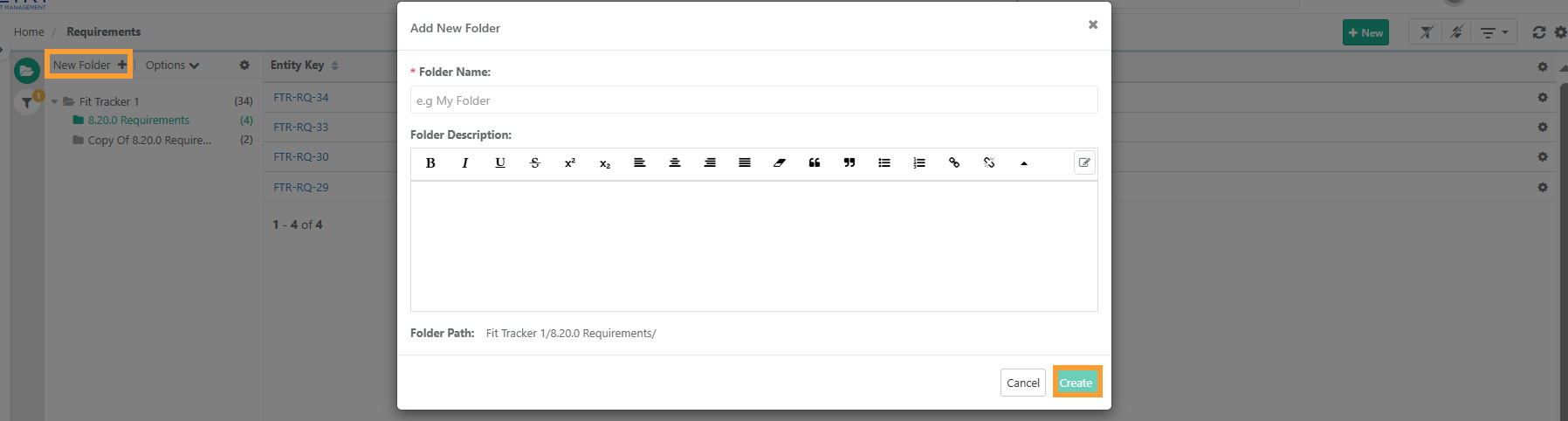 |
To create a new folder, perform the following steps:
Go to the relevant module: Requirement, Test Case, or Test Suite.
Select the parent folder. By default, the root folder is selected.
Click the parent folder.
Click New Folder.
Enter the folder name and folder description.
Select Create.
The new folder appears in the folder list.
Folder Descriptions
Add descriptions to folders to highlight their purpose and usage.
Note
Folder descriptions support large text and rich text formatting.
To enable rich text, go to Project Settings and turn on the Enable rich text editor option.
You cannot add a folder description to the root folder.
Editing a Folder Name
To edit an existing folder name, perform the following steps:
Select the folder.
On the toolbar, click the Edit icon.
Edit the folder name, then select .
Copying a Folder Link
Generate a direct link to any folder in the test repository and share it for quick access. You can do this in two ways.
A. Copy the folder link by right-clicking
Right-click the folder you want to copy.
Select Copy Folder Link.
B. Copy the Folder Link from Breadcrumb Navigation
On the module details page, go to the breadcrumb navigation.
Hover over the folder name, then the Copy icon.
The system copies the folder link to the clipboard. You can share this link by email or messaging apps. Users with the necessary permissions can view all the assets listed in the folder.
Note
If users lack the necessary permissions, the system displays the error message “You do not have sufficient permissions to view this folder.”
For deleted, renamed, or moved folders, the system displays “The folder no longer exists or has been moved.”
The link navigates only to the folder location and its expanded hierarchy. The system does not retain applied filters.
Right-click menu for folder operations
You can perform various folder operations by right-clicking a folder name in the folder tree. The following table lists the available actions.
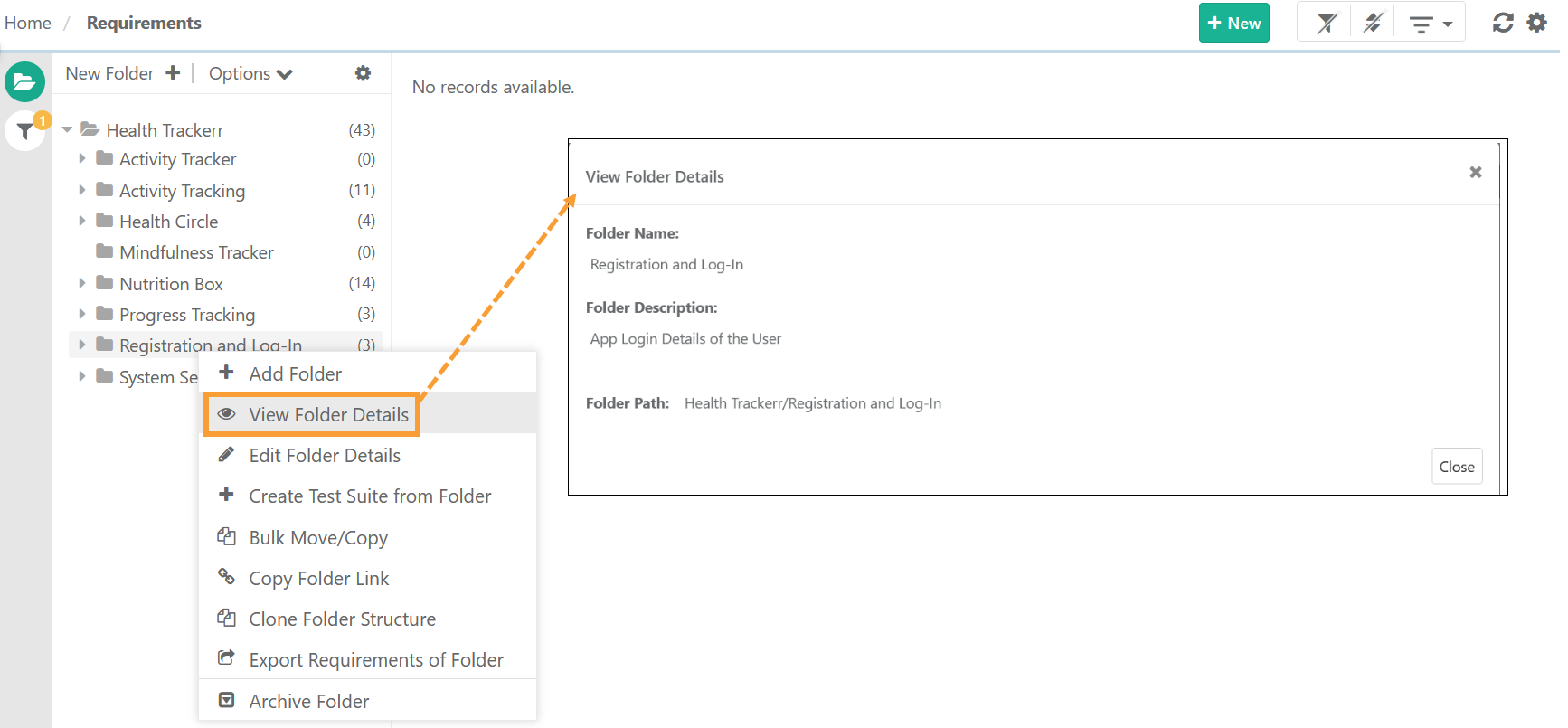 |
Below is a list of the available actions:
Option | Description |
|---|---|
View Folder | Displays the folder name, description, and its complete path within the folder hierarchy. |
Add Sub Folder | Adds a sub-folder under the selected folder. |
Edit Folder | Renames or updates folder details. Not applicable to the root project folder. |
Copy Folder Link | Copies the direct link to the folder. |
Archive Folder | Moves the folder, its sub folders, and the test cases within to an archived state. |
Move Folder(s) | Moves the folder with all its details within the same project or to a different project. |
Copy Folder | Displays the selected folders and subfolders and copies the folder details. |
Export <Assets> of Folder | Exports Test Cases, Requirements, or Test Suites from the folder. |
Create Test Suite from Folder | Creates a test suite using the test cases available within the selected folder. |
Clone Folder Structure | Creates a duplicate of the selected folder hierarchy without copying the test assets within the folders. |
Note
You cannot archive folders in the Requirements module that have synced Jira issues.
You cannot add a folder description to the root project folder.
For folders created through import or automation, you must enter the folder description manually.
You cannot import or export folder descriptions.
You cannot delete the root folder.
Deleting a folder removes all subfolders and entities within it.
The system updates the status of the parent folder across all scopes.
You can bulk archive multiple folders through Bulk operations.
When you move a Test Case Folder, the test cases keep their associations with all other folders they are already linked to. Only their link to the folder being moved is updated.
Archiving a Folder
Archive an entire folder to hide all its test assets, subfolders, and their contents. Archiving a folder also hides it for the associated release and cycle.
Note
Only users with modify asset permissions can archive or unarchive assets and asset folders.
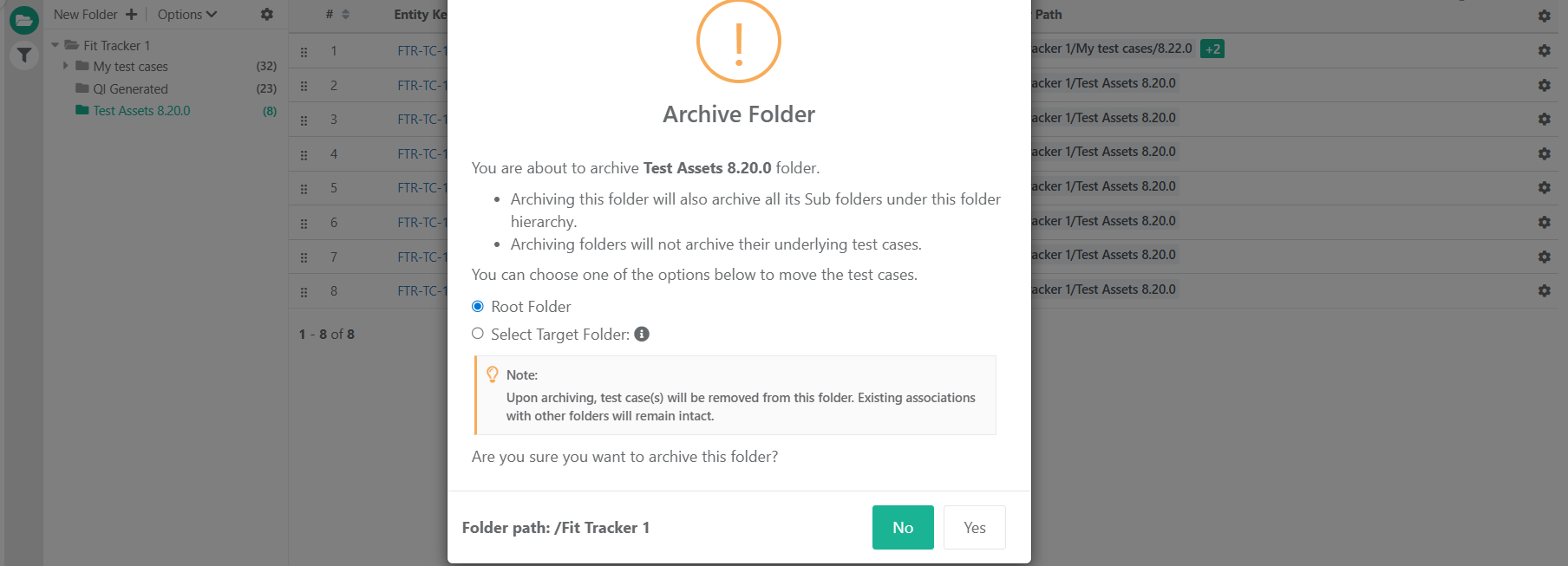 |
For test cases, archiving behaves as follows:
Select a target folder to move the test cases currently associated with the folder being archived.
Their links to other folders remain unchanged.
Their link to the archived folder is removed.
If you don't select a target folder, the test cases gets moved to the project’s Root folder.
They retain associations with any other folders but is no longer linked to the folder being archived.
Archiving a folder does not archive the test cases inside it.
Viewing Archived Folders
To view archived folders, expand the filters and select Show Archived Items. The following table lists the operations you can perform on an archived folder.
Option | Description |
|---|---|
View Folder | Displays the folder name, description, and complete path within the folder hierarchy. |
Unarchive Folder | Restores the selected folder along with its full subfolder hierarchy. |
Delete Folder | Deletes the folder. You must archive a folder before you can delete it. |
Note
Unarchived folders do not contain any test cases by default. You can manually move test cases into these folders as needed.
Impact of Archiving or Unarchiving Entities on Folders
The following table describes how archiving or unarchiving entities affects the folder.
Operation on Entities | Consequence on the Folder |
|---|---|
Archive entities from the folder | Does not archive the folder automatically. |
Unarchive entities from an archived folder | Unarchives the folder automatically. |
Note
Reuse a child test case in multiple folders within the same project. When the parent test case is synced, the system reflects all updates in every folder where the child test case exists.