Requirement and Test Case Versions
Create multiple versions of a test case or requirement as you edit it. The system displays all available versions of an asset at the top of its details page.
To view version details, perform the following steps:
Open the module details page.
Click the Version drop down at top right corner of the page.
The Versions drop-down displays all existing versions of the requirement. Select any version to view its details, and the currently viewed version is highlighted.
Scenario | Version Information / Syntax |
New Requirement or Test case | Version No. (Creator, Version Creation Date) |
Updated Requirement or Test Case | Version No. (Version Name, last modified by User, last modified Date) |
Requirement or Test Case Updated without Version Name | Version No. (last modified by User, last modified Date) |
User is Deleted | Version No. (Version Name, last modified Date) |
Note
If you delete the last editor of a requirement, the version owner field becomes blank.
Viewing Version Details
To view version details, perform the following steps:
Open the module details page.
In the top-right corner of the page, select the Version drop-down.
The Version drop-down displays all existing versions of the requirement. Select any version to view its details. The system highlights the version you are currently viewing.
The following table shows how the system displays version information for each scenario.
Scenario | Version information |
|---|---|
New requirement or test case | Version number (creator, version creation date) |
Updated requirement or test case | Version number (version name, last modified by user, last modified date) |
Requirement or test case updated without a version name | Version number (last modified by user, last modified date) |
User is deleted | Version number (version name, last modified date) |
If you delete the last editor of a requirement, the version owner field becomes blank.
Creating a New Version of aTest Asset
 |
When you edit or add steps to an executed test case, you can save it as a new version. Updating overwrites the existing details, but creating a new version retains the original values and lets you reuse the test case.
Note
Ensure your role includes versioning rights.
The is visible only for users having versioning rights.
Admin can configure versioning rights from Customization under Roles.
To create a new version of a test case, perform the following steps:
Go to the Test Case Module.
Access Create a New Version from:
Click the Cog (⚙️) icon for the test case and select Create New Version.
Open the Test Case Detail Page and click Create New Version iconon the header.
Make the necessary edits and click Save as New Version.
Creating a new version saves your changes. However, existing test suites continue to use the previous version.
Managing Execution Status when Saving a New Test Case Version
When you save a new version of an executed test case, you have two options:
Note
The synced version does not display previously linked issues.
After syncing, the execution status of the test case changes to Not Run.
Any new test steps added in the latest version are reflected on the execution screen.
You can use different versions of a test case for testing.
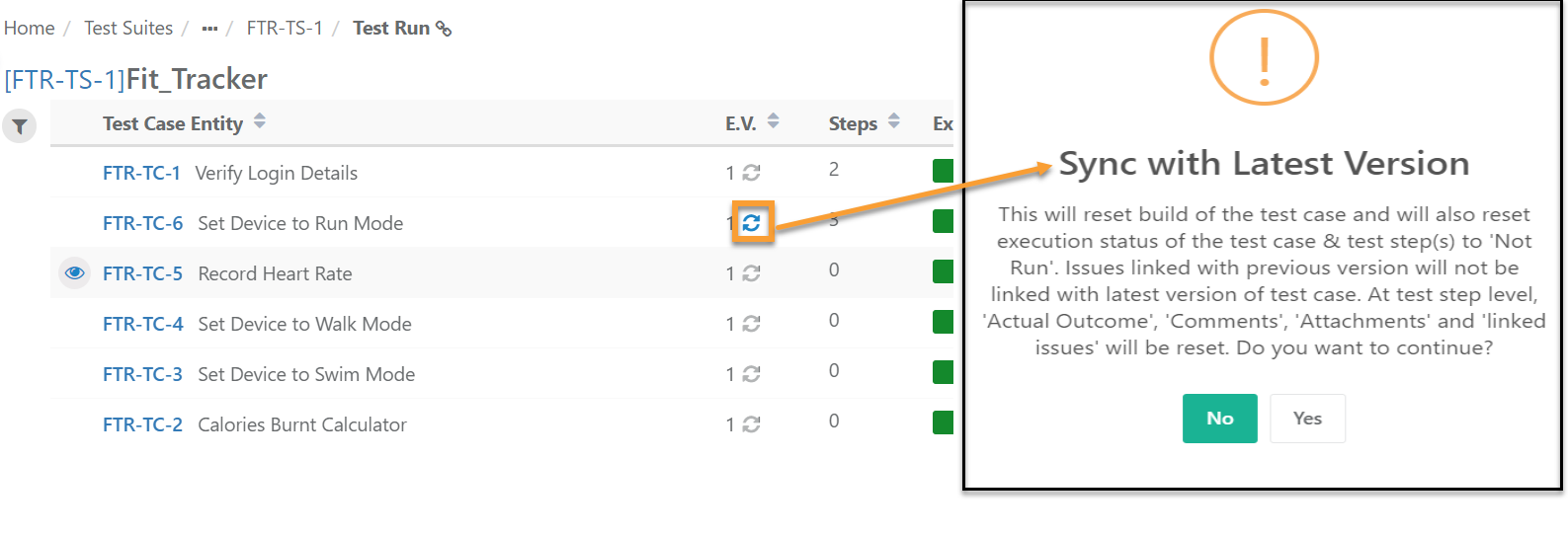
Auto Sync Latest Version: The system updates the test case version and resets the execution status to Not Run.
Example 30. Execution StatusIf TC1 had a Passed status in TS1, and the user creates a new version of TC1, then TS1 displays TC1’s status as Not Run.
Manual Sync:Click the sync icon to update the latest version.
Associating a Version with a Release and Cycle
You can associate a version with the current scope as well as other scopes. When you associate requirements or test cases with a release and cycle, you can select the version of the entity to associate with the selected release and cycle.
Editing Version Details
To edit the version details of a test asset, perform the following steps:
Open the module details page or edit page.
Open the Version tab.
Review the version details, which include the version summary, version number, associated cycle, the date updated, and the user who updated it.
To edit the version name, select the name and edit it.
Archiving and Deleting Versions
You can archive and delete individual versions of a requirement or test case. You must archive a version before you can delete it.
Archiving a Version
To archive a test case or requirement version, perform the following steps:
Go to the test asset details page.
Select the Version tab to view different versions.
In the Action column, select Archive for the version you want to archive.
You cannot add attachments, test cases, requirements, issues, releases, or cycles to an archived requirement or test case.
Note
You can delete a version only after you archive it.
Deleting a Version
To delete a version, perform the following steps:
Expand the filters and select Show Only Archived option.
Click Delete for the version you want to delete.
To unarchive an archived test case or requirement, click .