QQBot
Note
QQBot is available only with the Cloud edition of QMetry Test Management.
QQBot is an AI-powered model that auto-predicts duplicate requirements and test cases, and suggests relevant links between them, so QA teams avoid redundant work.
QQBot analyzes project data and produces actionable intelligence and optimization recommendations. For each requirement or test case, it suggests probable duplicate entities within the project and predicts relevant cross-links: test cases that can be linked to a requirement, and requirements that can be linked to a test case.
QQBot applies Artificial Intelligence techniques, including Machine Learning and statistical methods. The Machine Learning model is trained per selected project to return the highest-probability predictions for that project.
Benefits
Duplicate suggestions prevent testers from creating duplicate requirements and test cases.
The QA team can avoid working on duplicate entities by reviewing the duplicate list.
Testers can archive suggested duplicate entities.
QA team can link relevant requirements and test cases based on QQBot suggestions.
Note
QQBot settings are applied at the user level and are preserved for that user until changed.
How QQBot Detects Duplicates
QQBot flags an entity as a probable duplicate when specific fields match more than 50% with the current entity.
The fields compared depend on the entity type:
For requirements, QQBot compares the Summary and Description field values.
For test cases, QQBot compares the Summary, Description, and Step Description field values. Step Description includes the step description, input data, and expected outcome.
The Duplicate list displays only entities with a matching ratio greater than 50%.
Note
If more than five entities meet the duplicate criteria, QQBot displays only the top five entities in the Duplicate list.
If requirements are imported from external trackers such as Jira or Azure, QQBot also considers those external requirements in both duplicate prediction and linking suggestions.
Enable QQbot Prediction Auto-display
Turn on auto-display so the QQBot panel pops up automatically whenever it detects duplicates.
By default, the QQBot panel remains hidden until you open it manually. When auto-display is on, QQBot activates and pops up as and when it finds duplicates. This setting applies at the user level and persists until you change it.
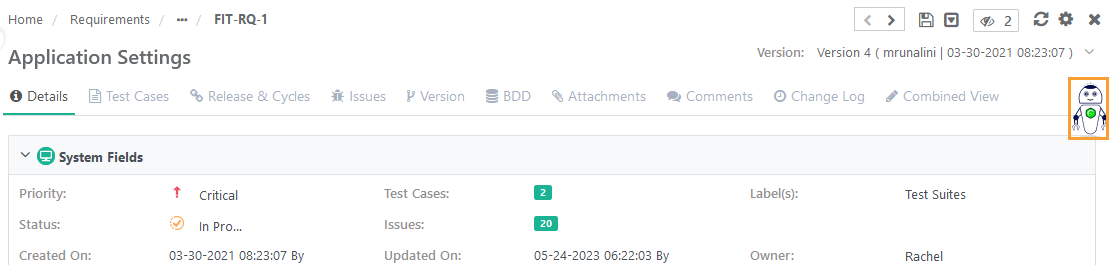 |
On the right side of the screen, click QQBot to open the QQBot Prediction panel.
Turn the toggle to On. The toggle is Off by default.
QQBot auto-display is enabled. The panel now opens automatically and shows relevant predictions whenever duplicates are detected
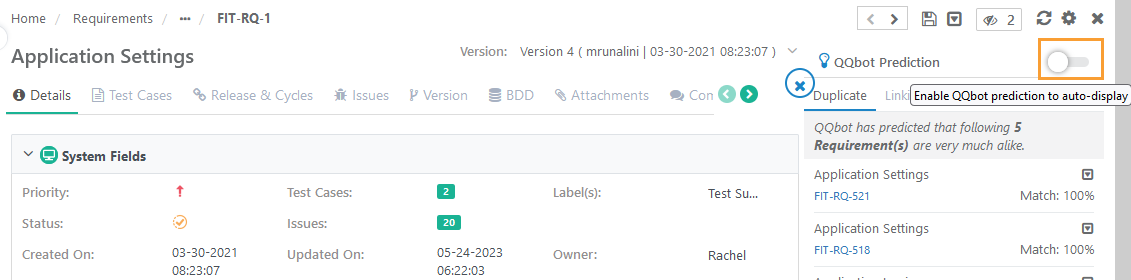 |
Disable QQBot Prediction Auto-display
Turn off auto-display so the QQBot panel no longer pops up automatically.
Open the QQBot Prediction panel and turn the toggle to Off.
QQBot Prediction for Requirements
On requirements, QQBot predicts duplicate requirements and suggests test cases to link.
QQBot is available on both the Requirement Create screen and the Requirement detail page. For a requirement, QQBot compares the Summary and Description fields to flag entities that match more than 50% as probable duplicates.
From the predictions, you can decide whether to proceed with creating the requirement or archive existing duplicate requirements (archiving requires archive permissions and archives all versions of the requirement).
View duplicate predictions on the Requirement Create screen
On the Requirement Create screen, enter the Summary.
On the Requirement Create screen, enter the Summary.
The QQBot panel expands and displays the duplicate prediction for the requirement being created.
View Duplicate Requirements on the Requirement Detail Page
Open the requirement detail page.
Click the QMetry Bot.
On the Duplicate tab, review the requirements that match the current requirement by more than 50% on Summary and Description.
Decide whether to keep the requirement or archive existing duplicates (archiving requires archive permissions and archives all versions).
QQBot Prediction for Test Cases
On test cases, QQBot predicts duplicate test cases and suggests requirements to link.
QQBot is available on both the Test Case Create screen and the Test Case detail page. For a test case, QQBot compares the Summary, Description, and Step Description fields (step description, input data, and expected outcome) to flag entities that match more than 50% as probable duplicates.
From the predictions, you can decide whether to proceed with creating the test case or archive existing duplicate test cases (archiving requires archive permissions and archives all versions of the test case).
View Duplicate Predictions on the Test Case Create Screen
On the Test Case Create screen, enter the Summary.
Click anywhere outside the field, or click the QMetry Bot directly, to activate QQBot.
The QQBot Prediction panel opens, and the Duplicate tab displays the predicted duplicate test cases.
View Duplicate Test Cases on the Test Case Detail Page
Open the test case detail page.
Click the QMetry Bot.
On the Duplicate tab, review the test cases that match the current test case by more than 50% on Summary, Description, and Step Description.
Confirm the duplicates and, if required, archive them (archiving requires archive permissions and archives all versions).
Link Suggested Requirements to a Test Case
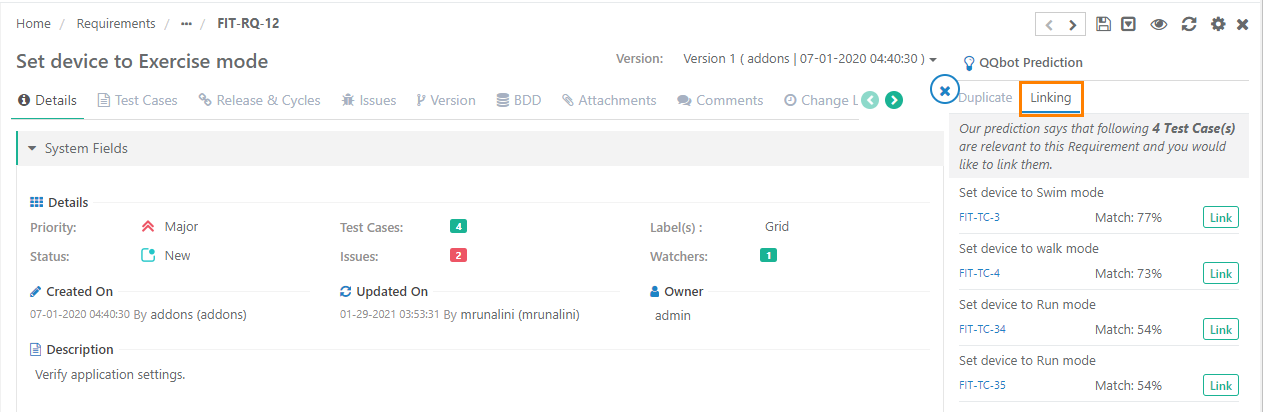
QQBot suggests requirements whose Summary, Description, and Step Description match the test case by more than 50%. If requirements were imported from external trackers such as Jira, or Azure QQBot includes those external requirements in the suggestions.
On the test case detail page, click the QMetry Bot and open the Linking tab.
On the test case detail page, click the QMetry Bot and open the Linking tab.
Click Link next to each requirement you want to attach.
The latest version of the requirement is linked to the test case.