Create New Test Cases from JIRA or Azure
Create new test cases from Jira or Azure work items synced as requirements or issues in QMetry.
Note
To create test cases from JIRA or Azure, you need the following permissions:
Create Test Case
Link Requirement
Link Test Case
If you do not have the necessary linking permissions, you can create the test case, but not link it to requirement or test suite.
 |
Creating Test Case from JIRA or Azure Work Item Synced as Requirements
To create test case from JIRA or Azure work item synced as Requirements, perform the following steps:
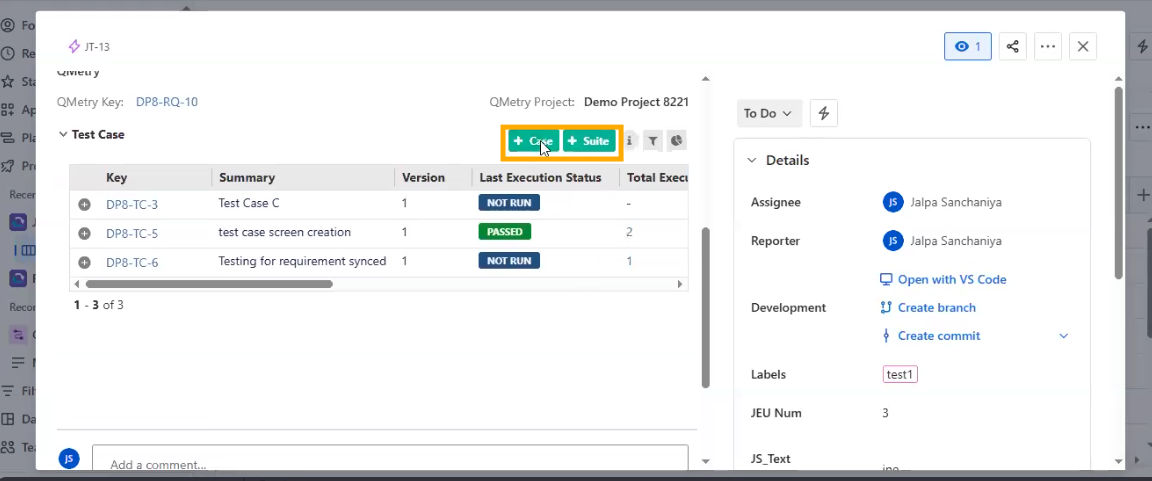
Go to the Test Case section within the synced Jira or Azure Work Item.
Click +Test.
Log in before proceeding, if not already logged in.
Create test case, if you are logged in and have Project access.
The following fields are auto-filled:
Project: Same as the project of the source Work Item.
Requirement Linking: The Requirement linked to the Work Item is auto linked to the Test Case.
Summary, Release and Cycle: Defaulted from the Work Item's summary.
The rest of the workflow is same as Creating Test Case from Requirement.
The system links the new test case to its originating work item.
Creating Test Case from JIRA or Azure Work Item Synced As Issues
To create test case from JIRA or Azure work item synced with QMetry Issue module, perform the following steps:
In the Test Case Section, click Create Test Case.
The following fields are auto-filled:
Project: Same as the project of the source Work Item.
Issue Linking: The Issue Work Item is auto linked to the Test Case.
Summary, Release and Cycle: Defaulted from the Work Item's summary
Enter other details.
Click Create to save the Test Case or Proceed with Execution to link a test suite and execute the test case.
The system auto-links the issue to the new test case.