SMTP Settings
The QMetry SMTP Settings page lets a Super Admin User or an Admin define the mail server that uses to send system emails, such as notifications, password expiry reminders, and API usage alerts. Some of the notifications include:
Test case creation or updates
Requirement creation or updates
Workflow and system notifications
QMetry establishes a secure and reliable communication channel with the configured SMTP server to deliver emails on behalf of the system.
Note
SMTP is a system-level configuration. Only users in the Super Admin role, can update SMTP settings.
Accessing SMTP Settings
To configure SMTP settings, perform these steps:
Go to System Settings.
Select SMTP Settings.
Choose an Authentication Type from the dropdown:
Basic Authentication (Default)
OAuth Authentication
If you select Basic Authentication, enter the following details:
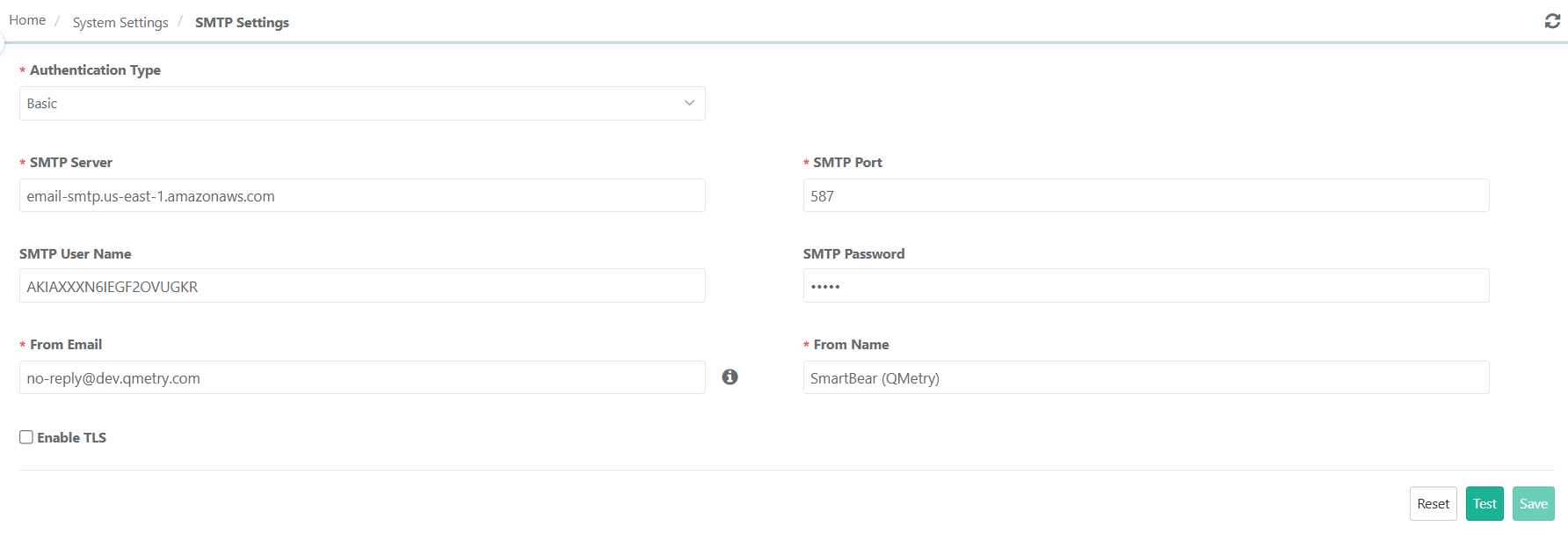 Table 59. SMTP Settings
Field
Description
SMTP Server
SMTP server configuration path/domain name
SMTP Port
Enter the port number for outbound email communication. Confirm that the mail server has this port enabled.
SMTP User Name and Password
Enter User Name and Password if your SMTP server requires authentication. Else leave the fields blank.
From Email
Enter the email address from which QMetry sends notificationsExample: administrator@qmetry.com
From Name
Display name associated with the sender emailExample: Project Admin
If you select OAuth-based authentication, select the email provider:
Microsoft
Google
Note
For OAuth authentication, QMetry displays a Fallback URL (or URL format).
The SMTP Administrator must configure the URL in the respective Microsoft or Google OAuth application.
Complete OAuth authorization and generate the token.
If you select Microsoft as the provider, enter the following fields:
Table 60. SMTP Settings:MicrosoftField
Description
Client ID
Application (client) ID from Microsoft Azure
Client Secret
Client secret for the Azure application
Tenant ID
Directory (tenant) ID of the Azure account
Refresh Token for Client Key
OAuth refresh token to generate access tokens
Get Refresh Token
Click this button to authenticate and retrieve the refresh token from Microsoft
When Google is selected as the provider, the following fields are mandatory:
Field | Description |
|---|---|
Client ID | OAuth client ID from Google Cloud Console |
Client Secret | Client secret of the OAuth client |
Refresh Token for Client Key | OAuth refresh token for email authentication |
Get Refresh Token | Click this button to authenticate and retrieve the refresh token from Google |
Test SMTP Settings
Click Test to verify connectivity and authentication with the configured SMTP server.
Ensure the test completes successfully before proceeding.
Save Configuration
Click Save once the SMTP configuration is validated and approved.