Integration with GitLab CI/CD Pipelines
QMetry enables users to publish the automation execution results achieved through GitLab CI/CD pipelines to QMetry via script.
Prerequisites
GitLab runner should have been installed on the machine before triggering the build to GitLab. Refer to https://docs.gitlab.com/runner/ for more details on GitLab Runner.
The source code should have been hosted on GitLab.
The gitlab-ci.yml file should have been created in Repository under Files in GitLab.
Download the sample file
Note
The example file used in the article only shows the “deploy” stage scripted. It assumes that the GitLab runners are configured and test-result file(s) are already present in the GitLab repository.
Set up the GitLab Pipeline
Steps to set up the GitLab pipeline that executes an automated tests project and sends the results to QMetry.
1. Create a Group in GitLab.
2. Create a New project in GitLab.
3. Upload the test result files to add them to your project repository in GitLab.
4. Create the GitLab configuration file gitlab-ci.yml in the root of your project. It contains the definition of the build steps, including running the automated tests and submitting the results.
Define Parameters
The parameters used for QMetry Automation API can be defined in three ways:
Parameters (except
testcase_fieldsandtestsuite_fields) can be added directly to the configuration file gitlab-ci.yml after uncommenting (removing `#` from the variables).
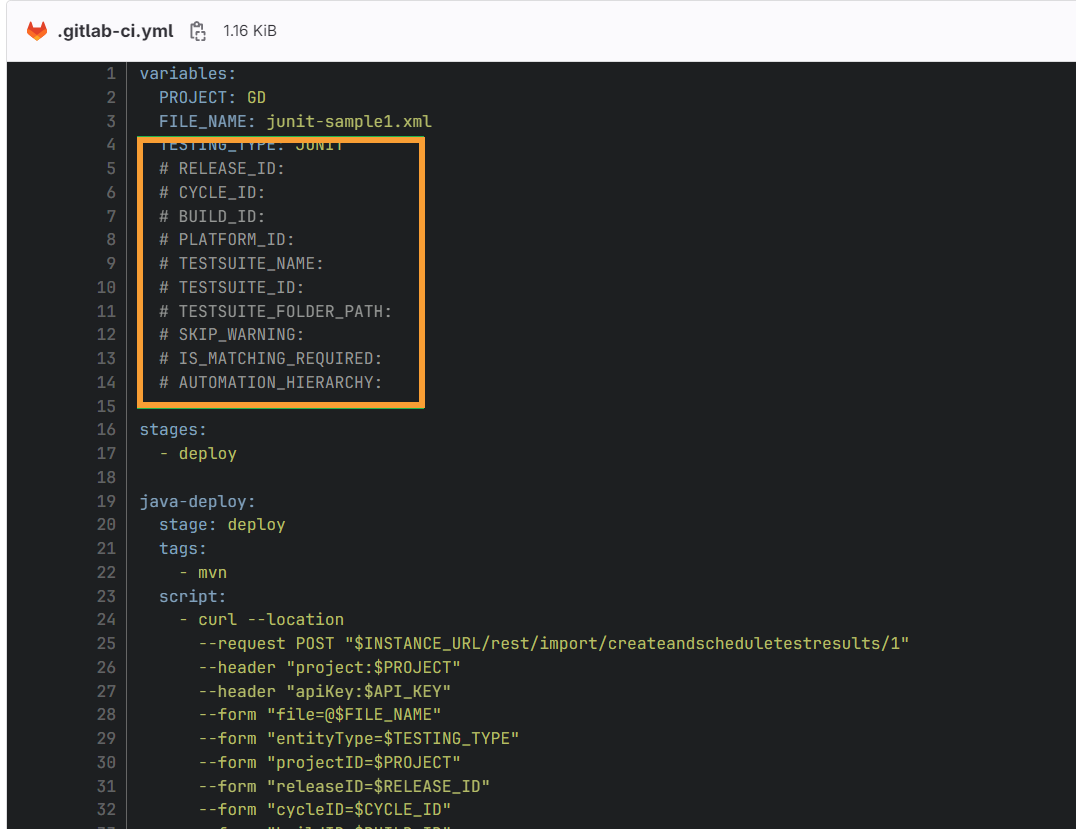
Note
The parameters
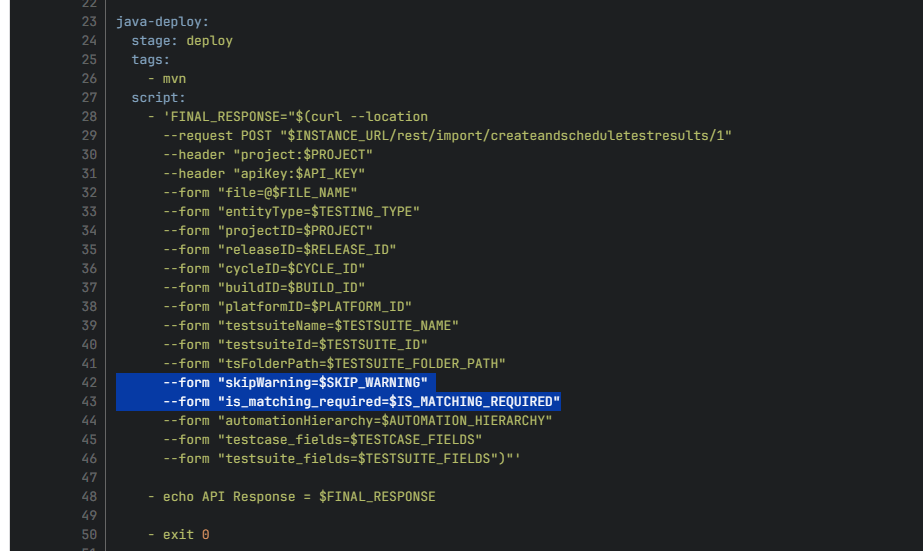
testcase_fieldsandtestsuite_fieldsparameters need JSON objects as their inputs, they cannot be added to the configuration file gitlab-ci.yml due to their technical limitations.Parameters
skipWarningandis_matching_requiredshould have some values. They can either be omitted entirely or have some value. In case you want to omit these fields, remove the highlighted lines from the configuration file gitlab-ci.yml.
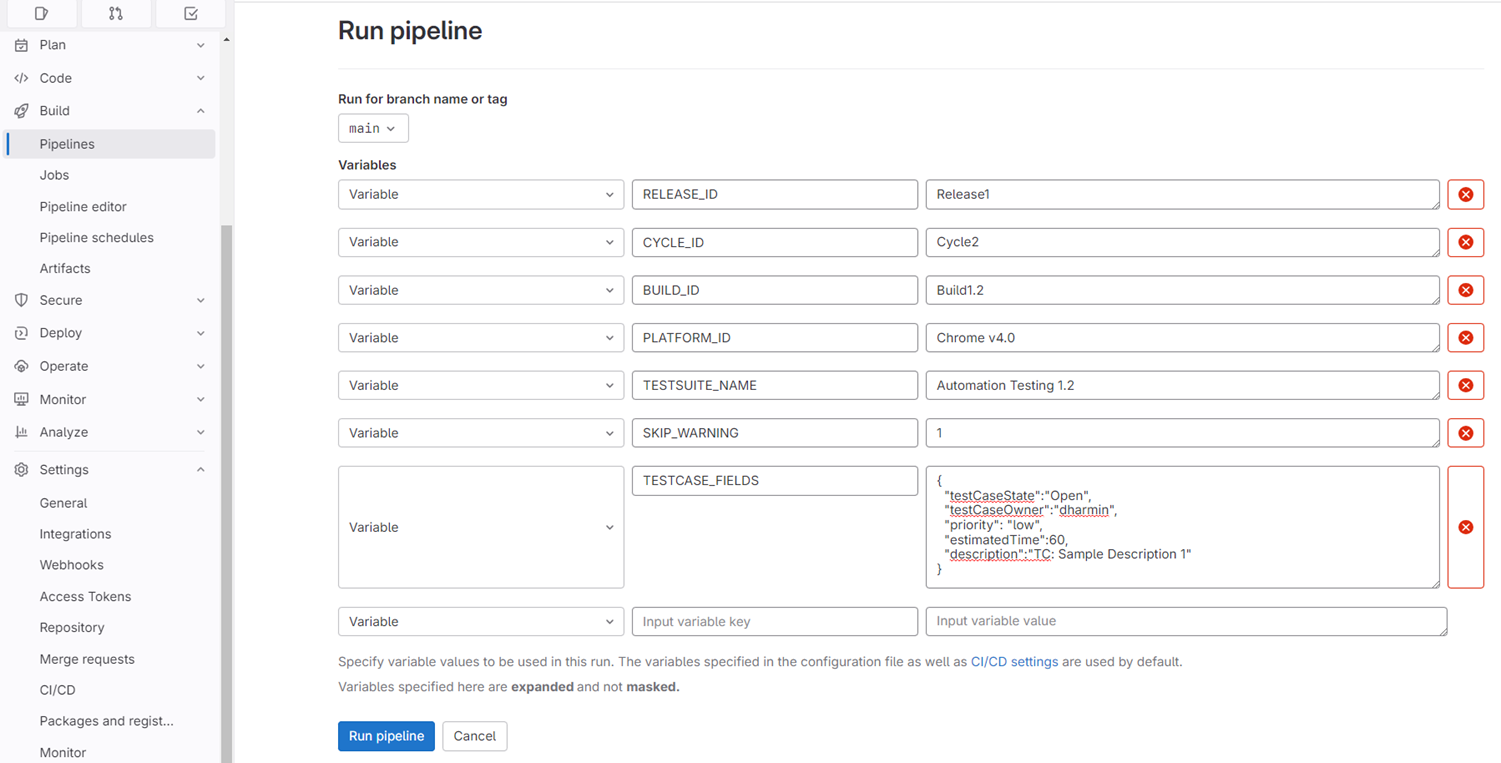
Parameters can be added as values of variables before running the pipeline from GitLab UI.
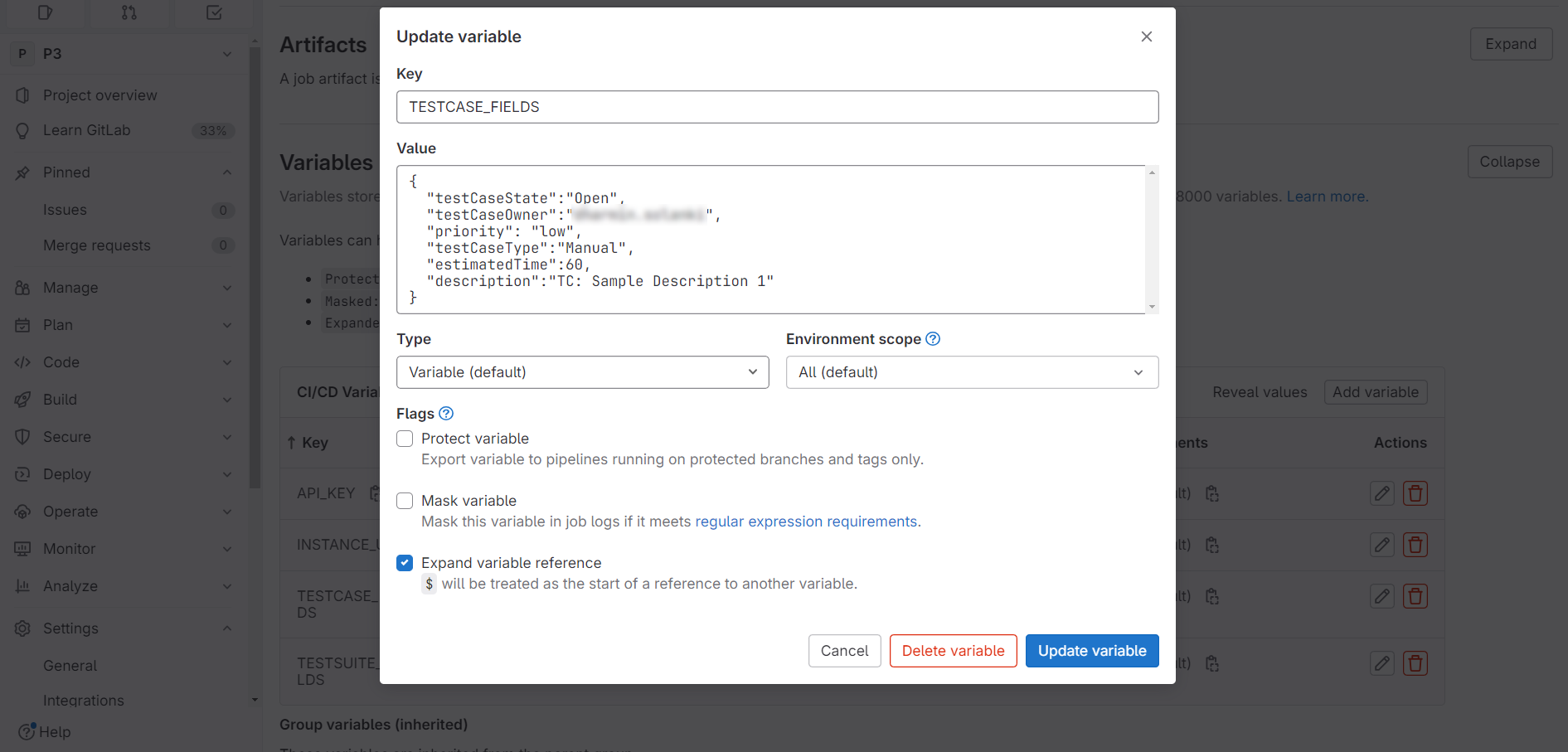
Parameters can be added as values of environment variables.
Using Body Parameters in gitlab-ci.yml
The parameters and their corresponding GitLab variables for the pipeline:
Parameter | GitLab Variables |
|---|---|
releaseID | RELEASE_ID |
cycleID | CYCLE_ID |
buildID | BUILD_ID |
platformID | PLATFORM_ID |
testsuiteName | TESTSUITE_NAME |
testsuiteId | TESTSUITE_ID |
tsFolderPath | TESTSUITE_FOLDER_PATH |
skipWarning | SKIP_WARNING |
is_matching_required | IS_MATCHING_REQUIRED |
automationHierarchy | AUTOMATION_HIERARCHY |
testcase_fields | TESTCASE_FIELDS |
testsuite_fields | TESTSUITE_FIELDS |
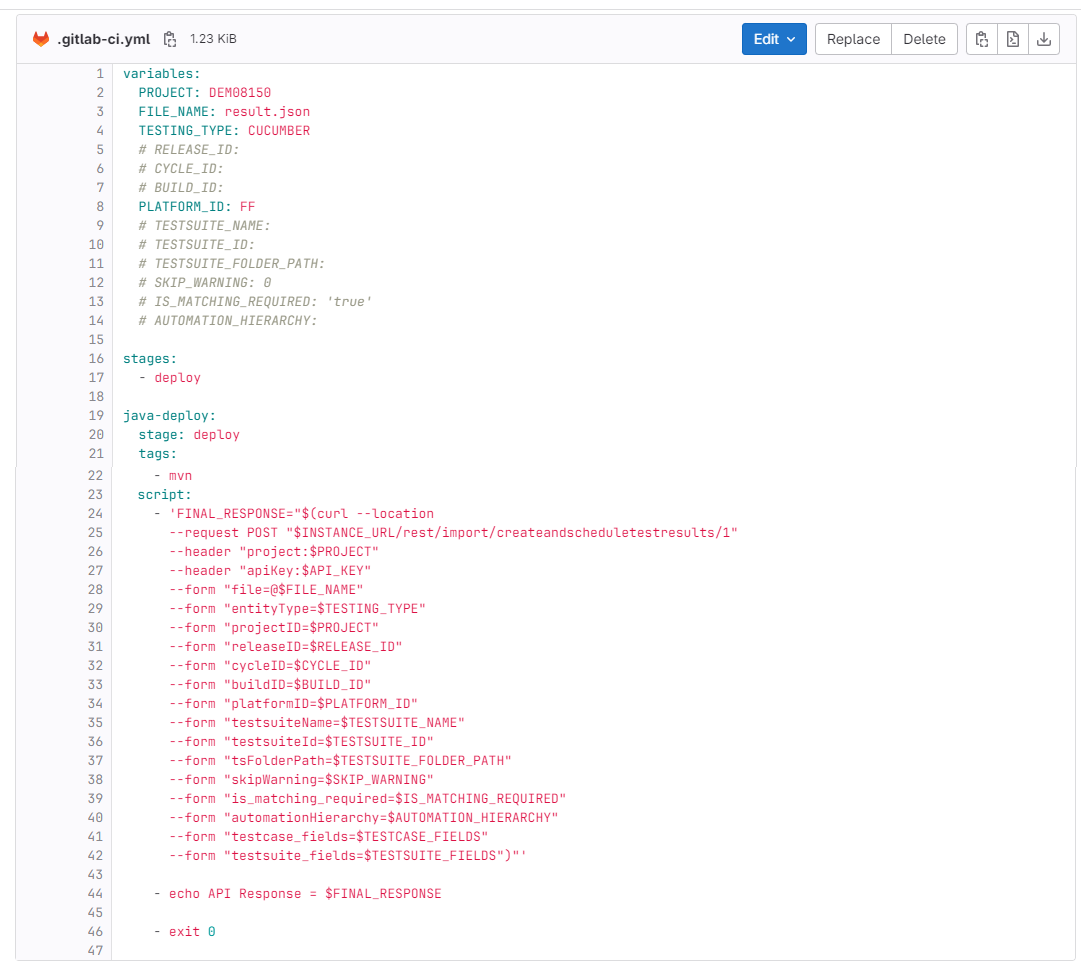
Update Configuration Variables for Authentication
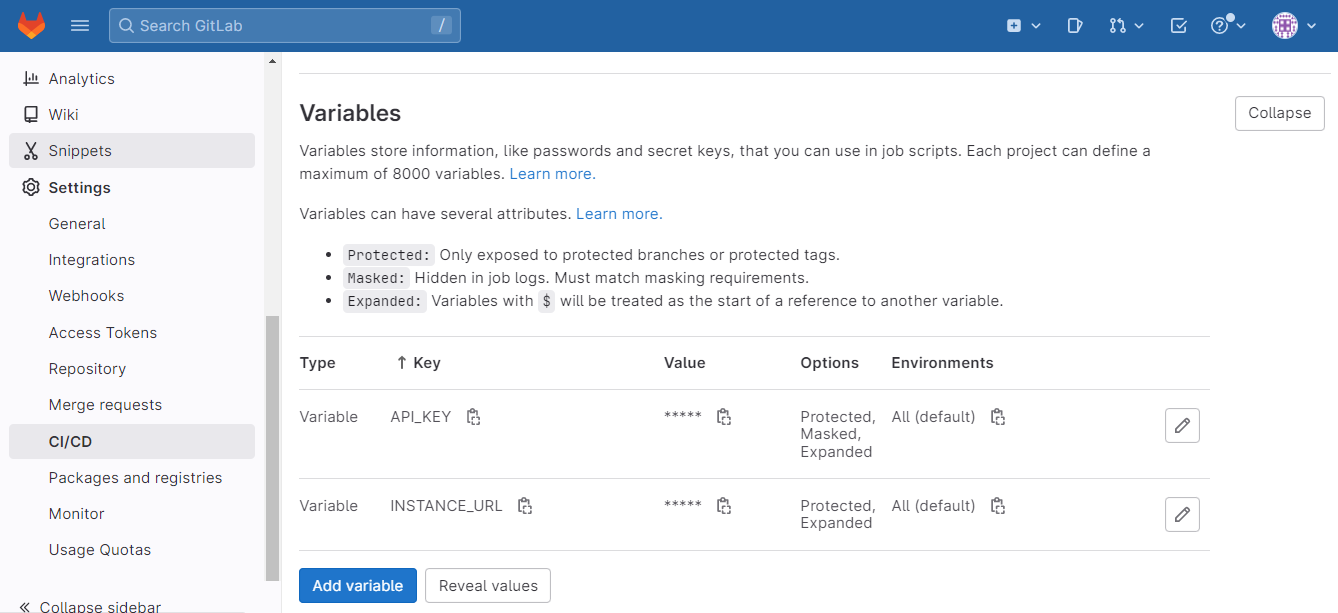
Go to Settings, select CI/CD and click on Variables to replace variable values in the file content using your details. You can store values for API Key, Project Name, and other parameters.
The
INSTANCE_URLwould be QMetry Test-management's URL, for e.g., https://testmanagement.qmetry.com/The
API_KEYrefers to 'QMetry Automation API' which you can find in QMetry Test Management ( QMetry> Integration > Automation API).Along with
INSTANCE_URLandAPI_KEY, set default values for fieldsskipWarningto “0” andis_matching_requiredto “false” as their value cannot be empty.Set project-key in the
PROJECTvariable, file-name(along with extension) in theFILE_NAMEvariable, and supported testing type (JUNIT, CUCUMBER, etc.) in theTESTING_TYPEvariable under "variables" in the pipeline configuration i.e. gitlab-ci.yml file.In order to upload multiple files, repeat the `cURL` request and set file names under different variables such as
FILE_NAME_1,FILE_NAME_2, etc., and set them into the requests accordingly.For more information regarding supported file types and testing frameworks, refer to QMetry Automation API.
Run Pipeline
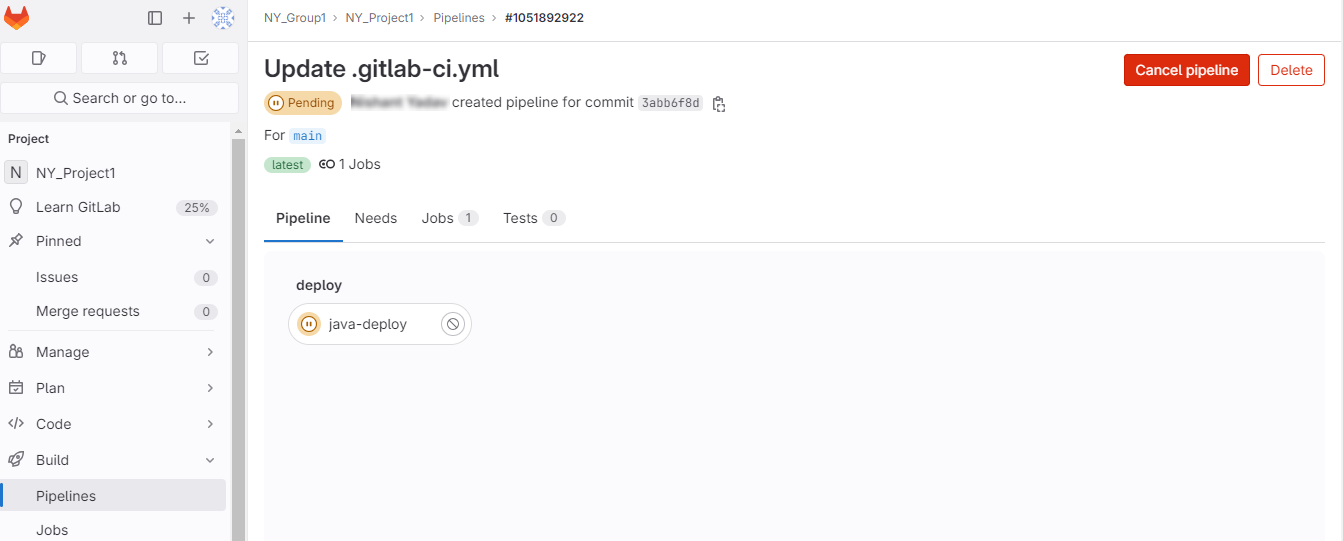
You can go ahead and initiate the pipeline once all the required parameters are defined and the configuration is done.
1. Go to Build > Pipelines and click on the Run Pipeline.
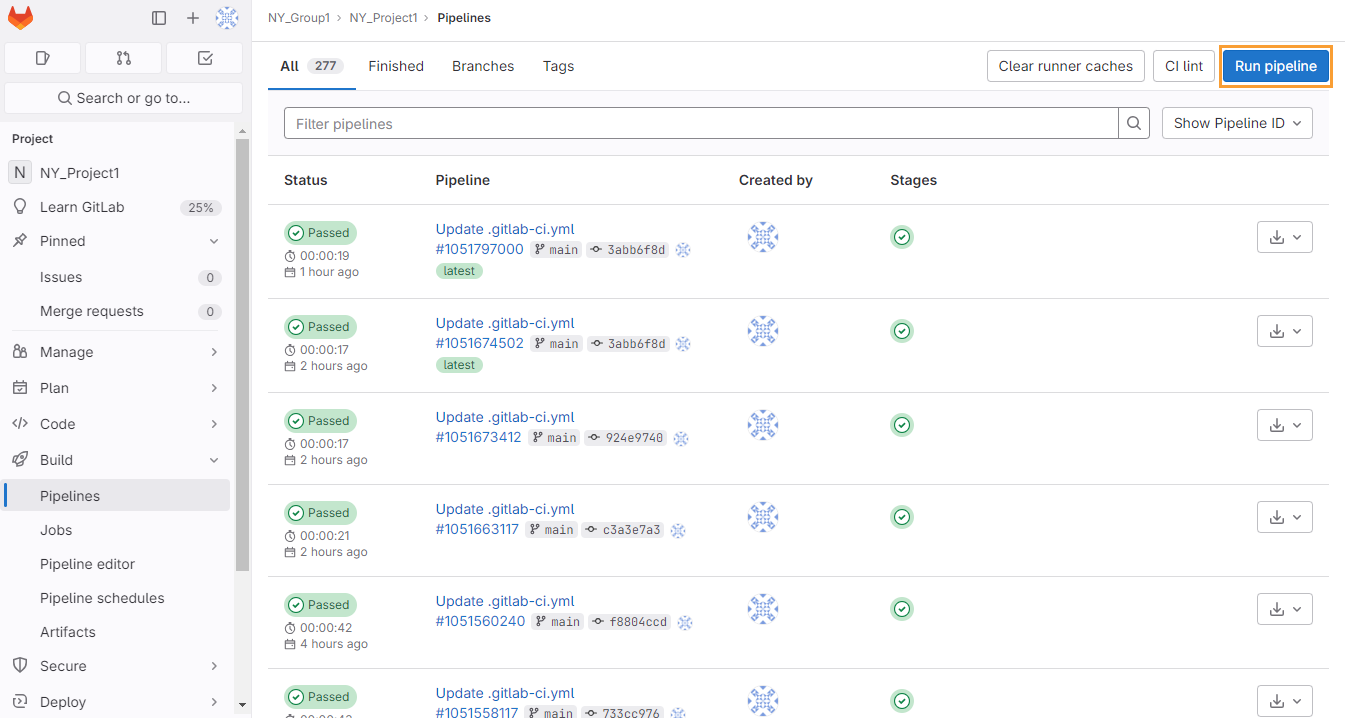
You can change the variable values at run time.
2. Click on the Run Pipeline button.
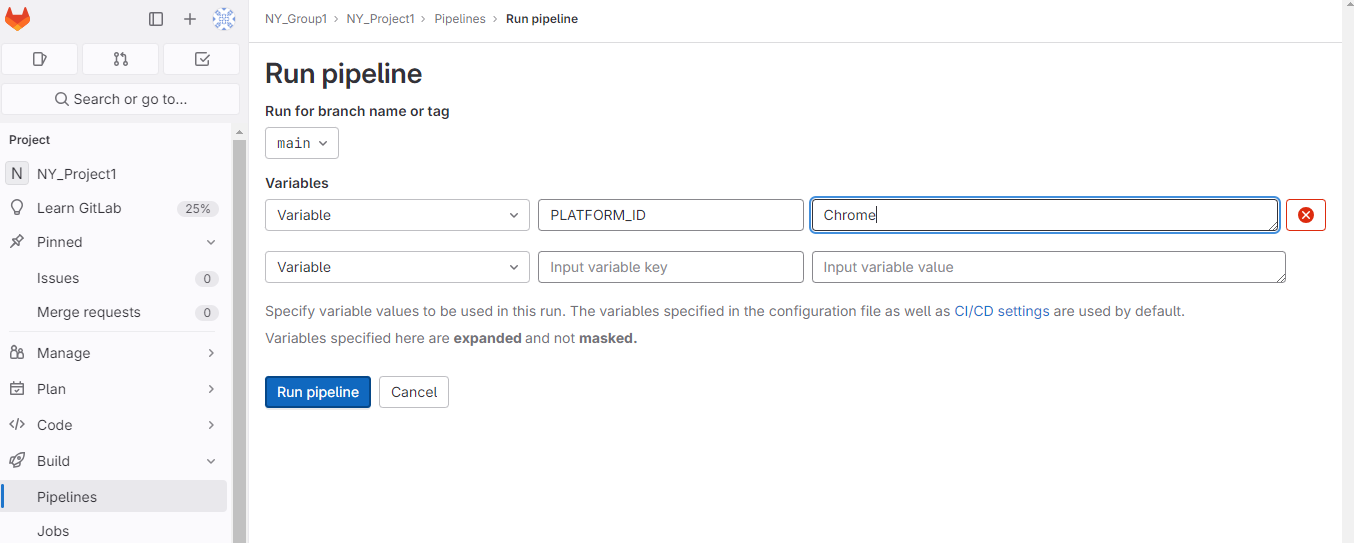
The job is initiated.
Verify the Progress in QMetry
In QMetry, you can view the progress of the automation result upload to QMetry.
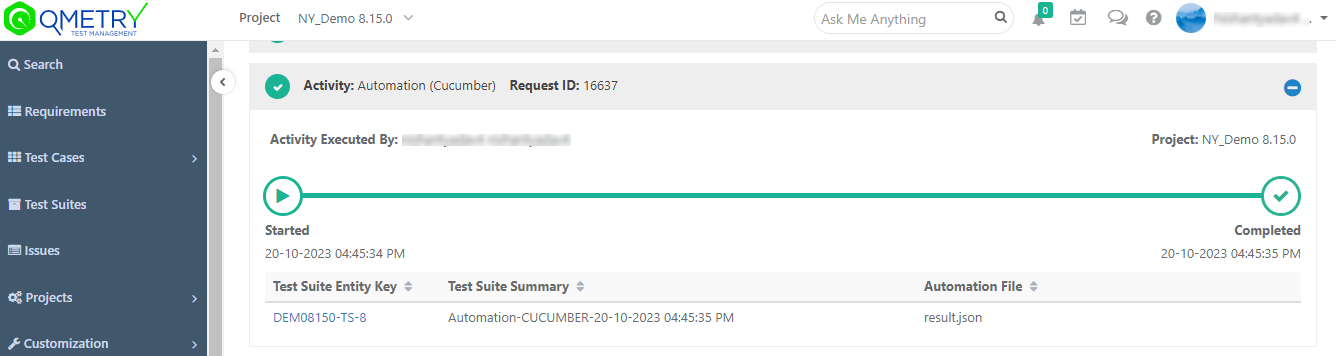
Once the process of uploading the automation test results is over, the test cases and test suites are created in QMetry.