Track and Manage Synced Data
After you map Jira to QMetry, you can track the sync status, work with synced Jira epics and sub-tasks, and manage the synced folders.
Track the Sync Status
To monitor the sync status, perform the following steps:
Go to Integration.
Open Integration Scheduler Status.
Select the plus icon to expand the entry and see the detailed sync information.
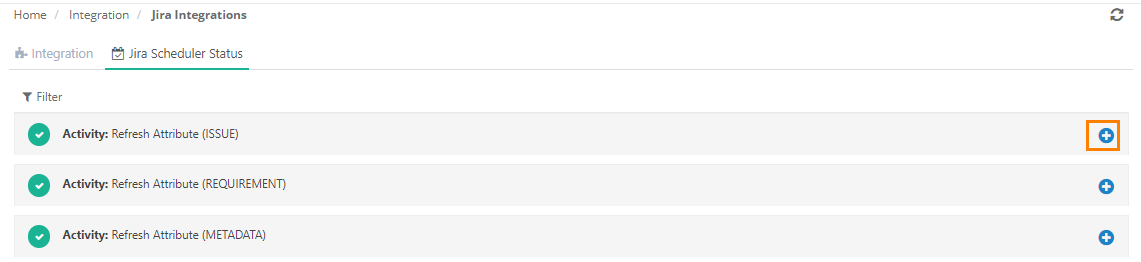
Track Jira epics and sub-tasks in QMetry
Import Jira epics and sub-tasks as either requirements or issues, while QMetry maintains their parent-child relationships and key metadata.
Importing Jira sub-tasks
Import Jira Sub-tasks into QMetry as requirements or issues.
After import, the details appear on the Sub-tasks Issues tab.
The sub-task issue detail view includes a parent key for traceability to its parent Jira entity.
Read about Sub-task Traceability.
Import Jira epics
Import Jira epics into QMetry as requirements or issues.
QMetry supports epic fields like Epic Link, Epic Status, Epic Color, and Epic Name and shows them in the Jira Details section.
View the issues that are part of an epic on the Issues in Epic tab.
View issues linked to epics
Check the issues linked to an epic on the Issues in Epic tab.
To display these issues in QMetry, do the following:
Integrate the Jira Issue Types with the QMetry project.
Sync the issues with QMetry.
Each linked issue includes an Epic Link field that traces it back to the epic.
Read about Epic Traceability.
Managing Synced Folders
You can change, copy, move, archive or delete the synced folder.
Change the import folder
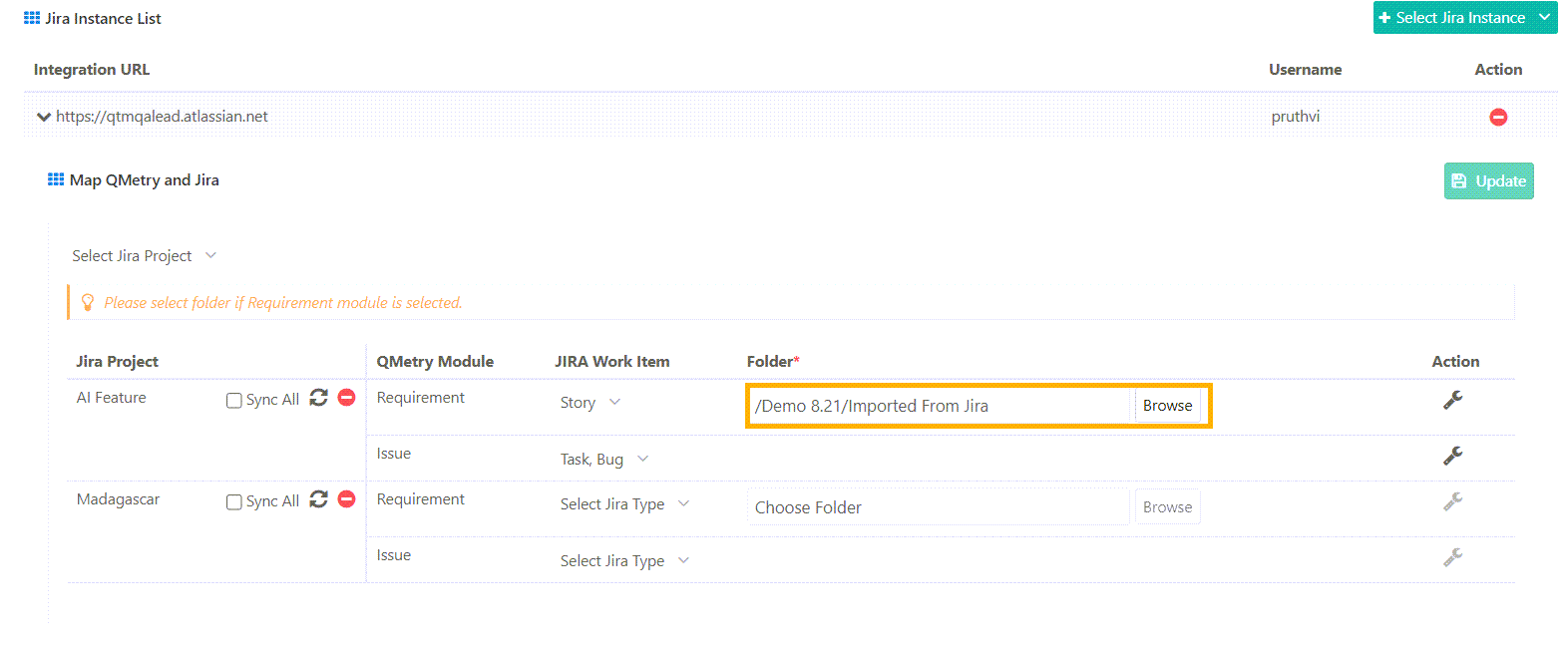
Select a folder during Jira configuration to import requirements into QMetry. Only admins can configure the folders.
Admins can change the selected import folder at any time. When the folder changes, the following behavior applies:
QMetry imports only newly synced requirements into the newly selected folder.
Previously imported requirements remain in their existing folders.
Copy or Move the Synced Folder
When you copy or move a synced folder, QMetry moves the folder to the new location and updates the folder mapping.
Archive a Folder
You can not archive folders that contain externally synced entities, such as entities from Jira.
To archive such a folder, move the imported requirements to other folders first, then archive the folder.
The system restricts you from archiving the folder that you chose during Jira integration.
During a bulk archive, the system skips folders that contain external entities. It also skips their subfolders, even if those subfolders do not contain external entities.
Also Read: Auto-organize Imported Requirements
Change the mapping of an issue type with the Requirements module
When you change which Jira issue type maps to the Requirements module, QMetry handles the synced work items as follows.
Scenario 1. Replace one issue type with another
QMetry converts the issues that were synced under the earlier mapping into internal issues.
QMetry syncs new issues as requirements based on the changed issue type.
Scenario 2. Add another issue type to the existing one
The issues that were synced under the earlier mapping remain intact as Jira issues.
QMetry syncs new issues as requirements based on the added issue type.