Executing Parameterized Test Cases
To execute parameterized test cases, perform these steps:
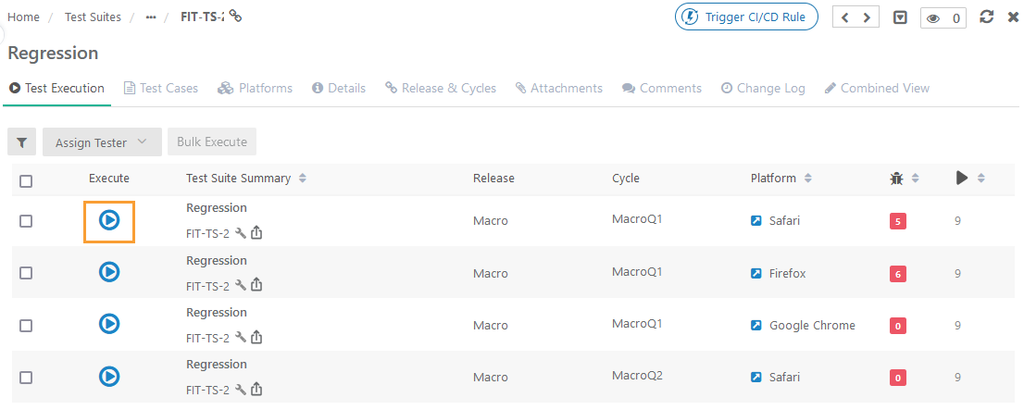 |
Go to the Test Suite Detail Page and select the Test Execution tab.
Click Expand all. The step count at the test case level reflects the number of test cases multiplied by the number of data sets.
Expand each Parameter Combination to view the test steps.
If Data Mapping is not done
When a parameter is added but its values are not mapped, the Test Execution screen displays “@” in the test step, indicating that the Data Grid has not synced the values.
A tip on the screen provides a link to map the parameter with its value. Clicking this link opens the test suite detail page.
Go to the Test Cases section and map the Data Grid.
Refresh the Test Execution screen.
Expand the test case to see the parameter values and view the steps with the assigned values.
If a new column is added to an Existing DataGrid
Open the test suite detail page and go to the Test Cases section.
Click @ sign to access the Data Grid Mapping screen.
Click Sync Columns to update the Data Grid with the new column.
Map the values and update the Grid.
Edit In | Impact on Test Execution Screen |
|---|---|
Edit Data Grid Mapping:
| The Data Grid changes reflects on the Test Execution screen. Editing the Data Grid from the Test Suite makes temporary changes that do not sync with test parameter data. |
Edit Test Case: Test steps changes reflect on the Test Execution screen. You can add a step to the test case and save it as a new version. | On the Test Execution screen, syncing the test case updates it to a new version. |