Parametrization in Shareable Test Cases
Create shareable test cases from steps with data parameters and insert these parameterized shareable test cases into existing test cases. During execution, the parameter values for the shareable test case gets sourced from the main test case.
Note
Insert shareable test cases with parameters into other test cases.
Editing a parameterized shareable test case, linked to a test case and part of execution, saves it as a new version.
Copying or moving parameterized shareable test cases auto-creates any missing parameters in the destination project.
Using parameterized shareable test cases across projects auto-creates missing parameters in the target project.
Execute test cases with both parameterized and standard steps.
Shareable parameterized test cases linked to executions cannot be deleted.
Create a shareable test case from parameterized steps
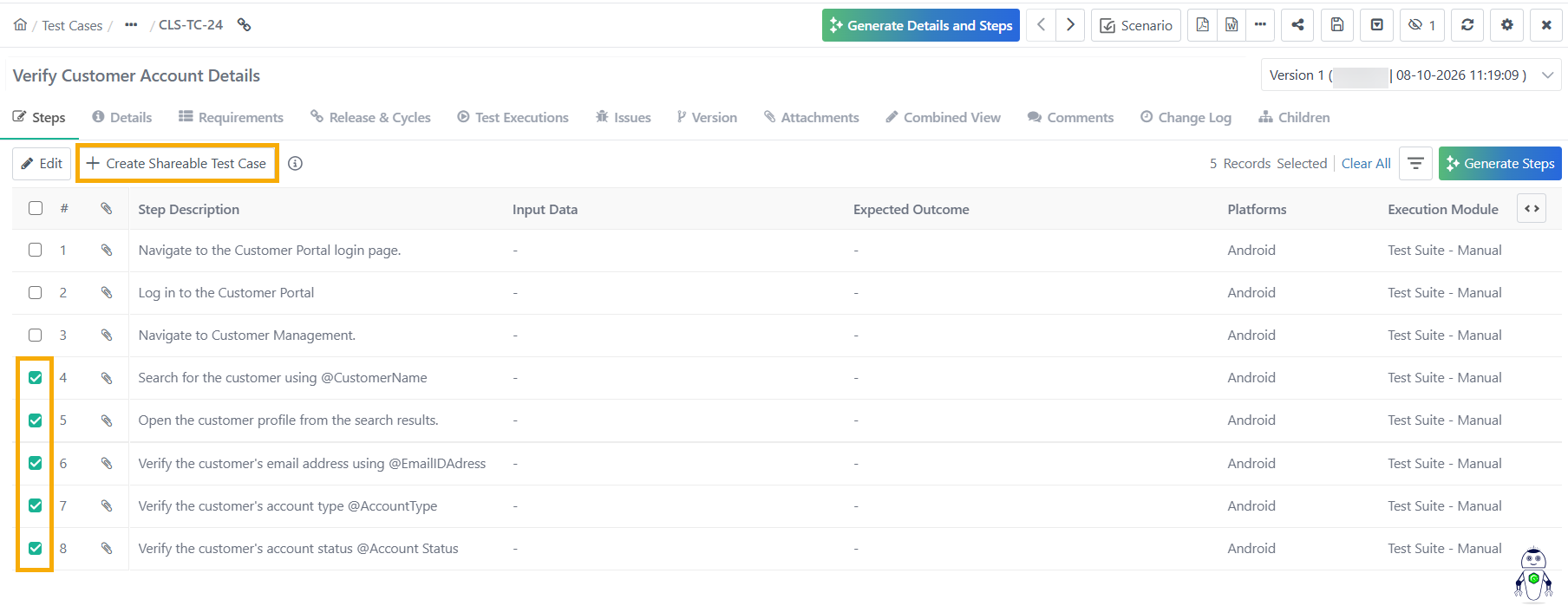
To create a shareable test case from parameterized steps, perform the following steps:
 |
Open the test case containing parameterized steps.
Select the parameterized steps and click
Enter a name.
Click .
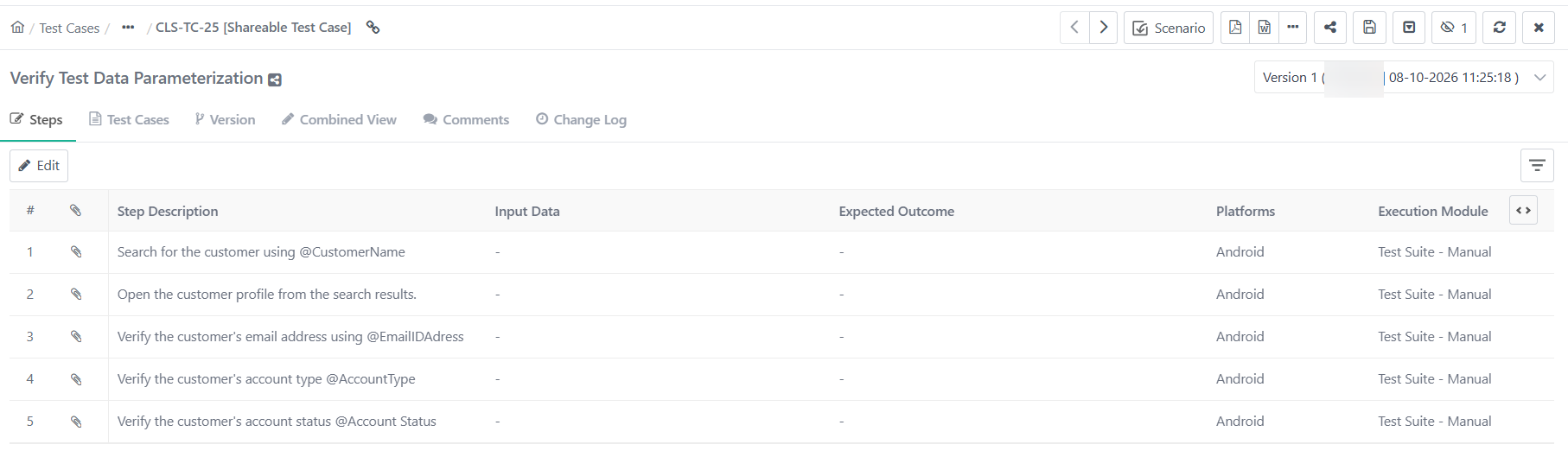
From the Test Case list view, apply the View only Shareable filter and open a shareable test case. Shareable test cases created from parameterized steps appear as shown below.
Mapping Data Grid for Test Cases
To insert values in the parameterized shareable test steps, map the data grid with the test case.
Link the test case containing parameterized shareable steps to a test suite.
Open the Test Suite details page.
Go to the Test Cases tab in the test suite.
Click @ icon and add values to the parameters.
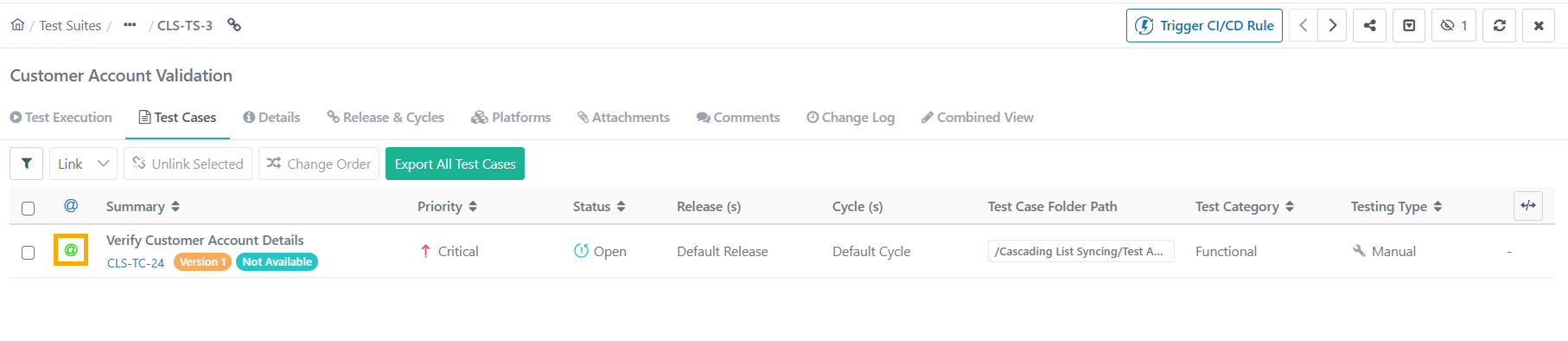
The @ sign for parameterization is highlighted and has a hyperlink on it.
Choose a Data Source:
Select DataGrid: Use a Data Grid from the Data Parameterization module. The drop-down displays all available Data Grids, and data populates accordingly.
Fill Data Manually: Enter parameter values manually. Map the values to the corresponding parameters.
Click .
Execute Parameterized Test Cases
 |
Execute parameterized shareable test steps and the system replaces the values in the steps as per the mapping.
Go to the Test Suite Detail Page.
Open the Test Execution tab.
Select the Play icon and run the parameterized test case.
Click to expand test cases with parameterization and view Parameter Groups.
Expand each Parameter Combination to view the test steps.
The system displays parameter values for shareable steps according to the data grid mapping of the main test case. If normal steps have parameters, their values gets updated based on the data grid mapping of the test case.