Integration with Azure DevOps CI/CD Pipelines
You can publish the automation execution results achieved through Azure DevOps CI/CD pipelines to QMetry via script.
Prerequisites
Integrate The Azure DevOps repository with QMetry to push or pull feature files.
Host the source code on the Azure DevOps repository.
Create the azure-pipelines.yml file in the Repository Files in Azure DevOps.
Set up the Azure DevOps Pipeline
To set up the Azure DevOps pipeline that executes an automated tests project and sends the results to QMetry, perform the following steps:
Create the GitLab configuration file azure-pipelines.yml in the root of your project. It contains the definition of the build steps, including running the automated tests and submitting the results.
Download the sample file.
Define the Parameters.
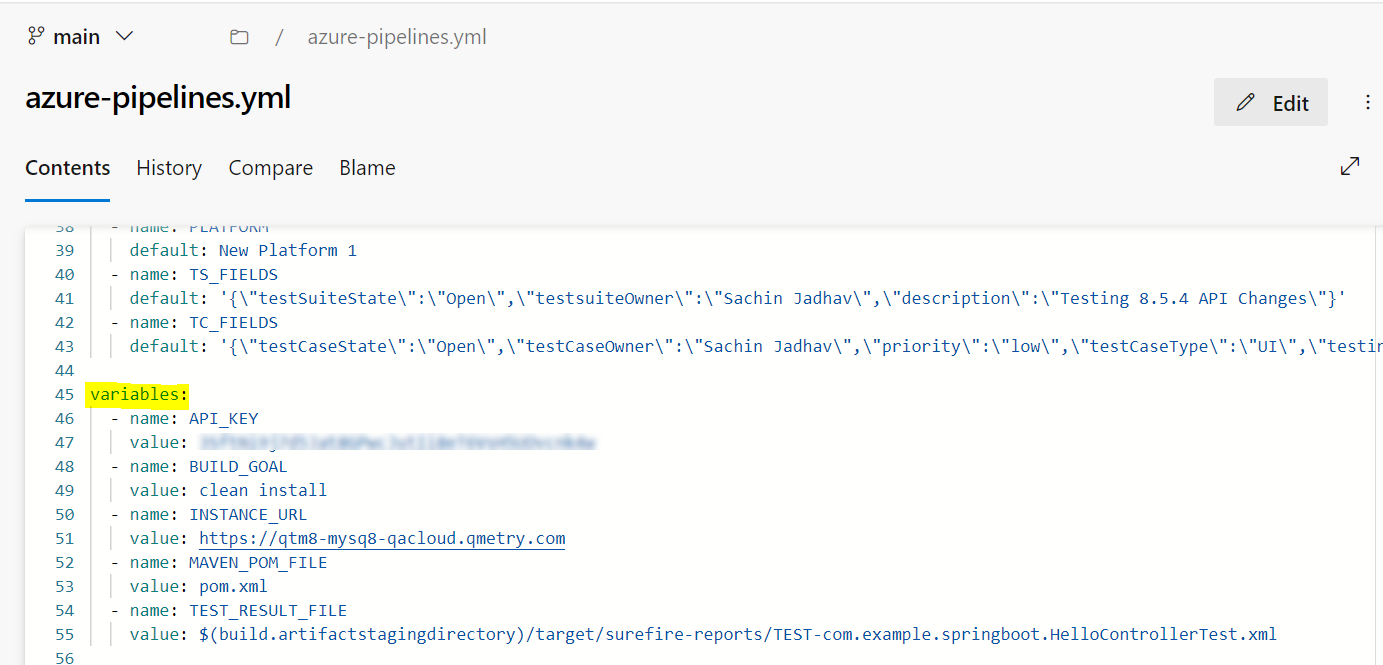
You can define the parameters for QMetry Automation API in the azure-pipelines.yml file. There are two ways to define the variables:
Variables can be defined in the script itself as shown below.
The variables can be added at run time while running the Pipeline and can be used dynamically.
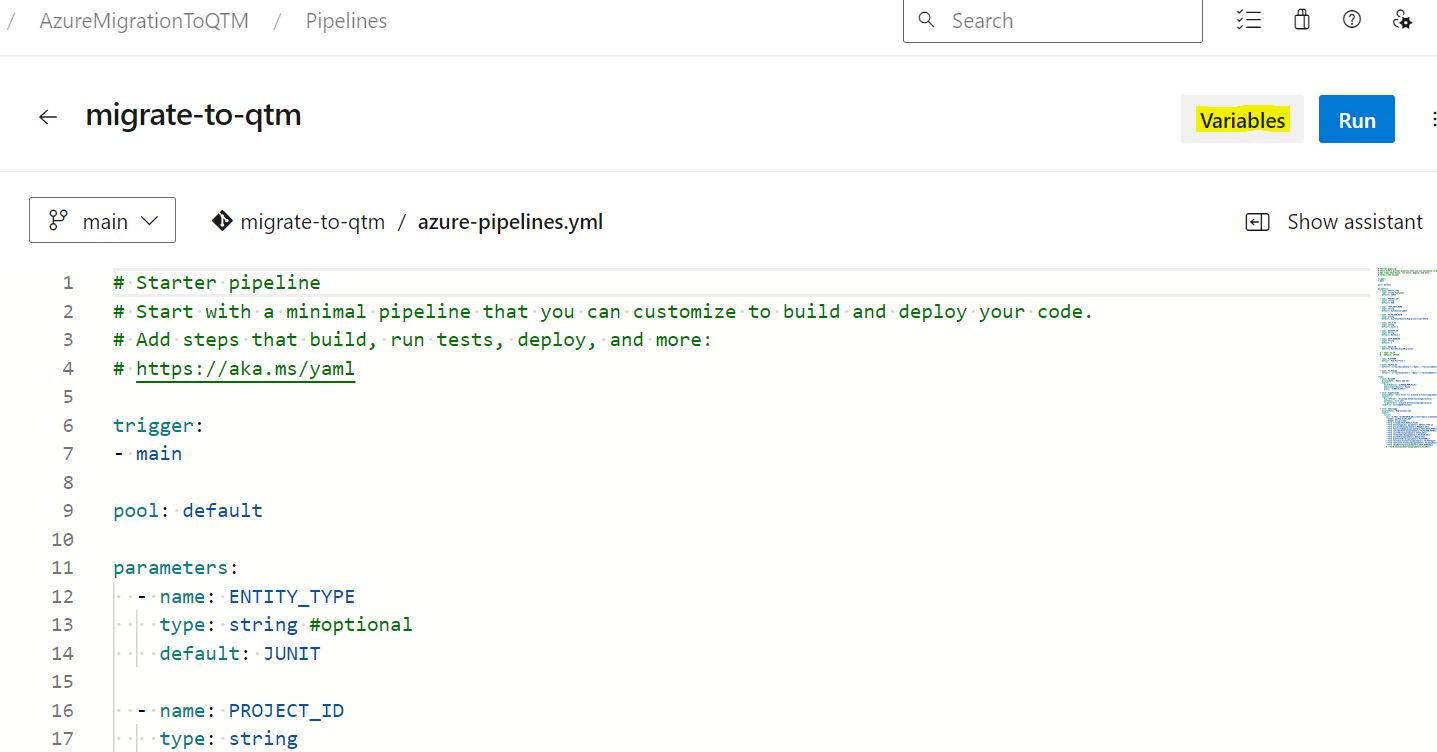
Azure Pipeline YAML Configuration
Using Body Parameters in azure-pipelines.yml
The parameters and their corresponding Azure variables that can be used dynamically in the cURL request for the pipeline.
Parameters | Azure DevOps Variables |
|---|---|
entityType | ENTITY_TYPE |
projectID | PROJECT_ID |
releaseID | RELEASE_ID |
cycleID | CYCLE_ID |
buildID | BUILD_ID |
platformID | PLATFORM |
testsuiteName | TEST_SUIT_NAME |
testsuiteId | TS_ID |
tsFolderPath | TS_FOLDER_PATH |
skipWarning | `SKIP_WARNING |
is_matching_required | IS_MATCHING_REQUIRED |
automationHierarchy | AUTOMATION_HIERARCHY |
testcase_fields | TC_FIELDS |
testsuite_fields | TS_FIELDS |
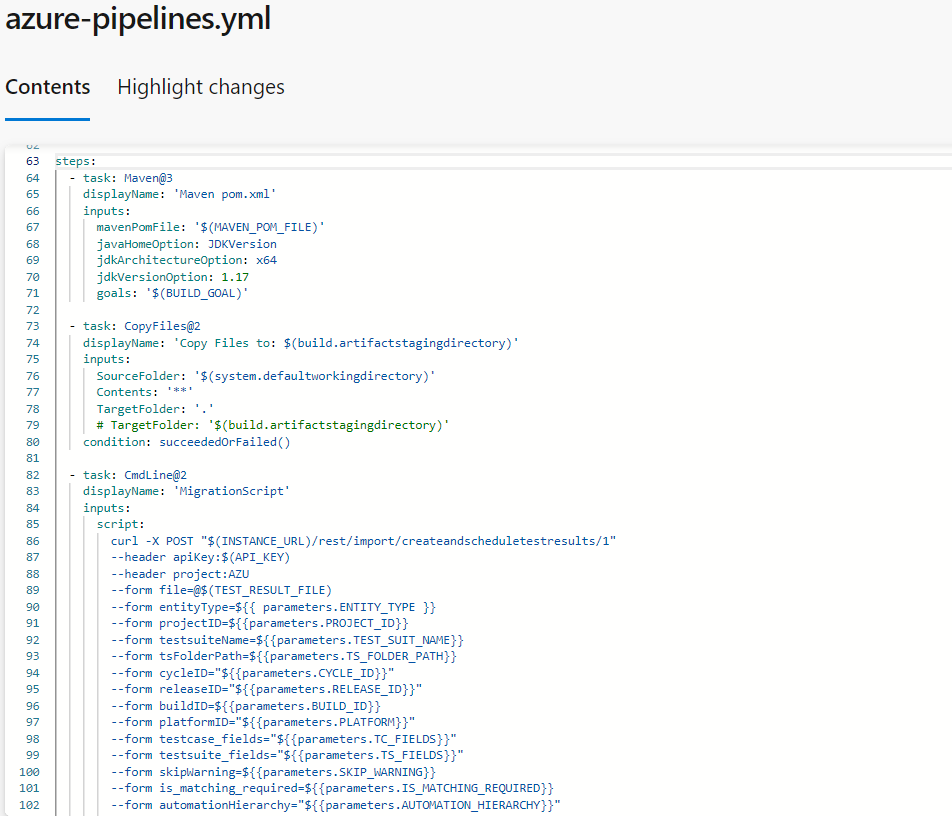
Build Project
Build the project using
Maven@3 Task.
Note
Task can differ based on the Project. For example, Maven@3 Task is used for Java Project.
Once the build is completed, all the generated files get stored in the directory $(system.defaultworkingdirectory)
The $(system.defaultworkingdirectory) directory represents the path _/home/vsts/work/1/s/_
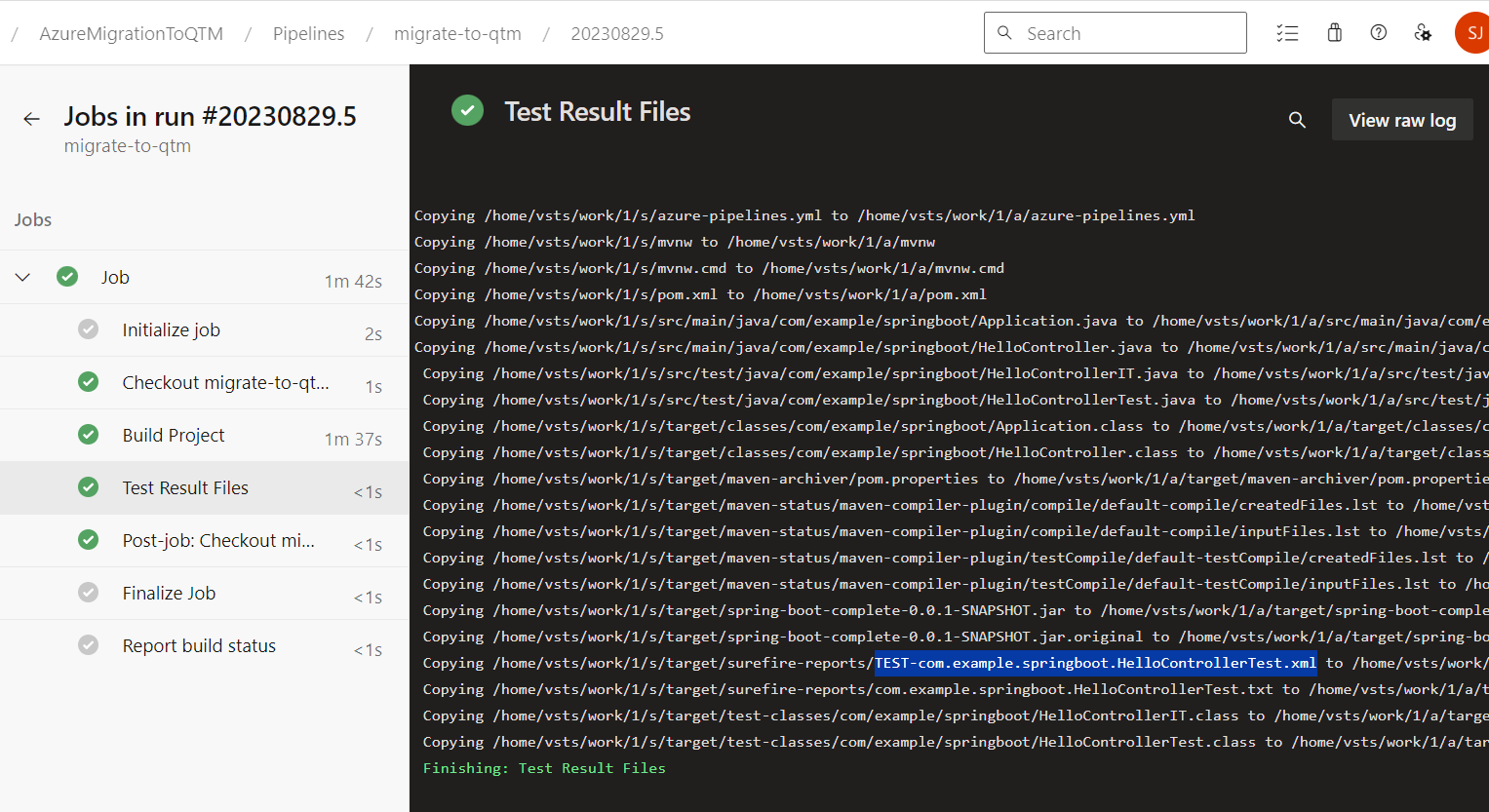
Test Result Files
Use
CopyFiles@2 Taskto copy generated files from one source to another. The only purpose of this task is to get the test result file name as shown below.
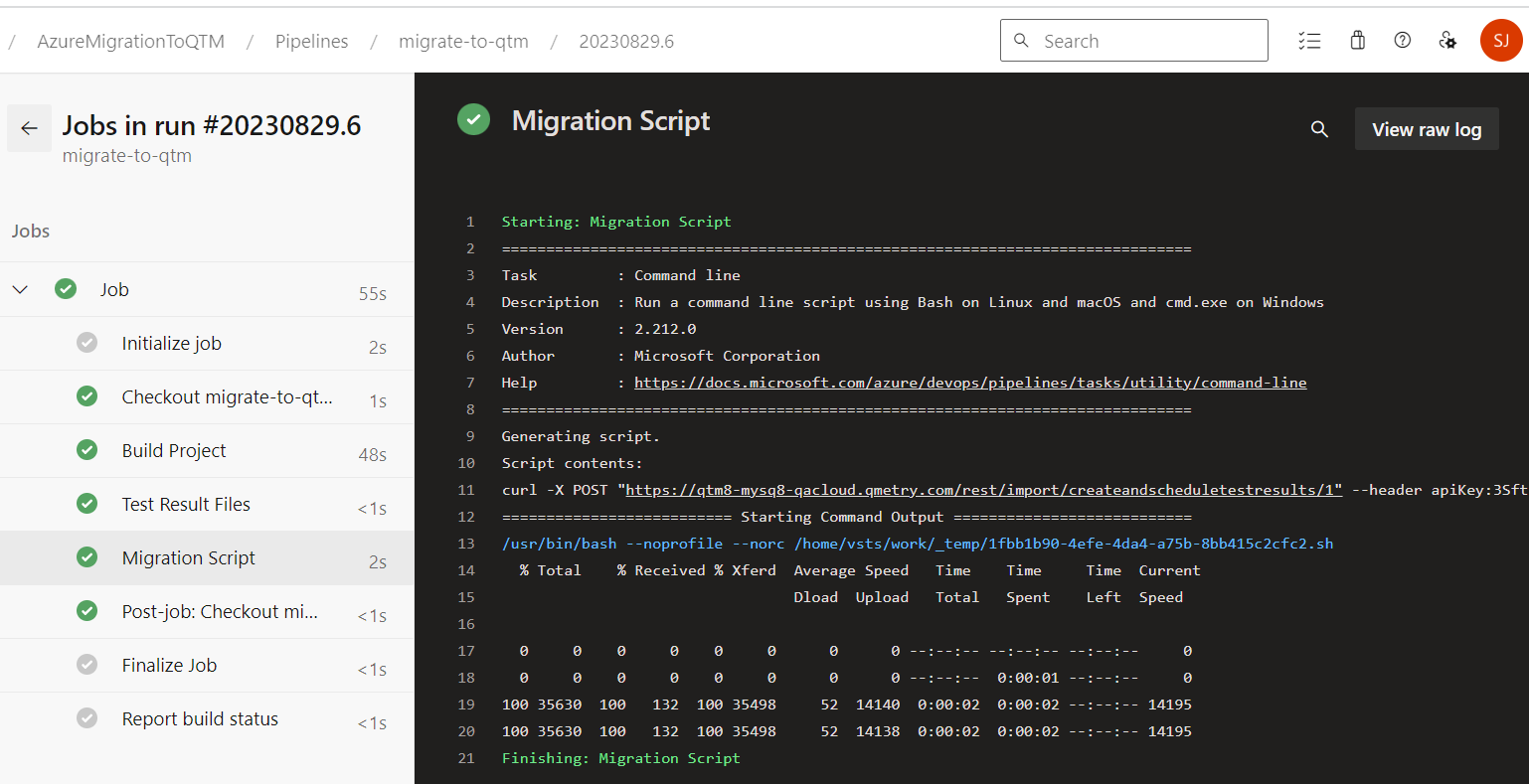
Migration Script
Use
CmdLine@2 Azure Taskto write the migration script.Finally, the cURL request migrates the test result file to the QMetry Platform.
Here, We have used dynamic Parameters which are defined in the Parameters section.
How To Migrate Test Results?
There are two ways to migrate test result files from Azure DevOps to QMetry.
Through Source Code
Using the Test Result Files
Migrate Test Results through Source Code
Build the Project, which produces the Test Result Files. For example, to build the Java Project, use
Maven@3 Taskand comment Migration Script i.e.CmdLine@2 Taskas shown below.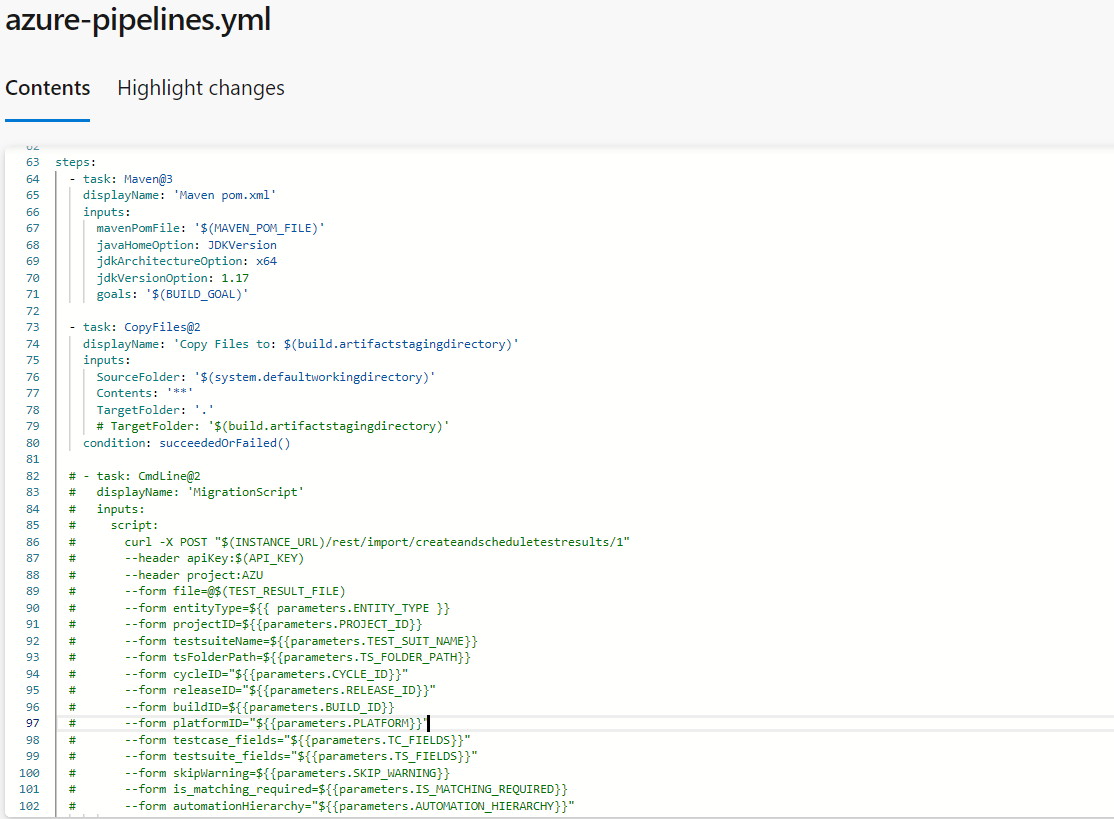
Copy the test result file name from the pipeline as displayed below.
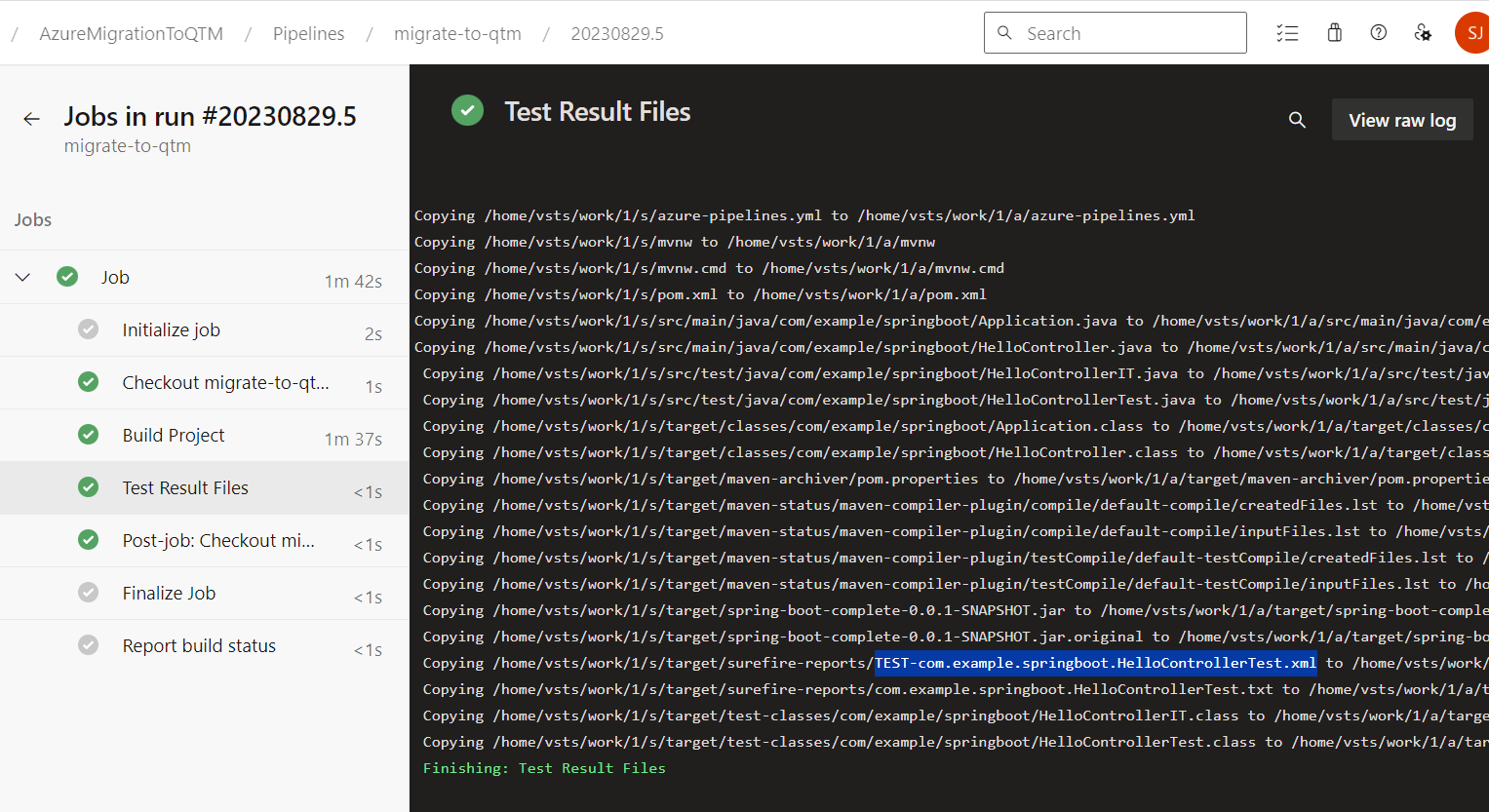
Add the Test Result File Name inside the script under Variables.

Then uncomment the Migration Script which was commented on in Step 1 above. Then run the pipeline again.

Migrate Test Results using the Test Result Files
Upload the test result file in the Azure repository along with the azure-pipelines.yml file.
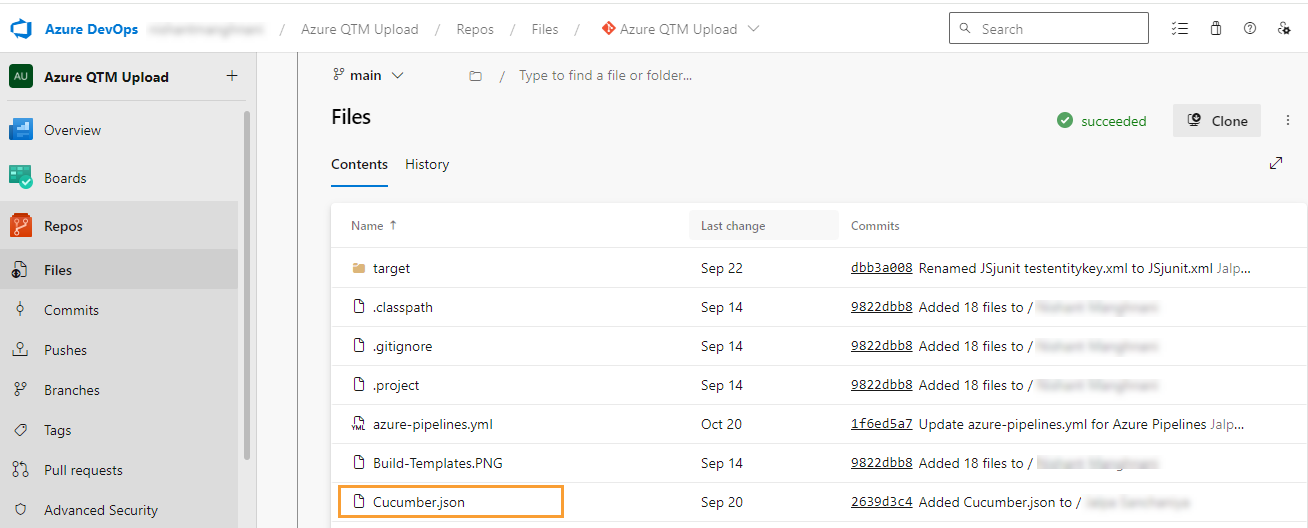
Then run the pipeline with the variables and
CmdLine@2 Taskas shown below.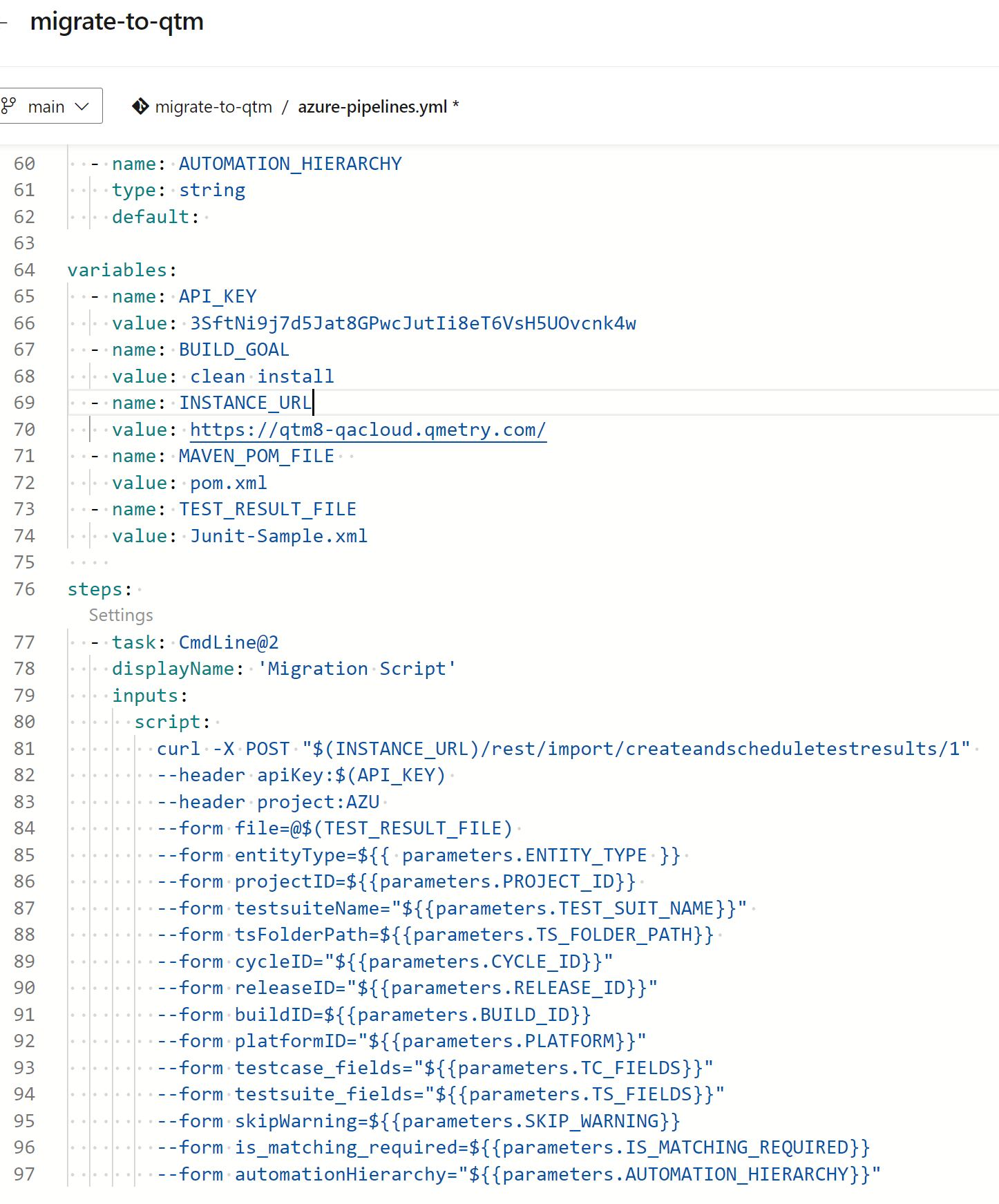
Run Pipeline
You can go ahead and initiate the pipeline once all the required parameters are defined and the configuration is done.
Go to Pipelines and click Run.
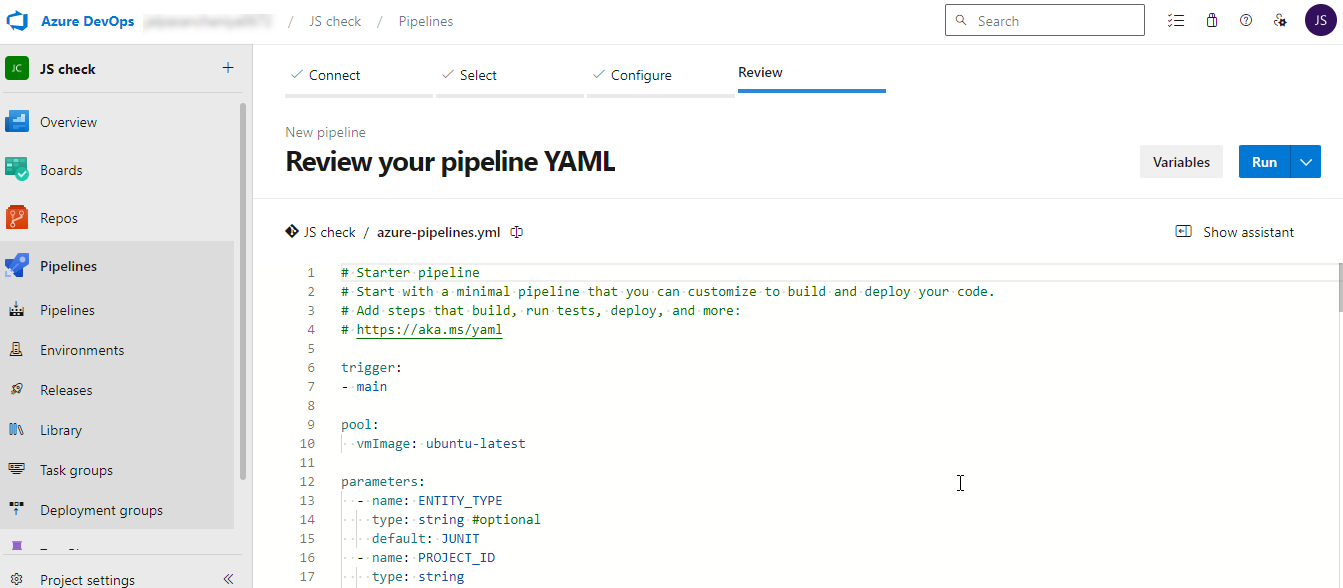
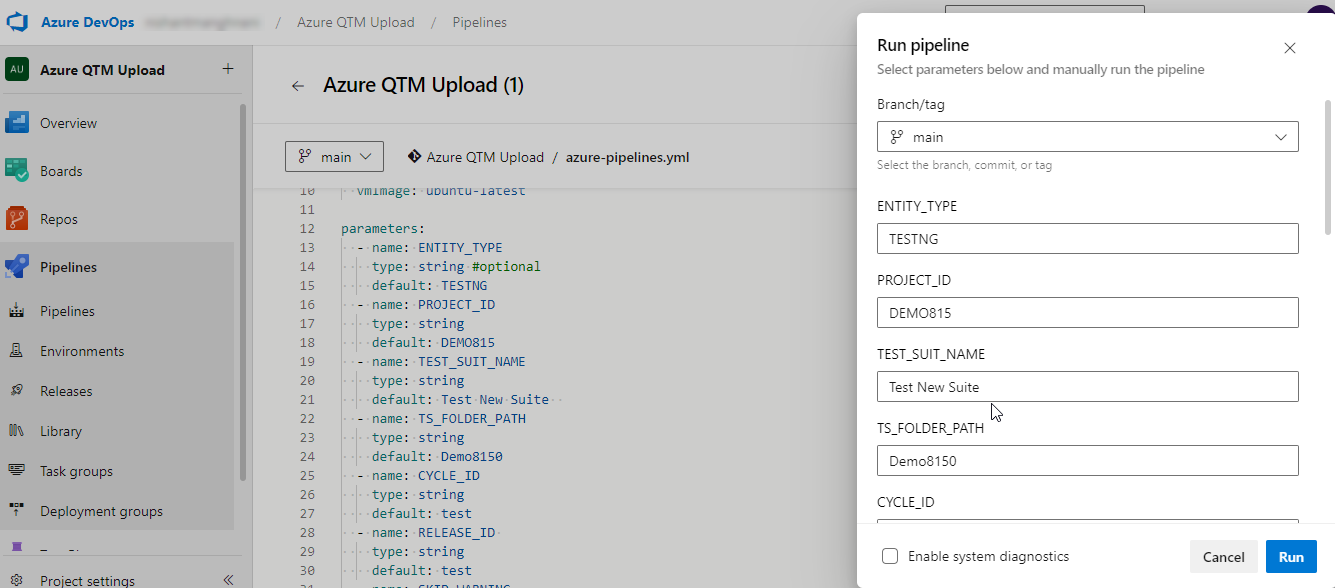
You can change the variable values at run time.
Click Run.
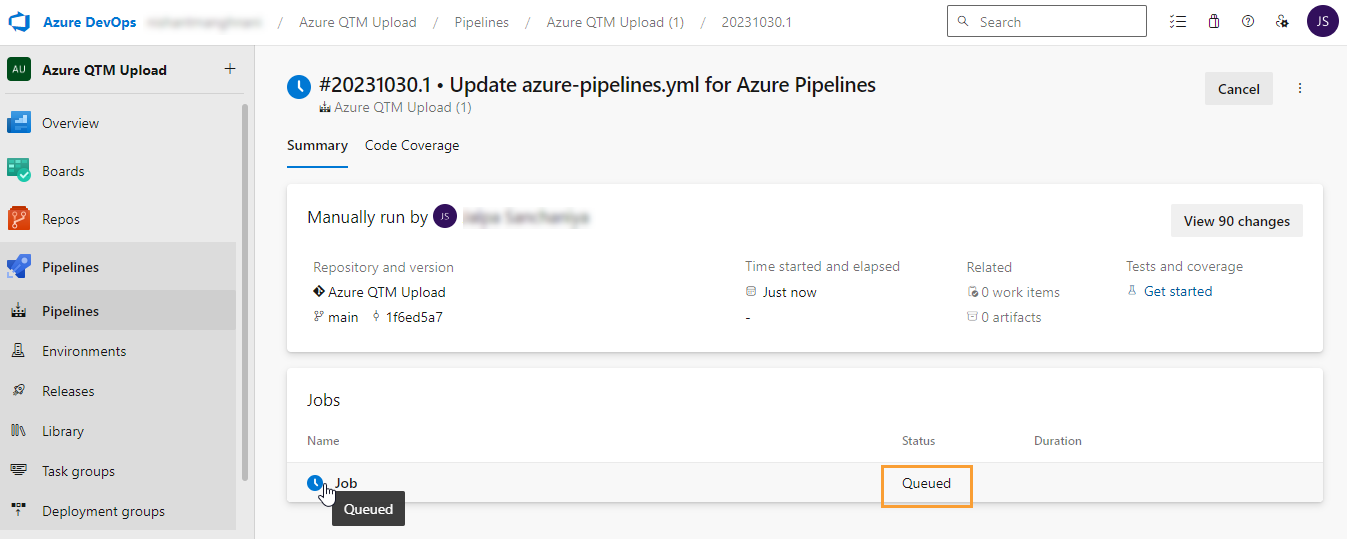
The pipeline job is initiated. The Status of the job is displayed as “Queued”.
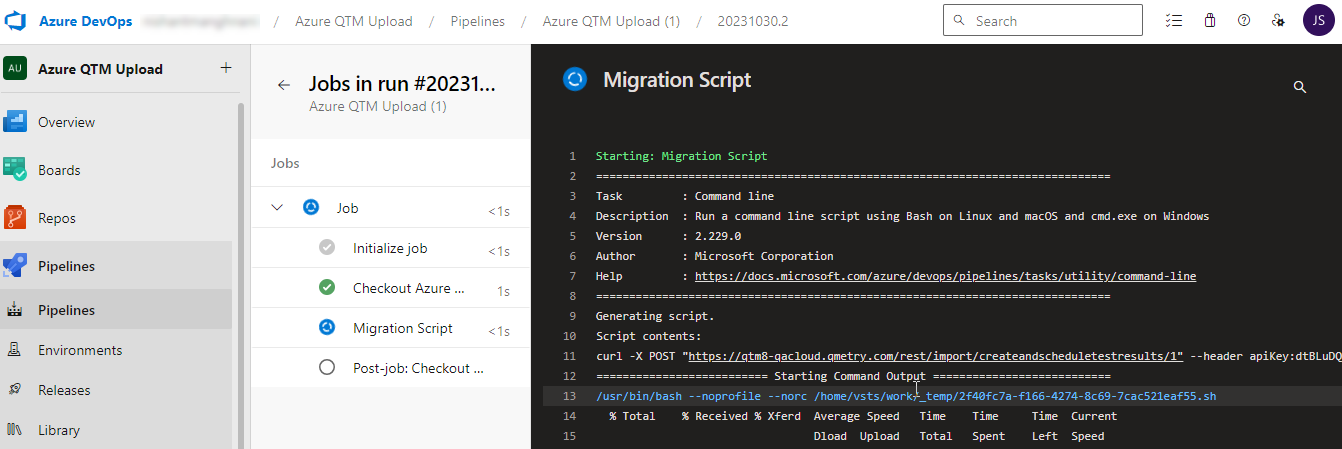
The job is completed successfully.

Verify the Progress in QMetry
You can view the progress of the automation result upload QMetry.
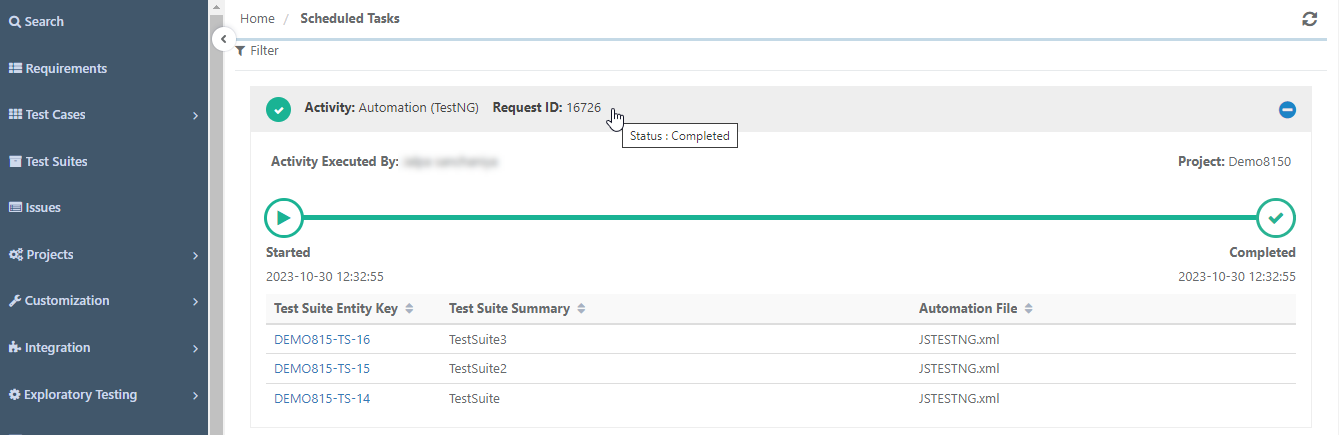
Once the process of uploading the automation test results is over, the test cases and test suites are created in QMetry.