Test Cases Module
The Test Cases module is the central repository for test cases. In this module, you can create, import, or auto-generate test cases using AI, link test cases to requirements, test suites, and issues, and manage them across projects and folders.
Note
Admins can set View, Modify, Create, Delete, Import, Export, Link, Copy, and Versioning permissions from Roles in Customization.
Key Features of the Test Cases Module
The Test Cases module lets you do the following:
Create, organize, reuse and manage test cases.
Organize test cases into folders and subfolders.
Add and edit test cases.
Import test cases from Excel and Jira.
Execute test cases for ad-hoc testing.
View the status of individual test cases.
Link requirements and issues to test cases.
Set predecessor and successor relationships between test cases.
Test Asset List View
The module grid view offers various customization options.
Managing Grid View
Use Arrange Columns to customize the grid view. Resize, hide, organize, sort, and rearrange columns. Refer to Manage Grid Columns to learn more.
Filtering Assets
Filter records by the system or custom fields. Apply basic or advanced filters on the records. To learn more about filters, refer to Filtering Assets.
To view test cases not associated with any folder, click Show Only Test Cases Not Assigned to Any Folder filter. This displays test cases that exist only under the Project Root.
Folder Management
Organize your assets in a hierarchical structure using folders. To learn more about available actions, refer to Basic Folder Operations document.
Bulk Operations
To perform Bulk operations on the asset, refer to Bulk Operations.
Columns in Test Case List View
Latest Execution Status
View the Latest Execution Status of a test case in the List View. This column indicates the current execution status based on settings configured in Customization. Refer to Execution Status Management to know more.
Click the status to view further details of the test execution.
Note
The system calculates the Latest Execution Status once every 24 hours per project.
After generating the status, the system disables the Generate button for the next 24 hours.
Testing Type
The Testing Type field indicates whether the user generated the test case manually or through automation.
QMetry classifies test cases as Manual when the user creates them through the UI or imports them from Excel, and as Automated when the user creates them using Automation APIs. This field is read-only and cannot be modified.
Test Case Detail View
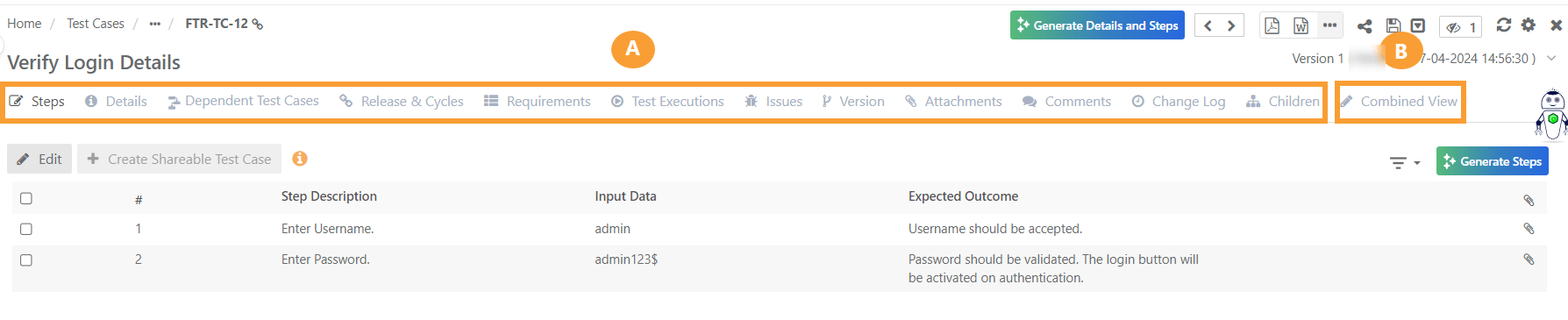 |
The test case detail page displays:
A. Individual Section Tabs (Editable)
B. Combined View (Read-Only View)
Note
Refer to the Manage Attachments to learn more about the attachments tab.
Refer to Dependent Test Cases to know more about Dependent Test Case tab.
Refer to Change log to know more about tracking changes.
BDD section is visible only when you configure a version control system for the project.
You can customize the detail page view by changing the order of the tabs. The system preserves the tab order for each user.
Refer to the User Navigation page for navigation details.
Best Practice Recommendations
Tip #1: Before adding test cases establish rules for how test cases are to be designed, categorized, and organized. QMetry comes with several system fields. All of the fields, along with the folders can help teams better manage their test cases. In addition, the Status field can be used to create a workflow to improve the development of the test cases from New to Approved.
Tip #2: QMetry allows testers to provide actual results and record status at a test case level which may change how you design test cases moving forward. Teams should properly define how and when to add test case steps.