Bulk Copy or Move Folders at Directory Level
Share multiple folders within the same project or across different projects through the bulk copy or move option at the directory level. This option is available in the Requirements and Test Cases modules.
Why would you want to copy or move test assets in bulk?
Bulk move or copy of folders reduces maintenance efforts, enhances collaboration across teams and projects by sharing test artifacts across projects.
Suppose, you have Project A in the organization. Now you add another project say, Project B. The projects need similar test assets for Login and Import activities. The QA team can copy the Login and Import folder of Project A to Project B.
An organization follows multiple testing cycles, and its requirements keep updating over time. The testing team refers to the same set of requirements to create new test cases in the next cycle. The team therefore copies the requirement folder and changes it to match the updated specifications.
Move or Copy Folders in Bulk
Pre-requisites
Before you begin, make sure of the following:
You have module access rights in the destination project.
You copy or move requirements imported from Jira or another external tracker only within the same project.
Note
The destination project automatically creates any user-defined fields (UDFs) that the moved or copied entities use but that do not yet exist in the destination project, after you confirm the action.
The operation copies or moves the UDFs together with all the values they contain.
To move or copy folders in bulk, perform the following steps:
Right-click the folder that you want to apply the bulk move or copy to.
Select Bulk Move/Copy.
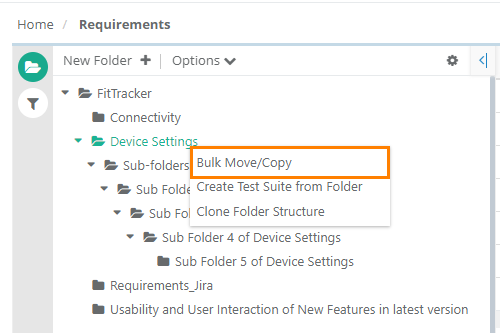
Select the folders that you want to move or copy.
To copy or move the entities positioned under the root folder, select Include Root Folder Entities.
Select Next.
In the destination project structure, select the Owner.
Select Copy or Move.
Move removes the selected folder from the source project and adds it to the destination project.
Copy copies the selected folder from the source project and adds it to the destination project.
To view the progress of folder move or copy operation, check the Scheduled Task. Read more about Scheduled Tasks.
If the folders contain entities with user-defined fields (UDFs) that are not available in the destination project, those UDFs are auto-created in the destination project after user confirmation.
The UDFs are copied or moved with all the values within them.
What gets copied or moved?
All versions of requirements or test cases.
Shared test assets.
What cannot be copied or moved?
Comments.
Watchers.
Audit Log (when folders moved or copied across projects).
Archived Versions.