Configuring Jira Integration for Cloud
Connect QMetry Test Management to Jira by using your QMetry credentials or a QMetry Open API key. Once connected, you can sync requirements, test cases, bugs, and test results between the two applications.
Pre-requisites
Before you configure the integration, make sure you meet the following requirements:
You have QMetry Admin credentials.
Connect QMetry to Jira by using QMetry authentication. You cannot use Single sign-on (SSO) login for integration.
Use system administrator credentials.
For cloud instances, use the account of the user who registered the QMetry instance.
For server customers, the Admin user is the administrator.
If QMetry uses two-step verification, you have the verification code available to complete the connection.
Configuring QMetry Test Management in Jira
To configure QMetry Test Management in Jira, perform the following steps:
Go to JIRA Settings and select Manage Apps.
On the left panel, select QMetry Configuration under QMetry Test Management.
Enter the QMetry Instance URL. For example, https://yourqmetryinstance.com.
Select Connect Using Credentials or Connect Using API Key.
Connect using Credentials
Use this method to authenticate with your QMetry username and password. To connect using credentials, perform the following steps:
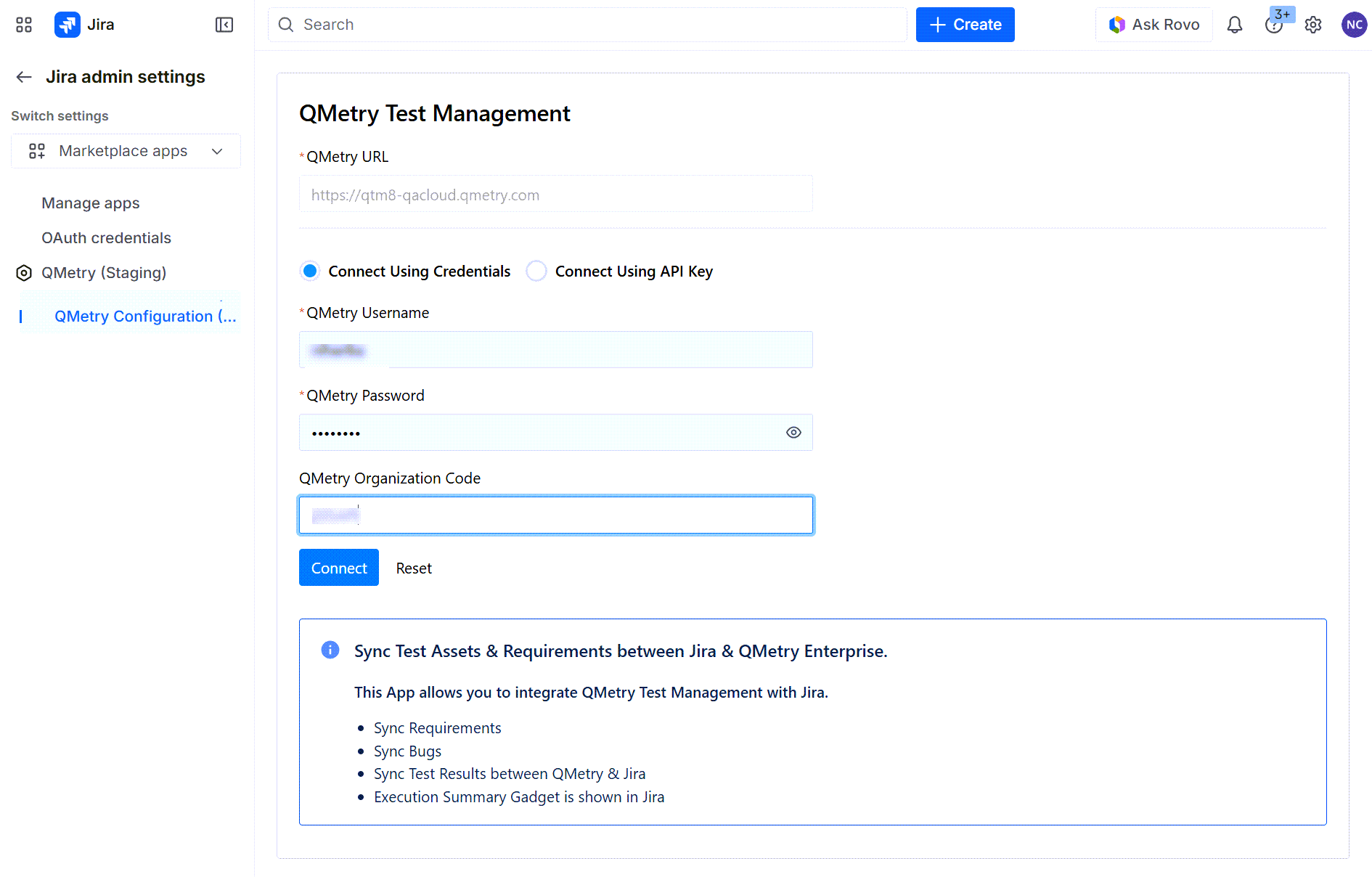
Enter the following details:
QMetry Username.
QMetry Password.
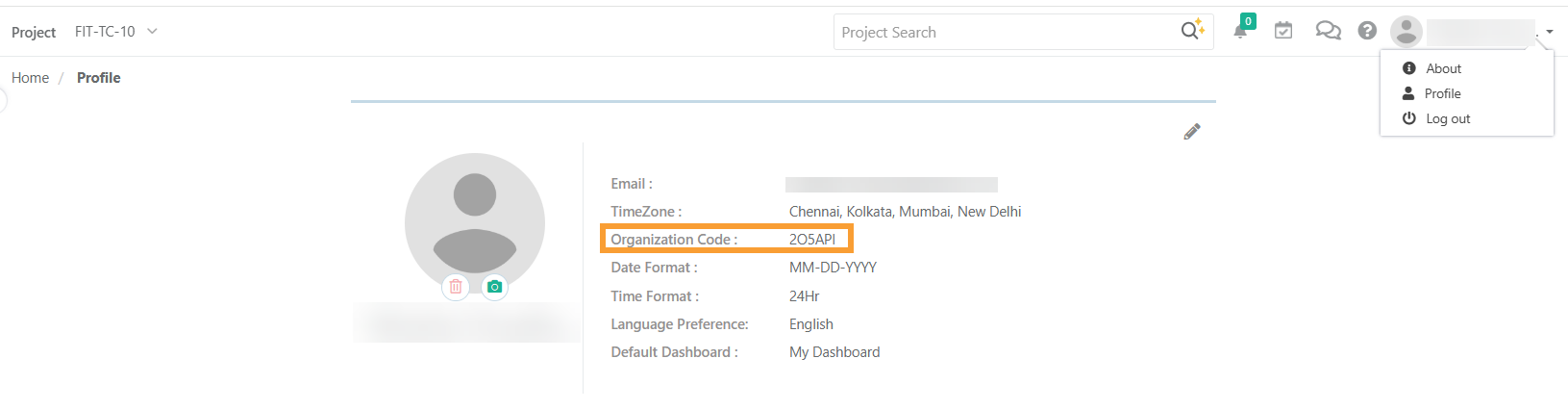
QMetry: To know your Org Code:
Log into your QMetry account.
Go to your profile and find the organization code.
Click Connect.
Note
If two-step verification is enabled for the user, provide the two-step verification code and click Submit.
Connect Using API Key
You can integrate Jira with QMetry by using QMetry’s Open API Key available under the Integration section in the QMetry Test Management application.
Note
Only users who have opted for the Integration package can access the Open API Key.
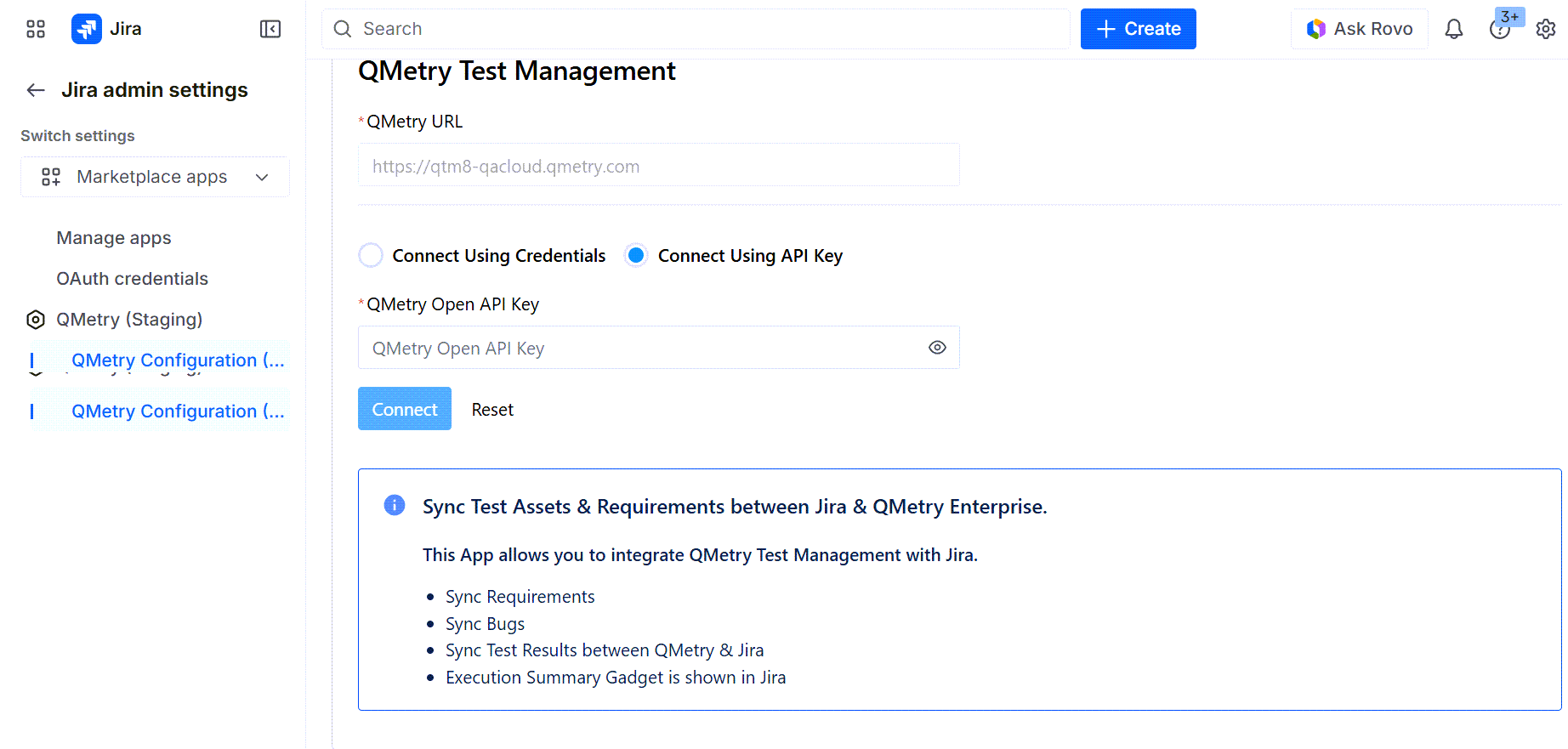
Enter the following details:
QMetry Open API Key: The Open API Key enables integration with external tools.
Enter the valid Open API Key and click Connect to establish the Jira integration with QMetry.