View Scheduled Tasks
QMetry runs activities in the background as Scheduled Tasks, so you can continue with other work while it completes. The Scheduled Tasks screen shows the status of each job and lets you download error logs when a job fails.
The Schedule Tasks icon turns Orange in color whenever any of the following actions is initialized. The icon color changes to the original as soon as you click to view the task status.
 |
When QMetry Creates a Scheduled Task
QMetry creates a scheduled task when you start any of the following activities. While a task is running, the Scheduled Tasks icon in the application header turns orange, and it returns to its original color after you open the screen to view the status.
All bulk operations
Import of an issue, test case, test suite, or requirement.
Export of an issue, test case, test suite, requirement, or test execution.
Project clone.
Automation result import through the Automation API.
Scheduled Tasks Screen
To view your scheduled tasks, select the Scheduled Tasks icon in the application header. The screen lists each activity with its current status.
Task Statuses
The progress bar shows the status of each task. The following table describes each status.
Status | Description |
|---|---|
Not Started | The import process is not yet initialized. This status applies to automation result imports. |
Started | The import is initialized. |
In-Progress | The import has started and is running. |
Completed | QMetry completed the import of the intended records. |
Failed | The import failed because of an error. You can download the log that shows the errors that caused the failure. |
Partially Completed | Some of the intended records failed. You can download the log that shows the errors that caused the partial completion. |
Filtering Scheduled Tasks
You filter the task list to find specific activities. You filter on status, activity, project, and module, and you apply a date range to fetch records from a specific period.
Automation Result Import
When you import automation test results through the Automation API, the Scheduled Tasks screen shows the job status along with import details such as the framework, the request ID, and the test suite created by the import. The automation result import also uses the Not Started status for a process that is not yet initialized.
In addition to other statuses, the progress bar also shows the "Not Started" status for the import process which has not been initialized yet.
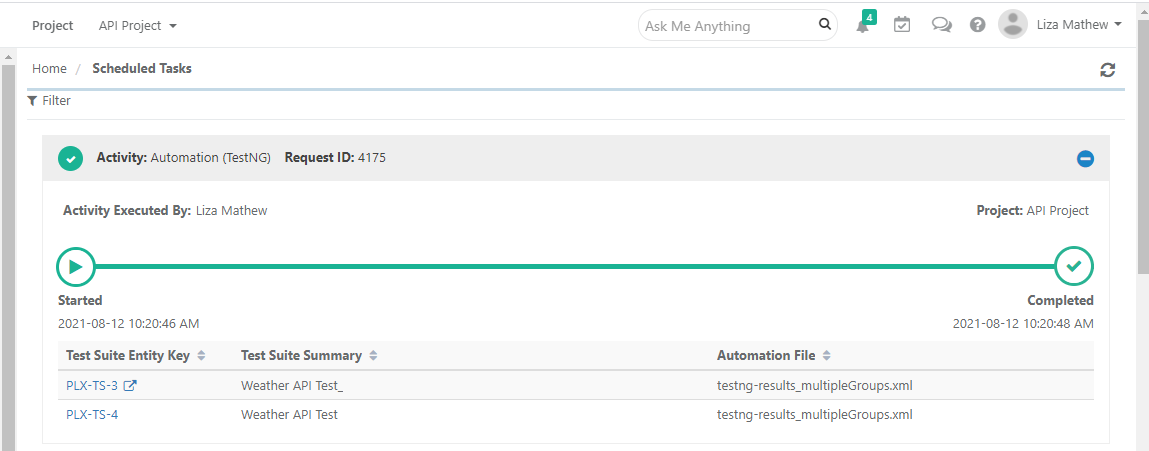 |
The Scheduled Tasks list shows automation imports using a custom import template in this format: "Automation (Custom Import Template Name)"