Part 11 Authentication Token
QMetry enables authentication with Part 11 Authentication Token for all Authentication Type users (i.e., QMetry , LDAP and SAML users) to let them use eSignature and Part 11 Compliance features together.
Business Rules
SAML users must use Part 11 Authentication token. SAML passwords are not supported and can not be used for Part 11 Authentication.
LDAP or QMetry authenticated users can log in using password or a Part 11 Authentication token, depending on the configuration set by the Super Admin in General Settings and Audit.
Generate Part 11 Authentication token only when you have Part 11 enabled eSignature project assigned.
Only super admins can enable and enforce Part 11 Authentication token for LDAP or QMetry users. This is an instance level setting and once activated, it is applicable to all LDAP and QMetry authorized users.
With Activate Authentication with Part 11 Authentication Token enabled, Part 11 Authentication only accepts the Part 11 Authentication Token.
With Activate Authentication with Part 11 Authentication Token disabled, Part 11 Authentication only accepts the password.
Generate Part 11 Authentication Token
Use Part 11 Authentication Token as an alternative to password for authentication ofusers' identity. Users with QMetry , LDAP, or SAML authentication can use the token to approve test cases, close or execute test runs, and perform actions in eSignature projects with Part 11 Compliance enabled.
For SAML authenticated users: SAML users must use this token for Part 11 Authentication.
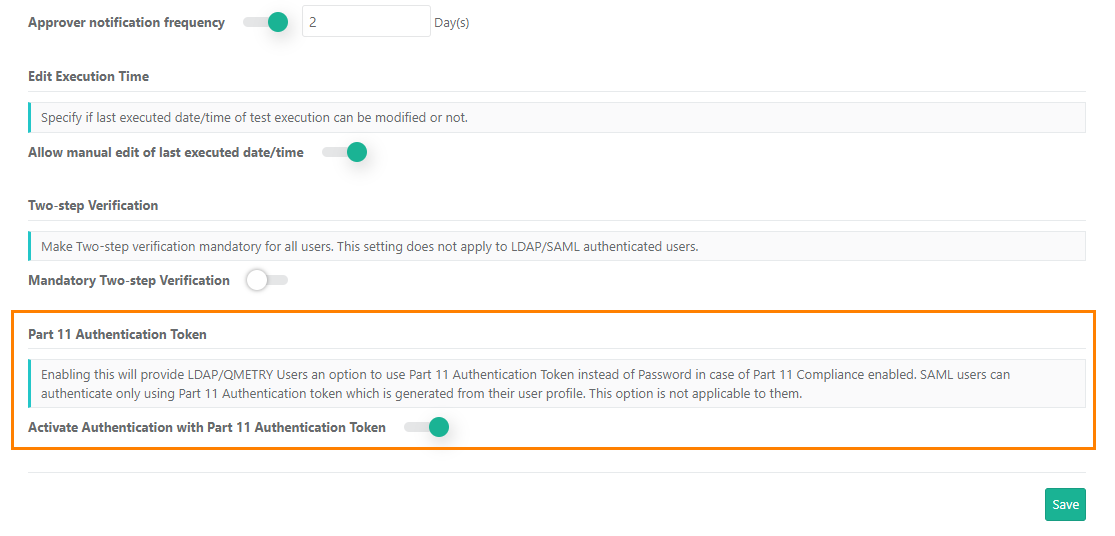
For LDAP and QMetry authenticated users: By default, the authentication uses passwords. To use the Part 11 Authentication Token, the admin must enable Activate Authentication with Part 11 Authentication Token in General Settings & Audit under System Settings.
With Activate Authentication with Part 11 Authentication Token enabled, Part 11 Authentication only accepts the Part 11 Authentication Token.
With Activate Authentication with Part 11 Authentication Token disabled, Part 11 Authentication only accepts the password.
Generate the Part 11 Authentication Token from User Profile.
Note
The Part 11 Authentication Token section is visible on User Profile page only if the eSignature app is purchased.
You can generate the token only if you have access to the Part 11 enabled project.
To generate Part 11 Authentication Token, perform the following steps:
Go to the User Profile and locate Part 11 Authentication Token section.
If you are generating the token for the first time, click Generate.
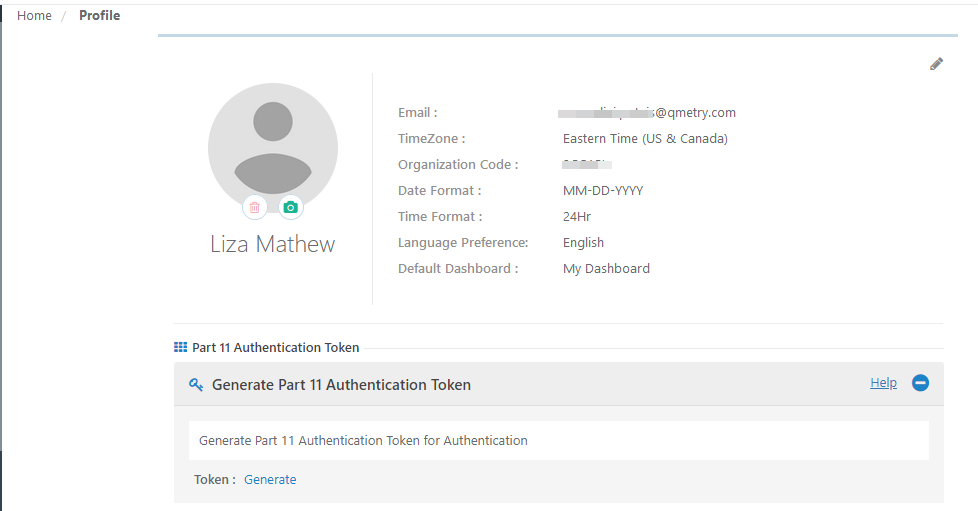
Copy the token and use it for authentication.
Regenerating the Token
Click Refresh to re-generate the token.
Activate Part 11 Authentication Token for QMetry or LDAP Users
The Part 11 Authentication Token allows QMetry and LDAP users to perform operations in projects with eSignature and Part 11 Compliance enabled. Once activated, you can use the token instead of password to approve or close test cases and test suites and perform executions.
This settings is applicable at client level and impacts all the projects of that QMetry client.
Note
The option to activate Part 11 Authentication Token is not applicable to SAML users. SAML users can directly go to their User Profile and generate the Part 11 Authentication Token without any configuration.
Permissions Required:
Super Admin can activate the Part 11 Authentication Token for QMetry and LDAP authenticated users on the instance.
To activate Part 11 Authentication Token for QMetry or LDAP users, perform the following steps:
Go to System Settings and select General Settings & Audit.
Enable Authentication with Part 11 Authentication Token to provide LDAP and QMetry users an option to use Part 11 Authentication Token instead of password during the authentication process.
Using Part 11 Authentication Token
When users approve or close test cases and test runs, or perform test executions, an authentication pop-up appears asking for their Username and Password or Part 11 Authentication Token. The system allows the action only after successful authentication.
