Bulk Operations
Bulk Operations allows batch actions such as edit, comment, delete, export, copy, move, and archive on requirements, test cases, and test suites modules.
Note
Filter records by folders, system fields, custom fields, or Jira fields.
You cannot perform bulk operations on issues imported from Jira.
You can perform bulk operations on up to 1,000 records at a time.
Bulk Operations by Test Asset Type
The following table shows which bulk operations are available for each test asset type.
What you can Edit in Bulk
Test cases
Link test cases with requirements.
Edit specific versions of test cases.
Link attachments.
Link releases and cycles.
Requirements
Link requirements with test cases and issues.
Edit specific versions of requirements.
Link attachments.
Link releases and cycles.
Test suites
Link test suites with platforms and test cases.
Link attachments.
Link releases and cycles.
Module | Copy | Move | Edit | Delete | Archive | Unarchive | Approve | ||
|---|---|---|---|---|---|---|---|---|---|
Within Same Project | Across Project | Within Same Project | Across Project | ||||||
Requirement | Y | Y | Y | Y | Y | Y | Y | Y | Y |
Test Case | Y | Y | Y | Y | Y | Y | Y | Y | Y |
Test Suite | Y | N | Y | N | Y | Y | Y | Y | Y |
Issue | Y | Y | Y | Y | Y | Y | NA | NA | NA |
Platform | NA | NA | NA | NA | NA | Y | Y | Y | NA |
Performing Bulk Operations
To perform bulk edit actions, perform the following steps:
Go to the relevant module.
Select the Cog(⚙️) icon and then select Bulk Operations.
Choose the operations to perform
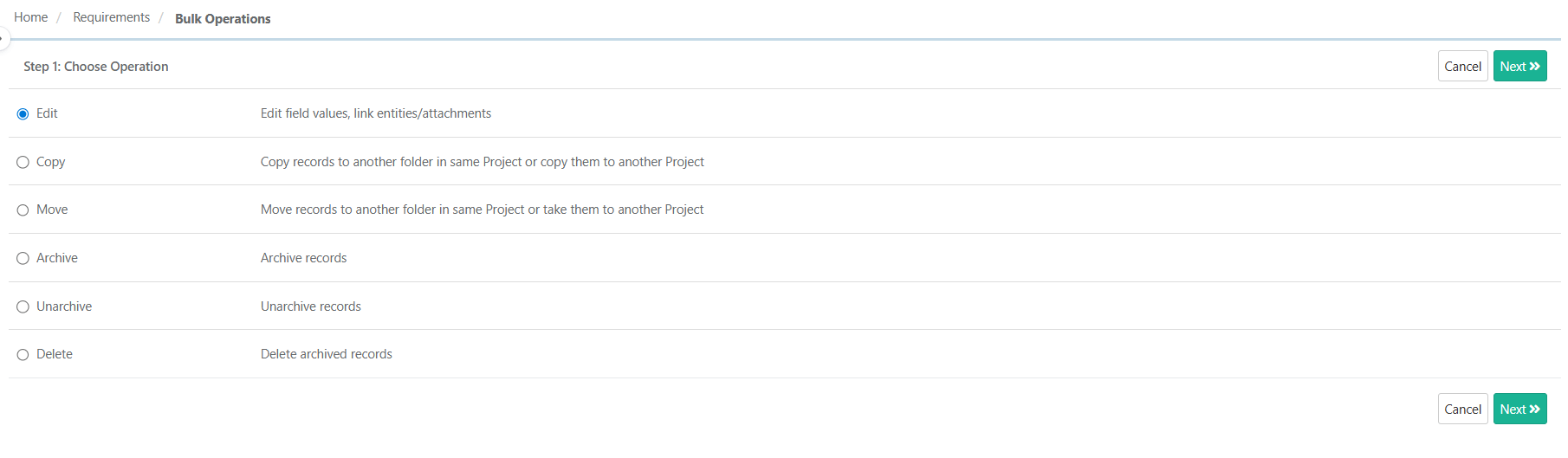
Select the records:
To select an individual record, select the check box.
To select all records across pages, click Select All.
To edit a specific version of a test asset, select that version. Test cases with multiple versions are expandable, so you can view all available versions.
Enter the operation details, as described in the following sections.
Operation Details
Bulk Edit
After making the necessary updates, you can do one of the following:
Save As New Version, to create a new version of the selected records with the updated changes.
Update, to update the current version of the selected records.
For test suites, select Update.
Bulk Operations on Modules
Copy
Select whether to copy a specific version or all versions of the assets.
Select the destination folder. To copy the assets to a new location, select Add Folder and create a new folder.
Select Copy.
Move
Select the test assets you want to move.
Select the destination folder. To move the assets to a new location, select Add Folder and create a new folder.
Select Move.
Archive and Delete
Select the test assets.
Select Archive or Delete.
Select Yes to confirm.
Note
The archive operation archives all versions of the test assets and removes their folder associations.
You can delete only archived records.
Unarchive
Select the records.
Select Unarchive.
Select the folder to store the unarchived test assets.