Adding or Linking Issues to Test Case and Test Step
Log bugs at test case and test step levels. Add issues and attachments directly to test steps, including test run logs. These attachments also appear on the Test Executions tab of the test case.
You can also view issues that were reported earlier for the same test case, and link them to the current execution to avoid logging duplicates.
To add issues, perform these steps:
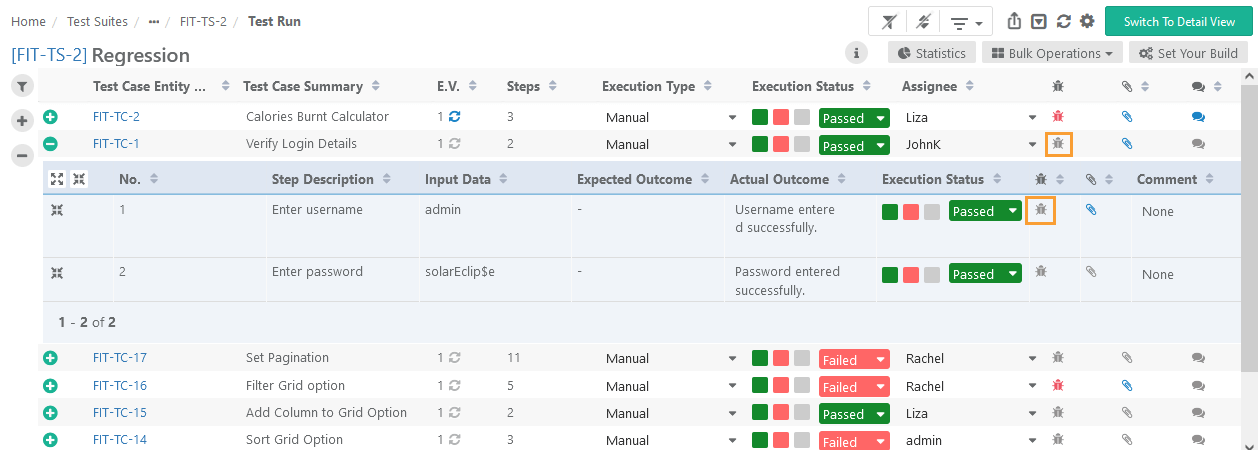 |
Go to the Test Run Screen.
Click the Bug icon next to the test case.
Enter the bug details and save the issue.
The Bug icon turns red on adding an issue.
Issues Screen
The Issues screen has the following tabs: Available Issues, Linked Issues, Create Issue, and Previously Reported Issues.
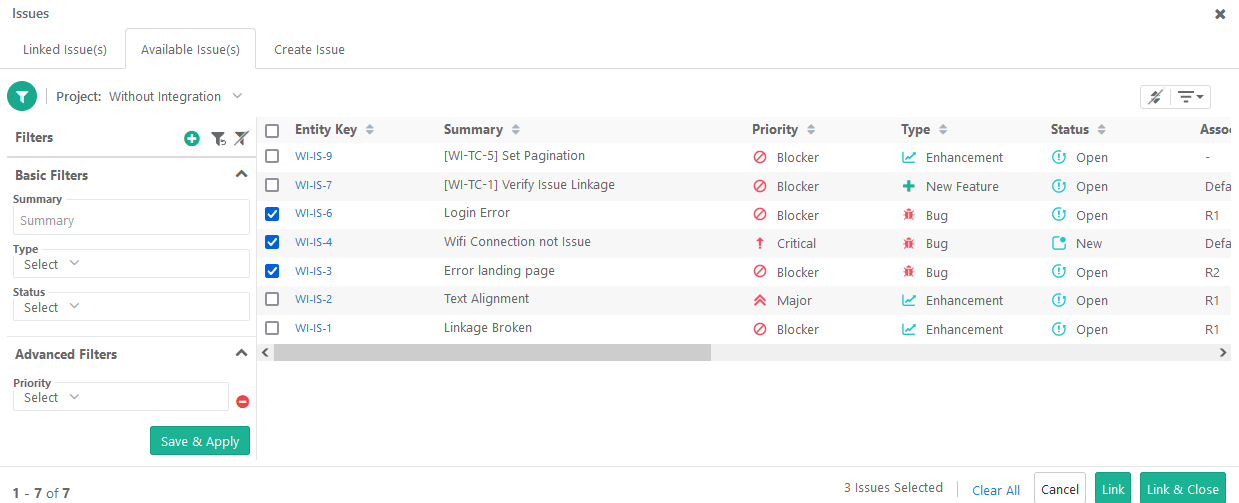 |
Available Issues
This tab displays all issues added to the project and is available to link with the test case. If you have configured an external tracker containing logged issues, they appear with an External Key.
Linked Issues
The tab displays all issues already linked with the test case. To link multiple issues, select the issues and click or .
Create Issue
Create a new issue from this screen and link them to the test case. Issue IDs appear on the tab. Clicking the Issue ID link opens the Issue details page in QMetry.
Previously Reported Issues
Use this tab to check for known issues before you log a new one. It displays issues previously reported for the test case.
Customizing Issue Screen View
Resize columns, apply sorting (other than multi-lookup lists field type), and show or hide columns using the Arrange Columns option.
In the case of linking issues from Jira:
The Advance Filter option is available for the custom fields that are mapped for the Issue module.
The Arrange Columns option displays all the system and custom fields that are mapped for the Issue module.
Linking New Issues
To link new issues, perform these steps:
On the Test Execution Screen, click the Bug icon next to the test case.
Open the tab.
Enter issue details.
The Issue Summary field is auto-filled with Test Case ID and Test Case Summary.
The Description field displays the Test Case Summary and Description, Build, Test Case UDFs, Test Suite UDFs, Test Run UDFs, and Test Step details. UDFs without a value are listed with an empty value.
Link attachments under the Link Attachments section.
Click .
The system links the newly created issue to the test case and displays it under Linked Issues tab.
Creating Issues at Step Level for Automated Test Cases
If an error occurs during an automated test run, the system displays the Error Message and Trace in the respective columns on the Test Run screen. When you create an issue at test step level from the execution screen, a .txt file containing this Error Message and Trace gets attached to the issue.
This .txt file can be accessed from the Attachment tab of the issue.
Linking Existing Issues
On the Test Run Screen, click the Bug icon.
Select tab.
Select issues and click Link.
Logging Jira Issues from QMetry
If Jira is configured with the QMetry project, then the Issue module in QMetry is hidden. Users can log defects in Jira from the Execution Screen of QMetry .
Logging an issue for the First Time
When logging an issue for the first time, a pop-up prompts you to authenticate with Jira.
To authenticate, perform these steps:
Enter Username.
Enter API Token. Refer Login using API Token to generate API Token.
To Edit or Revoke Authentication
If your Jira credentials are changed, follow Revoke Authentication to modify the credentials in QMetry.
Create and Link New Jira Issues
To create and link new Jira Issues, perform the following steps:
On the Test Execution Screen, click the Bug icon next to the test case.
Go to the Create Issue tab.
Select the Jira instance and project configured with the current project to add the issue.
The following fields are auto-populated:
Test Case Summary
Test Case Description
Comment
UDFs
Step details:
Step Description
Step Input Data
Step Expected Outcome
Step Status
Test Step UDF
The system appends the issue name with the QMetry Test Case ID.
Enter the remaining details.
Click Create and Link.
The system links the new issue to the test case and displays it on the Linked Issues tab.
Linking Existing External Issues
The Available Issues tab displays issues that can be linked to the test case.
To link a single issue, click Link icon.
To link multiple issues at a time, select issues and click Link Selected Issues at the bottom.
Previously Linked Issues
Use this tab to check for known issues before you log a new one. It displays issues previously linked to the test case.
The tab displays the following issues:
Issues linked directly to the test case.
Issues linked to the test case or to its test steps in earlier executions, in any test suite in the current project and for any test case version.
Issues linked to executions in other projects do not appear. Hover over the info icon next to the tab name to view a summary of what the tab displays.
View Previously Linked Issues
To view previously linked issues, do the following:
On the Test Run screen, click the Bug icon next to the test case.
In the Issues dialog box, select the Previously Linked Issues tab.
To see where an issue was linked, click the number in the Execution Counts column.
Note
The Direct Linkage To Test Case column shows Yes when the issue is linked directly to the test case, and No when it was found through an earlier execution.
To see the executions that an issue is linked to, click the number in the Execution Counts column.
Link Previously Linked Issues to the Current Execution
To link previously linked issues to the current execution, do the following:
On the Previously Linked Issues tab, select the checkbox for each issue you want to link.
Click Link, or click Link and Close to link the issues and close the dialog box.
To link a single issue, click the Link icon at the end of the issue row.
The linked issues appear on the Linked Issues tab and remain on the Previously Linked Issues tab. If an issue is already linked to the current execution, its checkbox is disabled.
Note
In eSignature projects, you cannot link issues to a closed test case run.
Logging Azure Issues from QMetry
For Azure DevOps projects, see Sync Issues from Azure to QMetry.
Unlinking Issues
To unlink a linked issue, perform the following steps:
Open the Linked Issues tab.
To unlink a single issue, click the Unlink icon for that issue.
To unlink multiple issues at a time, select issues and click .
Issues Linked to Test Step
View Issues linked at Test Steps on the execution screen.
View step-level bugs at the test case level to see all associated bugs at the Test Case level.
Bugs are linked to the specific version of a test case. For example, if a bug is logged against TC1 Version 1 on the Execution screen, and the test case is later updated and saved as Version 2, then after syncing, the bug appears only with Version 1.

On Execution Screen, hovering over the Bug icon displays two distinct counts - issues linked to test case and issues linked to test steps.
On the test case list view, Linked Issues Count displays the count of issues linked at test steps level as well as test case level.
On the test case detail page, the Issues displays Linkage Level of the issue along with Test Case Version.
On the Issue detail screen, the Execution Runs displays Linkage Level of the issue along with Test Case Version.