Exporting Test Suites
Export test suites in Excel, Word, or PDF formats. Excel provides a tabular view suitable for offline execution and re-importing results into QMetry. While Word and PDF are ideal for sharing printable versions with external stakeholders.
Note
To export test suites, get Export permission for the Test Suite module.
Admins can manage these role-based permissions from Roles.
Export Test Suites in Excel or CSV
To export test suites in Excel, perform the following steps:
Go to the Test Suite module.
Select the folder and click the Cog (⚙️) icon.
Select Export
Step 1: Select the XLSX or CSV radio button under Export records, and then click Next.
Step 2: Select individual records or click Export All Records to select all test suites at once.
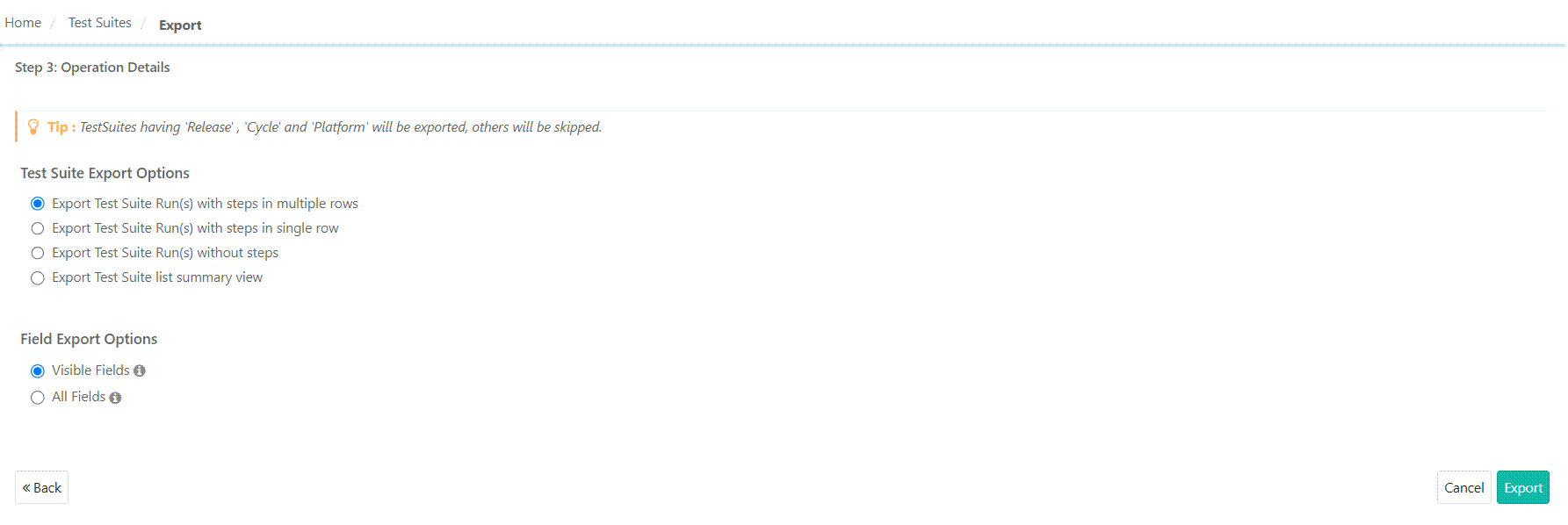
Step 3: Operation Details: Select Test suites Export Options, Field Export Options, and click Export.
Note
In all options except "Exporting Test Suite list summary view", only Test Suites having "Project", "Phase", and "Platform" are exported.
Test Suite Export Option
Export Option
What is exported
Re-import Information
Export Test Suite Runs with steps in multiple rows
Exports test suite runs with test case steps arranged in multiple rows
Re-import the test suite to update execution status.
Export Test Suite Runs with steps in a single row
Exports test suite runs with test case steps in one cell
Re-import test suite to update execution status.
Export Test Suite Runs without steps
Exports test suite runs without test case steps.
Re-import of test suite.
Exporting Test Suite list summary view
Exports all selected test suite fields, including custom fields.
Exports test suites not linked to any release or cycle.
Does not export test case-related details.
Cannot use to re-import of test suite.
Field Export Options
Custom fields are included in the export if they are enabled under the Visible Fields option.
Visible Fields: Export only the fields that are visible on the List view screen.
All Fields: Export all the fields of a test suite.
Click Export.
Click Yes to proceed.
Export Test Cases Linked to Test Suite
To export test cases linked to a test suite in PDF or Word format, perform the following steps:
Go to the Test Suite detail page.
Select the Test Case tab.
Click Export All Test Cases, to export all test cases.
Select the test cases to export and click Export Selected Test Case.
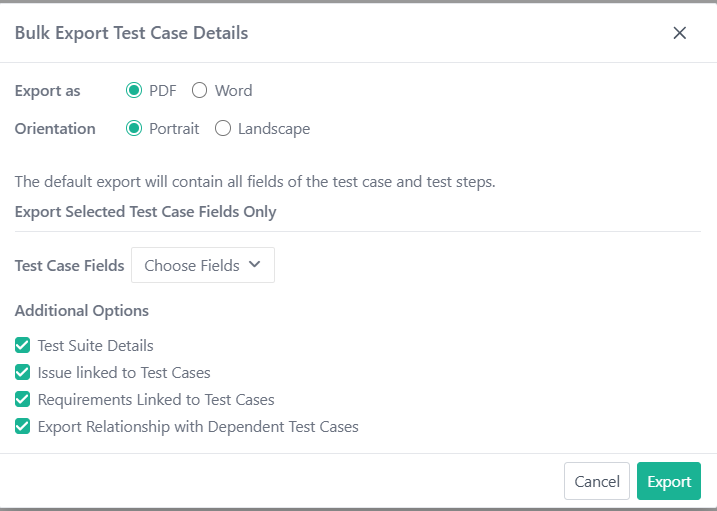
On the Bulk Export Test Case Details screen:
Select Export Format PDF or Word.
Select Page Orientation: Portrait or Landscape.
Open the drop-down, and select Test Cases or Test Steps tab.
Select the fields to export. By default, all fields are selected.
Click Save.
Additional Options
Test Suite Details: Include key test suite information such as status, owner, project, and description.
Test Case Approval Details: Available only for eSignature-enabled projects, it adds test case approval information.
Issues Linked to Test Cases: Export issue details, like Entity Key, Summary, External Key, Priority, Status, Resolution, and Linkage Information.
Requirements Linked to Test Cases: Adds requirement details, such as Requirement ID, Version, External Key, and Summary.
Export Relationship with Dependent Test Cases: Export details of test case dependencies, like Entity Key, Summary, and Dependency Type.
Click Export.
Track Export progress from the scheduled tasks section.